
Introduction
You sit down to watch your favorite YouTube videos, open the app on your TV, and suddenly nothing works. Maybe the app won’t open, videos won’t play, the screen stays black, or you’re stuck on the loading screen. These issues can happen on almost any Smart TV or streaming device, including Samsung, LG, Sony, Roku, Fire TV, Android TV, Apple TV, and Google TV.
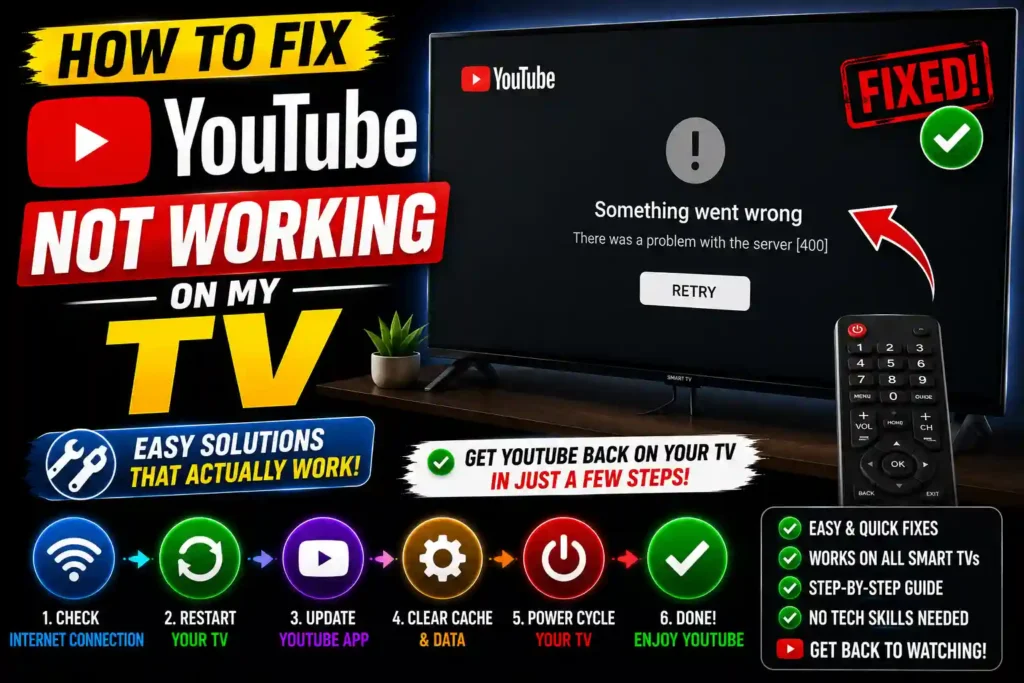
The good news is that most YouTube problems are caused by internet connectivity, outdated software, app glitches, or temporary server issues—not hardware failure.
This guide explains why YouTube stops working on TVs and provides step-by-step solutions to help you get back to streaming. Whether you’re seeing playback errors, buffering, freezing, or sign-in problems, the troubleshooting methods below can resolve most issues in just a few minutes.
Quick Answer
If YouTube is not working on your TV, try these fixes:
- Restart your TV and modem/router.
- Check your internet connection.
- Update the YouTube app.
- Update your TV’s firmware.
- Clear the YouTube app cache or data (if available).
- Sign out and sign back into YouTube.
- Reinstall the YouTube app.
- Verify that YouTube isn’t experiencing a service outage.
These steps solve the majority of YouTube playback and loading problems on Smart TVs.
Table of Contents
- Why YouTube Stops Working on TVs
- How the YouTube TV App Works
- Step-by-Step Troubleshooting Guide
- Common YouTube Errors and Fixes
- Best Practices
- Frequently Asked Questions
- Conclusion
Why Is YouTube Not Working on My TV?
Several factors can prevent YouTube from working properly on a television.
The most common causes include:
- Weak or unstable internet connection
- Outdated YouTube application
- Outdated TV software
- Temporary YouTube server outage
- Corrupted app cache
- Incorrect date and time settings
- Network configuration issues
- Insufficient device memory
- Unsupported older Smart TV models
Understanding the cause makes troubleshooting much easier.
How the YouTube App Works on Smart TVs
Unlike mobile phones or computers, Smart TVs rely on built-in operating systems and apps that require periodic updates.
For YouTube to function correctly, several components must work together:
- Stable internet connection
- Updated YouTube application
- Compatible TV operating system
- Working Google services
- Proper account authentication
If any of these components fail, YouTube may freeze, crash, buffer continuously, or refuse to open.
Step-by-Step Guide to Fix YouTube Not Working on Your TV
1. Restart Your TV
A simple restart often clears temporary software glitches.
Steps:
- Turn off your TV.
- Unplug it from the power outlet.
- Wait about one minute.
- Plug it back in.
- Turn the TV on and launch YouTube again.
This refreshes the TV’s memory and system processes.
2. Restart Your Internet Router
Streaming issues are frequently caused by unstable Wi-Fi.
To restart your router:
- Unplug the router.
- Wait 30–60 seconds.
- Plug it back in.
- Allow the connection to fully restore.
Then reopen YouTube.
3. Test Your Internet Speed
YouTube requires a reliable internet connection for smooth playback.
Recommended speeds:
| Video Quality | Minimum Speed |
|---|---|
| 480p | 3 Mbps |
| 720p HD | 5 Mbps |
| 1080p Full HD | 8 Mbps |
| 4K UHD | 20 Mbps or higher |
If other streaming apps are also buffering, the internet connection is likely the issue.
4. Check if YouTube Is Down
Sometimes the problem isn’t your TV.
Google occasionally experiences temporary service interruptions.
Test YouTube on:
- Your smartphone
- Tablet
- Laptop
- Another TV
If YouTube isn’t working anywhere, wait until the service is restored.
5. Update the YouTube App
Outdated app versions may stop functioning correctly.
Visit your TV’s app store.
Check for updates.
Install the latest version of YouTube.
6. Update Your TV Software
Manufacturers regularly release firmware updates that improve app compatibility.
Go to:
Settings → Support → Software Update
Install any available updates.
Restart the TV afterward.
7. Clear the YouTube App Cache
Some Smart TVs allow you to clear an app’s cached data.
Navigate to:
Settings → Apps → YouTube
Choose:
- Clear Cache
- Clear Data (if available)
Then reopen the app.
8. Sign Out and Sign Back In
Authentication problems may prevent YouTube from loading.
Open YouTube.
Sign out of your Google account.
Restart the TV.
Sign back in.
9. Reinstall the YouTube App
If the app files become corrupted:
- Uninstall YouTube.
- Restart the TV.
- Download YouTube again.
- Sign back into your account.
10. Check Date and Time Settings
Incorrect system time can interfere with Google’s services.
Enable:
Automatic Date & Time
on your TV.
11. Free Up Storage Space
Older Smart TVs may run out of internal storage.
Delete:
- Unused apps
- Temporary files
- Cached data
This helps YouTube run more smoothly.
12. Disable VPN or DNS Services
Custom DNS settings and VPN services may block YouTube connections.
If you’re using either:
- Disable the VPN.
- Restore default DNS settings.
- Restart the TV.
13. Factory Reset Your TV (Last Resort)
If every other solution fails:
Go to:
Settings → System → Reset
A factory reset removes apps and personal settings, so use this only after trying all other fixes.
Common YouTube Errors and Their Fixes
Problem: YouTube Keeps Buffering
Possible causes:
- Slow internet
- Weak Wi-Fi signal
- Network congestion
Solution:
Restart the router and move the TV closer to the Wi-Fi source if possible.
Problem: Black Screen on YouTube
Possible causes:
- App crash
- Corrupted cache
- Firmware issue
Solution:
Restart the TV and clear the YouTube cache.
Problem: YouTube Won’t Open
Possible causes:
- Outdated app
- Unsupported TV software
- Corrupted installation
Solution:
Update or reinstall the app.
Problem: Videos Have No Sound
Possible causes:
- Muted TV
- Incorrect audio output
- Temporary app glitch
Solution:
Restart the TV and verify audio settings.
Problem: YouTube Crashes Repeatedly
Possible causes:
- Low storage
- Outdated firmware
- Software bugs
Solution:
Update both the TV firmware and the YouTube app.
Best Practices and Pro Tips
To reduce future YouTube issues:
- Keep your TV firmware updated.
- Update apps regularly.
- Restart your TV occasionally.
- Use a strong Wi-Fi connection or Ethernet cable.
- Avoid installing unnecessary apps.
- Keep sufficient free storage.
- Enable automatic software updates.
- Restart your router every few weeks.
These habits help maintain smooth video streaming.
Related Guides
If you enjoy technology tutorials, you may also find these guides useful:
- How to fix cellular data not working on iPhone: https://multicaretechnical.com/how-to-fix-cellular-data-not-working-on-iphone-2026-complete-troubleshooting-guide
- How to add a total row in Excel: https://multicaretechnical.com/how-to-add-a-total-row-in-excel-easy-guide-for-beginners-professionals
- How to use Chromebook Recovery Utility: https://multicaretechnical.com/how-to-use-chromebook-recovery-utility-complete-guide-2026
These articles cover additional troubleshooting tips and productivity solutions for everyday technology users.
Frequently Asked Questions
1. Why is YouTube not loading on my Smart TV?
This is usually caused by an unstable internet connection, outdated software, corrupted app data, or temporary YouTube server issues.
2. Why does YouTube keep buffering on my TV?
Buffering is commonly caused by slow internet speeds, weak Wi-Fi signals, or network congestion. Restarting your router and improving your connection often helps.
3. Can I reinstall YouTube on my TV?
Yes. Most Smart TVs allow you to uninstall and reinstall the YouTube app through the device’s app store or application manager.
4. Why does YouTube work on my phone but not my TV?
Your TV may have outdated firmware, an older version of the YouTube app, or cached data causing playback problems.
5. Should I factory reset my TV if YouTube isn’t working?
A factory reset should only be used after all other troubleshooting steps have failed because it removes installed apps and personalized settings.
Conclusion
When YouTube stops working on your TV, the problem is often related to your internet connection, outdated software, corrupted app data, or temporary service interruptions rather than a hardware issue.
By restarting your TV and router, updating the YouTube app, installing the latest TV firmware, clearing cached data, and reinstalling the app if necessary, you can resolve most playback and loading issues quickly.
If none of these solutions work, contact your TV manufacturer or Google Support to determine whether your device is still supported or if a hardware issue needs attention. Keeping your TV and apps updated is the best way to ensure a smooth YouTube viewing experience.