
Introduction
Few things are more frustrating than seeing full cellular signal bars on your iPhone but having no internet connection. Whether you’re trying to browse the web, send messages, use Maps, stream music, or check emails, cellular data problems can bring everything to a halt.
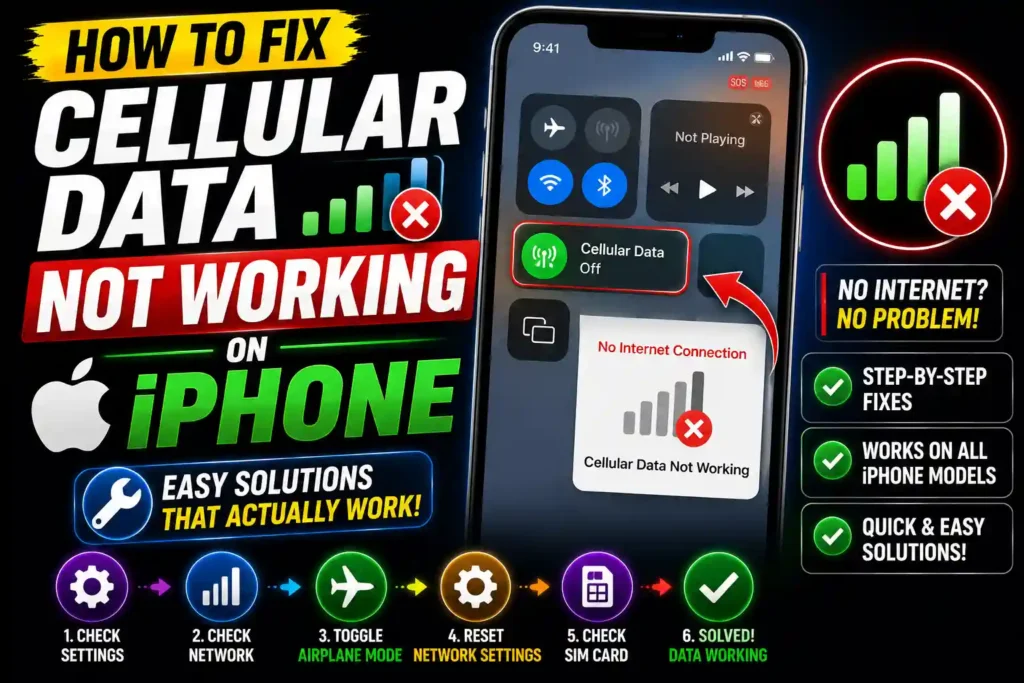
Fortunately, most cellular data issues don’t require a trip to the Apple Store. In many cases, the problem is caused by incorrect settings, software glitches, temporary carrier outages, or outdated iOS versions.
This guide explains why cellular data stops working on an iPhone and walks you through proven troubleshooting methods. Whether your mobile data stopped working after an iOS update, SIM card replacement, or for no obvious reason, these solutions can help restore your connection.
Quick Answer
If cellular data is not working on your iPhone, try these fixes:
- Turn Cellular Data off and back on.
- Enable Airplane Mode for 30 seconds, then disable it.
- Restart your iPhone.
- Check for carrier outages.
- Install the latest iOS update.
- Update your carrier settings.
- Reset Network Settings.
- Verify your mobile data plan is active.
- Reinsert or replace the SIM card if necessary.
Most cellular data problems are resolved after restarting the device or resetting network settings.
Table of Contents
- Why Cellular Data Stops Working
- How Cellular Data Works on iPhone
- Step-by-Step Troubleshooting Guide
- Common Cellular Data Problems
- Best Practices
- Frequently Asked Questions
- Conclusion
Why Is Cellular Data Not Working on iPhone?
Cellular data relies on several components working together, including your carrier, SIM card, iPhone hardware, software, and network settings.
If any of these components fail, your mobile internet connection may stop working.
Common causes include:
- Cellular Data accidentally turned off
- Airplane Mode enabled
- Weak or unstable network coverage
- Carrier outage
- Expired mobile data plan
- Corrupted network settings
- Outdated iOS software
- SIM card issues
- VPN or configuration profile conflicts
- Hardware damage
Fortunately, most of these issues can be fixed in just a few minutes.
How Cellular Data Works on iPhone
Unlike Wi-Fi, cellular data connects your iPhone directly to your mobile carrier’s network.
When enabled, your iPhone communicates with nearby cellular towers using LTE, 5G, or other supported technologies to provide internet access.
If communication between your device and the carrier is interrupted, apps may display:
- No Internet Connection
- Could Not Activate Cellular Data Network
- Cellular Data Error
- SOS Only
- Searching…
- No Service
The troubleshooting steps below address each of these situations.
Step-by-Step Guide to Fix Cellular Data Not Working on iPhone
1. Verify Cellular Data Is Enabled
Start with the simplest fix.
Go to:
Settings → Cellular
Ensure:
- Cellular Data is turned ON.
- The affected app is allowed to use cellular data.
Sometimes only specific apps lose mobile internet access.
2. Toggle Airplane Mode
Refreshing your network connection often solves temporary glitches.
Steps:
- Open Control Center.
- Turn Airplane Mode ON.
- Wait 30 seconds.
- Turn Airplane Mode OFF.
Your iPhone will reconnect to the carrier network.
3. Restart Your iPhone
Restarting clears temporary software issues affecting the cellular modem.
Power off the iPhone.
Wait 30 seconds.
Turn it back on and test the connection.
4. Check Network Coverage
Poor signal can prevent cellular data from working properly.
If you’re indoors:
- Move near a window.
- Go outside.
- Try another location.
Low coverage areas may display only one signal bar or “SOS.”
5. Confirm Your Mobile Data Plan
If your monthly data allowance has been exhausted or your account has been suspended, cellular data may stop working.
Check your carrier account through:
- Carrier mobile app
- Carrier website
- Customer support
6. Update Carrier Settings
Carriers periodically release configuration updates.
To check:
Settings → General → About
Wait a few seconds.
If an update is available, install it.
7. Install the Latest iOS Version
Apple regularly fixes network-related bugs through software updates.
Go to:
Settings → General → Software Update
Install the latest version of iOS if available.
8. Reset Network Settings
Corrupted network settings are among the most common causes of mobile data issues.
Go to:
Settings → General → Transfer or Reset iPhone → Reset → Reset Network Settings
This resets:
- Wi-Fi passwords
- Cellular settings
- VPN settings
- Bluetooth connections
Your personal files remain safe.
9. Remove and Reinsert the SIM Card
A loose or damaged SIM card can interrupt communication with your carrier.
Power off the device.
Remove the SIM card.
Inspect it for:
- Dirt
- Dust
- Damage
Reinsert it securely.
10. Disable VPN
VPN services occasionally interfere with cellular traffic.
Go to:
Settings → VPN
Disconnect any active VPN.
Test your mobile data again.
11. Enable Data Roaming (If Traveling)
When traveling outside your normal coverage area:
Settings → Cellular → Cellular Data Options
Enable:
Data Roaming
Only enable roaming if your carrier plan supports it.
12. Check APN Settings
Some carriers require specific Access Point Name (APN) settings.
Go to:
Settings → Cellular → Cellular Data Network
If your carrier provides custom APN values, enter them exactly.
Most U.S. carriers configure this automatically.
13. Test Another SIM Card
Insert another active SIM card.
If the second SIM works normally:
- Your original SIM may be faulty.
- Contact your carrier for a replacement.
14. Reset All Settings
If network reset doesn’t help:
Settings → General → Transfer or Reset iPhone → Reset → Reset All Settings
Unlike a factory reset, this does not erase photos, apps, or documents.
15. Contact Apple or Your Carrier
If none of the above solutions work, the issue could involve:
- Carrier account restrictions
- SIM activation problems
- Internal antenna failure
- Cellular modem hardware issues
Professional diagnosis may be necessary.
Common Cellular Data Problems and Their Fixes
Problem: Cellular Data Is On but Internet Doesn’t Work
Possible causes:
- Carrier outage
- Weak signal
- Network congestion
Solution:
Restart your device and check your carrier’s service status.
Problem: LTE or 5G Not Appearing
Possible causes:
- Coverage limitations
- Carrier settings
- Incorrect network mode
Solution:
Update carrier settings and verify that your plan supports LTE or 5G.
Problem: Cellular Data Works for Some Apps Only
Cause:
Individual app permissions.
Solution:
Settings → Cellular
Enable mobile data for the affected app.
Problem: “Searching” or “No Service”
Cause:
SIM issues or network problems.
Solution:
Reinsert the SIM card and restart the iPhone.
Problem: Cellular Data Stops Working After an iOS Update
Cause:
Software bugs or outdated carrier settings.
Solution:
Install any available carrier updates and reset network settings.
Best Practices and Pro Tips
To minimize future connectivity issues:
- Keep iOS updated.
- Install carrier updates promptly.
- Avoid unnecessary VPN usage.
- Restart your iPhone occasionally.
- Monitor your mobile data usage.
- Replace damaged SIM cards immediately.
- Use official carrier settings only.
- Enable automatic updates whenever possible.
Following these habits can improve long-term network reliability.
Related Guides
Looking for more helpful technology tutorials? Check out these articles on Multicare Technical:
- Transparency not working in Photoshop: https://multicaretechnical.com/transparency-not-working-in-photoshop-12-proven-fixes-that-actually-work-2026-guide
- How to add a total row in Excel: https://multicaretechnical.com/how-to-add-a-total-row-in-excel-easy-guide-for-beginners-professionals
- How to use Chromebook Recovery Utility: https://multicaretechnical.com/how-to-use-chromebook-recovery-utility-complete-guide-2026
These guides provide additional troubleshooting tips for common software and computer issues.
Frequently Asked Questions
1. Why is my iPhone connected to a network but cellular data isn’t working?
This can happen due to network outages, incorrect settings, software glitches, or an inactive data plan.
2. Does resetting network settings delete my data?
No. Resetting network settings removes saved Wi-Fi networks, Bluetooth pairings, VPN settings, and cellular configurations, but it does not delete photos, apps, or personal files.
3. Why did cellular data stop working after an iOS update?
An iOS update may temporarily affect carrier settings or network configurations. Updating carrier settings or resetting network settings often resolves the issue.
4. Can a damaged SIM card stop cellular data?
Yes. A damaged, dirty, or improperly inserted SIM card can prevent your iPhone from connecting to your carrier’s mobile data network.
5. When should I contact Apple or my carrier?
If you’ve completed all troubleshooting steps and cellular data still doesn’t work, contact your carrier to verify your account status or visit Apple Support to check for hardware issues.
Conclusion
Cellular data problems on an iPhone can be frustrating, but they are usually caused by settings, carrier issues, or temporary software glitches rather than hardware failure.
By checking your cellular settings, restarting the device, updating iOS, installing carrier updates, resetting network settings, and verifying your SIM card, you can solve most connectivity issues without professional assistance.
If the problem persists after trying every solution in this guide, contacting your carrier or Apple Support is the next best step. Keeping your iPhone updated and regularly reviewing your network settings can also help prevent future cellular data issues.