
Have you forgotten the password of your WiFi network and need to connect another device? If your Windows 11 computer is already connected to that wireless network, you can easily find its saved WiFi password without resetting your router or contacting your internet service provider.
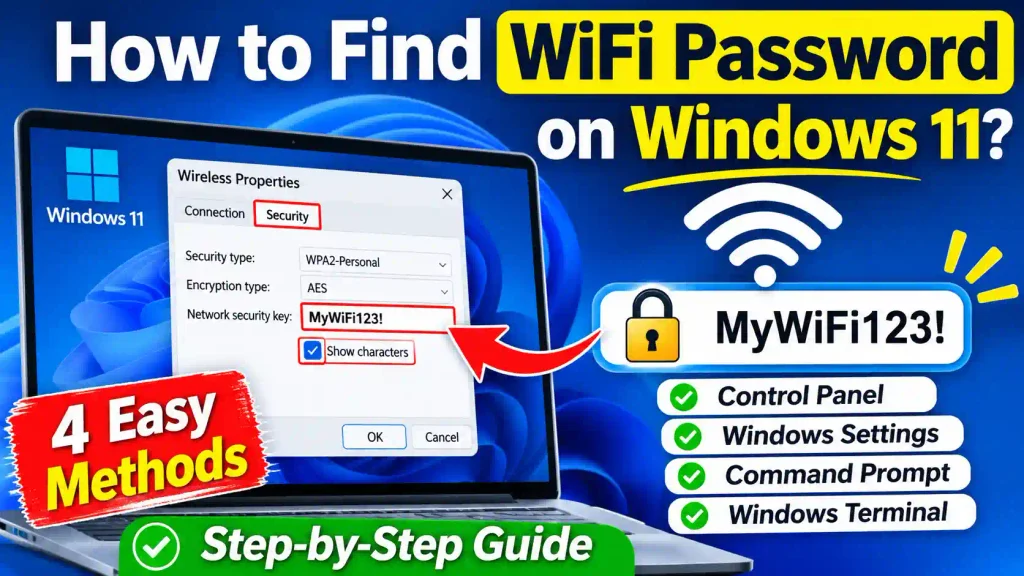
Windows 11 provides several built-in ways to view saved wireless network passwords. You can use the Settings app, Control Panel, Command Prompt, or Windows Terminal to retrieve the password of a network your computer has connected to previously.
These methods are particularly useful when you want to connect a smartphone, tablet, laptop, smart TV, or another computer to the same WiFi network.
In this guide, we will explain how to find a WiFi password on Windows 11 using different methods. Each method includes clear, step-by-step instructions so you can choose the one that works best for you.
Quick Answer: How to Find WiFi Password on Windows 11
To find your currently connected WiFi password on Windows 11:
- Press Windows + R to open the Run dialog box.
- Type
ncpa.cpland press Enter. - Right-click your active WiFi connection and select Status.
- Click Wireless Properties.
- Open the Security tab.
- Check the Show characters option.
- Your saved WiFi password will appear in the Network security key field.
You can also retrieve saved WiFi passwords using Command Prompt or Windows Terminal.
Table of Contents
- Why Find Your WiFi Password on Windows 11?
- Method 1: Find WiFi Password Using Control Panel
- Method 2: Find WiFi Password Using Windows Settings
- Method 3: Find WiFi Password Using Command Prompt
- Method 4: Find WiFi Password Using Windows Terminal
- How to Find Passwords of Previously Connected WiFi Networks
- Common Errors and Their Fixes
- Best Practices and Pro Tips
- Frequently Asked Questions
Why Find Your WiFi Password on Windows 11?
Windows automatically saves the credentials of wireless networks you connect to. This allows your computer to reconnect to familiar WiFi networks without asking for the password every time.
However, you may occasionally need to retrieve a saved password.
Here are some common situations:
- You want to connect a new smartphone or laptop to your home WiFi.
- You forgot your wireless network password.
- You need to share your WiFi credentials with a family member or colleague.
- You have changed your router settings and want to verify the saved password.
- You need to connect another device without resetting your wireless router.
The good news is that Windows 11 allows you to view saved WiFi passwords using built-in tools.
Important: These methods retrieve passwords saved on your Windows computer. They do not reveal passwords for networks you have never connected to or do not have permission to access.
Method 1: Find WiFi Password Using Control Panel
This is one of the easiest ways to find your currently connected WiFi password in Windows 11.
You do not need to install any third-party software. You can access the wireless network properties directly through the Control Panel.
Follow these steps:
Step 1: Press Windows + R on your keyboard to open the Run dialog box.
Step 2: Type the following command:
ncpa.cpl
Press Enter.
Step 3: The Network Connections window will open. Here, you can see your available network adapters.
Step 4: Right-click your active WiFi connection and select Status.
Step 5: In the WiFi Status window, click the Wireless Properties button.
Step 6: Select the Security tab.
Step 7: You will see the Network security key field, where your saved WiFi password is hidden.
Step 8: Check the Show characters checkbox.
Your WiFi password will now appear in the Network security key field.
You can write it down or copy it to connect another device.
Why use this method?
The Control Panel method is particularly useful when you want to quickly retrieve the password of the wireless network currently connected to your computer.
Method 2: Find WiFi Password Using Windows Settings
Windows 11 also provides a convenient way to view the password of a saved WiFi network through the Settings application.
This method is useful if you prefer the modern Windows 11 interface instead of the traditional Control Panel.
Follow these steps:
Step 1: Press Windows + I to open Windows Settings.
Step 2: Click Network & internet from the left-side navigation menu.
Step 3: Select Wi-Fi.
Step 4: Click the properties of your currently connected wireless network.
Step 5: Look for the WiFi network password option.
Step 6: Click the Show button next to the WiFi network password.
Windows will display your saved wireless password.
The exact appearance and location of this option may vary depending on your Windows 11 version.
Note: If you cannot find the Show button, use Method 1 or Method 3. These provide alternative ways to retrieve your saved WiFi credentials.
Method 3: Find WiFi Password Using Command Prompt
If you are comfortable using command-line tools, Command Prompt is another effective way to find saved WiFi passwords in Windows 11.
This method is particularly useful for IT professionals and users who want to retrieve passwords for previously connected wireless networks.
Follow these instructions:
Step 1: Click the Start button.
Step 2: Type cmd in the search box.
Step 3: Right-click Command Prompt and select Run as administrator.
Step 4: To display all previously saved WiFi network profiles, execute the following command:
netsh wlan show profiles
Press Enter.
Windows will display a list of wireless network names (SSIDs) saved on your computer.
Step 5: Identify the WiFi network whose password you want to retrieve.
Step 6: Execute the following command, replacing WiFiName with your actual wireless network name:
netsh wlan show profile name="WiFiName" key=clear
For example:
netsh wlan show profile name="Home WiFi" key=clear
Step 7: Press Enter.
Step 8: Scroll down to the Security settings section.
Look for the Key Content field.
The value displayed next to Key Content is your saved WiFi password.
Important: If the Key Content field is missing, the profile may not contain a retrievable password, or the command may not have sufficient permissions.
Useful Command Prompt Commands
Here are some additional commands that can help you manage saved wireless network profiles.
| Command | Purpose |
|---|---|
netsh wlan show profiles | Displays saved WiFi profiles |
netsh wlan show interfaces | Displays wireless connection details |
netsh wlan show profile name="WiFiName" | Displays information about a specific WiFi profile |
netsh wlan show profile name="WiFiName" key=clear | Displays saved profile details, including the password when available |
Pro Tip: If you regularly troubleshoot Windows computers, learning basic Command Prompt commands can save time. You can also check out our guide on How to Boot Windows 11 in Safe Mode to learn another useful Windows troubleshooting technique.
Method 4: Find WiFi Password Using Windows Terminal
Windows Terminal is another built-in application that supports Command Prompt and PowerShell commands.
You can use it to retrieve saved wireless network passwords without installing additional software.
Follow these steps:
Step 1: Right-click the Start button.
Step 2: Select Terminal (Admin) or Windows Terminal (Admin), depending on your Windows 11 version.
Step 3: If PowerShell opens by default, you can directly execute the following command:
netsh wlan show profiles
Step 4: Find the wireless network name from the displayed list.
Step 5: Execute the following command:
netsh wlan show profile name="WiFiName" key=clear
Replace WiFiName with your actual saved network name.
Step 6: Press Enter.
Step 7: Find the Key Content entry under Security settings.
Your saved WiFi password will appear next to this field, provided the profile contains a retrievable password.
This method works because Windows Terminal can execute the same networking commands available through Command Prompt.
How to Find Passwords of Previously Connected WiFi Networks
Sometimes, you may want to find the password of a WiFi network that you used in the past but are not currently connected to.
For example, you may have previously connected your laptop to your office WiFi, but you are now using your home network.
You can still retrieve the saved password if the wireless profile exists on your computer.
Follow these steps:
- Open Command Prompt or Windows Terminal as administrator.
- Execute the following command:
netsh wlan show profiles - Review the list of saved wireless network profiles.
- Identify the network name whose password you need.
- Execute the following command:
netsh wlan show profile name="Office WiFi" key=clear - Look under the Security settings section.
- Find the Key Content field.
The saved password will appear next to Key Content if it is available.
Remember: This method only works for wireless networks whose profiles are still saved on your computer. If you deleted a network profile, Windows may no longer have its saved credentials.
Common Errors and Fixes
While retrieving a WiFi password on Windows 11, you may encounter some problems. Below are common issues and their solutions.
1. Key Content Is Not Showing in Command Prompt
Problem: You execute the netsh command, but the Key Content field does not appear.
Solution:
- Make sure you selected the correct wireless network profile.
- Open Command Prompt as administrator.
- Verify that the network profile contains a saved security key.
- Check whether the network uses a password-based security method.
Some enterprise WiFi networks use authentication methods that do not store a simple shared password.
2. Wireless Properties Option Is Missing
Problem: You cannot find the Wireless Properties button.
Solution:
- Open the Network Connections window using
ncpa.cpl. - Make sure you right-click the actual WiFi adapter connection.
- Select Status rather than directly opening Properties.
- Confirm that your computer has a wireless adapter and driver installed.
If the WiFi adapter is disabled, enable it before trying again.
3. Your WiFi Password Is Incorrect
Problem: The password displayed by Windows does not work when connecting another device.
Solution:
- Confirm that you selected the correct saved network.
- Check whether the router password has changed.
- Make sure you are entering the correct uppercase and lowercase characters.
- Check whether the router uses a different password for its guest network.
Windows may still have an older saved password if someone changed the router’s wireless security settings.
4. Netsh Command Is Not Recognized
Problem: Windows displays an error when you execute the netsh command.
Solution:
- Open Command Prompt or Windows Terminal.
- Make sure you are using the correct command syntax.
- Try executing
netsh wlan show profiles. - Confirm that the Windows WLAN service and wireless adapter are functioning correctly.
5. WiFi Profile Is Not Found
Problem: Windows displays an error saying that the wireless profile cannot be found.
Solution:
- Execute
netsh wlan show profiles. - Copy the exact network name from the results.
- Use quotation marks around names containing spaces.
- Check whether the profile was previously deleted.
For example:
netsh wlan show profile name="Home Network" key=clear
Best Practices and Pro Tips
Here are some useful recommendations when managing saved WiFi passwords on Windows 11.
1. Keep Your WiFi Password Secure
Avoid sharing your wireless password with unknown people. Anyone with access to your network may be able to use your internet connection and potentially access network resources.
2. Use a Strong WiFi Password
Choose a long, unique password containing a combination of letters, numbers, and special characters. Avoid using easily guessed information.
3. Avoid Untrusted Third-Party Software
You do not need to download unknown applications to retrieve saved WiFi passwords. Windows already provides built-in tools for this purpose.
4. Update Your Router Password When Necessary
If you suspect someone has accessed your wireless network without permission, change the WiFi password through your router’s administration interface.
5. Remove Unused WiFi Profiles
If you no longer use an old wireless network, consider removing its saved profile.
You can do this using the following command:
netsh wlan delete profile name="WiFiName"
Replace WiFiName with the actual network profile name.
Only remove profiles you no longer need.
6. Protect Your Computer
Keep Windows 11 updated and use a trusted security solution. This helps protect your saved network credentials and other personal information.
For additional Windows maintenance and troubleshooting tutorials, you can also read our guide on How to Enable Windows Fax and Scan in Windows 11.
Conclusion
Finding a WiFi password on Windows 11 is straightforward when you know which built-in tools to use.
You can retrieve your currently connected network password through Control Panel or Windows Settings. If you need to find passwords for previously connected networks, Command Prompt and Windows Terminal are convenient options.
For most users, the Control Panel method is the easiest because it provides a simple graphical interface. However, the Command Prompt method is especially useful when you need to retrieve passwords from multiple saved WiFi profiles.
You do not need to reset your router or install additional software just to find a password already saved on your Windows 11 computer.
Choose the method that works best for you and follow the instructions carefully.
Frequently Asked Questions (FAQs)
1. How do I find my WiFi password on Windows 11?
You can find your WiFi password by opening Run with Windows + R, entering ncpa.cpl, opening your active WiFi connection’s Status, selecting Wireless Properties, and checking Show characters under the Security tab.
2. Can I find a saved WiFi password using CMD in Windows 11?
Yes. Open Command Prompt as administrator and execute netsh wlan show profiles. Then run netsh wlan show profile name="WiFiName" key=clear. Look for the Key Content field to find the saved password.
3. Can I find the password of a previously connected WiFi network?
Yes. If the wireless network profile is still saved on your computer, you can retrieve its password using the netsh command in Command Prompt or Windows Terminal.
4. Why is my WiFi password not showing in Windows 11?
Your password may not appear if the wireless profile does not contain a saved password, the network uses enterprise authentication, or you do not have sufficient permissions. Try opening Command Prompt as administrator and checking the correct profile.
5. Can I find a WiFi password without administrator access?
Some methods may work without administrator access, depending on your Windows configuration and network permissions. However, accessing saved credentials through Command Prompt may require elevated permissions. Use an administrator account if Windows prevents you from viewing the password.