
Introduction
AirPods are designed to provide a seamless wireless audio experience, but it can be frustrating when one earbud suddenly stops working. If your left AirPod isn’t producing sound, won’t charge, won’t connect, or disconnects frequently, you’re not alone. Many AirPods users encounter this issue, and in most cases, it can be fixed without replacing the device.
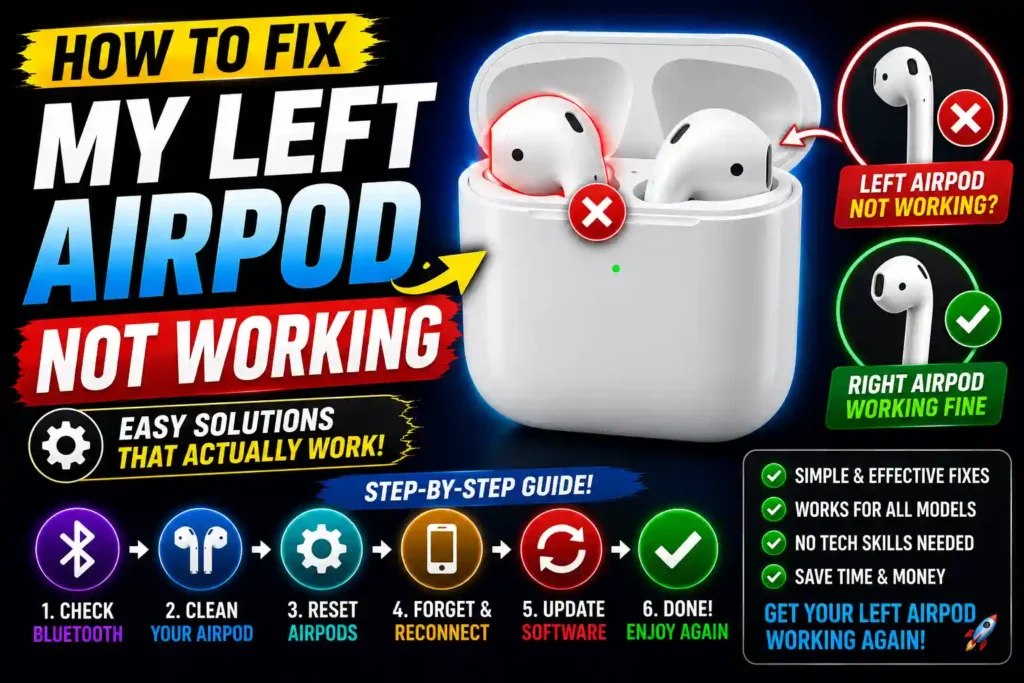
The problem may be caused by low battery, dirt on the charging contacts, Bluetooth glitches, outdated firmware, or incorrect audio settings. Fortunately, Apple has built-in troubleshooting options that resolve many of these issues.
This guide explains why your left AirPod may have stopped working and provides step-by-step solutions to restore normal operation. Whether you own AirPods (1st, 2nd, or 3rd generation), AirPods Pro, or AirPods Pro (2nd generation), these methods apply to most models.
Quick Answer
If your left AirPod is not working, try these solutions:
- Charge both AirPods for at least 30 minutes.
- Clean the AirPod and charging case contacts.
- Reconnect your AirPods via Bluetooth.
- Restart your iPhone or iPad.
- Reset your AirPods.
- Check the left/right audio balance.
- Update your iPhone to the latest iOS version.
- Verify that the left AirPod is charging properly.
Most left AirPod issues are caused by charging problems, Bluetooth connection errors, or incorrect audio settings.
Table of Contents
- Why Is My Left AirPod Not Working?
- How AirPods Work
- Step-by-Step Troubleshooting Guide
- Common AirPod Problems and Fixes
- Best Practices
- Frequently Asked Questions
- Conclusion
Why Is My Left AirPod Not Working?
Your left AirPod may stop working for several reasons, including hardware and software issues.
The most common causes include:
- Low or dead battery
- Dirty charging contacts
- Bluetooth connection glitches
- Audio balance settings
- Outdated iOS software
- AirPods firmware issues
- Charging case malfunction
- Physical damage
- Moisture exposure
- Defective battery
Fortunately, most of these problems can be resolved at home.
How AirPods Work
AirPods connect to your Apple device using Bluetooth and automatically synchronize audio between the left and right earbuds.
Each AirPod has its own battery, speaker, microphone, and sensors. If one AirPod fails to charge or loses its Bluetooth connection, only one side may play audio.
Understanding how AirPods communicate with your iPhone makes troubleshooting much easier.
Step-by-Step Guide to Fix a Left AirPod That Isn’t Working
1. Charge Both AirPods
The simplest explanation is often the correct one.
Place both AirPods in the charging case.
Charge them for at least 30 minutes.
Then reconnect them to your device.
2. Check Battery Levels
Open the AirPods case near your iPhone.
A battery status popup should appear.
You can also check:
Settings → Bluetooth → AirPods → Battery
If the left AirPod shows no battery level, it may not be charging.
3. Clean the AirPods and Charging Case
Dust, earwax, or debris may prevent proper charging.
Carefully clean:
- Charging contacts
- Speaker mesh
- Bottom charging connectors
- Inside the charging case
Use:
- A soft microfiber cloth
- A dry cotton swab
- A soft anti-static brush
Avoid using liquids or metal tools.
4. Restart Your iPhone
Bluetooth services occasionally experience temporary glitches.
Restart your iPhone.
Reconnect your AirPods.
Test the left AirPod again.
5. Forget and Reconnect Your AirPods
Remove the Bluetooth pairing.
Go to:
Settings → Bluetooth
Tap the ⓘ next to your AirPods.
Choose:
Forget This Device
Reconnect the AirPods following the on-screen instructions.
6. Reset Your AirPods
Resetting restores the factory Bluetooth configuration.
Steps:
- Place both AirPods in the case.
- Close the lid for 30 seconds.
- Open the lid.
- Hold the setup button on the back of the case for about 15 seconds.
- Wait until the status light flashes amber and then white.
- Pair the AirPods again.
This fixes many connection-related problems.
7. Check the Audio Balance
Sometimes the left AirPod appears silent because the audio balance is shifted entirely to the right.
Go to:
Settings → Accessibility → Audio & Visual
Ensure the Balance slider is centered.
8. Update Your iPhone
AirPods work best with the latest version of iOS.
Go to:
Settings → General → Software Update
Install any available updates.
Updated software also allows AirPods firmware to install automatically when connected and charging.
9. Test Another Device
Pair the AirPods with another compatible iPhone, iPad, or Mac.
If the left AirPod works normally on another device, the issue likely lies with your original device’s settings rather than the AirPod itself.
10. Inspect for Physical Damage
Examine the left AirPod for:
- Cracks
- Water damage
- Bent charging contacts
- Loose speaker grille
Visible damage may require professional repair or replacement.
11. Verify the Charging Case
A damaged charging case may fail to charge one AirPod.
Check:
- Charging indicator light
- Charging port
- Internal connectors
- Case cleanliness
If possible, test your AirPods with another compatible charging case.
12. Contact Apple Support
If the left AirPod still doesn’t work after completing all troubleshooting steps, it may have a failed battery or internal hardware defect.
Apple Support can test the AirPod and determine whether repair or replacement is necessary.
Common Left AirPod Problems and Their Fixes
Problem: Left AirPod Won’t Charge
Possible causes:
- Dirty charging contacts
- Faulty charging case
- Battery failure
Solution:
Clean the contacts and verify that the charging case is functioning correctly.
Problem: Left AirPod Connects but Has No Sound
Possible causes:
- Audio balance settings
- Speaker blockage
- Software glitch
Solution:
Check the balance settings and reset the AirPods.
Problem: Left AirPod Disconnects Frequently
Possible causes:
- Weak Bluetooth signal
- Low battery
- Software bug
Solution:
Charge the AirPods fully and reconnect them.
Problem: Left AirPod Is Quieter Than the Right
Possible causes:
- Earwax buildup
- Blocked speaker mesh
Solution:
Clean the speaker carefully using a soft, dry brush.
Problem: Left AirPod Isn’t Detected
Possible causes:
- Bluetooth pairing issue
- Hardware failure
Solution:
Reset the AirPods and pair them again. If the issue persists, contact Apple.
Best Practices and Pro Tips
Keep your AirPods working properly by following these recommendations:
- Clean your AirPods regularly.
- Store them in the charging case when not in use.
- Avoid exposing them to excessive moisture or heat.
- Keep your iPhone updated.
- Allow AirPods firmware to update automatically.
- Charge both AirPods together.
- Avoid dropping the charging case.
- Use only certified charging accessories.
These simple habits can improve performance and extend the lifespan of your AirPods.
Related Guides
If you’re looking for more technology troubleshooting tips, these guides may also help:
- How to fix cellular data not working on iPhone: https://multicaretechnical.com/how-to-fix-cellular-data-not-working-on-iphone-2026-complete-troubleshooting-guide
- How to fix YouTube not working on my TV: https://multicaretechnical.com/how-to-fix-youtube-not-working-on-my-tv-2026-complete-troubleshooting-guide
- How to use Chromebook Recovery Utility: https://multicaretechnical.com/how-to-use-chromebook-recovery-utility-complete-guide-2026
These tutorials cover additional solutions for common device and software issues.
Frequently Asked Questions
1. Why is only my left AirPod not working?
The most common reasons include a drained battery, dirty charging contacts, Bluetooth pairing issues, incorrect audio balance settings, or hardware failure.
2. How do I reset my AirPods?
Place both AirPods in the charging case, hold the setup button until the status light flashes amber and then white, and reconnect them to your device.
3. Why is my left AirPod connected but silent?
This may happen because of incorrect audio balance settings, a blocked speaker, or a temporary software issue. Resetting the AirPods often fixes the problem.
4. Can a dirty charging case prevent one AirPod from working?
Yes. Dirt or debris on the charging contacts can stop one AirPod from charging properly.
5. Should I replace my left AirPod?
If you’ve tried all troubleshooting methods and the left AirPod still doesn’t work, Apple Support can determine whether a replacement is needed.
Conclusion
A left AirPod that suddenly stops working doesn’t always mean the device is broken. In many cases, the issue is caused by charging problems, Bluetooth glitches, blocked speaker grills, or incorrect settings.
By charging both AirPods, cleaning the charging contacts, checking the audio balance, reconnecting the Bluetooth pairing, and resetting the AirPods, you can resolve most issues without replacing the device.
If none of these solutions restore functionality, it’s likely a hardware problem that requires assistance from Apple Support. Performing regular maintenance and keeping your iPhone updated can help prevent similar issues in the future.