
Introduction
A dual-monitor setup can significantly improve productivity, whether you’re working in IT, programming, video editing, gaming, or managing multiple applications. However, one of the most frustrating issues users encounter is when the mouse pointer moves in the wrong direction between monitors.
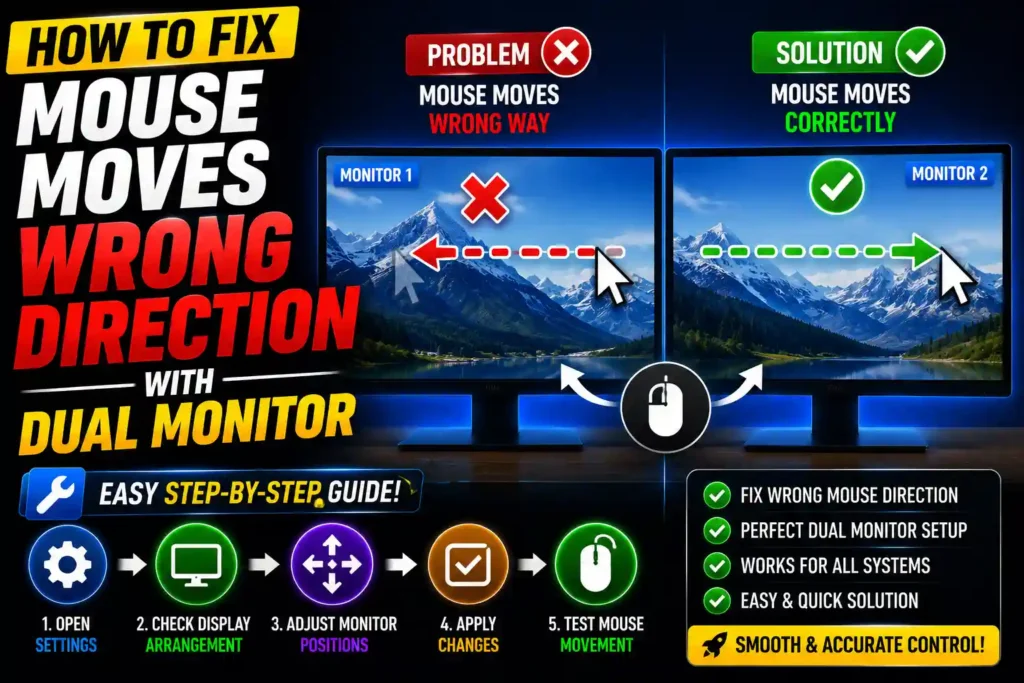
For example, your second monitor is physically on the left, but moving the mouse left doesn’t switch screens. Instead, you have to move it to the right. This usually happens because Windows doesn’t know the physical arrangement of your monitors.
Fortunately, this issue is easy to fix. Windows 11 and Windows 10 allow you to rearrange your displays so that the mouse moves naturally between monitors.
In this guide, you’ll learn why the problem happens, how to fix it step by step, and what to do if the issue persists.
Quick Answer
If your mouse moves in the wrong direction on a dual-monitor setup:
- Right-click the desktop and select Display settings.
- Under Rearrange your displays, drag the monitor icons to match their physical positions.
- Click Apply.
- Test the mouse by moving it across the screen edge.
This solves the issue in most cases without restarting your computer.
Table of Contents
- Why Does the Mouse Move in the Wrong Direction?
- How Windows Detects Multiple Monitors
- Method 1: Rearrange Displays in Windows Settings
- Method 2: Identify Your Monitors
- Method 3: Change Primary Display
- Method 4: Update Graphics Drivers
- Method 5: Check Display Scaling and Resolution
- Method 6: Fix Docking Station and External Monitor Issues
- Common Errors and Fixes
- Best Practices
- Frequently Asked Questions
- Conclusion
Why Does the Mouse Move in the Wrong Direction?
Windows assigns monitor positions based on how it detects connected displays—not necessarily how they’re physically placed on your desk.
For example:
- Monitor 1 is on your desk’s left.
- Monitor 2 is on the right.
But Windows may detect them in the opposite order.
As a result:
- Moving the mouse left sends it to the right monitor.
- Moving right sends it to the left monitor.
This is simply a display arrangement issue rather than a hardware problem.
How Windows Detects Multiple Monitors
Each connected display is assigned a number.
Windows creates a virtual desktop that combines both screens.
If the virtual layout doesn’t match your actual desk setup, the mouse pointer will behave unexpectedly.
Fortunately, Windows lets you manually rearrange the monitors.
Method 1: Rearrange Displays in Windows Settings
This is the most effective solution.
Step 1
Right-click an empty area of the desktop.
Choose Display settings.
Step 2
Under Rearrange your displays, you’ll see numbered monitor icons.
Click Identify if you’re unsure which monitor is which.
Large numbers will briefly appear on each screen.
Step 3
Click and drag the monitor icons until they match your physical setup.
Examples:
- Left monitor → Place icon on the left
- Right monitor → Place icon on the right
- Above monitor → Move icon above
- Below monitor → Move icon below
Step 4
Click Apply.
Test your mouse movement.
It should now move naturally between displays.
Method 2: Identify Your Monitors
Many users accidentally arrange the wrong displays.
To identify them:
- Open Display Settings.
- Click Identify.
- Note the number shown on each monitor.
- Rearrange them correctly.
This prevents confusion when using more than two monitors.
Method 3: Change the Primary Display
Sometimes the wrong monitor is set as the primary display.
To change it:
- Open Display Settings.
- Select the monitor.
- Scroll down.
- Check Make this my main display.
This won’t directly fix mouse direction but helps create a more logical workspace.
Method 4: Update Graphics Drivers
Outdated graphics drivers may cause display detection problems.
Update your drivers using:
- Windows Update
- Intel Graphics Command Center
- NVIDIA App or Control Panel
- AMD Software: Adrenalin Edition
Restart your computer after installing updates.
Method 5: Check Display Scaling and Resolution
Incorrect scaling can make it seem like the cursor jumps or behaves oddly.
Verify that each monitor uses:
- Recommended resolution
- Recommended scaling
- Correct refresh rate
These settings are available in Display Settings.
Method 6: Fix Docking Station and External Monitor Issues
If you’re using:
- USB-C docking station
- Thunderbolt dock
- DisplayPort hub
- HDMI splitter
Disconnect and reconnect the monitors.
Also:
- Update the dock firmware.
- Try another cable.
- Test a different display port.
Some docking stations temporarily misidentify monitor positions after waking from sleep.
Common Errors and Fixes
Mouse Won’t Move to the Second Monitor
Cause:
Displays aren’t arranged correctly.
Solution:
Drag the monitor icons to match the physical layout.
Cursor Disappears Between Monitors
Cause:
- Incorrect monitor alignment
- Different resolutions
- Large scaling differences
Solution:
Align monitor icons at the top or bottom edges in Display Settings.
Mouse Crosses at the Wrong Height
If one monitor is physically lower than the other, adjust the display icons vertically to match their real positions.
Windows Keeps Resetting the Arrangement
Possible causes include:
- Outdated graphics drivers
- Faulty docking station
- Loose display cable
- GPU software resetting display settings
Updating drivers and reconnecting displays usually resolves this issue.
Mouse Lags on the Second Monitor
Possible reasons include:
- High CPU usage
- Low refresh rate
- Outdated GPU driver
- Wireless mouse interference
Restart your PC and update graphics drivers if necessary.
Best Practices / Pro Tips
Match Your Physical Desk Layout
Always arrange monitor icons exactly as your monitors are positioned.
Even slight misalignment can make cursor movement feel unnatural.
Use Recommended Display Settings
Windows automatically detects the best resolution and scaling.
Avoid custom settings unless necessary.
Keep Graphics Drivers Updated
Regular driver updates improve multi-monitor compatibility and fix display bugs.
Rotate Vertical Monitors Correctly
If one of your monitors is in portrait mode, ensure Windows matches its orientation. Learn how in our guide:
Improve Windows Security
While optimizing your workstation, it’s also a good idea to review Windows security features. Read our guide:
Managing a Shared Gaming PC?
If your computer is shared with family members, you may also find this guide useful:
Frequently Asked Questions (FAQ)
1. Why does my mouse move to the wrong monitor?
This usually happens because the monitor arrangement in Windows doesn’t match the physical placement of your displays.
2. How do I fix my mouse moving the wrong way on dual monitors?
Open Display Settings, drag the monitor icons to match your desk layout, and click Apply.
3. Why won’t my cursor move between monitors?
The displays may not be aligned correctly, or one monitor may be disconnected or disabled.
4. Can different monitor resolutions affect mouse movement?
Yes. Different resolutions and scaling settings can affect how smoothly the cursor moves between displays. Using the recommended settings helps ensure proper alignment.
5. Do I need to restart Windows after rearranging monitors?
No. Changes usually take effect immediately after you click Apply.
Conclusion
A mouse moving in the wrong direction between dual monitors is almost always caused by an incorrect display arrangement in Windows. By opening Display Settings and dragging the monitor icons to match their real-world positions, you can restore natural cursor movement in just a few minutes.
If the issue continues, identify your monitors, update your graphics drivers, check display scaling, and inspect your cables or docking station. Keeping your display configuration synchronized with your physical setup ensures a smoother and more productive multi-monitor experience for work, gaming, and everyday tasks.