
1. Introduction
Have you ever clicked a button on a website, tried to download a document, or opened an online banking statement, only to find that nothing happened? The problem may be your browser’s pop-up blocker.
Modern web browsers block pop-up windows by default to protect users from unwanted advertisements, suspicious websites, and potentially harmful redirects. However, some legitimate websites require pop-ups to display important information, open login windows, download PDF files, or complete online transactions.
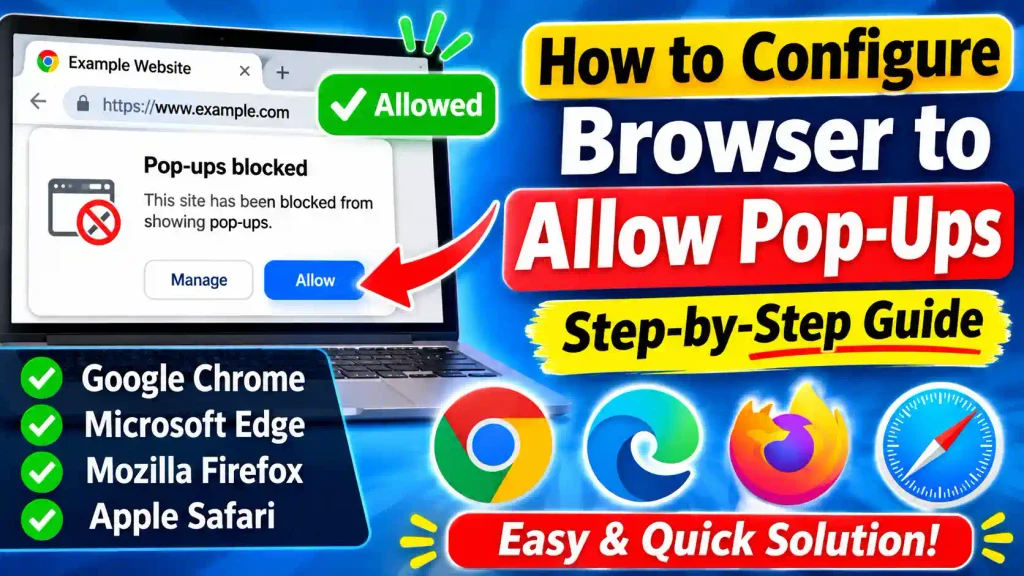
Fortunately, you can configure your browser to allow pop-ups without disabling all your browser security features.
In this guide, you will learn how to configure your browser to allow pop-ups in Google Chrome, Microsoft Edge, Mozilla Firefox, and Apple Safari. We will also explain how to allow pop-ups for a specific website, troubleshoot common problems, and manage browser permissions safely.
These instructions are useful for Windows 11, Windows 10, macOS, iPhone, and iPad users.
2. Quick Answer: How to Configure Browser to Allow Pop-Ups
To configure your browser to allow pop-ups, open your browser settings, locate the Pop-ups and Redirects or Pop-up Windows section, and change the permission to allow pop-ups.
Here are the quick instructions for popular browsers:
- Google Chrome: Settings > Privacy and security > Site settings > Pop-ups and redirects.
- Microsoft Edge: Settings > Privacy, search, and services > Site permissions > Pop-ups and redirects.
- Mozilla Firefox: Settings > Privacy & Security > Permissions > Block pop-up windows.
- Apple Safari (Mac): Safari > Settings > Websites > Pop-up Windows.
- Safari (iPhone/iPad): Settings > Apps > Safari > turn off Block Pop-ups.
For better security, allow pop-ups only for trusted websites instead of allowing them everywhere.
3. Table of Contents
- What Are Browser Pop-Ups?
- Why Do Websites Require Pop-Ups?
- How to Allow Pop-Ups in Google Chrome
- How to Allow Pop-Ups in Microsoft Edge
- How to Allow Pop-Ups in Mozilla Firefox
- How to Allow Pop-Ups in Apple Safari
- Common Errors and Fixes
- Best Practices and Pro Tips
- Frequently Asked Questions
4. What Are Browser Pop-Ups?
A pop-up is a small browser window or tab that appears when you visit a website or interact with a particular page element.
For example, when you click a login button on a website, a separate window may open asking you to enter your username and password.
Other common examples include:
- Online payment and checkout windows.
- Banking statements and transaction details.
- PDF documents and printable invoices.
- Online examination portals.
- Download confirmation windows.
- Authentication and verification screens.
- Customer support chat windows.
Although pop-ups can be useful, some websites use them to display unwanted advertisements, fake security alerts, and misleading download buttons.
For this reason, browsers generally block automatic pop-ups unless you change the settings or grant permission to a particular website.
5. Why Do Websites Require Pop-Ups?
Some websites use separate windows to perform specific tasks.
For example, an online banking website may open your monthly statement in a new window. Similarly, an educational website may open an examination interface separately from its main page.
If your browser blocks these windows, certain website features may stop working correctly.
Here are some situations where allowing pop-ups may be necessary:
Online banking: Some banking portals use pop-up windows to display account statements, receipts, and transaction information.
Online payments: Payment gateways may open a separate window for authentication or transaction verification.
Business applications: CRM software, accounting applications, and administrative dashboards may use pop-ups to display forms and reports.
Online examinations: Some examination platforms require pop-ups to launch secure test interfaces.
Document downloads: Certain websites open PDF documents, invoices, and printable reports in separate browser windows.
Allowing pop-ups for trusted websites can help these features work properly.
6. Step-by-Step Guide to Configure Browser to Allow Pop-Ups
Method 1: Allow Pop-Ups in Google Chrome
Google Chrome blocks unwanted pop-ups by default. However, you can change the settings to allow pop-ups for all websites or selected websites.
Follow these steps:
Step 1: Open Google Chrome
Launch Google Chrome on your Windows PC, Mac, or laptop.
Step 2: Open Chrome Settings
Click the three-dot menu in the upper-right corner.
Select Settings from the dropdown menu.
Step 3: Open Privacy and Security
From the left sidebar, click Privacy and security.
Next, select Site settings.
Step 4: Select Pop-Ups and Redirects
Scroll through the available permissions and locate Pop-ups and redirects.
Click this option to open the pop-up permission settings.
Step 5: Change the Pop-Up Settings
You will find options to control how websites display pop-ups and redirects.
Choose your preferred setting:
- Allow sites to send pop-ups and use redirects.
- Don’t allow sites to send pop-ups or use redirects.
Select the option that allows pop-ups if you want to enable them across websites.
Step 6: Allow Pop-Ups for a Specific Website
If you only need pop-ups for one website, find the section labeled Allowed to send pop-ups and use redirects.
Click Add, enter the website address, and save it.
For example, you can add your company’s trusted business portal without changing the default permission for other websites.
Your Chrome browser is now configured to allow pop-ups according to your selected settings.
Official guide: https://support.google.com/chrome/answer/95472
Method 2: Allow Pop-Ups in Microsoft Edge
Microsoft Edge includes a built-in pop-up blocker that prevents websites from automatically opening unwanted windows.
You can configure its permissions to allow pop-ups from trusted websites.
Step 1: Open Microsoft Edge
Launch Microsoft Edge on your Windows 11 or Windows 10 computer.
Step 2: Open Settings
Click the three-dot menu in the upper-right corner.
Select Settings.
Step 3: Open Privacy, Search, and Services
From the left sidebar, select Privacy, search, and services.
Step 4: Open Site Permissions
Scroll to the site permissions section and select Site permissions.
Depending on your Edge version, you may need to open All permissions first.
Step 5: Select Pop-Ups and Redirects
Find and click Pop-ups and redirects.
You will see the available settings for controlling website pop-ups.
Step 6: Add a Website to the Allow List
Locate the section called Allowed to send pop-ups and use redirects.
Click Add site.
Enter the complete website address, including HTTPS if applicable, and click Add to save your changes.
The selected website can now display permitted pop-up windows.
You can also manage existing website permissions from this section.
Official guide: https://support.microsoft.com/en-us/edge/block-pop-ups-in-microsoft-edge
Method 3: Allow Pop-Ups in Mozilla Firefox
Mozilla Firefox also includes a built-in feature that blocks unwanted pop-up windows.
If a website requires pop-ups, you can add it to the browser’s exceptions list.
Step 1: Open Mozilla Firefox
Launch Firefox on your Windows or macOS computer.
Step 2: Open Firefox Settings
Click the three-line menu in the upper-right corner.
Select Settings.
Step 3: Select Privacy and Security
From the left sidebar, click Privacy & Security.
Step 4: Find the Permissions Section
Scroll down until you reach the Permissions section.
Look for the option labeled Block pop-up windows.
Step 5: Configure Pop-Up Permissions
There are two ways to configure this setting.
Option A: Allow Pop-Ups on All Websites
Uncheck the Block pop-up windows option.
This allows websites to display pop-up windows more freely.
Option B: Allow Pop-Ups for Selected Websites
For better security, keep the blocking option enabled.
Click the Exceptions button next to it.
Enter the website address you want to allow and click Allow.
Finally, click Save Changes.
Firefox will now allow pop-ups from the selected website while continuing to block them elsewhere.
Official guide: https://support.mozilla.org/en-US/kb/pop-blocker-settings-exceptions-troubleshooting
Method 4: Allow Pop-Ups in Apple Safari on Mac
Safari provides separate controls for managing pop-up windows on individual websites.
Follow these instructions:
Step 1: Open Safari
Launch Safari on your Mac.
Step 2: Open Safari Settings
Click Safari in the top menu bar.
Select Settings.
Step 3: Open the Websites Tab
Click the Websites tab.
Step 4: Select Pop-Up Windows
Find Pop-up Windows in the left sidebar.
If you cannot see it immediately, scroll down through the list of website permissions.
Step 5: Change the Website Permission
You will see a list of websites and their current pop-up settings.
Choose one of the following options for the required website:
- Allow: Permits the website to open pop-up windows.
- Block: Prevents the website from displaying pop-ups.
- Block and Notify: Blocks pop-ups but notifies you when a website tries to open one.
Select Allow for websites that require pop-up functionality.
You can also configure the default behavior for other websites using the setting at the bottom of the window.
Method 5: Allow Pop-Ups in Safari on iPhone and iPad
If you use Safari on an iPhone or iPad, you can manage pop-up settings directly from the device’s Settings app.
Follow these steps:
- Open the Settings app.
- Scroll down and tap Apps.
- Select Safari.
- Find the Block Pop-ups option.
- Turn off the Block Pop-ups switch.
Safari will now allow pop-up windows more freely.
Remember that allowing pop-ups can expose you to unwanted advertisements and potentially misleading websites. Turn the setting back on when you finish using a website that requires pop-ups.
7. Common Errors and Fixes
Even after changing browser settings, you may sometimes experience problems with pop-up windows.
Here are some common issues and their solutions.
Problem 1: Pop-Ups Are Still Blocked
Possible reason: You changed the wrong setting or did not add the website to the correct permission list.
Solution:
Open your browser’s pop-up settings again and verify that the required website appears in the allowed list.
Refresh the website after making changes.
Problem 2: Pop-Up Windows Open but Immediately Close
Possible reason: A browser extension, security application, or website script may be interfering.
Solution:
- Temporarily disable unnecessary browser extensions.
- Refresh the website.
- Try opening it in a new browser window.
- Check whether your security software is blocking the website.
Enable extensions individually afterward to identify the cause.
Problem 3: Pop-Ups Work on One Browser but Not Another
Possible reason: Different browsers maintain separate website permissions.
Solution:
Check the pop-up settings in each browser separately. Allowing pop-ups in Chrome does not automatically change the settings in Edge, Firefox, or Safari.
Problem 4: Website Notifications Continue Appearing
Possible reason: Website notifications are different from browser pop-ups.
A website may have permission to send notifications even when its pop-up blocker is enabled.
Solution:
Open your browser’s site settings and review the Notifications permission.
Block notifications from websites you do not recognize or trust.
Problem 5: Pop-Ups Are Blocked on a Work Computer
Possible reason: Your organization may manage browser settings through administrative policies.
Solution:
Contact your IT administrator and request permission for the required website.
Some managed browsers prevent users from changing certain security settings.
Problem 6: Unwanted Pop-Up Ads Continue Appearing
Possible reason: Some advertisements are displayed inside website content rather than through actual browser pop-up windows. Adware may also be responsible.
Solution:
- Remove suspicious browser extensions.
- Review installed applications.
- Run a security scan.
- Update your browser and operating system.
- Avoid clicking suspicious advertisements or fake security warnings.
8. Best Practices and Pro Tips
Allowing pop-ups can solve website compatibility problems, but it is important to configure browser permissions carefully.
Follow these recommendations:
1. Allow Only Trusted Websites
Instead of allowing pop-ups everywhere, add only the websites you actually use.
2. Avoid Suspicious Pop-Ups
Never click unexpected messages claiming that your computer is infected or that you have won a prize.
3. Keep Your Browser Updated
Install the latest browser updates to receive security improvements and bug fixes.
4. Review Browser Extensions
Remove extensions that you do not recognize or no longer use.
5. Check Website Permissions Regularly
Review your allowed websites and remove permissions that are no longer necessary.
6. Use HTTPS Websites
Prefer websites that use HTTPS, especially when accessing banking services, business portals, and online payment systems.
7. Restore the Default Settings When Finished
If you temporarily allow pop-ups for troubleshooting, consider restoring the original blocking settings afterward.
Keeping your browser organized is part of maintaining a secure digital environment. You can also explore these related Multicare Technical guides:
- How to Disable Auto Brightness on iPhone 11 to 17: Simple Steps
- How to Change Brightness on Windows 11: Complete Step-by-Step Guide
- How to Delete Multiple Contacts on iPhone
9. Frequently Asked Questions (FAQs)
1. How do I configure my browser to allow pop-ups?
Open your browser settings and navigate to the Pop-ups and Redirects or Pop-up Windows section. Change the default permission to allow pop-ups or add the required website to the allowed list.
2. How do I allow pop-ups in Google Chrome?
Open Chrome Settings, select Privacy and security, click Site settings, and choose Pop-ups and redirects. Select the appropriate permission or add a trusted website to the allowed list.
3. How do I enable pop-ups in Microsoft Edge?
Open Edge Settings, go to Privacy, search, and services, select Site permissions, and open Pop-ups and redirects. Add your required website under the allowed websites section.
4. Why are pop-ups still blocked after enabling them?
Pop-ups may still be blocked because of incorrect website permissions, browser extensions, organizational security policies, or other security software. Review your site settings and temporarily disable extensions to identify the issue.
5. Is it safe to allow pop-ups in a browser?
Allowing pop-ups from trusted websites is generally reasonable when you need specific website features. However, allowing all websites to display pop-ups can expose you to unwanted advertisements, misleading redirects, and potentially harmful content.
10. Conclusion
Configuring your browser to allow pop-ups is a simple process that can help resolve problems with online banking, payment gateways, business applications, document downloads, and other website features.
Whether you use Google Chrome, Microsoft Edge, Mozilla Firefox, or Apple Safari, each browser provides settings to manage pop-up permissions.
For the best balance between convenience and security, allow pop-ups only for websites you trust rather than disabling the pop-up blocker everywhere.
By following the steps in this guide, you can configure your browser correctly and access websites that require pop-up functionality without unnecessarily reducing your online security.