
1. Introduction
Managing contacts on an iPhone can become difficult when your address book contains hundreds or even thousands of entries. Over time, you may collect duplicate contacts, outdated phone numbers, old business details, and numbers you no longer need.
Deleting contacts one at a time can be frustrating, especially when you want to clean up your entire address book. Fortunately, there are easier ways to delete multiple contacts on an iPhone without removing each entry individually.
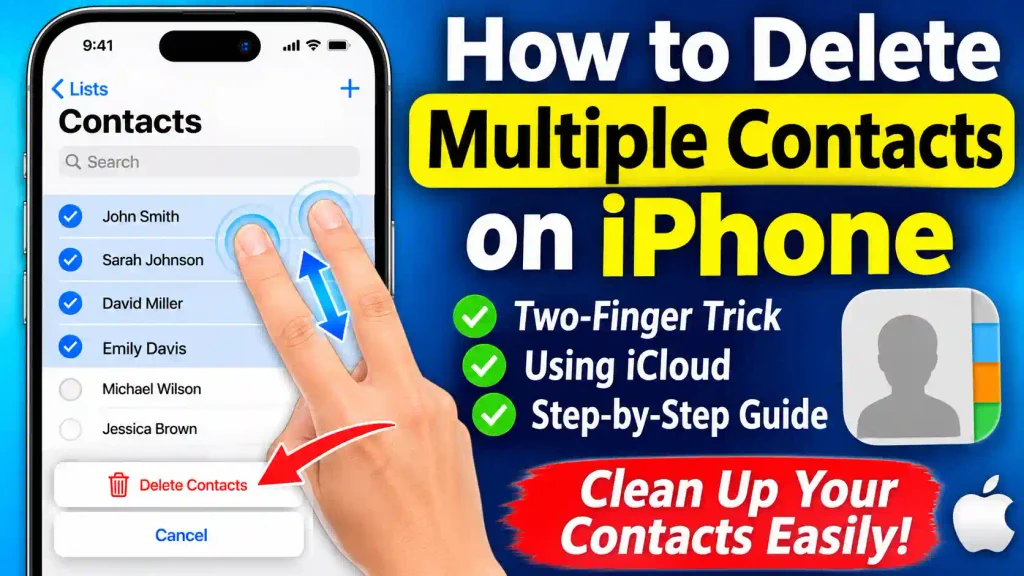
In this guide, you will learn how to delete multiple contacts on iPhone using the built-in Contacts app and iCloud. We will also explain how to delete individual contacts, troubleshoot common problems, and protect important contact information.
These instructions are useful for iPhone 11, 12, 13, 14, 15, 16, and newer models running compatible versions of iOS.
2. Quick Answer: How to Delete Multiple Contacts on iPhone
The quickest way to delete multiple contacts directly from your iPhone is to use the two-finger selection gesture.
Follow these steps:
- Open the Contacts app on your iPhone.
- Place two fingers on the first contact you want to delete.
- Drag both fingers up or down to select multiple contacts.
- Release your fingers after selecting the required contacts.
- Touch and hold one of the selected contacts with one finger.
- Tap Delete Contacts from the pop-up menu.
- Confirm your selection by tapping Delete Contacts.
Your selected contacts will be removed from the associated contact account.
Alternative: You can also visit iCloud.com/contacts on a computer or tablet to select and delete multiple iCloud contacts.
3. Table of Contents
- How Does Multiple Contact Deletion Work on iPhone?
- Method 1: Delete Multiple Contacts Using the Contacts App
- Method 2: Delete Multiple Contacts Using iCloud
- Method 3: Delete an Individual Contact
- How to Remove All Contacts From an Account
- Common Errors and Their Fixes
- Best Practices for Managing iPhone Contacts
- Frequently Asked Questions
4. How Does Multiple Contact Deletion Work on iPhone?
Apple’s Contacts app includes a useful but relatively hidden feature that lets you select several contacts using two fingers.
Unlike apps such as Messages and Mail, Contacts does not always display traditional checkboxes or an obvious Edit button for selecting multiple entries.
Instead, you can use a two-finger gesture to highlight several contacts and remove them together.
There are two main options:
Using the iPhone Contacts app: This is convenient when you want to remove several contacts without using a computer.
Using iCloud: This is useful when you want to manage a large number of contacts from a larger screen.
Before choosing a method, remember that your iPhone may display contacts from different accounts, including iCloud, Gmail, Outlook, and other services. Deleting a contact from a synchronized account can also remove it from other devices connected to that account.
5. Step-by-Step Guide to Delete Multiple Contacts on iPhone
Method 1: Delete Multiple Contacts Using the Contacts App
This is the easiest method because you do not need a computer, additional software, or a third-party application.
Step 1: Open the Contacts App
Unlock your iPhone and locate the Contacts app.
You can also open the Phone app and tap the Contacts tab to access your address book.
Step 2: Find the Contacts You Want to Delete
Scroll through your contact list and identify the names you no longer need.
If the contacts are close together alphabetically, selecting them will be easier.
Step 3: Select Multiple Contacts Using Two Fingers
This is the most important step.
- Place two fingers on the first contact you want to select.
- Press and hold both fingers on the screen.
- Drag your fingers downward or upward across the contact list.
- Continue until all the required contacts are highlighted.
- Release both fingers.
The selected contacts should appear highlighted.
If the contacts you want to delete are not next to each other, repeat the two-finger selection gesture for additional groups. Previously selected contacts can remain selected.
Step 4: Open the Delete Option
After selecting the contacts, touch and hold any highlighted contact using one finger.
A pop-up menu should appear with an option showing the number of selected contacts.
For example, if you selected five contacts, you may see an option similar to Delete 5 Contacts.
Tap that option.
Step 5: Confirm Contact Deletion
Your iPhone will display a confirmation message.
Review your selection carefully and tap Delete Contacts to proceed.
The selected contacts will now be deleted.
Important: Deleting synchronized contacts may also remove them from other devices using the same iCloud or email account.
Method 2: Delete Multiple Contacts Using iCloud
If the two-finger gesture is difficult to use, iCloud provides another convenient way to delete several contacts.
This method is especially useful when managing a large address book from a Windows PC, Mac, or tablet.
Step 1: Open iCloud Contacts
On your computer, open a web browser and visit:
Sign in using the same Apple Account associated with your iPhone.
Step 2: Open All Contacts
After signing in, select All Contacts from the sidebar.
You will see the contacts stored in your iCloud account.
Step 3: Select Multiple Contacts
Locate the contacts you want to remove.
Select one or more contacts from the list. On a Windows computer, hold the Ctrl key while clicking individual contacts. On a Mac, hold the Command key while selecting individual contacts.
You can also select a range of contacts using Shift-click.
Step 4: Open the Actions Menu
After selecting the contacts, click the Actions button at the top of the contact list.
Choose Delete Contact from the available options.
Step 5: Confirm Deletion
A confirmation message will appear.
Click Delete to remove the selected contacts.
Your changes will synchronize with other devices that have iCloud Contacts enabled.
Important: This method only manages contacts stored in iCloud. Contacts stored exclusively in Gmail, Outlook, or another account may need to be managed through that service.
Method 3: Delete an Individual Contact on iPhone
If you only want to remove one contact, you can use the standard deletion option.
Follow these instructions:
- Open the Contacts app.
- Find and tap the contact you want to remove.
- Tap Edit in the upper-right corner.
- Scroll to the bottom of the screen.
- Tap Delete Contact.
- Tap Delete Contact again to confirm.
The selected contact will be removed from your address book.
You can repeat these steps for other individual contacts.
Method 4: Remove Contacts From a Specific Account
Sometimes, you may want to stop displaying contacts from Gmail, Outlook, or another account without deleting your entire iPhone address book.
You can manage contact synchronization through iPhone Settings.
- Open Settings.
- Tap Apps.
- Select Contacts.
- Tap Contacts Accounts.
- Select the account you want to manage.
- Turn off the Contacts option if you no longer want that account’s contacts to appear.
Depending on your iOS version and account configuration, you may see an option to remove previously synchronized contacts from your iPhone.
Be careful when choosing account deletion options. Turning off contact synchronization is different from permanently deleting contacts from the original account.
6. Common Errors and Fixes
Sometimes, users cannot select or delete multiple contacts. Here are some common problems and their solutions.
Problem 1: Two-Finger Selection Is Not Working
Possible reason: The gesture is not being performed correctly.
Solution:
- Open the main Contacts list.
- Place both fingers directly on a contact.
- Hold briefly before dragging.
- Move both fingers together.
- Avoid lifting your fingers before completing the selection.
If the gesture continues to fail, use the iCloud method instead.
Problem 2: Deleted Contacts Appear Again
Possible reason: Your contacts may be synchronized with multiple accounts.
For example, a contact might exist in both iCloud and Gmail.
Solution:
- Open Settings.
- Go to Apps > Contacts > Contacts Accounts.
- Review the connected accounts.
- Identify the account storing the contact.
- Delete the unwanted entry from its original account.
This helps prevent contacts from reappearing through synchronization.
Problem 3: Contacts Are Not Synchronizing With iCloud
Possible reason: iCloud Contacts synchronization may be disabled or temporarily interrupted.
Solution:
- Open Settings.
- Tap your Apple Account name.
- Select iCloud.
- Open the option to view all apps using iCloud, if displayed.
- Check whether Contacts is enabled.
- Make sure your iPhone has a working internet connection.
Allow some time for the changes to synchronize.
Problem 4: Cannot Delete Contacts From Gmail or Outlook
Possible reason: The contact belongs to an external email account rather than iCloud.
Solution:
Check which account stores the contact. If necessary, sign in to Google Contacts or Outlook and remove the unwanted entry there.
Problem 5: Accidentally Deleted Important Contacts
Possible reason: You selected more contacts than intended.
Solution:
If the deleted contacts were stored in iCloud, you may be able to restore an earlier archived version through iCloud.com.
Apple provides a contact recovery feature that can restore an archived version of your contacts. Remember that restoring an archive can replace the current contact information across synchronized devices.
7. Best Practices and Pro Tips for Managing iPhone Contacts
Deleting unnecessary contacts can make your address book easier to manage. However, follow these tips to avoid losing important information.
1. Back Up Your Contacts Before Deleting
Before removing a large group of contacts, consider exporting your iCloud contacts as a vCard file. This gives you a backup that you can import later if needed.
2. Check Duplicate Contacts
If your address book contains duplicate entries, look for the duplicate contacts feature in the Contacts app. On supported iOS versions, you may see a Duplicates Found option that lets you review and merge duplicate cards.
Merging duplicates is often better than deleting contacts individually.
3. Review Your Contact Accounts
Your iPhone can display contacts from multiple sources. Check whether your contacts are stored in iCloud, Gmail, Outlook, or another account before deleting them.
4. Double-Check Selected Contacts
Before confirming bulk deletion, review the highlighted contacts carefully. Selecting an additional contact accidentally can result in losing important information.
5. Keep Your iPhone Updated
Install compatible iOS updates to benefit from improvements to the Contacts app, security, and synchronization.
6. Organize Contacts Into Lists
Use contact lists to organize personal, professional, and business contacts. This makes it easier to find specific groups and manage your address book.
7. Keep Your iPhone Settings Organized
Contact management is only one part of keeping your iPhone organized. You may also find these Multicare Technical tutorials useful:
- How to Disable Auto Brightness on iPhone 11 to 17: Simple Steps
- How to Enable App Clips on iPhone
- How to Change Brightness on Windows 11: Complete Step-by-Step Guide
8. Frequently Asked Questions (FAQs)
1. How do I delete multiple contacts at once on my iPhone?
Open the Contacts app, place two fingers on a contact, and drag across the list to select multiple entries. Then, long-press one of the selected contacts, choose Delete Contacts, and confirm.
2. Can I delete all contacts on my iPhone at once?
You can remove contacts associated with a particular account by managing its contact synchronization settings. You can also select multiple iCloud contacts through iCloud.com. Always check which account contains your contacts before making changes.
3. How do I delete multiple contacts on an iPhone without iCloud?
Use the built-in two-finger selection gesture in the iPhone Contacts app. Select the contacts, long-press one selected entry, and tap Delete Contacts. You do not need to sign in to iCloud.com for this method.
4. Why can’t I select multiple contacts on my iPhone?
The two-finger selection gesture may not be performed correctly, or the contacts list may not be responding as expected. Try placing both fingers directly on a contact and dragging slowly. Alternatively, use iCloud.com on a computer or tablet for iCloud contacts.
5. Will deleting contacts from my iPhone also delete them from iCloud?
Yes, if the contacts are stored in iCloud and iCloud Contacts synchronization is enabled, deleting them can remove them from other devices connected to the same Apple Account. Contacts stored in other accounts follow those accounts’ synchronization rules.
9. Conclusion
Deleting multiple contacts on an iPhone does not have to be a time-consuming process. The built-in two-finger selection gesture makes it possible to select and remove several contacts directly from the Contacts app.
If you prefer using a computer, iCloud.com provides another straightforward option for managing multiple iCloud contacts.
Before deleting anything, check where your contacts are stored and back up important information. This will help prevent accidental data loss and keep your address book organized.
Whether you use an iPhone 11, iPhone 15, iPhone 16, or a newer model, these methods can help you remove unwanted contacts and maintain a cleaner contact list.