
Introduction
Microsoft Phone Link is designed to connect your Windows 11 PC with an Android or iPhone. Once connected, you can access messages, notifications, calls, photos, and other supported features directly from your computer.
However, not everyone uses Phone Link. You may prefer to keep your Windows installation clean, reduce unnecessary apps, remove an old phone connection, or troubleshoot problems with the app. In those situations, you may want to uninstall Phone Link completely.
The good news is that there are several ways to remove Phone Link from Windows 11. The easiest method is through the Settings app. If the uninstall option is unavailable or you want a more advanced method, you can also use PowerShell.
This guide explains how to uninstall Phone Link Windows 11, remove linked devices, delete the Start menu shortcut, and completely remove the Microsoft Store app package.
Quick Answer: How to Uninstall Phone Link Windows 11
To uninstall Phone Link in Windows 11:
- Press Windows + I to open Settings.
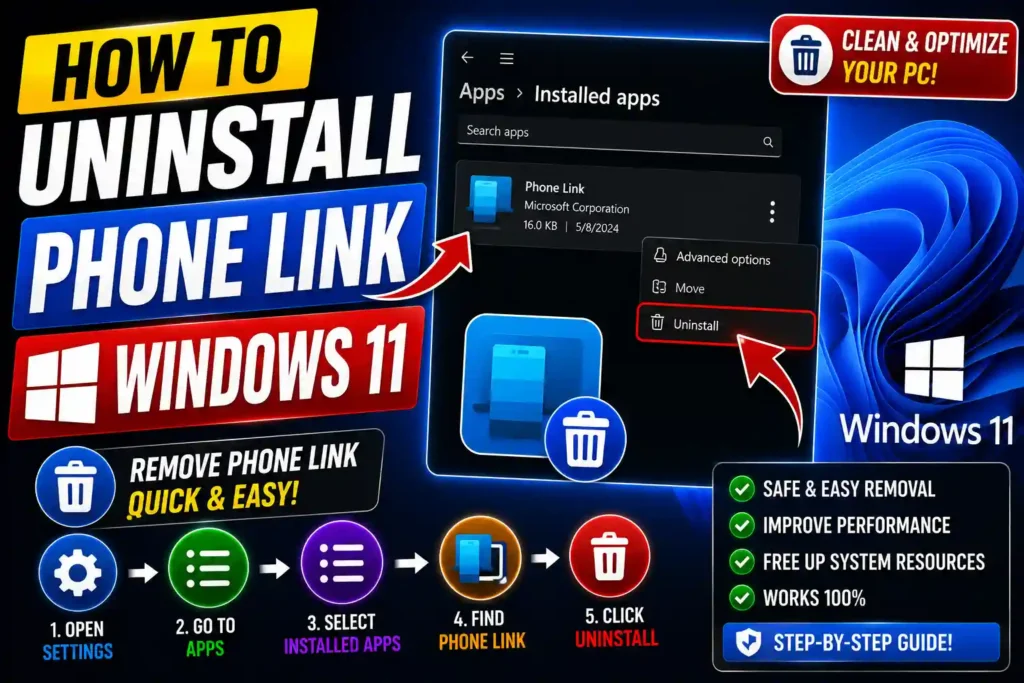
- Go to Apps > Installed apps.
- Search for Phone Link.
- Click the three-dot menu next to it.
- Select Uninstall.
- Click Uninstall again to confirm.
If you cannot remove the app through Settings, open Windows PowerShell as Administrator and run:
Get-AppxPackage Microsoft.YourPhone -AllUsers | Remove-AppxPackageYou can also remove the phone connection without uninstalling the app by opening Phone Link and removing the linked device from its settings.
Table of Contents
- What Is Phone Link in Windows 11?
- How to Uninstall Phone Link Windows 11
- How to Uninstall Microsoft Phone Link Windows 11
- How to Delete Phone Link App Windows 11
- How to Remove Phone Link From Windows 11 Start Menu
- How to Remove Device From Phone Link Windows 11
- How to Completely Remove Phone Link From Windows 11
- Uninstall Phone Link Windows 11 PowerShell
- How to Uninstall Meta Horizon Link Windows 11
- How to Uninstall Meta Quest Link Windows 11
- Common Errors and Fixes
- Best Practices and Pro Tips
- FAQs
- Conclusion
What Is Phone Link in Windows 11?
Phone Link is a Microsoft application that allows a Windows PC to communicate with a compatible mobile device. Depending on your phone and the available features, it can provide access to:
- Text messages
- Phone notifications
- Photos
- Phone calls
- Contacts
- Mobile apps on supported devices
On some Windows 11 PCs, Phone Link may already be installed as part of the operating system environment.
If you do not use these features, removing the app can help simplify your Apps list and reduce unnecessary software on your computer.
It is important to understand that uninstalling Phone Link does not reset or delete your Windows account. It simply removes the application and stops you from using its desktop features until you reinstall it.
How to Uninstall Phone Link Windows 11
The simplest way to remove Phone Link is through Windows Settings.
Step 1: Open Windows Settings
Press:
Windows + I
This opens the Settings application.
Step 2: Open Installed Apps
Select:
Apps > Installed apps
You will see a list of applications installed on your Windows 11 computer.
Step 3: Search for Phone Link
Use the search box and type:
Phone Link
Windows should display the Microsoft Phone Link application.
Step 4: Select Uninstall
Click the three dots next to Phone Link.
Choose:
Uninstall
Confirm the action if Windows asks for confirmation.
Step 5: Restart Your Computer
A restart is usually not required, but restarting Windows can help clear any remaining background processes or cached shortcuts.
After restarting, search for Phone Link from the Start menu to verify that the app has been removed.
How to Uninstall Microsoft Phone Link Windows 11
The terms Microsoft Phone Link and Phone Link generally refer to the same Windows application.
If you are searching for how to uninstall Microsoft Phone Link Windows 11, follow these steps:
- Open Settings.
- Click Apps.
- Select Installed apps.
- Search for Phone Link.
- Click the three-dot menu.
- Select Uninstall.
If the standard uninstall option does not work, use PowerShell, which is explained later in this guide.
For most home users, uninstalling from Settings is the safest and easiest option.
How to Delete Phone Link App Windows 11
Deleting the Phone Link app means uninstalling its application package from Windows.
Before deleting it, close the app completely.
You can check whether Phone Link is still running by following these steps:
- Press Ctrl + Shift + Esc to open Task Manager.
- Look for Phone Link under running processes.
- Select it if it is running.
- Click End task.
- Return to Settings > Apps > Installed apps.
- Uninstall Phone Link.
If Windows says that the app cannot be removed because it is currently in use, ending the process through Task Manager may solve the problem.
How to Remove Phone Link From Windows 11 Start Menu
Sometimes you may not want to uninstall Phone Link. You may simply want to remove it from the Start menu.
Unpin Phone Link From Start
- Open the Start menu.
- Find Phone Link.
- Right-click the app.
- Select Unpin from Start.
This removes the shortcut from the pinned area without uninstalling the application.
The app can still appear in the All Apps list or be found through Windows Search.
This is a useful option if you occasionally use Phone Link but want a cleaner Start menu.
If you are organizing your Windows workspace, you may also find our guide on how to rotate screen in Windows 11 useful.
How to Remove Device From Phone Link Windows 11
You do not always need to uninstall Phone Link to disconnect your phone.
If you are selling your phone, changing devices, or simply no longer want a particular phone connected, remove the device from the Phone Link app.
Remove the Connected Phone
- Open Phone Link.
- Open the app’s Settings.
- Look for the connected device or device management section.
- Select the phone you want to remove.
- Choose the option to Remove, Unlink, or disconnect the device.
- Confirm your selection.
Depending on your phone type and Phone Link version, you may also need to remove the PC connection from the companion application on your phone.
For additional privacy, consider removing Bluetooth pairings or other device connections if you no longer use that phone with the PC.
How to Completely Remove Phone Link From Windows 11
A standard uninstall is usually enough for most users. However, some advanced users and IT professionals may want to remove the Phone Link app package more thoroughly.
Before using advanced removal methods, remember that built-in Windows apps can sometimes be restored by Windows updates or reinstalled later through the Microsoft Store.
A more complete process can include:
- Removing Phone Link through Settings.
- Removing the connected device from Phone Link.
- Ending any running Phone Link processes.
- Removing the app package through PowerShell if necessary.
- Restarting the computer.
- Checking the Start menu and Windows Search.
For normal users, there is no need to manually delete random folders from the Windows directory. Manually deleting application files can cause permission problems and does not always remove the app correctly.
Using the supported uninstall options is the safer approach.
Uninstall Phone Link Windows 11 PowerShell
PowerShell can be useful when Phone Link cannot be removed through the Settings app.
Step 1: Open PowerShell as Administrator
Open Start and search for:
PowerShell
Right-click Windows PowerShell or the available PowerShell application and choose:
Run as administrator
Step 2: Run the Removal Command
Use the following command:
Get-AppxPackage Microsoft.YourPhone | Remove-AppxPackageThis attempts to remove Phone Link for the current user.
If you are managing a shared PC and need to inspect the installed package across user accounts, you can first run:
Get-AppxPackage Microsoft.YourPhone -AllUsersReview the returned package information carefully before making system-wide changes.
Step 3: Restart Windows
Restart the PC and check whether Phone Link still appears in the Start menu or Installed Apps list.
Important Note for IT Professionals
Avoid running random PowerShell commands from untrusted websites. App package names and removal commands can vary between Windows versions, and aggressive system-wide commands may affect other users or future provisioning.
If you manage multiple Windows 11 systems, test removal procedures on a non-production machine before deploying them broadly.
How to Uninstall Meta Horizon Link Windows 11
Meta Horizon Link and Microsoft Phone Link are different applications.
If you have installed Meta Horizon Link on your Windows 11 PC and want to remove it, start with the standard Windows uninstall method:
- Open Settings.
- Go to Apps > Installed apps.
- Search for Meta Horizon Link.
- Click the three dots next to the application.
- Select Uninstall.
- Follow the on-screen instructions.
If the application does not appear in Installed Apps, check Control Panel > Programs and Features for a desktop version of the software.
You may also need to restart the computer after removal.
How to Uninstall Meta Quest Link Windows 11
Meta Quest Link is software used to connect a compatible Meta Quest headset with a Windows PC.
To uninstall it:
- Close the Meta Quest Link software.
- Disconnect the headset and USB connection.
- Open Settings.
- Go to Apps > Installed apps.
- Search for Meta Quest Link.
- Click the three dots.
- Select Uninstall.
- Complete the uninstall wizard.
If the standard uninstall fails, try restarting Windows and running the uninstall process again.
For persistent issues, check whether the application provides its own uninstaller in its installation directory. Use the official uninstall process rather than manually deleting program folders.
Common Errors and Fixes
Phone Link Does Not Have an Uninstall Option
In some Windows configurations, the uninstall option may be unavailable or restricted.
Fix
Try the following:
- Restart Windows.
- Install pending Windows updates.
- Make sure you are using an administrator account.
- Try uninstalling through PowerShell.
- Check whether organization policies are controlling the application.
On work or school computers, your IT administrator may have configured certain applications.
Phone Link Keeps Appearing in the Start Menu
If you uninstalled the app but still see a shortcut, restart the computer first.
If it remains visible, Windows Search or the Start menu cache may need time to refresh.
You can also try signing out and signing back into your Windows account.
Phone Link Is Still Running
If the uninstall process fails because the application is open:
- Open Task Manager.
- Find Phone Link.
- Click End task.
- Try uninstalling again.
PowerShell Command Shows No Package
If PowerShell does not return a package, the Phone Link package name or installation state may be different on your system.
Use:
Get-AppxPackage *YourPhone*This can help identify matching installed packages for the current user.
Always review the results before running removal commands.
Device Still Appears as Connected
If you removed the Phone Link app but the phone still appears connected elsewhere, remove the pairing from:
- Phone Link settings, if the app is still available
- The companion app on the phone
- Bluetooth settings, if applicable
- Your device or account connection settings
Disconnecting the phone on both devices provides a cleaner removal.
Best Practices and Pro Tips
Remove the Device Before Uninstalling
If possible, unlink your phone before uninstalling Phone Link. This can make it easier to manage your device connections later.
Restart After Removal
A restart helps Windows close background processes and refresh shortcuts.
Do Not Manually Delete Windows App Folders
Deleting folders from protected Windows locations can create unnecessary permission issues.
Use Settings, PowerShell, or the application’s official uninstaller.
Keep Important Windows Components Updated
If you experience application problems rather than simply wanting to remove Phone Link, install the latest Windows updates before troubleshooting further.
Hardware issues can also affect your overall Windows experience. For example, you can check your storage condition using our guide on how to check SSD health in Windows 10.
Review Your Connected Devices
If you are replacing an old phone or selling a computer, review all connected devices and remove those you no longer use.
If you use a multiple-monitor workstation, you may also want to read our troubleshooting guide for how to fix a mouse moving in the wrong direction with dual monitors.
Frequently Asked Questions
1. Can I uninstall Phone Link from Windows 11?
Yes. In most cases, you can uninstall Phone Link through Settings > Apps > Installed apps. If that option does not work, PowerShell may provide another removal method.
2. Will uninstalling Phone Link damage Windows 11?
No. Phone Link is an application and is not required for basic Windows 11 operation. You simply lose access to its phone integration features until you reinstall it.
3. How do I remove my phone without uninstalling Phone Link?
Open Phone Link, go to its device or settings area, select the connected phone, and choose the available remove or unlink option.
4. Can I reinstall Phone Link after removing it?
Yes. You can generally reinstall it later through Microsoft’s app distribution system if you decide to use the feature again.
5. What is the PowerShell command to uninstall Phone Link?
For the current user, a commonly used command is:
Get-AppxPackage Microsoft.YourPhone | Remove-AppxPackageReview the package information before running removal commands, especially on shared or managed computers.
Conclusion
If you no longer use Microsoft’s phone integration features, uninstalling Phone Link can help keep your Windows 11 system cleaner and reduce clutter in your Apps list and Start menu.
For most users, the easiest method is:
Settings > Apps > Installed apps > Phone Link > Uninstall
If the standard method does not work, you can use PowerShell to remove the application package for the current user. You can also remove a connected device without uninstalling the app, which is useful when changing or selling your phone.
For Meta Horizon Link or Meta Quest Link, use the standard Windows 11 uninstall process through Installed Apps or the application’s official uninstaller.
Before making advanced changes, especially on business or shared computers, review the installed package and use supported removal methods instead of manually deleting system files.