
Introduction
Smart App Control is one of the security features Microsoft introduced in Windows 11 to help protect computers from malicious applications and potentially unwanted software. It uses cloud-powered intelligence and code-signing verification to determine whether an app is safe before allowing it to run.
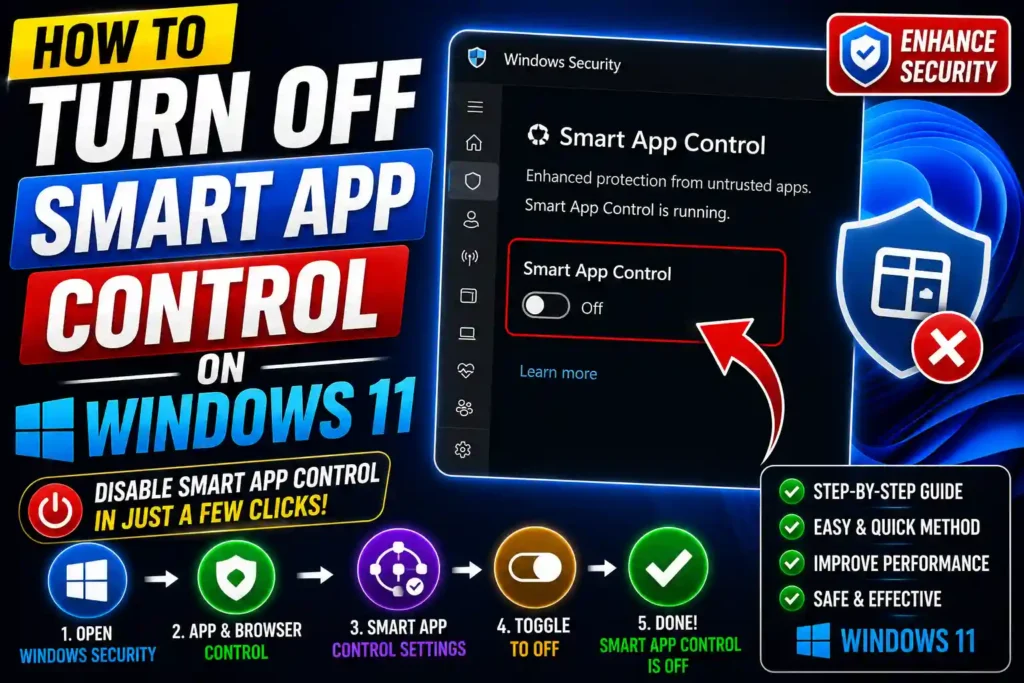
While this feature provides an additional layer of security, it isn’t the perfect solution for everyone. Developers, IT professionals, and power users often encounter situations where Smart App Control blocks trusted applications, unsigned software, internal business tools, or custom scripts.
If you’ve decided that Smart App Control is preventing you from installing or running legitimate software, this guide explains exactly how to turn it off, what happens after disabling it, and whether doing so is the right decision.
Quick Answer
To turn off Smart App Control in Windows 11:
- Open Settings.
- Select Privacy & Security.
- Click Windows Security.
- Open App & Browser Control.
- Select Smart App Control Settings.
- Choose Off.
- Confirm your choice.
Important: Once Smart App Control is turned off, Windows 11 does not allow you to turn it back on without reinstalling or resetting Windows.
Table of Contents
- What Is Smart App Control?
- Why Would You Turn It Off?
- Things to Know Before Disabling It
- How to Turn Off Smart App Control
- What Happens After You Disable It?
- Common Errors and Fixes
- Best Practices
- Frequently Asked Questions
- Conclusion
What Is Smart App Control?
Smart App Control is a Windows 11 security feature designed to stop harmful applications before they can run.
Unlike traditional antivirus software, Smart App Control uses Microsoft’s cloud intelligence to evaluate applications. It checks whether an app is:
- Digitally signed
- Trusted by Microsoft
- Known to be safe
- Potentially malicious
If an application fails these checks, Windows may prevent it from launching.
The feature works alongside Microsoft Defender rather than replacing it.
Why Would You Turn Off Smart App Control?
Although it improves security, Smart App Control isn’t suitable for every workflow.
Common reasons include:
1. Running Unsigned Software
Many open-source programs and internal company applications aren’t digitally signed.
2. Software Development
Developers frequently test applications that Smart App Control may block.
3. Enterprise Testing
IT administrators often need unrestricted access for deployment testing and troubleshooting.
4. Legacy Applications
Older Windows programs may not meet Microsoft’s trust requirements.
5. Laboratory or Virtual Environments
Testing environments usually require installing software from multiple sources.
Things to Know Before Disabling It
Before switching it off, understand these important limitations.
You Cannot Simply Turn It Back On
This is the biggest limitation.
Once Smart App Control is disabled, Windows permanently turns it off for that installation.
To enable it again, you’ll typically need to:
- Reset Windows
- Perform a clean Windows installation
This behavior is intentional because Smart App Control establishes trust during system evaluation.
Your PC Is Still Protected
Turning off Smart App Control does not disable:
- Microsoft Defender Antivirus
- Windows Firewall
- SmartScreen
- Security updates
- Device Security
You’ll still have several security layers protecting your computer.
How to Turn Off Smart App Control in Windows 11
Follow these steps carefully.
Method 1: Using Windows Settings
Step 1
Press:
Windows + I
to open Settings.
Step 2
Click:
Privacy & Security
Step 3
Select:
Windows Security
Step 4
Click:
Open Windows Security
Step 5
Select:
App & Browser Control
Step 6
Locate:
Smart App Control
Click:
Smart App Control Settings
Step 7
Choose:
Off
Windows will display a warning explaining that the feature cannot easily be re-enabled.
Confirm your selection.
Step 8
Restart your computer if prompted.
The feature is now disabled.
What Happens After You Disable It?
Once disabled:
- Previously blocked software may run normally.
- Windows stops checking new apps using Smart App Control.
- Microsoft Defender continues protecting against viruses.
- SmartScreen still checks downloads and websites.
- Windows Firewall remains active.
Most users won’t notice any performance difference after disabling the feature.
When Should You Keep Smart App Control Enabled?
Leaving it enabled is recommended if you:
- Frequently download software from the internet
- Share your computer with family members
- Are not sure whether software is trustworthy
- Want maximum protection against unknown apps
For most home users, keeping Smart App Control enabled provides additional security with minimal effort.
When Is It Safe to Turn It Off?
Disabling Smart App Control makes sense if you:
- Develop software
- Build Windows applications
- Test unsigned programs
- Use specialized engineering tools
- Manage enterprise systems
- Regularly install trusted internal software
Even then, only install applications from reliable sources.
Common Errors and Fixes
Smart App Control Option Is Missing
Cause
Your Windows version doesn’t support it.
Fix
Update Windows 11 to the latest version.
Smart App Control Is Already Off
This usually means:
- It was disabled previously.
- Windows automatically turned it off after evaluation.
Once disabled, it cannot be enabled again without resetting Windows.
Option Is Greyed Out
Possible reasons include:
- Organization policy
- Device management
- Enterprise restrictions
Contact your IT administrator if you’re using a work computer.
Apps Still Won’t Open
Smart App Control may not be the issue.
Check:
- Microsoft Defender
- Controlled Folder Access
- SmartScreen
- Administrator permissions
Windows Security Won’t Open
Try:
- Restarting Windows
- Installing pending updates
- Running the Windows Security app repair
- Using PowerShell to repair system files if necessary
Best Practices / Pro Tips
To keep your PC secure after disabling Smart App Control:
- Keep Microsoft Defender enabled.
- Install Windows Updates regularly.
- Download software only from trusted publishers.
- Verify digital signatures whenever possible.
- Avoid pirated software.
- Use a standard user account for everyday work.
- Create restore points before installing unfamiliar applications.
- Back up important files regularly.
For more Windows troubleshooting guides, you may also find these articles helpful:
- How to Disable Parental Controls on League of Legends (2026 Guide): https://multicaretechnical.com/how-to-disable-parental-controls-on-league-of-legends-2026-guide
- How to Fix My Left AirPods Not Working (2026 Complete Troubleshooting Guide): https://multicaretechnical.com/how-to-fix-my-left-airpods-not-working-2026-complete-troubleshooting-guide
- How to Fix YouTube Not Working on My TV (2026 Complete Troubleshooting Guide): https://multicaretechnical.com/how-to-fix-youtube-not-working-on-my-tv-2026-complete-troubleshooting-guide
Frequently Asked Questions
1. Is it safe to turn off Smart App Control?
Yes, if you understand the risks and continue using Microsoft Defender, Windows Firewall, and safe browsing practices.
2. Can I turn Smart App Control back on later?
Not usually. After turning it off, Windows generally requires a reset or clean installation before Smart App Control can be enabled again.
3. Does turning it off disable Microsoft Defender?
No. Microsoft Defender Antivirus continues protecting your system.
4. Why is Smart App Control blocking my software?
The application may be unsigned, unknown to Microsoft, or fail reputation-based security checks.
5. Does Smart App Control improve PC performance?
No. It is designed for security rather than performance optimization.
Conclusion
Smart App Control is a valuable Windows 11 security feature that helps prevent untrusted applications from running on your computer. However, developers, IT professionals, and advanced users may occasionally need to disable it to work with legitimate unsigned or internally developed software.
Before turning it off, remember that the change is effectively permanent for your current Windows installation unless you reset or reinstall the operating system. If you decide to disable Smart App Control, maintain strong security habits by keeping Microsoft Defender enabled, installing updates promptly, and downloading software only from trusted sources.
By understanding how Smart App Control works and when it should be disabled, you can strike the right balance between security and flexibility for your Windows 11 environment.