
Introduction
Solid State Drives (SSDs) have become the preferred storage solution for Windows 10 computers because they offer faster boot times, quicker application loading, and better overall performance than traditional hard drives. However, like any storage device, SSDs have a limited lifespan. Over time, they experience wear as data is written and erased.
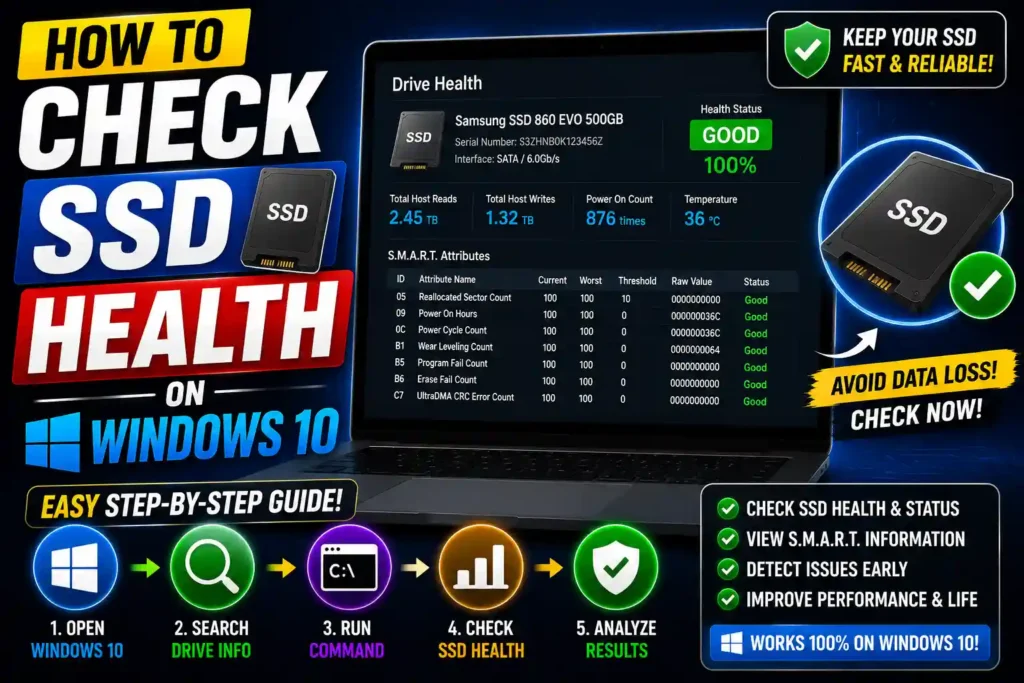
Checking your SSD’s health regularly can help you detect potential problems before they lead to data loss or system instability. Fortunately, Windows 10 provides built-in tools that make it easy to monitor your SSD, and most SSD manufacturers also offer free diagnostic software with more detailed information.
Whether you’re a home user, IT professional, or system administrator, this guide explains several reliable ways to check SSD health in Windows 10, interpret the results, and keep your drive running efficiently.
Quick Answer
To check SSD health in Windows 10:
- Open Command Prompt as Administrator.
- Type:
wmic diskdrive get status- Press Enter.
- If the result shows OK, Windows has not detected any immediate hardware issues.
- For detailed health information, use your SSD manufacturer’s utility or PowerShell to view SMART data.
Checking your SSD monthly helps identify early signs of wear and potential failure.
Table of Contents
- What Is SSD Health?
- Why You Should Monitor Your SSD
- Methods to Check SSD Health
- Using Command Prompt
- Using PowerShell
- Using Manufacturer Software
- Understanding SSD Health Indicators
- Common Errors and Fixes
- Best Practices
- Frequently Asked Questions
- Conclusion
What Is SSD Health?
SSD health refers to the overall condition of your solid-state drive. Unlike traditional hard drives, SSDs don’t have moving parts, but they do have a limited number of write cycles.
Manufacturers use SMART (Self-Monitoring, Analysis, and Reporting Technology) to monitor various indicators, including:
- Remaining lifespan
- Total bytes written
- Read/write errors
- Temperature
- Power-on hours
- Bad blocks
- Firmware status
These metrics help determine whether your SSD is functioning normally or beginning to wear out.
Why You Should Monitor Your SSD
Regularly checking SSD health offers several benefits:
- Prevent unexpected drive failures
- Protect important files
- Improve system reliability
- Identify overheating issues
- Detect firmware problems
- Plan hardware upgrades before failure
For businesses and IT professionals, routine SSD health checks are an important part of preventive maintenance.
Method 1: Check SSD Health Using Command Prompt
Windows 10 includes a quick command to verify whether your SSD reports any major hardware issues.
Step 1
Click Start.
Search for:
Command Prompt
Choose Run as Administrator.
Step 2
Type the following command:
wmic diskdrive get statusPress Enter.
Step 3
You’ll typically see one of the following results:
OK
The drive has not reported any immediate hardware problems.
Pred Fail
The SSD has detected issues and should be backed up immediately.
Unknown
Windows cannot determine the drive’s health.
Although this command is useful, it provides only basic information.
Method 2: Check SSD Health Using PowerShell
PowerShell provides more detailed storage information.
Step 1
Right-click the Start button.
Select:
Windows PowerShell (Admin)
or
Terminal (Admin)
Step 2
Run:
Get-PhysicalDiskYou may see information such as:
- Health Status
- Operational Status
- Media Type
- Size
If the Health Status is Healthy, Windows has not detected any critical problems.
Method 3: Use Windows Security and Reliability Monitor
Windows also tracks hardware-related events.
Open Reliability Monitor
- Press Windows + R.
- Type:
perfmon /rel- Press Enter.
Look for storage-related warnings or critical events that may indicate SSD issues.
Method 4: Use Your SSD Manufacturer’s Software
Most SSD manufacturers provide free utilities with detailed health information.
Examples include:
- Samsung Magician
- Crucial Storage Executive
- WD Dashboard
- Kingston SSD Manager
- Intel Memory and Storage Tool
These applications display:
- Health percentage
- SMART attributes
- Temperature
- Firmware version
- Remaining lifespan
- Performance benchmarks
Manufacturer tools usually provide the most accurate health information.
Method 5: Check SMART Status with Third-Party Tools
Several trusted disk-monitoring utilities can display SMART data in an easy-to-read format.
Common features include:
- Health percentage
- SSD temperature
- Read/write speed
- Total host writes
- Remaining life
- Error counts
When downloading third-party software, always use the developer’s official website.
Understanding SSD Health Indicators
Here are some common values you’ll encounter.
Health Percentage
100% means the SSD is nearly new.
As the percentage decreases, the drive has experienced normal wear.
Many SSDs continue working reliably even below 80%.
Temperature
Most SSDs perform best between:
30°C and 60°C
Consistently high temperatures may reduce lifespan.
Total Host Writes (TBW)
TBW stands for Terabytes Written.
Every SSD has a rated write endurance.
Reaching this limit doesn’t necessarily mean immediate failure, but it indicates significant wear.
Reallocated Blocks
A small number is usually acceptable.
Rapidly increasing values may indicate a failing drive.
Power-On Hours
This measures how long the SSD has been used.
Combined with other SMART data, it helps estimate remaining lifespan.
Signs Your SSD May Be Failing
Watch for these warning signs:
- Frequent blue screen errors
- Random freezes
- Slow file transfers
- Missing files
- Read-only mode
- Windows boot failures
- Applications crashing unexpectedly
- SMART warnings
- Frequent disk errors
Back up your important data immediately if you notice these symptoms.
Common Errors and Fixes
WMIC Command Not Working
Microsoft has deprecated WMIC on newer Windows versions.
Use:
- PowerShell
- Manufacturer software
- Windows Terminal
instead.
SMART Status Shows Unknown
Possible causes include:
- Unsupported SSD
- Outdated drivers
- RAID configuration
- External USB enclosure
Update storage drivers and check the SSD directly if possible.
SSD Health Appears Low
This doesn’t always mean the SSD is about to fail.
Check:
- Total writes
- Temperature
- Firmware updates
- Manufacturer recommendations
SSD Runs Slowly
Possible solutions:
- Enable TRIM
- Free disk space
- Update firmware
- Restart Windows
- Check for malware
Windows Doesn’t Detect the SSD
Try:
- Reconnecting SATA or NVMe hardware
- Updating BIOS
- Checking Disk Management
- Updating storage drivers
Best Practices / Pro Tips
To maximize your SSD’s lifespan:
- Enable TRIM in Windows.
- Keep at least 15–20% free storage space.
- Install Windows Updates regularly.
- Update SSD firmware when available.
- Avoid filling the drive completely.
- Use reliable antivirus software.
- Create regular backups.
- Monitor SMART data every month.
If you’re interested in additional Windows troubleshooting guides, these resources may also help:
- How to Turn Off Smart App Control in Windows 11 (2026 Guide): https://multicaretechnical.com/how-to-turn-off-smart-app-control-in-windows-11-2026-guide
- How to Fix My Left AirPods Not Working (2026 Complete Troubleshooting Guide): https://multicaretechnical.com/how-to-fix-my-left-airpods-not-working-2026-complete-troubleshooting-guide
- How to Fix YouTube Not Working on My TV (2026 Complete Troubleshooting Guide): https://multicaretechnical.com/how-to-fix-youtube-not-working-on-my-tv-2026-complete-troubleshooting-guide
Frequently Asked Questions
1. How can I check SSD health in Windows 10 without installing software?
You can use Command Prompt with the wmic diskdrive get status command or PowerShell’s Get-PhysicalDisk cmdlet to perform a basic health check.
2. What does “OK” mean when checking SSD health?
An OK status indicates that Windows has not detected any immediate hardware problems with the SSD. For detailed diagnostics, use your manufacturer’s utility.
3. How often should I check my SSD health?
Checking your SSD once a month is sufficient for most users. IT professionals managing critical systems may choose to monitor SSD health more frequently.
4. Can an SSD fail without warning?
While SSDs often provide SMART warnings before failure, sudden failures can still occur. Regular backups are essential.
5. Does Windows 10 automatically monitor SSD health?
Yes. Windows monitors storage devices to some extent using SMART data and system diagnostics, but manufacturer tools provide much more detailed health information.
Conclusion
Monitoring your SSD’s health in Windows 10 is a simple yet essential part of maintaining a reliable computer. Whether you use built-in tools like Command Prompt and PowerShell or dedicated manufacturer software, regular health checks can help you identify potential problems before they become serious.
For everyday users, a quick monthly check is usually enough. IT professionals and organizations should incorporate SSD health monitoring into their routine maintenance schedules to minimize downtime and protect valuable data.
By keeping your SSD firmware updated, enabling TRIM, maintaining free storage space, and backing up important files regularly, you can extend the lifespan of your SSD and enjoy consistent performance for years to come.