
Updating the BIOS on Windows 11 can sound scary — like one wrong click and boom, your PC’s toast. 😬
But here’s the truth: updating BIOS is safe when done correctly, and it can fix boot issues, improve hardware compatibility, and even boost system stability.
⚠️ Important upfront note:
BIOS updates have NOTHING to do with Windows 11 itself.
BIOS is hardware firmware, not an operating system feature. Windows 11 is just the environment you’re using to perform the update.
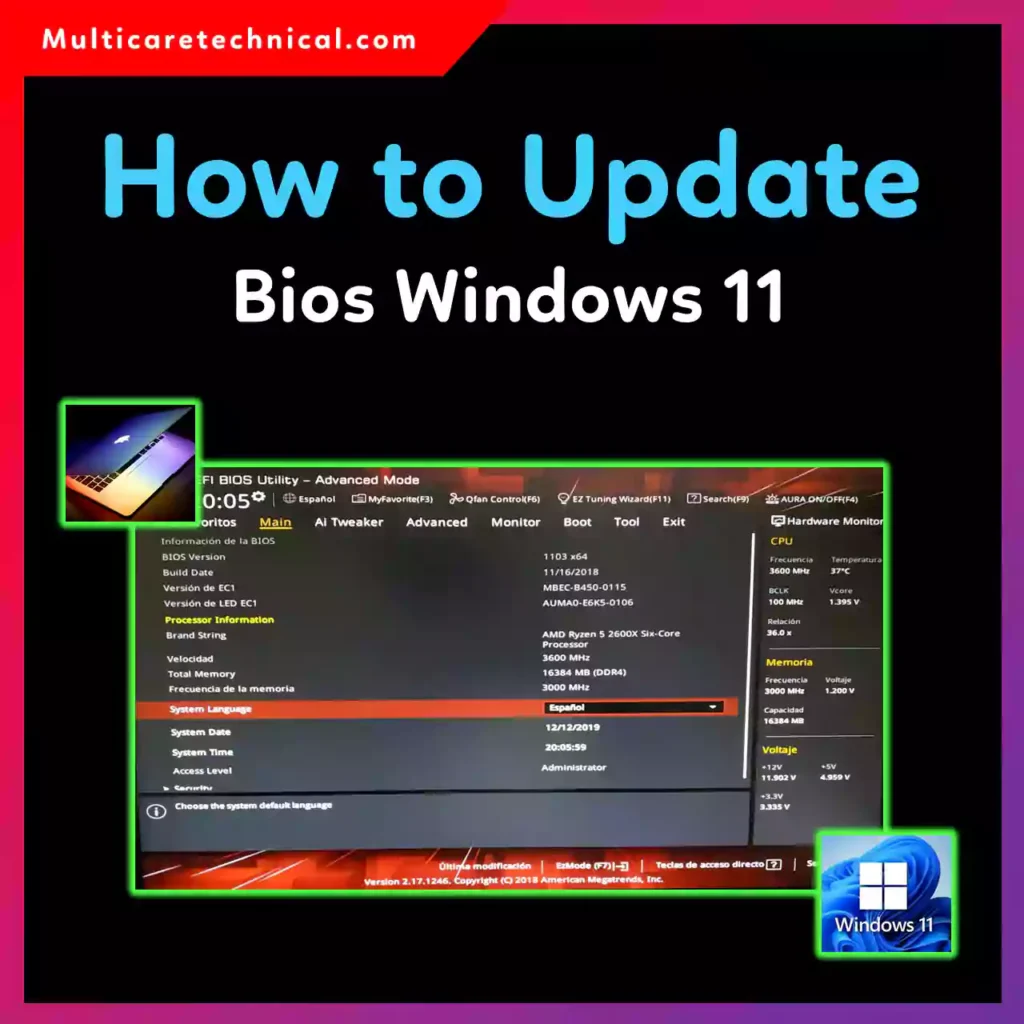
Let’s break it down the right way 👇
What Is BIOS (And Why Windows 11 Isn’t the Real Player Here)
BIOS (Basic Input/Output System) is firmware stored on your motherboard. It runs before Windows loads and controls how your hardware talks to your system.
So when people ask “How to update BIOS on Windows 11?”, what they really mean is:
How do I update my motherboard or laptop firmware using a Windows 11 PC?
✔️ Windows 11 is just the tool
❌ BIOS is not part of Windows
When Should You Update BIOS?
You should update BIOS only if:
- Your manufacturer recommends it
- You’re facing boot or hardware detection issues
- You’re upgrading CPU, RAM, or SSD
- A security or stability patch is released
👉 If your PC is working perfectly, don’t update BIOS just for fun.
Before You Update BIOS (Do This First)
Quick safety checklist:
- 🔋 Laptop battery charged (or keep charger plugged in)
- ⚡ No power interruptions
- 🧠 Download BIOS only from the official website
- ❌ Never force shutdown during update
How to Check Current BIOS Version in Windows 11
- Press Windows + R
- Type
msinfo32 - Hit Enter
- Check BIOS Version/Date
You’ll need this info before downloading the update.
How to Update BIOS on Windows 11 (General Method)
Most brands follow one of these methods:
Method 1: Windows BIOS Update Utility (Easiest)
- Download BIOS updater (.exe)
- Run it in Windows 11
- System restarts and updates automatically
Method 2: BIOS Flash via USB
- Download BIOS file
- Copy to USB (FAT32)
- Enter BIOS (F2 / DEL / F10)
- Use “EZ Flash / Q-Flash / M-Flash”
Brand-Specific BIOS Update Guides (Windows 11)
🔹 How to Update BIOS Windows 11 Lenovo Laptop
- Visit Lenovo Support
- Enter model or serial number
- Download BIOS Update Utility
- Run the EXE → Restart → Done
🔹 How to Update BIOS Windows 11 ASUS
- Use ASUS EZ Flash or Windows BIOS installer
- Download correct motherboard/laptop model BIOS
- Never rename files unless ASUS instructs you to
🔹 How to Update BIOS Windows 11 Gigabyte
- Use Q-Flash
- Copy BIOS to USB
- Enter BIOS → Q-Flash → Update
🔹 How to Update BIOS Windows 11 HP Victus / HP Laptop
- Go to HP Support Assistant
- BIOS updates appear under Firmware
- HP handles the process automatically
🔹 How to Update BIOS Windows 11 Acer Nitro 5 / Acer Laptop
- Acer Support → Drivers & Manuals
- Download BIOS EXE
- Run as Administrator
- Restart and wait
🔹 How to Update BIOS Windows 11 Dell Laptop
- Dell Support → Enter Service Tag
- Download BIOS Update
- Run EXE → Restart → Flash completes
🔹 How to Update BIOS Windows 11 MSI
- Download BIOS from MSI site
- Use M-Flash
- Update via USB inside BIOS
Common BIOS Update Mistakes (Avoid These)
❌ Using wrong model BIOS
❌ Power interruption
❌ Updating BIOS unnecessarily
❌ Closing lid during update
If BIOS update fails, the motherboard can brick — so patience matters.
Useful Internal Guides (Don’t Miss These)
While you’re tuning your system, you may also like:
- 👉 How to Copy an Entire Page in Word – Quick & Easy Methods
- 👉 How to Change Default Browser on Mac (Monterey, Catalina, Sequoia)
- 👉 How to Move Columns in Excel Without Breaking Your Data
Quick FAQ (Optimized for AI Overviews)
Is BIOS update required for Windows 11?
No. BIOS updates are hardware-related, not Windows-related.
Is it safe to update BIOS on a laptop?
Yes — if done using official tools and stable power.
How long does BIOS update take?
Usually 2–10 minutes.
Can BIOS update improve performance?
Sometimes — mainly stability and compatibility improvements.
Final Thoughts
Updating BIOS on Windows 11 isn’t about Windows at all — it’s about your hardware firmware.
Do it only when necessary, follow your manufacturer’s instructions, and never rush the process.
If done right, BIOS updates are boring — and that’s a good thing. 😄