
Have you noticed that your iPhone suggests words, completes sentences, or recommends replies while you’re using iMessage? These features are designed to make texting faster, but not everyone finds them useful. Some users prefer typing their own messages without automatic suggestions or AI-generated responses appearing on the screen.
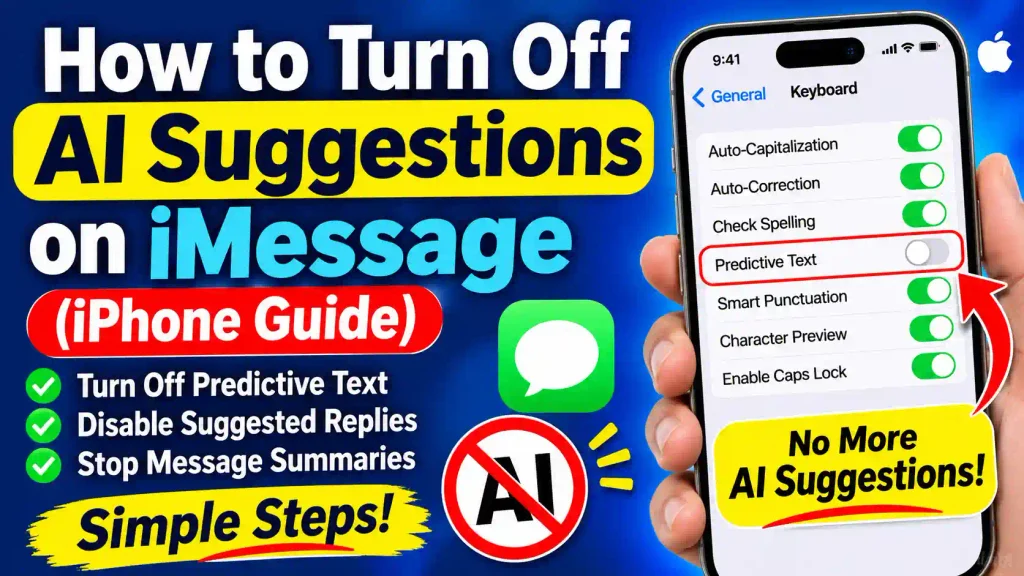
Apple provides several intelligent features in Messages, including predictive text, inline text predictions, suggested replies, and Apple Intelligence-powered message summaries. Depending on your iPhone model and iOS version, you may see different types of suggestions.
The good news is that you can turn off many of these features through your iPhone settings. You don’t need to install additional applications or change complicated system configurations.
In this guide, you’ll learn how to turn off AI suggestions on iMessage, disable predictive text, manage Apple Intelligence features, and troubleshoot common problems.
Quick Answer: How to Turn Off AI Suggestions on iMessage
To turn off word and sentence suggestions while typing in iMessage:
- Open the Settings app on your iPhone.
- Tap General.
- Select Keyboard.
- Find Predictive Text.
- Turn off the Predictive Text toggle.
This removes suggested words and inline text predictions from the iPhone keyboard.
If you want to disable AI-powered message summaries, go to Settings > Apps > Messages and turn off Summarize Messages, if that option is available on your device.
Important: Predictive Text and Apple Intelligence are different features. Disabling predictive text does not automatically turn off every Apple Intelligence feature.
Table of Contents
- What Are AI Suggestions on iMessage?
- Why Turn Off AI Suggestions on iPhone?
- How to Turn Off AI Suggestions on iMessage
- How to Disable Apple Intelligence Message Summaries
- How to Turn Off Siri Suggestions in Messages
- Common Problems and Fixes
- Best Practices and Pro Tips
- Frequently Asked Questions
1. What Are AI Suggestions on iMessage?
AI suggestions on iMessage generally refer to intelligent features that help you compose, understand, and respond to messages.
Apple uses different technologies to provide these features. Some suggestions come from the iPhone keyboard, while others are powered by Apple Intelligence on compatible devices.
Here are the most common types:
Predictive Text
Predictive Text displays suggested words and phrases above the iPhone keyboard as you type. For example, when you type “How are,” your iPhone might suggest “you” as the next word.
Inline Text Predictions
Inline predictions appear as gray text directly inside the message you’re composing. You can accept the suggested completion by pressing the Space bar.
Suggested Replies
On supported Apple Intelligence-enabled iPhones, Messages can suggest possible responses based on the conversation. You can tap a suggested response to use it as a starting point for your reply.
Message Summaries
Apple Intelligence can summarize conversations, making it easier to understand long discussions without reading every individual message.
These features are useful, but some people prefer a simpler messaging experience without automated assistance.
2. Why Turn Off AI Suggestions on iPhone?
There are several reasons why someone might want to disable AI suggestions in iMessage.
- More typing control: You can compose messages without relying on automatically generated suggestions.
- Fewer distractions: Removing predictive suggestions can make the keyboard interface cleaner.
- Personal writing style: You can write messages naturally without suggested phrases influencing your responses.
- Avoid incorrect predictions: Predictive text sometimes recommends words that don’t match the intended meaning.
- Privacy preferences: Some users prefer limiting optional AI-assisted features on their devices.
Remember that turning off keyboard suggestions does not disable iMessage itself. You can continue sending and receiving blue-bubble iMessages and green-bubble SMS or MMS messages normally.
3. How to Turn Off AI Suggestions on iMessage
The easiest way to remove most typing suggestions is to disable Predictive Text in your iPhone’s keyboard settings.
Follow these steps:
Step 1: Open iPhone Settings
Unlock your iPhone and locate the Settings application.
Tap the Settings icon to open the main configuration menu.
Step 2: Navigate to General
Scroll down through the available options and select General.
This section contains several system settings, including keyboard preferences, language settings, and software information.
Step 3: Select Keyboard
Inside the General menu, find and tap Keyboard.
You will see different options related to typing, including:
- Auto-Capitalization
- Auto-Correction
- Check Spelling
- Predictive Text
- Smart Punctuation
- Character Preview
Step 4: Turn Off Predictive Text
Find the Predictive Text option.
Tap the toggle to turn it off.
<The Predictive Text option may appear differently depending on your iOS version.>
After disabling this setting, your iPhone will stop displaying the usual predictive word suggestions above the keyboard. Inline text predictions are also disabled when Predictive Text is turned off.
Step 5: Open Messages and Test the Keyboard
Return to your Home Screen and open the Messages application.
Select an existing conversation or start a new message.
Tap the message input field and begin typing.
You should no longer see the usual predictive word suggestions or inline completions.
Result: Predictive keyboard suggestions are now disabled when composing messages.
4. How to Disable Apple Intelligence Message Summaries
If you’re using an Apple Intelligence-compatible iPhone, you may also see automatically generated summaries underneath conversations.
These summaries are different from keyboard suggestions.
You can disable them separately without turning off the entire Apple Intelligence system.
Follow these instructions:
- Open the Settings application.
- Scroll down and tap Apps.
- Select Messages.
- Find the Summarize Messages option.
- Turn off the toggle.
Once disabled, Apple Intelligence will stop generating conversation summaries in Messages.
Note: This setting may not appear on older iPhones or devices that don’t support Apple Intelligence. The availability of features also depends on your iOS version, language, and region.
If you want to remove notification summaries instead, follow this alternative path:
- Open Settings.
- Tap Notifications.
- Select Summarize Notifications.
- Turn off summaries for Messages or disable the feature entirely.
This prevents summarized Messages notifications from appearing, but it does not necessarily disable other Apple Intelligence features.
5. How to Turn Off Siri Suggestions in Messages
Sometimes, the suggestions appearing on your iPhone may be related to Siri rather than the keyboard.
Siri can provide suggestions based on your app usage and activities.
If you want to reduce Siri recommendations in Messages, check the Siri settings.
- Open the Settings application.
- Navigate to Apple Intelligence & Siri or Siri, depending on your iOS version.
- Find the section for app-specific suggestions.
- Select Messages if it appears in the list.
- Turn off the available suggestion options, such as Show in App, where supported.
The exact controls can vary between iOS releases.
If you want to disable Apple Intelligence more broadly, check the Apple Intelligence controls in the same settings area. Be aware that this can affect other supported Apple Intelligence features, not just Messages.
6. Common Problems and Fixes
Even after changing your iPhone settings, you might occasionally notice suggestions or corrections while typing.
Here are some common problems and their solutions.
Problem 1: Predictive Text Still Appears
Possible reason: You may have changed a different keyboard setting instead of Predictive Text.
Solution:
- Open Settings.
- Select General.
- Tap Keyboard.
- Check that Predictive Text is disabled.
You can also access Keyboard Settings by touching and holding the Emoji or keyboard-switching key while the keyboard is open.
Problem 2: Inline Text Predictions Are Still Visible
Possible reason: Your keyboard settings may not have been changed successfully.
Solution:
Open Settings > General > Keyboard and check the Predictive Text and Show Predictions Inline controls, if available.
Turning off Predictive Text disables both predictive suggestions and inline predictions on supported iOS versions.
Problem 3: Automatic Spelling Corrections Continue
Possible reason: Predictive Text and Auto-Correction are separate keyboard features.
Solution:
If you also want to stop automatic spelling corrections, navigate to:
Settings > General > Keyboard > Auto-Correction
Turn off Auto-Correction.
Keep in mind that disabling Auto-Correction may allow more spelling mistakes to remain in your messages.
Problem 4: AI Message Summaries Still Appear
Possible reason: You disabled keyboard predictions but did not disable Apple Intelligence message summaries.
Solution:
Go to Settings > Apps > Messages and turn off Summarize Messages.
Also check Settings > Notifications > Summarize Notifications if the summaries appear in your notifications rather than inside conversations.
Problem 5: You Cannot Find Apple Intelligence Settings
Possible reason: Your iPhone model, iOS version, language, or region may not support the feature.
Solution:
- Open Settings.
- Tap General.
- Select About.
- Check your iPhone model and iOS version.
- Visit Software Update to check for available updates.
Not every iPhone supports Apple Intelligence. Updating iOS also does not guarantee that every feature will become available on an unsupported device.
7. Best Practices and Pro Tips
Before disabling every intelligent feature on your iPhone, consider which options you actually need.
Here are some useful recommendations.
1. Disable Only Unwanted Suggestions
If you dislike suggested words but still want automatic spelling corrections, turn off Predictive Text while keeping Auto-Correction enabled.
2. Keep Useful Keyboard Features
Features such as Auto-Capitalization and Check Spelling can make everyday typing easier. You don’t need to disable them just because you want to remove AI suggestions.
3. Manage Notification Summaries Separately
If your main concern is AI-generated notification summaries, disable them through Notification settings rather than changing your keyboard configuration.
4. Keep Your iPhone Updated
Apple regularly updates iOS and changes the availability or location of certain settings. Keeping your iPhone updated can help you access the latest controls and security improvements.
5. Test Your Changes
After changing settings, open Messages and test a conversation. Check the keyboard, message suggestions, and notifications separately to confirm that the desired features are disabled.
You can also explore other useful iPhone tutorials on Multicare Technical:
If you’re interested in improving your home network, read our guide on How to Configure a TP-Link Extender.
Conclusion
Turning off AI suggestions on iMessage is simple once you understand the difference between keyboard predictions, Apple Intelligence, and Siri suggestions.
For most users who want to remove suggested words while typing, the quickest solution is to navigate to Settings > General > Keyboard > Predictive Text and turn it off.
If you also want to remove AI-generated message summaries, disable Summarize Messages under your Messages settings.
You don’t need to disable iMessage or change your Apple Account to manage these features.
Choose the settings that match your preferences and enjoy a cleaner, more personalized messaging experience on your iPhone.
Frequently Asked Questions (FAQs)
1. How do I turn off AI suggestions on iMessage?
Open Settings, go to General > Keyboard, and turn off Predictive Text. This removes suggested words and inline text predictions while typing in Messages.
2. Can I turn off iMessage suggestions without disabling Auto-Correction?
Yes. Predictive Text and Auto-Correction are separate settings. You can disable Predictive Text while keeping Auto-Correction enabled.
3. How do I stop AI-generated replies in iMessage?
On supported iPhones, you can manage Apple Intelligence features through Settings. Turning off Apple Intelligence more broadly may disable supported AI-assisted features, but keyboard suggestions and message summaries have separate controls.
4. Does turning off Predictive Text affect iMessage?
No. Disabling Predictive Text only changes the keyboard experience. You can continue sending and receiving iMessages, SMS, and MMS messages normally.
5. Can I turn off AI message summaries without disabling Apple Intelligence?
Yes. If your device supports the feature, go to Settings > Apps > Messages and turn off Summarize Messages. You can manage notification summaries separately under Settings > Notifications.