
Rearranging columns in Excel is a common task—whether you’re organizing reports, cleaning up data, or preparing sheets for analysis. The good news? Excel offers multiple easy ways to move columns using your mouse, keyboard shortcuts, and even inside PivotTables.
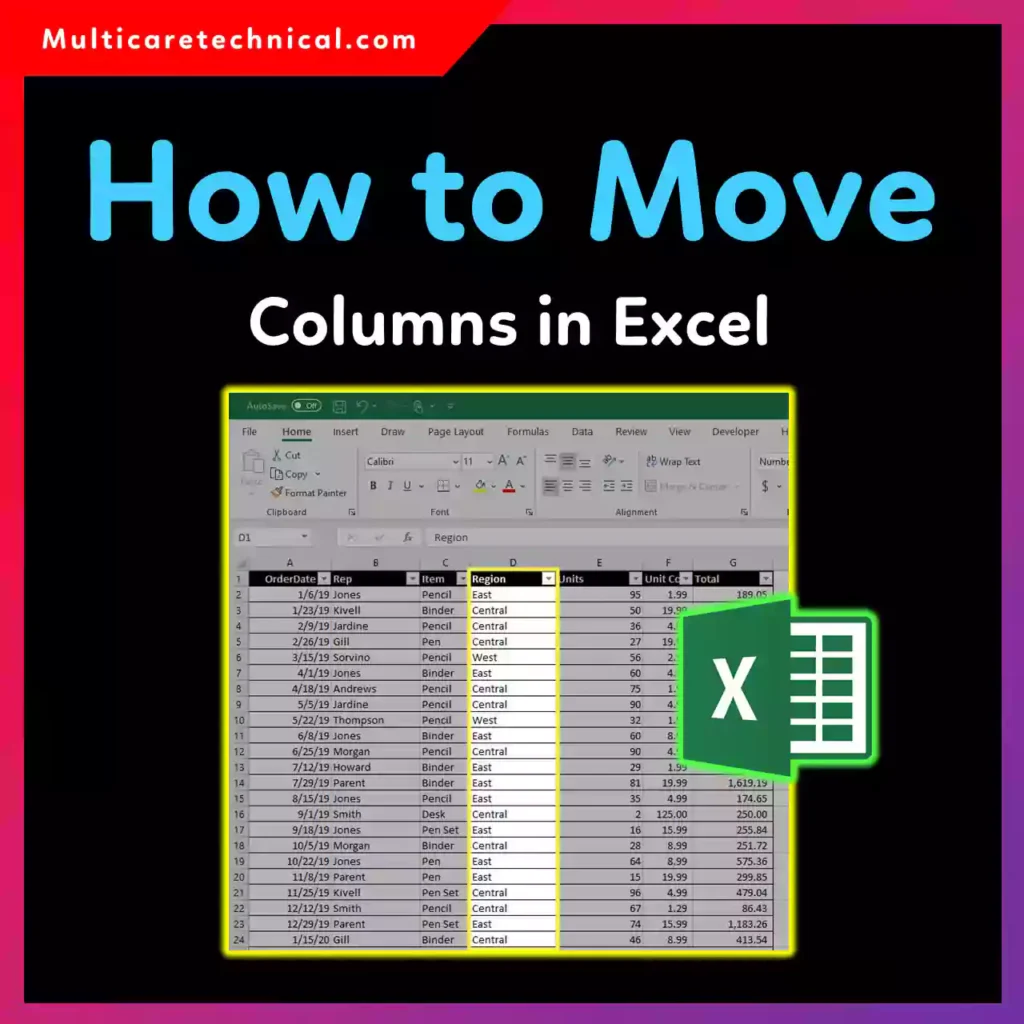
In this guide, you’ll learn how to move columns in Excel safely and quickly, without overwriting or losing data.
Why You Might Need to Move Columns in Excel
You may want to move columns to:
- Improve data readability
- Match reporting requirements
- Reorder imported datasets
- Prepare files for formulas or PivotTables
No matter your reason, Excel has a method that fits your workflow.
Method 1: How to Move Columns in Excel Using Mouse (Beginner Friendly)
This is the most visual and beginner-friendly method.
Steps:
- Select the column by clicking its letter (A, B, C…)
- Hover over the column border until the four-arrow cursor appears
- Hold Shift
- Drag the column to the new position
- Release the mouse
✅ Holding Shift prevents Excel from overwriting data.
Best for:
- How to move columns in Excel using mouse
- Quick rearranging
Method 2: How to Move Columns in Excel with Keyboard (Shortcut Method)
If you prefer keyboard shortcuts:
Steps:
- Select the column
- Press Ctrl + X (Cut)
- Select the destination column
- Right-click → Insert Cut Cells
This method works smoothly for large datasets.
🔑 Excel shortcut summary:
- Cut column: Ctrl + X
- Insert cut cells: Right-click → Insert
Method 3: How to Move Columns in Excel on Mac
Mac users can follow almost the same process.
Using mouse (Mac):
- Select column
- Hold Shift
- Drag column to the new position
Using keyboard (Mac):
- Command + X → Cut
- Right-click → Insert Cut Cells
This works across Excel for macOS versions.
Method 4: How to Move Columns in Excel Pivot Table
PivotTables require a different approach.
Steps:
- Click inside the PivotTable
- Open PivotTable Fields
- Drag fields between Columns, Rows, or Values
- Release to reorder instantly
⚠️ You cannot drag PivotTable columns like normal cells—always use the Fields pane.
Method 5: How to Move Columns in Excel Without Mouse (Power Users)
For advanced users:
- Use Ctrl + X → Insert Cut Cells
- Or reorder columns via Power Query for large datasets
This is ideal when working with imported or automated data.
Common Excel Problems While Moving Columns
If Excel behaves strangely while navigating cells, arrow keys might be the issue. Fix it here:
👉 https://multicaretechnical.com/how-to-fix-arrow-keys-not-working-in-excel-windows-10-11
For cleaning data before rearranging columns, check:
👉 https://multicaretechnical.com/how-to-delete-duplicates-in-excel-easy-step-by-step-guide
You may also find this system guide helpful:
👉 https://multicaretechnical.com/how-to-remove-microsoft-account-from-windows-11-complete-step-by-step-guide
Quick Comparison: Best Way to Move Columns
| Scenario | Best Method |
|---|---|
| Fast manual move | Shift + Drag |
| Keyboard only | Ctrl + X → Insert Cut Cells |
| Mac users | Shift + Drag / Command + X |
| PivotTables | PivotTable Fields Panel |
| Large datasets | Cut & Insert |
FAQs (Optimized for AI & Featured Snippets)
How do I move columns in Excel without overwriting data?
Hold Shift while dragging the column or use Cut → Insert Cut Cells.
What is the shortcut to move columns in Excel?
Use Ctrl + X, then right-click and choose Insert Cut Cells.
Can I move columns in Excel on Mac?
Yes. Hold Shift and drag, or use Command + X and Insert Cut Cells.
How do I rearrange columns in a PivotTable?
Use the PivotTable Fields panel to drag fields into a new order.