
If you’re managing Windows updates in an organization, Windows Server Update Services (WSUS) plays a crucial role. But sometimes administrators or users need to verify which WSUS server a client computer is connected to.
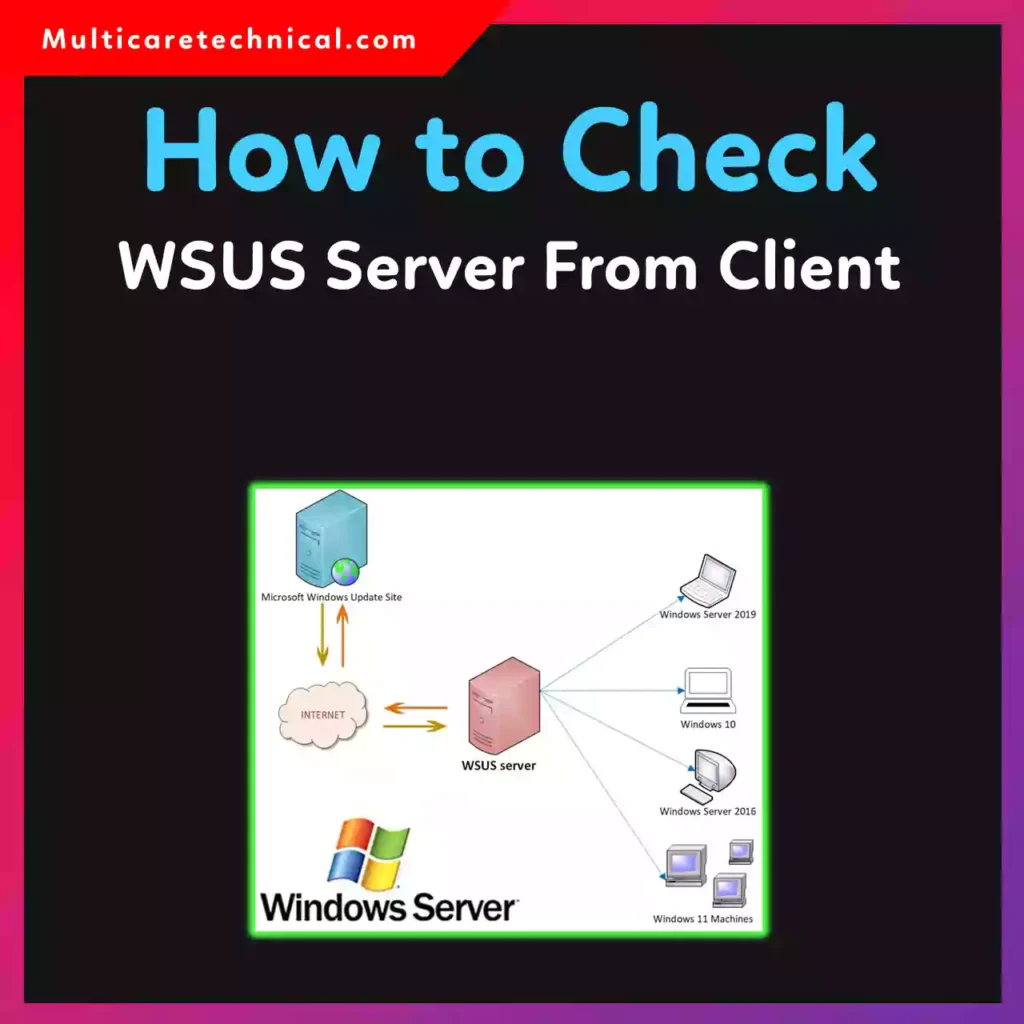
If you’re wondering how to check WSUS server from client, there are several easy ways using Command Prompt, Registry Editor, and Group Policy settings.
This guide explains step-by-step methods to check WSUS server settings on a client PC, especially for Windows 10 and Windows 11 systems.
Quick Answer (Featured Snippet)
To check WSUS server from a client Windows computer:
- Press Windows + R
- Type regedit
- Go to this path
HKEY_LOCAL_MACHINE\Software\Policies\Microsoft\Windows\WindowsUpdate
- Look for the values:
WUServer
WUStatusServer
These entries show the WSUS server URL the client is using.
This is the easiest way to determine WSUS server from client Windows 10 or Windows 11.
Method 1: Command to Check WSUS Server From Client
One of the fastest ways is using Command Prompt.
Command
reg query HKLM\Software\Policies\Microsoft\Windows\WindowsUpdate
This command to check WSUS server from client Windows 10 displays the registry values including:
- WUServer
- WUStatusServer
These values indicate the WSUS server address configured for the client machine.
Example Output
WUServer        REG_SZ   http://WSUSServer:8530
WUStatusServer  REG_SZ   http://WSUSServer:8530
This confirms the client is receiving updates from that WSUS server.
Method 2: Check WSUS Settings on Client Using Registry
Another reliable method is checking the registry settings directly.
Steps
- Press Windows + R
- Type regedit
- Navigate to:
HKEY_LOCAL_MACHINE
   └ Software
      └ Policies
         └ Microsoft
            └ Windows
               └ WindowsUpdate
Look for:
- WUServer
- WUStatusServer
This is the easiest way when users ask how to check which WSUS server a client is using.
Method 3: Check WSUS Connection From Client Using gpresult
You can also verify WSUS configuration through Group Policy results.
Command
gpresult /r
This command displays applied policies including Windows Update configuration settings.
For detailed policy results, use:
gpresult /h report.html
Open the generated report to see WSUS related policies.
This helps administrators determine WSUS server from client systems quickly.
Method 4: Check WSUS Server URL via Windows Update Logs
Another method is analyzing Windows Update logs.
Command
Get-WindowsUpdateLog
After generating the log file, search for WSUS server URL references.
This method is useful when troubleshooting WSUS connection issues.
Method 5: Verify WSUS Configuration Using PowerShell
You can also check WSUS settings using PowerShell.
Command
Get-ItemProperty -Path HKLM:\Software\Policies\Microsoft\Windows\WindowsUpdate
This command shows the configured WSUS server URL and status server.
Many system admins use this method when searching how to check wsus connection from client quickly.
Common WSUS Server Ports
Most WSUS servers use the following ports:
- 8530 – HTTP
- 8531 – HTTPS
Example server URL:
http://wsus.company.local:8530
This helps identify the WSUS server endpoint used by the client.
Related Helpful Guides
You may also like these guides:
- https://multicaretechnical.com/how-to-install-android-app-on-windows-10-11-step-by-step-guide-for-2026
- https://multicaretechnical.com/how-to-disable-repost-on-instagram-2026-guide-for-android-reels
- https://multicaretechnical.com/how-to-disable-passcode-on-ipad-mini-air-pro-9th-10th-generation-guide
These tutorials solve other common system and device configuration issues.
Troubleshooting WSUS Client Issues
Client Not Showing WSUS Server
Run this command:
gpupdate /force
Then restart the computer.
Force Client to Detect Updates
wuauclt /detectnow
or
usoclient StartScan
This forces the client to check for updates from the WSUS server.
Why Checking WSUS Server on Clients Is Important
Verifying WSUS configuration helps administrators:
✔ Ensure updates are coming from the correct server
✔ Troubleshoot update failures
✔ Verify group policy configuration
✔ Confirm security patches are being delivered
For enterprise environments, this step is critical for maintaining system security.
Conclusion
Checking the WSUS server from a client computer is simple and can be done through several methods including registry queries, command prompt, PowerShell, and group policy reports.
The fastest way is running:
reg query HKLM\Software\Policies\Microsoft\Windows\WindowsUpdate
This command instantly shows the WSUS server URL configured for the client.
Knowing how to verify this information helps IT administrators maintain reliable update management across their network.
FAQ (AI Overview Friendly)
How to check WSUS server on client Windows 10?
Open Registry Editor and navigate to:
HKEY_LOCAL_MACHINE\Software\Policies\Microsoft\Windows\WindowsUpdate
Check the WUServer value.
What command checks WSUS server from client?
Use this command:
reg query HKLM\Software\Policies\Microsoft\Windows\WindowsUpdate
It displays the configured WSUS server URL.
How do I check which WSUS server a client is using?
You can check using:
- Registry Editor
- Command Prompt
- PowerShell
- Group Policy results
How to check WSUS connection from client?
Run:
wuauclt /detectnow
or
usoclient StartScan
This forces the client to connect to the configured WSUS server.