
Windows Fax and Scan is a built-in Windows utility that allows users to scan documents, manage scanned files, and send or receive faxes when compatible hardware and services are available. However, if you recently installed Windows 11, you might discover that this application is missing from the Start menu.
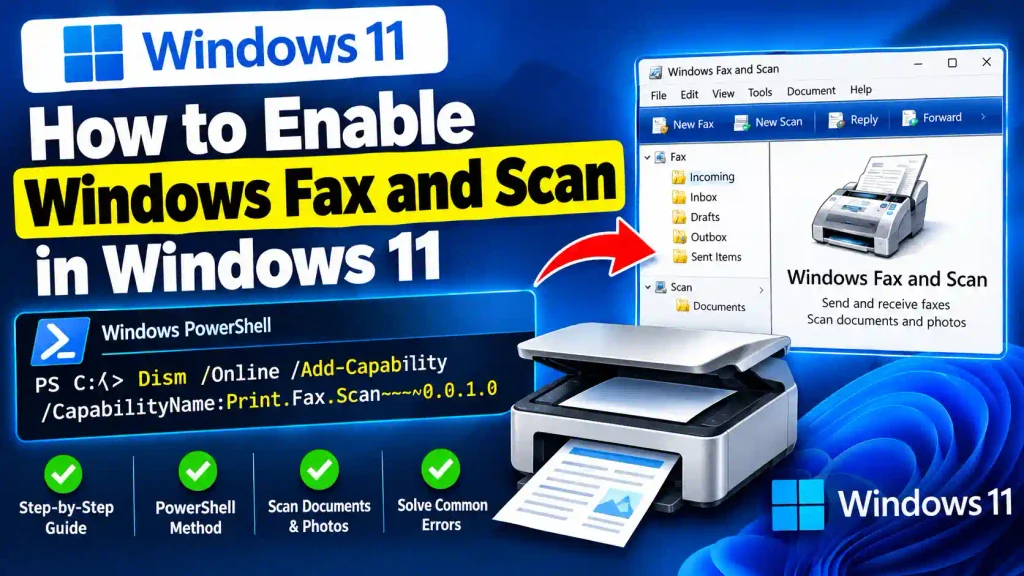
Fortunately, you may be able to install it without downloading third-party software or reinstalling Windows. One effective method is to use the Deployment Image Servicing and Management (DISM) command-line tool to add the Windows Fax and Scan capability.
In this guide, you’ll learn how to enable Windows Fax and Scan in Windows 11 using PowerShell, understand the DISM command, verify the installation, and troubleshoot common errors.
Quick Answer: Enable Windows Fax and Scan Using PowerShell
To enable Windows Fax and Scan in Windows 11, open PowerShell or Windows Terminal as Administrator and run the following command:
Dism /Online /Add-Capability /CapabilityName:Print.Fax.Scan~~~~0.0.1.0Wait for DISM to complete the installation. Once the command finishes successfully, open the Start menu, search for Windows Fax and Scan, and launch the application.
Windows Fax and Scan is a Feature on Demand and is not preinstalled on Windows 11 version 22H2 and later, according to Microsoft’s Features on Demand documentation.
Important: Run the command in an elevated terminal. An internet connection may be required to download the feature files from Windows Update.
Table of Contents
- What Is Windows Fax and Scan?
- Understanding the DISM Command
- How to Enable Windows Fax and Scan Using PowerShell
- How to Verify the Installation
- Common Errors and Fixes
- Best Practices and Pro Tips
- Frequently Asked Questions
- Conclusion
1. What Is Windows Fax and Scan?
Windows Fax and Scan is a desktop application included in Windows that supports document scanning and fax management.
It can be useful in offices, educational institutions, healthcare facilities, and home workspaces where users need to digitize paper documents or work with compatible fax equipment.
Its main capabilities include:
- Scanning documents and photographs using a compatible scanner.
- Organizing scanned documents.
- Managing incoming and outgoing faxes.
- Saving scanned files for later use.
- Accessing available fax features when compatible hardware and services are configured.
The application does not automatically make every scanner or fax machine compatible. Your device still needs the appropriate driver, and faxing requires compatible equipment or a supported fax connection.
Why Is Windows Fax and Scan Missing in Windows 11?
Microsoft treats Windows Fax and Scan as an optional capability rather than a universally preinstalled application on newer Windows versions.
As a result, you may not find it in the Start menu after installing Windows 11, upgrading your operating system, or reinstalling Windows.
If the application is missing, you can check Settings > System > Optional features first. If the capability is unavailable in the graphical interface, DISM provides another installation method.
2. Understanding the DISM Command
Before running the command, it helps to understand what each parameter does.
Here is the complete command again:
Dism /Online /Add-Capability /CapabilityName:Print.Fax.Scan~~~~0.0.1.0This command tells Windows to add the Windows Fax and Scan capability to the currently running operating system.
Explanation of Each Parameter
| Command component | What it does |
|---|---|
Dism | Starts the Deployment Image Servicing and Management utility. |
/Online | Targets the Windows installation currently running on your computer. |
/Add-Capability | Installs a Windows capability or Feature on Demand. |
/CapabilityName: | Specifies the capability to install. |
Print.Fax.Scan~~~~0.0.1.0 | Identifies the Windows Fax and Scan capability. |
What Does Print.Fax.Scan~~~~0.0.1.0 Mean?
This is the official capability identifier used by Windows to identify the Print Fax Scan Feature on Demand package.
The four consecutive tilde characters (~~~~) are part of the capability name. They are not decorative characters and should not be removed.
The 0.0.1.0 portion identifies the capability version in its Windows servicing name.
Do not replace the capability identifier with the application name. DISM requires the exact capability name, not simply Windows Fax and Scan.
For more information, consult Microsoft’s documentation on Features on Demand and DISM.
3. How to Enable Windows Fax and Scan in Windows 11 Using PowerShell
Follow these steps to install the feature.
Step 1: Open PowerShell as Administrator
First, open the Start menu by pressing the Windows key.
Type PowerShell in the search box. Alternatively, search for Windows Terminal.
Right-click the appropriate application and select Run as administrator. Approve the User Account Control prompt if it appears.
You can also press Windows + X and select Terminal (Admin), depending on your Windows 11 configuration.
Why is administrator access required?
Installing a Windows capability modifies the operating system. An elevated terminal provides the administrative permissions required to perform this operation.
Step 2: Run the DISM Command
In the administrator PowerShell or Windows Terminal window, copy and paste the following command:
Dism /Online /Add-Capability /CapabilityName:Print.Fax.Scan~~~~0.0.1.0Press Enter to execute it.
DISM will check the requested capability and attempt to install the required files. If the files are not already available locally, Windows may retrieve them through its configured servicing source, such as Windows Update.
Step 3: Wait for the Installation to Finish
Allow the command to complete. Installation time depends on your computer, internet connection, and Windows servicing configuration.
Do not close the terminal while the operation is running.
If the installation succeeds, DISM should report that the operation completed successfully. If it fails, note the error message and code before trying again.
A restart may be necessary if Windows requests one.
Step 4: Search for Windows Fax and Scan
After the command finishes, press Windows + S to open Windows Search.
Type:
Windows Fax and Scan
If the application appears, select it to launch the program.
You should now be able to access its available scanning and fax-management features.
If the application does not appear immediately, restart your computer and search again.
Step 5: Test the Application
Once the application opens, check whether your scanner is detected.
To test scanning:
- Connect your scanner or multifunction printer.
- Install the manufacturer’s driver if required.
- Open Windows Fax and Scan.
- Select New Scan.
- Choose the appropriate scanner and available settings.
- Preview the document and start the scan.
The exact options depend on your scanner, driver, and device configuration.
If you only need to scan documents and Windows Fax and Scan does not work with your hardware, the Windows Scan app or your scanner manufacturer’s application may be a suitable alternative.
4. How to Verify the Installation
You can verify whether Windows recognizes the capability by running another DISM command in an administrator terminal.
Use:
Dism /Online /Get-CapabilityInfo /CapabilityName:Print.Fax.Scan~~~~0.0.1.0Review the output for the capability state.
- Installed: The capability is installed.
- Not Present: The capability is not currently installed.
- Install Pending: Installation may be waiting for a servicing operation or restart.
The exact output can vary depending on the system’s servicing state.
You can also open Settings > System > Optional features and check the installed features list.
Remember that an installed capability does not guarantee that a scanner driver, physical fax device, or fax service is working correctly. Those components may require separate configuration.
5. Common Errors and Fixes
If the DISM command fails, use the following troubleshooting steps.
Error 1: Access Is Denied
Possible cause: The terminal was opened without administrator privileges.
Fix:
- Close the current terminal.
- Search for PowerShell or Windows Terminal.
- Select Run as administrator.
- Execute the command again.
Error 2: The Source Files Could Not Be Found
Possible cause: Windows cannot locate the required capability files in its configured servicing sources.
Fix:
- Check your internet connection.
- Open Settings and install any applicable Windows updates.
- Check whether your organization uses Windows Server Update Services (WSUS) or policies that restrict optional-feature downloads.
- Ask your IT administrator to verify the servicing source configuration.
In managed environments, administrators may need to provide an appropriate Features on Demand source.
Do not download individual system files from untrusted websites.
Error 3: The Capability Is Already Installed
If DISM indicates that the capability is already installed, you generally do not need to install it again.
Run the verification command shown earlier. Then search for Windows Fax and Scan in the Start menu.
If the application is installed but cannot be found or launched, investigate application availability and system integrity rather than repeatedly running the installation command.
Error 4: Windows Update or Installation Error
A failed download, a temporary Windows Update problem, or a servicing issue can prevent installation.
Try these steps:
- Restart the computer.
- Check your internet connection.
- Open Settings > Windows Update and install applicable updates.
- Run the DISM command again from an administrator terminal.
- If the issue continues, inspect the error code and the DISM log at
C:\Windows\Logs\DISM\dism.log.
Avoid resetting Windows Update components or changing system policies unless the specific error justifies doing so.
Error 5: Windows Fax and Scan Still Does Not Appear
First, verify that the capability state is Installed.
Then restart Windows and search again.
If the feature is installed but the application remains unavailable, inspect the DISM log and Windows servicing status. On managed computers, contact your IT administrator before attempting repairs that affect system components.
6. Best Practices and Pro Tips
Follow these recommendations when enabling Windows Fax and Scan.
Use the exact capability name. The four tildes in Print.Fax.Scan~~~~0.0.1.0 are required.
Run an elevated terminal. Administrative access avoids common permission errors.
Keep Windows updated. A current servicing environment can help resolve optional-feature installation issues.
Use trusted installation sources. Download capability files only from Microsoft or an authorized organizational source.
Check hardware compatibility. A successful application installation does not automatically install every scanner driver or configure fax services.
Record errors before troubleshooting. The complete DISM error code and relevant log entries are more useful than repeatedly running the same command.
Use the right utility for the task. Windows Fax and Scan supports both scanning and fax workflows, whereas a scanner-specific app may be better suited to advanced scanning features.
For other practical Windows and technology guides, see our tutorials on disabling Google AI Overviews in Google Search, removing music from an Instagram post, and removing the Google search bar from an Android or iPhone home screen.
7. Frequently Asked Questions
1. How do I enable Windows Fax and Scan in Windows 11?
Open PowerShell or Windows Terminal as Administrator and run Dism /Online /Add-Capability /CapabilityName:Print.Fax.Scan~~~~0.0.1.0. Wait for the installation to complete, then search for Windows Fax and Scan in the Start menu.
2. Does Windows 11 include Windows Fax and Scan by default?
Windows Fax and Scan is not preinstalled on Windows 11 version 22H2 and later. You may need to install it as an optional capability if it is not already present.
3. Can I install Windows Fax and Scan without PowerShell?
Yes. Open Settings > System > Optional features and look for Windows Fax and Scan under the available features. If it is listed, select it and follow the installation prompts. Availability may vary.
4. Do I need an internet connection to install Windows Fax and Scan?
An internet connection is often required when Windows needs to download the capability files from Windows Update. In managed environments, an administrator may configure another valid source for the installation files.
5. Why is Windows Fax and Scan not working after installation?
Possible causes include missing scanner drivers, incompatible hardware, a pending restart, or an incomplete Windows capability installation. Verify the capability state, restart the computer if necessary, and check the device drivers and DISM log.
8. Conclusion
If Windows Fax and Scan is missing from your Windows 11 computer, the DISM capability-installation method is a practical way to add it.
Open PowerShell or Windows Terminal as Administrator and run:
Dism /Online /Add-Capability /CapabilityName:Print.Fax.Scan~~~~0.0.1.0Wait for the operation to finish, verify the capability state, and search for Windows Fax and Scan in the Start menu.
If installation fails, check the error code, Windows Update configuration, and DISM log before attempting more advanced repairs.
With the correct capability installed and compatible hardware configured, you can use Windows Fax and Scan to manage scanning and fax-related tasks on your Windows 11 PC.