
1. Introduction
Have you noticed an AI-generated summary appearing at the top of Google search results? Google AI Overviews provide quick answers to questions by gathering information from multiple sources. Although this feature can save time, not everyone wants AI-generated responses mixed with their regular search results.
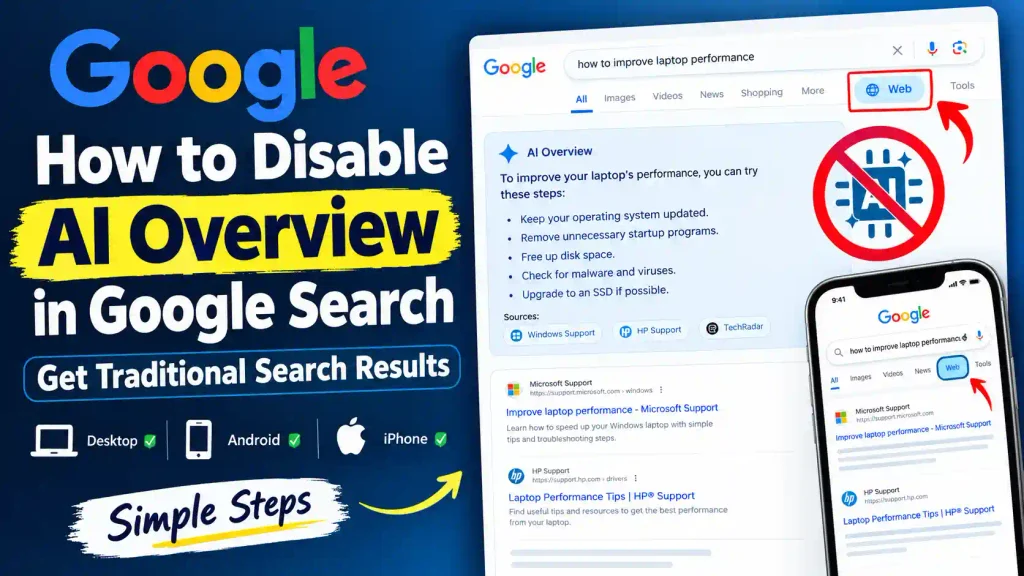
You might prefer visiting trusted websites directly, comparing information from different sources, or reading complete articles instead of relying on an automated summary.
If you are searching for a way to disable AI Overview in Google, there is one important limitation: Google does not currently provide a universal setting to turn off AI Overviews completely. However, you can use the Web filter to display traditional text-based search results without AI Overviews.
In this guide, you will learn how to avoid Google AI Overviews on a computer, Android phone, and iPhone. You will also discover alternative methods, troubleshooting tips, and settings that can help you get a more traditional search experience.
2. Quick Answer: How to Disable Google AI Overviews
The quickest way to hide Google AI Overviews is to perform a search and select the Web filter from the search results page.
Follow these steps:
- Open Google Search.
- Enter your search query and press Enter.
- Find the filter options below the search box.
- Select Web. If it is not visible, open More and look for the Web option.
- Browse the traditional text-based search results without AI Overviews.
This method works on supported desktop and mobile browsers. However, it applies to the current search rather than permanently disabling AI Overviews across Google Search.
3. Table of Contents
- What Are Google AI Overviews?
- Can You Turn Off Google AI Overviews Completely?
- Method 1: Use the Google Web Filter
- Method 2: Turn Off AI Experiments in Search Labs
- Method 3: Create a Google Web Search Shortcut in Chrome
- Method 4: Use Another Search Engine
- How to Avoid AI Overviews on Android and iPhone
- Common Errors and Fixes
- Best Practices and Pro Tips
- Frequently Asked Questions
4. What Are Google AI Overviews?
Google AI Overviews are AI-generated summaries that appear within Google Search results when Google’s systems determine that a summary may be useful for a query.
For example, if you search for “how to improve laptop performance,” Google might display a summary containing troubleshooting suggestions, explanations, and links to supporting websites.
AI Overviews can help you understand a topic quickly, but they also have limitations. AI-generated answers can contain errors, omit important details, or provide information that needs additional verification.
Some users prefer traditional search results because they want to:
- Read complete articles from original sources.
- Compare several expert opinions.
- Avoid summaries taking up space at the top of the page.
- Find detailed technical instructions and troubleshooting guides.
- Decide which sources to trust without relying on an AI-generated summary.
Google’s official documentation explains that AI Overviews are a core Search feature and cannot currently be disabled completely through a standard settings switch. The Web filter is Google’s recommended way to display text-based links without features such as AI Overviews.
Official reference: Google Search Help: AI Overviews.
5. How to Disable AI Overview in Google: Step-by-Step Methods
Method 1: Use the Google Web Filter
Best for: Windows PCs, Macs, Chromebooks, Android devices, and iPhones.
The Web filter is the simplest and most reliable official method for avoiding AI Overviews on an individual search.
Step 1: Open Google Search
Visit www.google.com in your preferred browser.
Step 2: Search for anything
Enter a query such as “Windows 11 troubleshooting tips” and press Enter.
Step 3: Find the search filters
Below the search box, look for the available search categories. Depending on your screen and query, these may include All, Images, Videos, News, and other options.
Step 4: Select Web
Click or tap Web. If you cannot see it immediately, open the More menu and check for the option there.
Step 5: Browse traditional search results
Google will display a text-focused results page without AI Overviews. You can now open websites directly and read their full content.
Important: You may need to select Web again for another search. This is a search filter, not a permanent account-wide AI disable setting.
Method 2: Turn Off AI Experiments in Google Search Labs
Best for: Users who have enabled experimental AI features.
Google Search Labs provides access to experimental search features. If you previously enabled an AI experiment, you can turn it off to stop participating in that experiment.
However, turning off an experiment does not disable all AI Overviews.
Follow these steps:
- Open Google in your desktop browser.
- Sign in to your Google Account.
- Make sure you are not using Incognito mode.
- Open a new tab and look for the Search Labs icon.
- Select the Labs icon and open its management options.
- Find the relevant AI experiment, such as an AI in Search experiment, if it appears.
- Turn the experiment off.
The available experiments and interface may change over time. If you do not see an AI experiment, you may not be enrolled in one.
Remember: This method only disables the applicable experimental feature. Standard AI Overviews may still appear in regular Google Search results.
Method 3: Create a Google Web Search Shortcut in Chrome
Best for: Users who regularly search from the Chrome address bar and want a quicker way to access text-only Google results.
Chrome lets you create custom site-search shortcuts. One commonly used workaround is to create a shortcut that opens Google’s Web-filtered results directly.
The URL parameter used for this workaround is unofficial and may stop working if Google changes its search system.
Step 1: Open Chrome settings
- Launch Google Chrome.
- Open the three-dot menu in the upper-right corner.
- Select Settings.
- Open Search engine.
- Select Manage search engines and site search. The wording may vary slightly by Chrome version.
Step 2: Add a custom site search
Under the site-search section, click Add.
Enter the following details:
- Search engine name: Google Web
- Shortcut: gweb
- URL with %s in place of query:
https://www.google.com/search?q=%s&udm=14
Replace the example URL only if you have a verified alternative. The udm=14 parameter is an unofficial workaround for requesting Google’s Web results.
Step 3: Save the shortcut
Click Save.
Step 4: Test the shortcut
- Click Chrome’s address bar.
- Type
gweb. - Press Space or Tab if Chrome offers the site-search prompt.
- Enter your search terms and press Enter.
Chrome should open the matching Google Web results when the shortcut works as expected.
Note: Google may change its search parameters, and the behavior can vary. If this workaround stops working, use the official Web filter instead.
Method 4: Use Another Search Engine
If you want to avoid Google’s AI Overviews altogether, consider using a different search engine as your default.
For example, you can try:
These services have their own search features, and their interfaces and AI options may change. Choosing another search engine does not guarantee that you will never encounter AI-generated content.
To change your default search engine in Chrome:
- Open Chrome Settings.
- Select Search engine.
- Open the default search engine selector.
- Choose an available alternative.
- Search from the address bar to test it.
You can switch back to Google whenever you need it.
6. How to Avoid AI Overviews on Android and iPhone
The process is similar on both mobile platforms.
On Android
- Open Chrome or another mobile browser.
- Visit Google and search for a topic.
- Look below the search box for the search filters.
- Tap Web or open More to locate it.
- Browse the text-based results.
If you frequently use Google’s search bar widget on your home screen, remember that it is simply a shortcut to Google Search. Removing the widget will not disable AI Overviews in the browser.
For instructions on managing the widget itself, read our guide: How to Remove Google Bar From Home Screen on Android and iPhone.
On iPhone
- Open Safari, Chrome, or your preferred browser.
- Visit Google.com.
- Enter your search query.
- Select the Web filter in the results.
- Open the text-based links you want to read.
If you use the Google app instead of a browser, the layout may differ. Look for the available search filters or open the results in a browser to use the Web filter.
7. Common Errors and Fixes
Even after following the steps above, you may encounter situations where AI Overviews still appear or the Web filter is difficult to find.
Problem 1: The Web Filter Is Missing
Why it happens: Google changes its interface depending on your device, search query, and available screen space.
Fix:
- Check the More menu.
- Scroll horizontally through the search filters if your mobile screen is narrow.
- Try opening Google Search in a desktop browser.
- Repeat the search if the page has not loaded completely.
Problem 2: AI Overviews Appear After Changing Search Settings
Why it happens: Standard AI Overviews are not controlled by a universal off switch in Google Search settings.
Fix: Use the Web filter after searching. If you disabled an experiment in Search Labs, remember that standard AI Overviews may remain available.
Problem 3: The Chrome Shortcut Does Not Work
Why it happens: The custom search URL may have been entered incorrectly, or Google may have changed how the parameter works.
Fix:
- Check that the URL includes
%sexactly as shown. - Confirm that the shortcut was saved under site-search settings.
- Test the shortcut from Chrome’s address bar.
- If it fails, return to the official Web filter method.
Problem 4: AI Overviews Appear in the Google App
Why it happens: The Google app has a different interface from Chrome or Safari, and its search experience may not expose the same controls in the same place.
Fix: Open the search results in your mobile browser and select Web. This is often the simplest alternative.
Problem 5: You Cannot Find an AI Off Switch
Why it happens: Google does not currently offer a universal setting that permanently disables all AI Overviews.
Fix: Do not waste time changing unrelated privacy, personalization, or SafeSearch settings. Use the Web filter, or choose a different search engine if that better suits your needs.
8. Best Practices and Pro Tips
Here are some practical ways to make your search experience more efficient.
1. Bookmark the Web results page
After selecting Web, bookmark the page if you want a quick reference. Keep in mind that a bookmark may preserve a particular search rather than automatically apply the filter to every new query.
2. Use the Chrome shortcut if it works for you
The custom udm=14 site-search method can save time if you search frequently. Because it is unofficial, keep the standard Web filter as a backup.
3. Verify important information
Whether you use AI Overviews or traditional results, check important technical, financial, medical, and security information against trustworthy sources.
4. Search for exact technical terms
For troubleshooting, include the error code, operating system version, device model, or exact error message. This can help you find relevant documentation and targeted solutions.
For example, if you need to automate a Windows task, a specific search such as “Windows 11 Task Scheduler error 0x1” is generally more useful than a broad query.
You can also follow our practical guide: How to Create a Scheduled Task in Windows 11.
5. Open original sources
When a search result links to official documentation, a vendor support page, or a detailed technical article, read the original source rather than relying entirely on a summary.
6. Save useful troubleshooting instructions
If you regularly share files or technical instructions, save reliable guides for future reference. Our tutorial on How to Create a ZIP File to Send via Email in Windows 11 is one example of a practical step-by-step resource.
9. Frequently Asked Questions
1. Can I completely disable Google AI Overviews?
No. Google currently does not provide a universal setting to turn off all AI Overviews. You can select the Web filter after a search to see text-based links without AI Overviews.
2. How do I remove AI Overviews from Google Search on my computer?
Search for a topic on Google, then select Web from the search filters. If the option is not visible, check the More menu. This displays traditional text-based results for that search.
3. How do I turn off Google AI Overviews on Android?
Open Google Search in your mobile browser, perform a search, and select the Web filter. If you cannot find it in the Google app, try opening the results in Chrome or another browser.
4. Does turning off Search Labs disable all AI Overviews?
No. Turning off an AI experiment in Search Labs disables that experiment, but it does not remove all standard AI Overviews from Google Search.
5. Can I permanently avoid AI Overviews in Chrome?
There is no guaranteed permanent Google setting for this. You can create a custom Chrome site-search shortcut using the unofficial udm=14 parameter, or select Web after each search. The shortcut may stop working if Google changes its search behavior.
10. Conclusion
Google AI Overviews can be useful for quick answers, but some people prefer traditional search results that link directly to websites and original sources.
Although you cannot currently disable every AI Overview through a universal Google setting, you have several practical alternatives. The easiest option is to perform a search and select the Web filter. You can also disable applicable Search Labs experiments, create a custom Chrome search shortcut, or choose another search engine.
For most users, the Web filter is the best starting point because it is an official Google feature and does not require installing extensions or changing browser settings.
Google may update its search interface and available controls in the future, so check its official documentation if the steps change.