
The Google search bar on your phone’s home screen provides quick access to Google Search, but not everyone wants it taking up space. You might prefer a cleaner home screen, more room for app icons, or a different widget that better suits your needs.
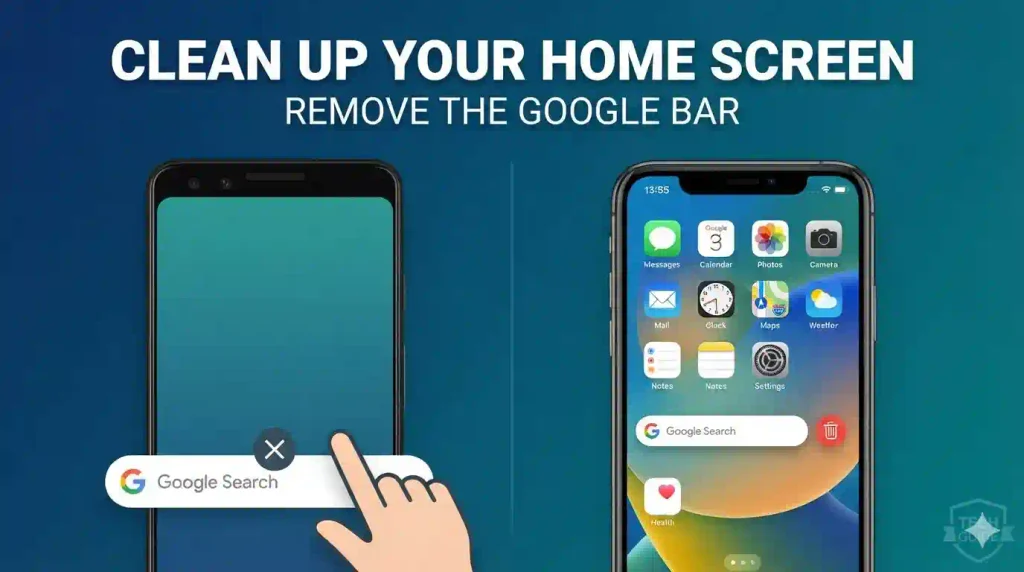
Fortunately, removing the Google search bar is usually straightforward on Android. The exact steps depend on your phone’s manufacturer, Android version, and home screen launcher. On an iPhone, the process is different because the Google Search widget is managed through iOS Home Screen editing.
In this guide, you’ll learn how to remove the Google bar from the home screen on Android phones, including Samsung Galaxy and Google Pixel devices, as well as how to remove the Google Search widget from an iPhone. You’ll also learn what to do if the Remove option is missing or the search bar keeps coming back.
Quick Answer: How to Remove the Google Search Bar
- Android: Touch and hold the Google search bar on your home screen. If a Remove option appears, drag the widget to Remove or tap the option. On some phones, you may need to change your home screen settings or launcher.
- iPhone: Touch and hold the Google Search widget, tap Remove Widget, and confirm if prompted.
- Important: Removing the search bar from the home screen does not uninstall the Google app or delete your search history.
Table of Contents
- What Is the Google Search Bar?
- How to Remove Google Bar on Android
- How to Remove Google Bar on Samsung Galaxy
- How to Remove Google Bar on Google Pixel
- How to Remove Google Search Bar on iPhone
- What to Do If the Google Bar Cannot Be Removed
- Common Errors and Fixes
- Best Practices and Tips
- Frequently Asked Questions
What Is the Google Search Bar on Your Home Screen?
The Google search bar is a search widget that lets you search the web directly from your phone’s home screen. Depending on your device, it may include a Google logo, a search field, a microphone, and a Google Lens shortcut.
On Android, the widget is commonly provided by the Google app and displayed through your phone’s home screen launcher. Some manufacturers let you remove it like any other widget, while others integrate the search bar into the default home screen layout.
On an iPhone, the Google Search bar is generally added as a Google app widget. You can remove that widget without deleting the Google app itself.
Removing a widget is different from uninstalling an app. If you remove the Google bar, you can still open the Google app, use your browser, or search the web using other available methods.
1. How to Remove Google Bar From the Home Screen on Android
The easiest way to remove the Google search bar on Android is to use the widget’s context menu. This method works on many Android phones, although the available options vary by manufacturer.
Follow these steps:
- Unlock your Android phone and go to the home screen containing the Google search bar.
- Touch and hold the Google search bar for a second or two.
- Look for a menu or a Remove option.
- If your phone displays a Remove target at the top or bottom of the screen, drag the search bar onto it.
- If a menu appears, tap Remove or the equivalent widget-removal option.
- Return to the home screen and confirm that the Google bar is gone.
The exact wording and location of the Remove option depend on your device.
Note: If you see Uninstall instead of Remove, do not select it unless you actually want to uninstall the app. Removing a widget should not require uninstalling Google.
2. How to Remove Google Bar on Samsung Galaxy
Samsung Galaxy phones use the One UI home screen, which offers its own widget and home screen controls.
Method 1: Remove the Google Widget
- Go to your Samsung Galaxy home screen.
- Touch and hold the Google search bar.
- Wait for the widget menu to appear.
- Tap Remove if the option is available.
- Check the home screen to confirm the change.
If the widget was added manually, this method should normally remove it without affecting the Google app.
Method 2: Check Home Screen Settings
If the search bar is integrated into your layout or you cannot remove it directly, check your home screen settings.
- Touch and hold an empty area of the home screen.
- Tap Settings or Home screen settings, depending on your One UI version.
- Review the available home screen options.
- Look for a search bar, widget, or related display setting if your version provides one.
- Disable the relevant option only if it specifically controls the search bar.
Not every Samsung model or One UI version includes a setting to hide the Google search bar. If you cannot find a relevant option, do not change unrelated settings.
3. How to Remove Google Search Bar on Google Pixel
Google Pixel phones require special attention because the search bar at the bottom of the default Pixel Launcher home screen is integrated into the launcher.
On many Pixel models and software versions, the built-in bottom Google search bar cannot be removed through the normal widget-removal process.
Try these steps first:
- Touch and hold the Google search bar.
- Check whether a Remove option appears.
- If the option is available, follow the on-screen instructions.
- If the bar does not offer a removal option, open Settings and look under the home screen or launcher-related options.
- If no supported hide option exists, consider a reputable third-party launcher that allows you to customize or remove the search bar.
A third-party launcher replaces or changes the home screen experience and may offer more control over widgets, icons, and layouts. However, its features, permissions, and compatibility vary.
You do not need to root your Pixel phone or disable essential system components just to get a cleaner home screen.
4. How to Remove Google Search Bar From an iPhone
On an iPhone, the Google search bar is usually a widget that you can remove using iOS Home Screen editing.
Step-by-Step Instructions
- Unlock your iPhone and find the home screen containing the Google Search widget.
- Touch and hold the Google widget.
- Wait for the quick-action menu to appear.
- Tap Remove Widget.
- Confirm the removal if your iPhone asks you to do so.
The widget should disappear from the home screen.
What If the Google Bar Is in the Today View?
If the Google widget appears when you swipe right from the home screen, it may be in the Today View rather than on the main home screen.
To remove it:
- Swipe right from the home screen to open Today View.
- Touch and hold the Google widget.
- Select Remove Widget.
- Confirm if prompted.
The Google app remains installed, and you can continue using it whenever you need to search the web.
What If Google Search Is Inside a Widget Stack?
If the Google widget is part of a Smart Stack or another widget stack, touch and hold the stack and choose Edit Stack if available. Find the Google widget and remove it from the stack.
Be careful to remove only the Google widget if you want to keep the other widgets in the stack.
5. What to Do If the Google Bar Cannot Be Removed
If the Google search bar remains on your home screen after trying the steps above, the issue may be related to your launcher, device settings, or the way the search bar is integrated.
Try the following solutions.
Check Whether the Search Bar Is a Widget or a Built-In Feature
Touch and hold the search bar. If a Remove option appears, it is likely removable as a widget.
If no removal option appears, your phone may treat the search bar as part of its default home screen layout. This is especially common on Google Pixel devices.
Try Another Home Screen Layout
Some Android phones offer multiple home screen layouts or launcher options. Check your device’s home screen settings to see whether an alternative layout is available.
If the default launcher does not allow removal, a compatible third-party launcher may provide the customization you want.
Restart Your Phone
If you removed the widget but it still appears, restart your phone.
After restarting, check the home screen again. A restart can resolve a temporary display issue, although it will not make a permanently integrated search bar removable.
Update Your Phone’s Software
Open your phone’s Settings app and check for available system updates. Also check for updates to the Google app through the Google Play Store on Android or the App Store on iPhone.
An update may resolve a widget-related issue, but it will not necessarily add a feature that your launcher does not support.
6. Common Errors and Fixes
| Problem | Possible solution |
|---|---|
| No Remove option appears | Check whether the bar is integrated into the launcher. |
| Google bar returns after restarting | Check launcher settings and whether the bar is a permanent feature. |
| Google app disappears after removal | Check the app drawer or App Library; you may have removed an app shortcut rather than a widget. |
| Search bar is still visible on another screen | Check other home screen pages and the Android Today-style feed or iPhone Today View. |
| Cannot find Google Search in widgets | Update the Google app and check the available widgets again. |
| A third-party launcher does not work properly | Review its compatibility, permissions, and default home app settings. |
Remember that Android manufacturers use different interfaces. A solution that works on a Samsung Galaxy may not work on a Google Pixel or Motorola phone.
7. Best Practices and Pro Tips
Use these tips to customize your home screen without causing unnecessary problems.
- Remove only the widget: You do not need to uninstall the Google app to remove its search bar.
- Check every home screen page: The widget may exist on a different page or in a widget stack.
- Avoid disabling system components: Do not disable essential apps or modify system files just to remove a search bar.
- Choose launchers carefully: If you install a third-party launcher, use a reputable source and review its permissions and privacy practices.
- Keep an alternative search method: You can still use Chrome, Safari, the Google app, or another preferred search engine.
- Avoid unnecessary resets: A factory reset is not an appropriate first solution for a home screen customization issue.
For more practical technology tutorials, read our guides on how to create a ZIP file to send via email, how to enable WordPad in Windows 11, and how to find your motherboard model in Windows 11.
Frequently Asked Questions
1. Can I remove the Google search bar without deleting the Google app?
Yes. On phones where the search bar is a removable widget, you can remove it without uninstalling the Google app. You can continue using Google Search through the app or a web browser.
2. Why can’t I remove the Google search bar on my Android phone?
Some Android launchers allow the search bar to be removed, while others integrate it into the home screen. Google Pixel’s default launcher, for example, keeps the bottom search bar on many software versions. Check your launcher settings or consider a compatible alternative.
3. How do I remove the Google search bar from a Samsung phone?
Touch and hold the Google search bar on your Samsung Galaxy home screen and select Remove if available. If that option does not appear, check your One UI home screen settings for a relevant control.
4. Will removing the Google bar delete my search history?
No. Removing the widget does not delete your Google search history, Google account, or Google app data. Manage your search history separately through your Google account’s activity controls if you want to delete it.
5. How do I remove the Google Search widget from an iPhone?
Touch and hold the Google Search widget on your iPhone, select Remove Widget, and confirm if prompted. This removes the widget, not the Google app.
Conclusion
Removing the Google search bar from your home screen can make your phone look cleaner and create more room for apps and other widgets.
On most Android phones, you can remove the bar by touching and holding it and selecting Remove. Samsung users can also check their One UI home screen settings. On many Google Pixel devices, however, the default bottom search bar is built into the launcher and cannot be removed through standard settings.
On an iPhone, touch and hold the Google Search widget and choose Remove Widget.
The key is to identify whether the search bar is a removable widget or a permanent part of your phone’s launcher. Once you know which one you have, you can choose the safest and simplest way to customize your home screen.