
Introduction
Do you want Windows 11 to automatically open an application, run a script, launch a maintenance utility, or perform a specific action at a particular time? You can automate these activities using Task Scheduler, a built-in Windows utility that runs programs and scripts according to your chosen schedule or system events.
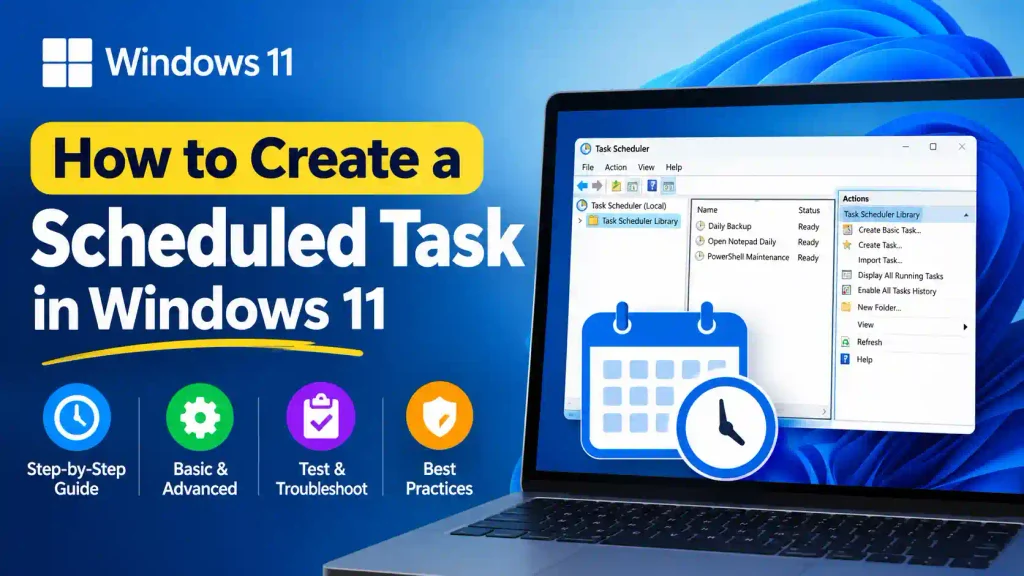
For example, you can schedule Notepad to open every morning, run a PowerShell script every day, launch a program when you sign in, or execute a maintenance task when the computer starts.
Windows 11 provides a graphical Task Scheduler interface for beginners and command-line tools for IT professionals who need more control over automation.
In this guide, you’ll learn how to create a scheduled task in Windows 11 using basic and advanced methods, test whether it works correctly, troubleshoot common errors, and follow security best practices.
Quick Answer: How to Create a Scheduled Task in Windows 11
To create a scheduled task in Windows 11:
- Press Windows + S, type
Task Scheduler, and open it. - Select Create Basic Task in the Actions pane.
- Enter a task name and description.
- Choose a trigger, such as daily, weekly, at startup, or when you sign in.
- Select Start a program and specify the application or script.
- Configure any required arguments and settings.
- Click Finish to save the task.
- Find the task in Task Scheduler Library, right-click it, and select Run to test it.
For more advanced options, choose Create Task instead of Create Basic Task.
Table of Contents
- What Is Task Scheduler in Windows 11?
- Basic Method: Create a Scheduled Task
- How to Test a Basic Scheduled Task
- Advanced Method: Create a Scheduled Task
- Advanced Testing and PowerShell Commands
- Common Scheduled Task Errors and Fixes
- Best Practices for Task Scheduling
- Frequently Asked Questions
1. What Is Task Scheduler in Windows 11?
Task Scheduler is a Windows system utility that automates programs, scripts, and supported system actions. Instead of manually starting a program, you can configure Windows to execute it when a specific condition is met.
A scheduled task generally contains three important components:
- Trigger: Determines when the task runs.
- Action: Specifies what Windows should do.
- Conditions and settings: Control the circumstances under which the task runs and how Windows handles failures or missed schedules.
Common triggers include a specific date and time, a recurring daily or weekly schedule, user sign-in, system startup, and selected system events.
Typical uses include:
- Running daily backup scripts.
- Launching applications automatically.
- Executing PowerShell maintenance scripts.
- Generating reports at scheduled intervals.
- Running administrative utilities.
- Starting scripts after a user signs in.
Task Scheduler is useful for home users, developers, system administrators, and IT support professionals.
2. Basic Method: Create a Scheduled Task in Windows 11
The basic method uses the Create Basic Task wizard. It is suitable for straightforward automation and does not require command-line experience.
Step 1: Open Task Scheduler
- Press Windows + S to open Windows Search.
- Type
Task Scheduler. - Select the Task Scheduler application.
- Wait for the Task Scheduler window to open.
You can also press Windows + R, enter taskschd.msc, and press Enter.
Step 2: Start the Create Basic Task Wizard
In the Actions pane on the right, select Create Basic Task.
A wizard will open to guide you through the setup process.
Step 3: Enter the Task Name
Type a descriptive name, such as:
Open Notepad Daily
In the Description field, you can enter:
Opens Notepad automatically according to the configured schedule.
Click Next.
Use a name that clearly identifies the task’s purpose, especially if you plan to create multiple scheduled tasks.
Step 4: Choose a Trigger
Select when you want Windows to execute the task.
Available options may include:
- Daily: Runs according to a daily schedule.
- Weekly: Runs on selected days of the week.
- Monthly: Runs on selected dates or months.
- One time: Runs once at the specified time.
- When the computer starts: Runs when Windows starts.
- When I log on: Runs when your user account signs in.
- When a specific event is logged: Starts when a matching system event occurs.
For this example, select Daily and click Next.
Set the start date and time, such as 9:00 AM. Click Next to continue.
Step 5: Select the Action
Choose Start a program and click Next.
This option lets you launch an executable file, a script interpreter, or another supported program.
For this example, enter the following in the Program/script field:
notepad.exe
Leave the optional arguments and Start in fields empty for this simple test.
Click Next.
Step 6: Review and Finish
Review the task name, trigger, and action.
If everything is correct, click Finish.
Windows saves the task in Task Scheduler Library. Depending on the trigger and user session, it will run according to the configured schedule.
Your basic scheduled task is now created.
3. How to Test a Basic Scheduled Task
Creating a task does not automatically prove that it works. You should test it manually before relying on its schedule.
Step 1: Find Your Task
In Task Scheduler, select Task Scheduler Library in the left pane.
Locate Open Notepad Daily in the task list.
Step 2: Run the Task Manually
Right-click the task and select Run.
Alternatively, select the task and click Run in the Actions pane.
Step 3: Confirm the Result
If the task works correctly, Notepad should open.
If Notepad opens successfully, the task’s basic action is working under the current conditions. However, this does not guarantee that it will run unattended at a future time or under a different user account.
Step 4: Check the Task Status
Review the task’s status and Last Run Result columns.
A result of 0x0 generally indicates successful completion of the task action. Some applications remain open after launching, so their task status may differ from that of a short-running program.
Testing tip: If the task fails, open its Properties and verify the trigger, action, user account, and any conditions that might prevent execution.
4. Advanced Method: Create a Scheduled Task in Windows 11
For more control over task execution, use the Create Task option. Unlike the basic wizard, it provides additional settings for user accounts, security privileges, multiple triggers, conditions, and recovery behavior.
This method is particularly useful for IT administrators and users automating scripts.
Step 1: Open the Advanced Task Configuration Window
- Open Task Scheduler.
- Select Task Scheduler Library.
- Click Create Task in the Actions pane.
- The Create Task window will open with several configuration tabs.
These tabs include General, Triggers, Actions, Conditions, and Settings.
Step 2: Configure the General Tab
Enter a name such as:
Daily PowerShell Maintenance
Add a description explaining the task’s purpose.
Under Security options, choose the appropriate user account. You can configure whether the task runs only when the user is logged on or whether it can run when the user is not logged on.
The latter option may require stored credentials, depending on the account and task configuration.
The Run with highest privileges checkbox allows the task to run with elevated privileges when supported by the account and system configuration. Enable it only when the task genuinely needs administrative permissions.
Do not grant unnecessary privileges to scripts or applications.
Step 3: Configure a Trigger
Open the Triggers tab and click New.
Choose the trigger type, such as:
- On a schedule
- At log on
- At startup
- On an event
- On workstation unlock
The available options depend on the trigger type you select.
For a daily maintenance task, choose Begin the task: On a schedule. Select Daily and configure the start date, time, and recurrence interval.
If you want the task to run at 8:00 AM every day, configure the schedule accordingly.
Click OK to save the trigger.
You can create multiple triggers if the same task must run under different circumstances.
Step 4: Configure the Action
Open the Actions tab and click New.
Select Start a program from the Action dropdown.
For a simple PowerShell example, configure the fields as follows.
| Field | Value | |
|---|---|---|
| Program/script | powershell.exe | |
| Add arguments | `-NoProfile -Command “Get-Date | Out-File -FilePath ‘$env\ScheduledTaskTest.txt’ -Append”` |
| Start in | Leave blank for this example |
This example writes the current date and time to a test file in the scheduled task’s temporary directory.
If you want to run a saved script instead, use the path to powershell.exe as the program and specify the script in Add arguments.
For example:
-NoProfile -File "C:\Scripts\DailyMaintenance.ps1"
Create the script at that location before scheduling it. Ensure that the selected account has permission to read and execute the script and write to any required output folders.
Click OK when the action is configured.
Important: The sample command creates or appends to a test file. It is intended to verify execution, not to perform actual system maintenance.
Step 5: Configure Conditions
Open the Conditions tab.
Depending on the task, you can configure options such as:
- Start the task only if the computer is idle.
- Start the task only if the computer is using AC power.
- Wake the computer to run the task, if supported by the hardware and power configuration.
- Apply network-related conditions where appropriate.
For a basic testing task, avoid unnecessary conditions that could prevent it from starting.
If you are testing a laptop, for example, an AC-power requirement may prevent execution when the device is running on battery.
Step 6: Configure Settings
Open the Settings tab.
Review options that control how the task behaves, including:
- Allowing the task to run on demand.
- Running the task as soon as possible after a scheduled start is missed.
- Restarting the task after a failure.
- Stopping the task if it runs longer than a specified period.
- Defining what happens if the task is already running.
Choose settings appropriate to the workload. A short test script and a long-running backup job may require different configurations.
Click OK to save the task. If Windows requests credentials, provide them only when appropriate for the selected account and execution mode.
5. Advanced Testing and PowerShell Commands
After creating the task, test it manually and verify its execution results. This is especially important when a task runs scripts without an interactive user session.
Method 1: Test Using Task Scheduler
- Open Task Scheduler.
- Select Task Scheduler Library.
- Find
Daily PowerShell Maintenance. - Right-click it and select Run.
- Wait briefly, then inspect the Last Run Result column.
If the task executed successfully, open File Explorer and enter the following path in the address bar:
%TEMP%\ScheduledTaskTest.txt
For a task running under your current account, this is the usual location of the test file.
Note: When the task runs under a different account, $env:TEMP refers to that account’s temporary directory. Check the configured account before looking for the output file.
Method 2: Test Using PowerShell
You can also inspect and execute the task from PowerShell.
Open PowerShell and run:
Get-ScheduledTask -TaskName "Daily PowerShell Maintenance"This command displays the task’s configuration.
To start the task manually, run:
Start-ScheduledTask -TaskName "Daily PowerShell Maintenance"To check the latest execution information, run:
Get-ScheduledTaskInfo -TaskName "Daily PowerShell Maintenance"Review the last run time, next run time, and last task result.
For tasks stored in a custom folder, include the task’s full path where required. Some operations may require an elevated PowerShell session or suitable permissions.
Method 3: Create and Test a Task from PowerShell
IT professionals can register a scheduled task using PowerShell rather than the graphical interface.
The following example creates a task that launches Notepad when the current user signs in:
$action = New-ScheduledTaskAction `
    -Execute "notepad.exe"

$trigger = New-ScheduledTaskTrigger `
    -AtLogOn

Register-ScheduledTask `
    -TaskName "NotepadAtLogon" `
    -Action $action `
    -Trigger $trigger `
    -Description "Launch Notepad when the user signs in."
After running the commands, test the registered task:
Start-ScheduledTask -TaskName "NotepadAtLogon"Then inspect its status:
Get-ScheduledTaskInfo -TaskName "NotepadAtLogon"This example is intended for interactive use. Applications with graphical interfaces, such as Notepad, may not appear when tasks are configured to run in a noninteractive session.
Method 4: Enable Task History
Task history helps you investigate why a task did not run or why its action failed.
- Open Task Scheduler.
- Select Task Scheduler Library.
- In the Actions pane, click Enable All Tasks History, if history is disabled.
- Run the task again.
- Select the task and open its History tab.
Review the event entries for trigger activation, action start, completion, and any reported errors.
Task history may not include earlier activity from before logging was enabled. You can also use Event Viewer to inspect the Task Scheduler operational log.
6. Common Scheduled Task Errors and Fixes
Even correctly configured tasks can fail because of account permissions, file paths, conditions, or execution context.
| Error or symptom | Possible cause | How to fix it |
|---|---|---|
| Task does not run at the scheduled time | Incorrect trigger or disabled task | Verify the trigger, start date, time, and enabled status. |
| Task works manually but not automatically | Different user account or execution context | Check Security options, account permissions, and whether the action requires an interactive session. |
0x0 appears but nothing visible happens | The application ran without displaying a window | Check the application process, logs, or output files. GUI applications may not appear in noninteractive sessions. |
| Access is denied | Insufficient permissions | Grant only the required permissions and enable elevation only when necessary. |
| PowerShell script fails | Incorrect script path, arguments, or execution policy | Verify the file path, quote paths containing spaces, and review the error output and applicable PowerShell policy. |
| The task never starts on a laptop | A power or idle condition blocks execution | Review the Conditions tab and adjust unnecessary restrictions. |
| The output file cannot be found | The task runs under another account | Check the account’s temporary directory or configure an explicit output path. |
| The task runs more than once or overlaps | Multiple triggers or repeated scheduling | Review all triggers and configure the appropriate multiple-instance behavior. |
Troubleshooting Tip: Check the Last Run Result
A result of 0x0 commonly indicates that the task action completed successfully. Other codes can point to a launch failure, access issue, or application-specific problem.
However, a successful task result does not always prove that the application completed its intended work. For example, Task Scheduler may successfully launch a script that later encounters a problem.
Check the script’s output, application logs, and task history before concluding that the entire operation succeeded.
7. Best Practices for Task Scheduling
Follow these recommendations to create reliable scheduled tasks in Windows 11.
Use Descriptive Task Names
Choose names that explain what a task does. Names such as DailyBackup or GenerateWeeklyReport are easier to maintain than Task1 or Test2.
Use the Least Privilege Necessary
Run tasks with a standard account whenever possible. Grant administrative privileges only when the task requires them.
Test Before Depending on Automation
Manually run every new task. Confirm that its action produces the expected result, then verify that the trigger works at the intended time.
For important jobs, test the task under the same account and conditions that will be used in production.
Verify File Paths and Permissions
Use complete paths for scripts and applications when possible. Avoid relying on mapped network drives, which may not exist in a noninteractive session.
For network resources, verify connectivity and permissions using the actual task account.
Add Logging to Scripts
For recurring PowerShell jobs, record timestamps, success messages, and errors in a log file. Logging makes troubleshooting much easier than relying solely on Task Scheduler’s status.
Review Missed-Run and Failure Settings
Consider whether a task should run after a missed schedule or restart after a failure. Configure these options carefully to avoid repeated execution or duplicate processing.
Document and Review Your Tasks
Keep descriptions current, remove obsolete tasks, and periodically verify that scheduled scripts still exist and perform their intended functions.
If you need to check your PC hardware before planning a maintenance workflow, see our guide on how to find the motherboard model in Windows 11.
You can also explore how to enable WordPad in Windows 11 for information about Windows text-editing options, or learn how to put apps on the home screen in Windows 11 to organize frequently used applications.
Conclusion
Creating a scheduled task in Windows 11 is a practical way to automate repetitive work. The Create Basic Task wizard is ideal for simple schedules, while Create Task offers advanced control over accounts, triggers, conditions, and execution settings.
For reliable automation, do more than save the task. Run it manually, verify the output, review the Last Run Result, and test it under the account and conditions that will apply during normal operation.
Whether you are launching an application, running a PowerShell script, or automating IT maintenance, proper configuration and testing will help you build a dependable scheduled task.
Frequently Asked Questions
1. How do I open Task Scheduler in Windows 11?
Press Windows + S, type Task Scheduler, and open the application. You can also press Windows + R, type taskschd.msc, and press Enter.
2. Can I schedule a program to run every day in Windows 11?
Yes. Open Task Scheduler, select Create Basic Task, choose Daily as the trigger, set the start time, and configure the program under Start a program.
3. How do I run a scheduled task manually?
Open Task Scheduler Library, locate your task, right-click it, and select Run. You can also use the PowerShell Start-ScheduledTask cmdlet.
4. Why does my scheduled task not run automatically?
Common causes include incorrect triggers, disabled tasks, account permissions, restrictive conditions, unavailable files, and applications that require an interactive user session. Check the task’s Properties, Last Run Result, and History tab.
5. Can I create a scheduled task using PowerShell?
Yes. PowerShell provides cmdlets such as New-ScheduledTaskAction, New-ScheduledTaskTrigger, Register-ScheduledTask, Start-ScheduledTask, and Get-ScheduledTaskInfo for creating, running, and monitoring scheduled tasks.