
HDR (High Dynamic Range) can make compatible displays look brighter, more colorful, and more detailed. However, it does not always deliver the best results. You might notice washed-out colors, excessive brightness, dim desktop content, or inconsistent colors when switching between applications.
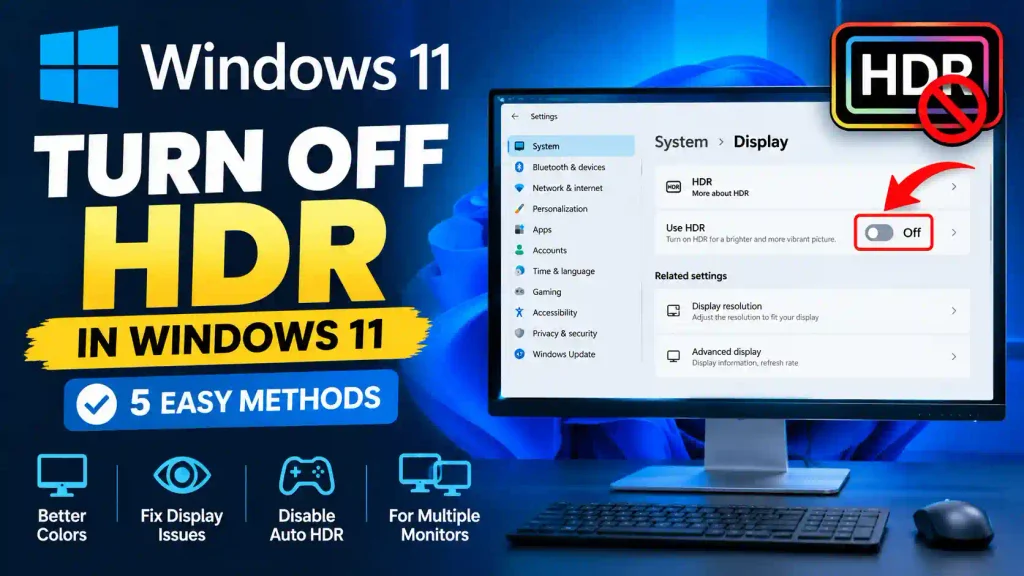
If you experience these issues, learning how to turn off HDR in Windows 11 can help you restore a more familiar SDR (Standard Dynamic Range) appearance. Disabling HDR can also be useful when troubleshooting display problems, working with color-sensitive applications, or playing games that do not handle HDR correctly.
Windows 11 provides built-in display settings that let you disable HDR without installing additional software. You can also adjust HDR-related settings for a particular display, troubleshoot connection problems, and check whether your monitor supports the feature.
In this guide, you’ll learn five practical ways to turn off HDR in Windows 11, how to fix common problems, and when you should leave HDR enabled.
Quick Answer: How to Turn Off HDR in Windows 11
To turn off HDR in Windows 11:
- Press Windows + I to open Settings.
- Select System > Display.
- Choose the HDR-compatible display you want to configure.
- Click HDR under the display settings.
- Turn off the Use HDR toggle.
Windows will switch the selected display to SDR mode. If you use multiple monitors, repeat these steps for each display where you want HDR disabled.
Important: The exact options may vary depending on your Windows 11 version, graphics hardware, monitor, and connection type.
Table of Contents
- What Is HDR in Windows 11?
- Method 1: Turn Off HDR Through Settings
- Method 2: Use Windows Search to Open Display Settings
- Method 3: Turn Off HDR for a Specific Monitor
- Method 4: Disable Auto HDR for Games
- Method 5: Troubleshoot HDR Using Graphics and Display Settings
- Common Errors and Fixes
- Best Practices and Pro Tips
- Frequently Asked Questions
- Conclusion
What Is HDR in Windows 11?
HDR stands for High Dynamic Range. It allows compatible displays to reproduce a wider range of brightness levels and colors than traditional SDR displays.
When HDR is enabled, supported content can show brighter highlights, deeper-looking contrast, and more visual detail in bright and dark scenes.
Windows 11 supports HDR on compatible monitors, televisions, and laptop displays. Depending on your hardware and Windows version, it may also provide features such as Auto HDR for supported games.
However, HDR is not always ideal for every task.
For example, an HDR display may make ordinary desktop applications look less vibrant than expected. Some monitors also have limited HDR brightness or color performance, which can affect the viewing experience.
Turning HDR off can help when:
- Desktop colors appear washed out or unusually bright.
- SDR applications look different from HDR videos or games.
- You need a more consistent desktop appearance.
- You are troubleshooting display or graphics issues.
- You prefer the SDR picture quality of your monitor.
- A particular application or game behaves incorrectly with HDR enabled.
Disabling HDR does not damage your monitor or remove your ability to enable it again later.
Method 1: Turn Off HDR Through Windows 11 Settings
<AsyncImage query=”Windows 11 Settings System Display HDR Use HDR toggle screenshot” aspectRatio=”16:9″ width=”100%”/>
This is the easiest and most reliable method for most Windows 11 users. It uses the built-in display controls and does not require administrator permissions.
Follow these steps:
Step 1: Open Settings
Press Windows + I on your keyboard. Alternatively, right-click the Start button and select Settings.
Step 2: Open Display Settings
Navigate to System > Display.
Windows will show your connected displays and available display configuration options.
Step 3: Select the Correct Display
If your computer has multiple monitors, click the numbered display you want to configure.
You can select Identify to display a number on each monitor and determine which one corresponds to the selected display.
Step 4: Open HDR Settings
Look for the HDR option in the display settings. On supported systems, you can find it under the brightness or related display controls.
Click HDR to open the available high dynamic range settings.
Step 5: Disable Use HDR
Find the Use HDR switch and turn it off.
Windows should stop displaying HDR content in HDR mode on the selected screen. Your desktop will use SDR output instead.
Step 6: Check the Display
Open a browser, view your desktop, or launch an application to see whether the colors and brightness have improved.
If you still notice display problems, continue to the troubleshooting section below.
Method 2: Use Windows Search to Open Display Settings
If you prefer using Windows Search instead of navigating through Settings, this method provides a quick alternative.
- Press Windows + S to open Search.
- Type HDR settings.
- Select the relevant display settings result.
- Locate the Use HDR option.
- Turn the switch off.
Depending on your Windows 11 build, Search may display a result for display settings rather than the HDR page directly. If that happens, open the result and navigate to the HDR section manually.
This method changes the same Windows display setting as Method 1. It is simply a faster way to reach it.
Method 3: Turn Off HDR for a Specific Monitor
When you connect two or more displays, you may want HDR enabled on one monitor but disabled on another.
Windows 11 generally manages HDR settings separately for each compatible display. This is useful if your primary monitor supports HDR but your secondary monitor does not provide the same picture quality.
To configure an individual monitor:
- Connect all your monitors and turn them on.
- Open Settings > System > Display.
- Select the monitor you want to configure.
- Open its HDR settings.
- Turn off Use HDR.
- Select another display and repeat the process if needed.
Why Does This Matter?
Suppose you use an HDR gaming monitor alongside a standard office monitor. You may prefer HDR for gaming but SDR for everyday work.
By configuring each display separately, you can choose the viewing mode that works best for each screen.
Remember that the available controls depend on display capabilities, graphics drivers, and your connection setup. If the HDR option is missing, check whether the selected monitor supports HDR and whether Windows detects it correctly.
Method 4: Disable Auto HDR for Games
Turning off the main HDR switch and disabling Auto HDR are related but different actions.
Use HDR controls HDR output for a compatible display. Auto HDR is a separate Windows feature that can expand the brightness and color range of supported older games that were originally designed for SDR.
If your main concern is gaming, you may not need to disable HDR for the entire desktop.
To turn off Auto HDR:
- Open Settings.
- Navigate to System > Display.
- Select your HDR-compatible monitor.
- Open the HDR settings.
- Look for the Auto HDR option.
- Turn Auto HDR off if the option is available.
The precise location and availability of Auto HDR can vary by Windows 11 version and supported hardware.
If you want to disable all HDR output, turn off Use HDR as described in Method 1. Disabling Auto HDR alone does not necessarily turn off native HDR in games that support it.
Method 5: Troubleshoot HDR Using Graphics and Display Settings
If the HDR toggle is unavailable, disabled, or not working as expected, the issue may involve your display, cable, graphics driver, or Windows configuration.
Try these checks before assuming that HDR cannot be disabled.
Check Your Monitor’s HDR Support
Open Settings > System > Display > HDR and review the available options.
If Windows does not offer HDR controls, your selected display may not support HDR, or Windows may not be detecting its capabilities correctly.
Check your monitor’s specifications or manufacturer’s documentation.
Check the Cable and Connection
Some display combinations may not support the resolution, refresh rate, and HDR features you want to use simultaneously.
If you use an external monitor, verify that the cable, adapter, docking station, and selected display port support the required configuration.
Try connecting the monitor directly to your computer if you suspect a docking station or adapter is interfering.
Update Your Graphics Driver
An outdated or corrupted graphics driver can cause display detection and configuration problems.
To check for driver updates:
- Right-click Start and select Device Manager.
- Expand Display adapters.
- Right-click your graphics adapter.
- Select Update driver.
- Follow the available instructions.
You can also check Windows Update or your graphics hardware manufacturer’s official website for compatible drivers.
Restart the Computer
After changing display settings or updating a driver, restart Windows if the display does not behave as expected.
A restart can help Windows reload the graphics driver and detect connected displays again.
These troubleshooting steps are particularly useful when HDR settings disappear after a Windows update or when connecting a new monitor.
Common Errors and Fixes When Turning Off HDR
Even though disabling HDR is usually straightforward, Windows 11 users may encounter a few common issues.
1. The Use HDR Toggle Is Missing
Possible causes: Your monitor may not support HDR, the wrong display may be selected, or Windows may not be detecting the display correctly.
Fix:
- Select the correct monitor under Settings > System > Display.
- Check the manufacturer’s specifications for HDR support.
- Update your graphics driver.
- Disconnect and reconnect the external monitor.
- Try a compatible cable or display port.
If your monitor does not support HDR, you generally do not need to disable HDR because Windows will use the display modes it supports.
2. The Screen Looks Washed Out After Changing HDR Settings
This can happen because the display has switched between HDR and SDR, or because the monitor’s picture settings are optimized for HDR.
Fix:
Turn off HDR, then check your monitor’s brightness, contrast, color temperature, and picture mode. If the monitor has separate SDR and HDR profiles, select the appropriate SDR profile.
You can also check the Windows color calibration options if colors still look inaccurate.
3. HDR Turns Back On After a Restart
If HDR appears to turn back on, confirm that you are checking the same display and that the Windows setting has actually changed.
Update Windows and your graphics driver if the problem continues. Also check whether your monitor or graphics software has additional display controls that may affect the picture mode.
If the issue occurs only in a particular game, check the game’s own HDR settings.
4. Games Still Look Too Bright or Too Dark
Turning off Auto HDR does not necessarily disable native HDR in games. Some games have their own HDR options.
Fix:
- Turn off Use HDR in Windows if you want SDR output for the selected display.
- Check the game’s graphics or video settings.
- Restart the game after changing display settings.
- Review your monitor’s picture mode.
5. One Monitor Looks Different From Another
Different monitors can have different brightness levels, contrast ratios, color gamuts, and calibration profiles. This remains true even when both displays use SDR.
Fix:
Select each monitor individually in Windows display settings. Configure its HDR mode as needed, and adjust brightness and color settings to make the displays look more consistent.
Best Practices and Pro Tips
Use these tips to get the best results after disabling HDR in Windows 11.
- Disable HDR only when necessary. If HDR videos and games look good, there is no technical requirement to turn the feature off.
- Configure the correct monitor. On a multi-monitor system, confirm which display you selected before changing its settings.
- Distinguish Auto HDR from Use HDR. Disabling Auto HDR affects supported games, while disabling Use HDR changes the display’s HDR mode.
- Check your SDR brightness. Some displays use different brightness behavior in SDR and HDR modes. Adjust brightness after switching.
- Keep graphics drivers updated. Current, compatible drivers can improve display detection and resolve certain configuration problems.
- Avoid unnecessary driver removal. Try normal updates and basic troubleshooting before uninstalling a working graphics driver.
- Restart affected applications. Some games and media applications need to be restarted before they recognize a change in display mode.
If you are troubleshooting other Windows 11 issues, you may also find these guides useful:
- How to Put Apps on the Home Screen in Windows 11: 6 Easy Methods
- How to Fix Copy and Paste Not Working in Windows 11
- Fix Why Your Mouse Is Not Working on Your Laptop: 12 Easy Solutions
Frequently Asked Questions
1. How do I turn off HDR in Windows 11 quickly?
Press Windows + I, go to System > Display, select your HDR-compatible monitor, open HDR settings, and switch off Use HDR. This is the quickest standard method.
2. Is it better to keep HDR on or off in Windows 11?
It depends on your monitor and how you use your computer. HDR can improve supported games and videos on a good HDR display. SDR may provide a more consistent appearance for desktop applications on some monitors.
3. Why can’t I turn off HDR in Windows 11?
The HDR option may be unavailable because the selected display does not support HDR, Windows cannot detect its capabilities, or a driver or connection issue is present. Check your monitor, cable, graphics driver, and selected display.
4. Does turning off HDR improve gaming performance?
Turning off HDR does not inherently provide a significant performance boost. HDR is primarily a display feature. Performance depends more on factors such as resolution, graphics settings, frame rate, and the game itself.
Disabling Auto HDR may change how a supported game renders its image, but the performance impact varies.
5. Can I turn off HDR on one monitor while keeping it enabled on another?
Yes, Windows 11 generally lets you configure HDR independently for each compatible display. Open Settings > System > Display, select the monitor, and adjust its HDR settings. Available controls depend on the hardware and Windows version.
Conclusion
Turning off HDR in Windows 11 is simple when your display supports the feature. Open Settings > System > Display > HDR and switch off Use HDR for the monitor you want to configure.
If you only want to change the appearance of supported games, disabling Auto HDR may be sufficient. If the HDR option is missing or the screen still looks incorrect, check your monitor’s capabilities, graphics drivers, cables, and individual display settings.
Ultimately, choose the mode that provides the most comfortable and accurate picture for your hardware and everyday tasks. You can enable HDR again whenever you want to use compatible HDR content.