
Have you ever wanted to access your favorite apps on the Windows 11 home screen without opening the Start menu every time? Adding app shortcuts to your desktop makes it easier to launch programs such as Google Chrome, Microsoft Edge, Microsoft Word, Excel, File Explorer, and other frequently used applications.
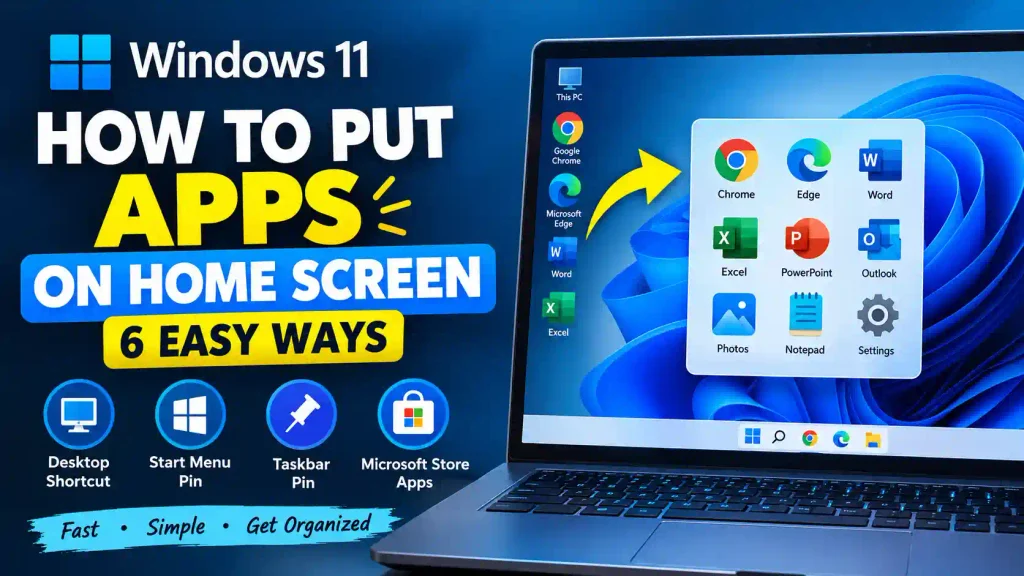
Windows 11 offers several ways to create app shortcuts, including dragging applications from the Start menu, using the All apps list, creating shortcuts manually, and pinning apps to the taskbar or Start menu. However, these options work differently, and knowing which one to use can save time.
In this guide, you will learn how to put apps on the home screen in Windows 11 using six practical methods. You will also learn how to fix common problems, organize your desktop, and make your favorite applications easier to access.
Quick Answer: How to Put Apps on the Windows 11 Home Screen
To put an app on your Windows 11 desktop, press Windows + R, type shell:AppsFolder, and press Enter. Find the application, right-click it, select Create shortcut, and confirm the prompt to place the shortcut on your desktop.
Alternatively, open the Start menu, select All, locate your application, and drag it to the desktop if your Windows configuration supports this action. If you want the app to appear in the Start menu or taskbar instead, right-click it and select the appropriate pinning option.
Table of Contents
- Understanding the Windows 11 Home Screen
- Method 1: Create a Desktop Shortcut Using the Start Menu
- Method 2: Use the AppsFolder Command
- Method 3: Create a Shortcut Manually
- Method 4: Pin Apps to the Start Menu
- Method 5: Pin Apps to the Taskbar
- Method 6: Add Microsoft Store Apps to the Desktop
- Common Errors and Fixes
- Best Practices and Pro Tips
- Frequently Asked Questions
Understanding the Windows 11 Home Screen
In Windows 11, the home screen usually refers to the desktop that appears after you sign in. It contains your wallpaper, desktop icons, shortcuts, and any files or folders you choose to keep there.
Windows 11 provides three main ways to make apps easier to access.
- Desktop shortcuts: Icons displayed directly on your desktop.
- Start menu pins: Apps displayed in the Pinned section of the Start menu.
- Taskbar pins: App icons displayed along the taskbar, usually at the bottom of the screen.
These options serve different purposes. A desktop shortcut provides quick access from the desktop, a Start menu pin keeps an app in the Start menu, and a taskbar pin allows you to open an application without navigating through menus.
Important: Creating a shortcut does not install an application. The application must already be installed, and the shortcut simply provides another way to launch it.
Method 1: Create a Desktop Shortcut Using the Start Menu
This method is useful for traditional desktop applications installed on your Windows 11 computer.
Step 1: Open the Start Menu
Press the Windows key on your keyboard or click the Start button on the taskbar.
Step 2: Find Your Application
Click All or All apps, depending on your Windows 11 version, to display the installed applications.
Find the program you want to add, such as Microsoft Word, Google Chrome, or Notepad.
Step 3: Open the App’s File Location
For traditional desktop programs, right-click the application and look for Open file location, if available.
Windows will open the folder containing the program’s shortcut.
Step 4: Create a Desktop Shortcut
Right-click the shortcut in File Explorer and select Show more options if necessary. Choose Send to > Desktop (create shortcut).
Step 5: Check Your Desktop
Minimize your open windows or press Windows + D to display the desktop.
You should now see the application shortcut.
Note: Some Microsoft Store apps and packaged Windows applications do not provide the Open file location option. If that happens, use Method 2.
Method 2: Use the AppsFolder Command
The AppsFolder method is one of the most reliable ways to create desktop shortcuts for applications registered with Windows, including many Microsoft Store apps.
Step 1: Open the Run Dialog
Press Windows + R to open the Run dialog box.
Step 2: Enter the AppsFolder Command
Type the following command:
shell:AppsFolder
Press Enter.
Windows will open a special folder displaying applications registered with the operating system.
Step 3: Locate Your App
Browse the list and find the application you want to add to your desktop.
For example, you might choose Calculator, Photos, Microsoft Edge, or another installed app.
Step 4: Create the Shortcut
Right-click the application and select Create shortcut.
If Windows displays a message explaining that a shortcut cannot be created in that location and asks whether you want to place it on the desktop, click Yes.
Step 5: Verify the Shortcut
Press Windows + D to return to the desktop.
The application shortcut should now be visible.
Why this method works: The AppsFolder displays applications registered with Windows, including many apps that do not expose their shortcuts through the usual Start menu file-location option.
If an app does not appear in AppsFolder or does not support shortcut creation, try pinning it to Start or the taskbar instead.
Method 3: Create a Shortcut Manually
If you know the location of an application’s executable file, you can create a desktop shortcut manually.
This method is especially useful for traditional Windows programs and custom applications.
Step 1: Open the Desktop
Minimize your open windows or press Windows + D.
Step 2: Create a New Shortcut
Right-click an empty area of the desktop.
Select New > Shortcut.
Step 3: Enter the Application Location
In the shortcut wizard, click Browse to locate the program’s executable file, usually ending in .exe.
Common installation locations include:
C:\Program FilesC:\Program Files (x86)- A custom folder selected during installation
For example, a program might be installed inside C:\Program Files\ExampleApp.
The actual folder and executable name depend on the application. Do not assume every program uses the same installation path.
Step 4: Name the Shortcut
Click Next, enter a recognizable name, and select Finish.
Step 5: Test the Shortcut
Double-click the new desktop icon to confirm that the application launches correctly.
Troubleshooting tip: If the shortcut points to a file that has been moved or uninstalled, Windows may display an error. Locate the current executable or reinstall the application if necessary.
Method 4: Pin Apps to the Start Menu
If your goal is to make an application easier to find in the Start menu rather than display it directly on the desktop, pinning is a convenient alternative.
Step 1: Open Start
Press the Windows key.
Step 2: Find the Application
Select All apps and locate the program you want to pin.
Step 3: Pin the App
Right-click the application and select Pin to Start, if the option is available.
Step 4: Verify the Pin
Open the Start menu again. Your application should appear in the Pinned section.
Depending on your Windows 11 version and Start menu layout, you may be able to rearrange pinned applications or move them between pages.
Remember: Pinning an app to Start does not create a desktop shortcut. If you need an icon directly on the desktop, use Method 1, 2, or 3.
Method 5: Pin Apps to the Taskbar
The taskbar is useful when you regularly open the same applications throughout the day.
Step 1: Open the Start Menu
Press the Windows key and click All apps.
Step 2: Find the App
Locate the application you use frequently.
Step 3: Pin It to the Taskbar
Right-click the app and choose Pin to taskbar, if available.
Some applications may require you to open the app first, right-click its taskbar icon, and select Pin to taskbar.
Step 4: Launch the App Quickly
The application’s icon should remain on the taskbar after you close the program.
Click it whenever you need to open the app again.
This method is particularly useful for browsers, email clients, office applications, and other everyday tools.
If the mouse is not responding while you try to pin an application, read our guide on fixing a mouse that is not working on a laptop.
Method 6: Add Microsoft Store Apps to the Desktop
Microsoft Store apps can behave differently from traditional desktop programs. Their installation folders may be protected, and you may not find an ordinary executable file that can be used to create a shortcut.
The AppsFolder method is generally the easiest option.
Step 1: Open the Run Dialog
Press Windows + R.
Step 2: Open AppsFolder
Enter shell:AppsFolder and press Enter.
Step 3: Find the Store App
Locate the installed app you want to access from your desktop.
Step 4: Create a Shortcut
Right-click the app and select Create shortcut.
If Windows asks whether you want to place the shortcut on the desktop, confirm by clicking Yes.
Step 5: Confirm That It Works
Return to the desktop and double-click the shortcut.
If shortcut creation is unavailable, open Start, right-click the app, and check whether Pin to Start or Pin to taskbar is available.
You can also open Microsoft Store, search for the application, and verify that it is installed.
Common Errors and Fixes
Although creating app shortcuts is straightforward, Windows 11 users sometimes encounter problems. Here are the most common issues and their solutions.
1. The App Does Not Appear on the Desktop
Possible cause: The shortcut was created in another folder, or the desktop icons are hidden.
Solution:
- Right-click an empty area of the desktop.
- Select View.
- Make sure Show desktop icons is checked.
- Press Windows + D to display the desktop.
If the shortcut is still missing, repeat the shortcut creation process.
2. The Create Shortcut Option Is Missing
Possible cause: The application uses a packaged installation or does not expose a conventional shortcut.
Solution: Press Windows + R, type shell:AppsFolder, and press Enter. Right-click the application there and check whether Create shortcut is available.
If not, pin the app to Start or the taskbar.
3. The Desktop Shortcut Does Not Work
Possible cause: The target application was moved, renamed, or uninstalled.
Solution: Right-click the shortcut, select Properties, and inspect the target information if available. Re-create the shortcut using the application’s current location.
If the program is missing, reinstall it from its official source.
4. Desktop Icons Have Disappeared
Possible cause: Desktop icons are hidden or the desktop is not displaying correctly.
Solution: Right-click the desktop, choose View, and enable Show desktop icons.
If the problem persists, restart Windows Explorer through Task Manager or restart your computer.
5. Dragging an App to the Desktop Does Not Work
Possible cause: Drag-and-drop behavior differs between application types and Windows 11 versions.
Solution: Do not rely on dragging an app from the Start menu. Use the AppsFolder command or create a shortcut from the application’s file location instead.
6. Copy and Paste Are Not Working
If you are trying to copy an application shortcut and paste it onto the desktop but nothing happens, check whether clipboard operations are working properly.
Follow our guide to fix copy and paste not working in Windows 11.
You can also create a shortcut directly rather than copying and pasting it.
Best Practices and Pro Tips
Use these tips to keep your Windows 11 desktop organized and easy to navigate.
Keep Only Frequently Used Apps on the Desktop
Avoid placing every application on your desktop. Keep shortcuts for programs you use regularly, such as your browser, office tools, and frequently used utilities.
Use the Start menu for less frequently used applications.
Give Shortcuts Clear Names
Choose names that make each shortcut easy to recognize. For example, use “Work Email” instead of a long application title when the distinction is clear.
Organize Shortcuts Into Groups
Arrange icons into logical groups, such as work, productivity, communication, and utilities. You can also create desktop folders and move related shortcuts into them.
Avoid Deleting the Original Application
A desktop shortcut is not the application itself. Deleting the shortcut generally does not uninstall the program.
However, deleting the application’s actual executable file or installation folder can stop it from working.
Keep Your Desktop and Taskbar Separate
Use desktop shortcuts for applications you want to find visually and taskbar pins for programs you open frequently throughout the day.
You can use both options for the same application.
Troubleshoot Hardware Problems Separately
If an application opens but a connected device does not work correctly, the problem may involve the device, driver, or connection rather than the shortcut itself.
For example, if you are troubleshooting Bluetooth audio, our guide on fixing AirPods that are not connecting to a device may help.
Frequently Asked Questions
1. How do I put an app on my Windows 11 desktop?
Press Windows + R, type shell:AppsFolder, and press Enter. Right-click your application, select Create shortcut, and confirm that you want to place the shortcut on the desktop.
2. How do I add apps to the Windows 11 Start menu?
Press the Windows key, select All apps, right-click the application, and choose Pin to Start if the option is available. The app will appear in the Start menu’s Pinned section.
3. Can I put Microsoft Store apps on the Windows 11 desktop?
Yes. Many Microsoft Store apps can be added using the AppsFolder method. Open shell:AppsFolder, right-click the app, select Create shortcut, and confirm the desktop location when prompted.
4. Why can’t I drag an app from Start to my desktop?
Dragging applications from Start to the desktop is not consistently supported across Windows 11 application types and versions. Use the AppsFolder method or create a shortcut from the application’s file location instead.
5. Does creating a desktop shortcut install the application?
No. A shortcut is simply a link to an existing application or supported app entry. You must install the application separately before you can launch it.
Conclusion
Putting apps on the Windows 11 home screen is an easy way to improve productivity and access frequently used programs more quickly.
For most users, the AppsFolder method is the best starting point because it works with many traditional and Microsoft Store applications. Press Windows + R, enter shell:AppsFolder, locate the app, and create a shortcut.
If you prefer a cleaner desktop, pin your applications to the Start menu or taskbar instead. By choosing the right method and following the troubleshooting tips in this guide, you can organize Windows 11 to suit your daily workflow.