
Duplicate data is one of the biggest reasons Excel sheets become messy, inaccurate, and hard to analyze. Whether you’re cleaning up a contact list, sales report, or attendance sheet, knowing how to delete duplicates in Excel can save hours of manual work.
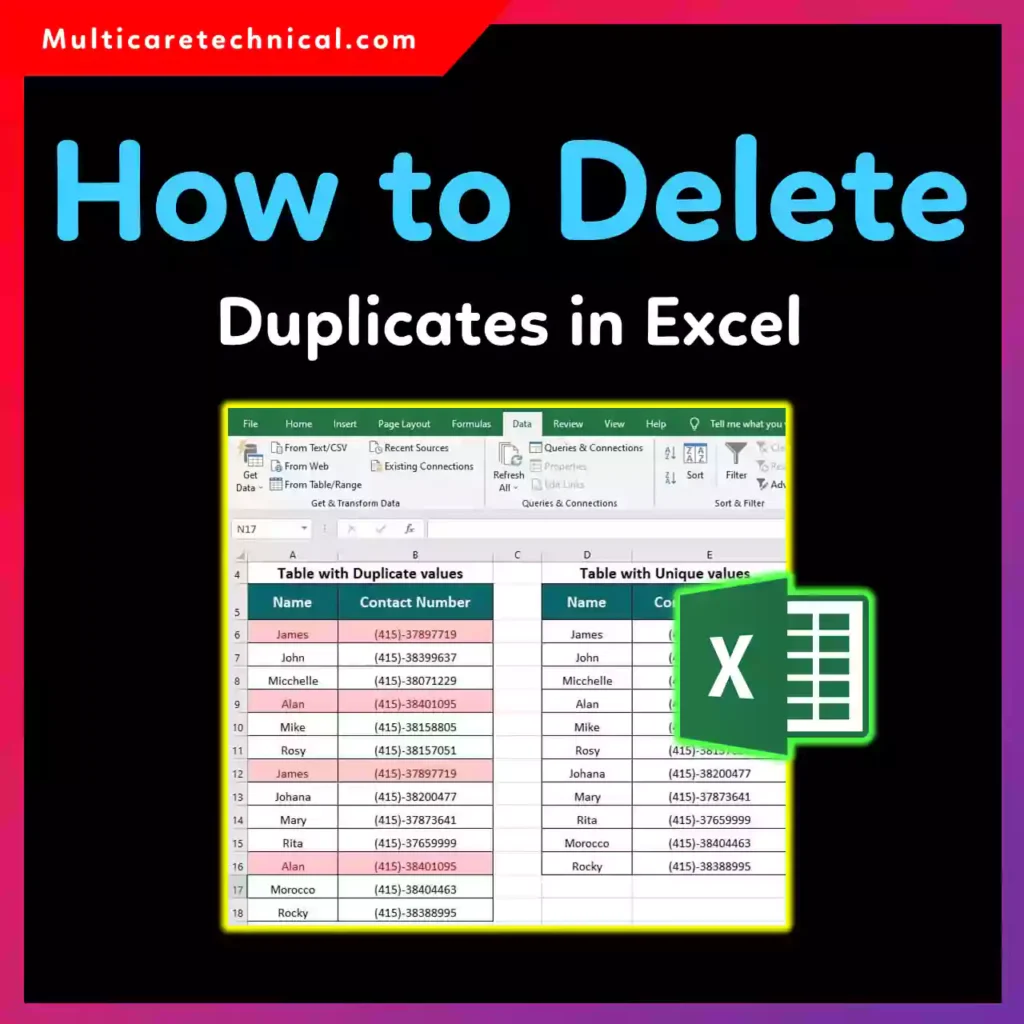
In this guide, you’ll learn multiple ways to delete duplicates in Excel, from built-in tools and shortcuts to formulas—while keeping at least one original entry intact.
Why Removing Duplicates in Excel Is Important
Duplicate rows or values can:
- Distort reports and calculations
- Break formulas and PivotTables
- Cause errors during imports or exports
- Reduce overall data accuracy
Before diving in, make sure your data is backed up—just in case.
Method 1: Delete Duplicates Using Excel’s Built-In Tool (Best & Fastest)
This is the most popular and beginner-friendly method.
Steps to delete duplicates in an Excel sheet:
- Select the entire data range (Ctrl + A)
- Click Data tab
- Choose Remove Duplicates
- Select the column(s) to check
- Click OK
Excel will instantly remove duplicate rows and show how many were deleted.
✅ Best for:
- How to delete duplicates in Excel sheet
- How to delete duplicates in Excel rows
- How to delete duplicates in Excel but keep one
Method 2: How to Delete Duplicates in an Excel Column Only
If duplicates exist in one specific column:
- Select the column
- Go to Data → Remove Duplicates
- Uncheck all columns except the target column
- Click OK
This keeps row structure intact while removing repeated values.
Method 3: Excel Shortcut to Remove Duplicates (Power Users)
There’s no single-key shortcut, but this combo is fast:
Alt → A → M
This opens the Remove Duplicates dialog instantly.
💡 Tip: Combine it with Ctrl + A for speed.
Method 4: How to Delete Duplicates in Excel Using Formula
If you prefer formulas:
Using COUNTIF
=COUNTIF($A$1:A1,A1)
- Apply filter
- Delete rows where the value is greater than 1
Using UNIQUE() (Excel 365 / Excel 2021)
=UNIQUE(A1:A100)
This extracts unique values without deleting original data.
✅ Best for:
- How to delete duplicates in Excel formula
- Dynamic datasets
Method 5: Delete Duplicates Using Advanced Filter
- Select your data
- Go to Data → Advanced
- Choose Filter the list, in-place
- Check Unique records only
- Click OK
Great for advanced Excel users.
Common Excel Issues While Cleaning Data
Sometimes Excel doesn’t behave as expected—especially when navigating cells. If arrow keys stop working, check this guide:
👉 https://multicaretechnical.com/how-to-fix-arrow-keys-not-working-in-excel-windows-10-11
For system-level cleanup tips, you may also like:
- https://multicaretechnical.com/how-to-hide-desktop-icons-in-windows-11-windows-10-windows-7-and-mac
- https://multicaretechnical.com/how-to-remove-microsoft-account-from-windows-11-complete-step-by-step-guide
Quick Comparison: Best Method by Use Case
| Scenario | Best Method |
|---|---|
| Entire dataset | Remove Duplicates Tool |
| Single column | Remove Duplicates (Column only) |
| Keep original data | UNIQUE() formula |
| Advanced filtering | Advanced Filter |
| Keyboard workflow | Alt + A + M |
Frequently Asked Questions (Short AI-Optimized)
How do I delete duplicates in Excel but keep one?
Use Data → Remove Duplicates. Excel automatically keeps the first occurrence.
Can I delete duplicates in Excel using a shortcut?
Yes. Use Alt → A → M to open Remove Duplicates instantly.
How do I remove duplicate rows in Excel?
Select all data, go to Data → Remove Duplicates, and select all columns.
Is there a formula to delete duplicates in Excel?
Use UNIQUE() in Excel 365 or COUNTIF() for manual filtering.