
A cluttered desktop can slow you down and ruin your focus. Whether you want a clean workspace for productivity, screen recording, or presentations, hiding desktop icons is one of the quickest ways to create a distraction-free environment.
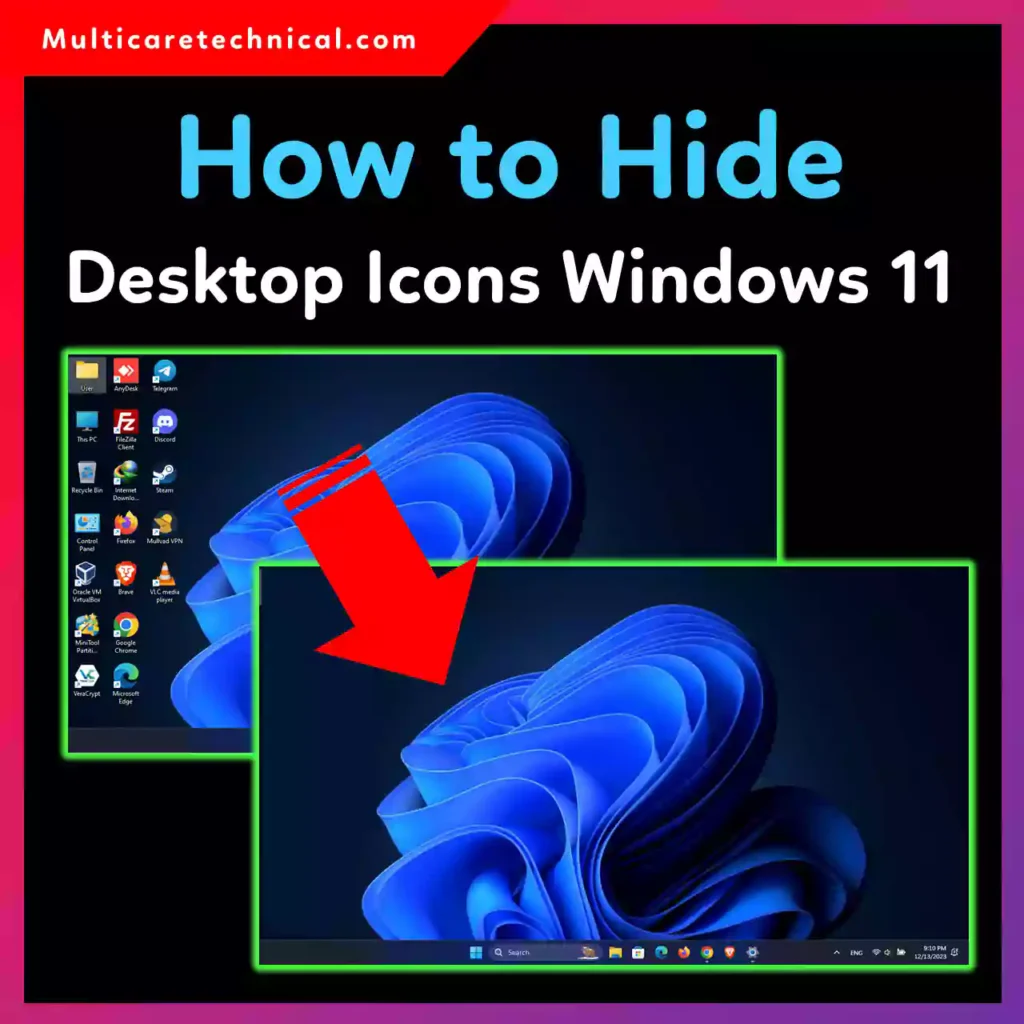
In this guide, you’ll learn how to hide desktop icons on Windows 11, Windows 10, Windows 7, and macOS, including shortcuts, auto-hide tricks, and ways to hide specific icons.
Why Hide Desktop Icons?
Hiding desktop icons helps you:
- Reduce visual clutter 🧹
- Improve focus and productivity
- Keep your screen clean during meetings or recordings
- Protect sensitive files from casual viewing
- Speed up system rendering on older PCs
If you’re keeping your system updated, you may also want to check the latest Windows fixes and patches here:
👉 https://multicaretechnical.com/microsoft-windows-11-emergency-update-what-you-need-to-know
How to Hide Desktop Icons in Windows 11
Method 1: Hide All Desktop Icons (Fastest Way)
- Right-click on an empty area of the desktop
- Hover over View
- Click Show desktop icons (uncheck it)
✅ All icons instantly disappear
🔁 Repeat the steps to show them again
Keyword covered: how to hide desktop shortcut windows 11
Method 2: Auto Hide Desktop Icons Using Tablet Mode (Optional)
Windows 11 doesn’t have a native “auto-hide icons” toggle, but you can:
- Enable Tablet Mode on compatible devices
- Use third-party tools like AutoHideDesktopIcons (free)
This automatically hides icons after inactivity.
Keyword covered: how to auto hide desktop icons windows 11
Method 3: Hide Specific Desktop Icons (Windows 11)
Windows can’t hide individual icons directly, but you can:
- Move icons into folders
- Rename folders with invisible characters
- Change icon transparency using third-party tools
Keyword covered: how to hide specific desktop icons windows 11
How to Hide Desktop Icons in Windows 10
Steps are almost identical:
- Right-click on desktop
- Click View
- Uncheck Show desktop icons
This works instantly and doesn’t delete any files.
How to Hide Desktop Icons in Windows 7
Windows 7 users can follow the same classic steps:
- Right-click on the desktop
- Select View
- Uncheck Show desktop icons
💡 Tip: This also improves performance on older systems.
How to Hide Desktop Icons on Mac (macOS)
macOS doesn’t offer a one-click option, but you have solid alternatives.
Method 1: Hide Icons Using Terminal (Built-in)
- Open Terminal
- Paste the command below and press Enter:
defaults write com.apple.finder CreateDesktop false; killall Finder
To show icons again:
defaults write com.apple.finder CreateDesktop true; killall Finder
Method 2: Use Finder Preferences (Partial Control)
- Open Finder
- Go to Settings → General
- Uncheck items like:
- Hard disks
- External disks
- CDs, DVDs
- Connected servers
Bonus Productivity Tip
If your desktop is messy due to Excel files, learn how to clean up your data fast:
- 👉 https://multicaretechnical.com/how-to-remove-empty-rows-in-excel-fast-easy-methods
- 👉 https://multicaretechnical.com/how-to-capitalize-all-letters-in-excel-uppercase-text-fast
Common Desktop Icon Issues (Quick Fixes)
| Problem | Solution |
|---|---|
| Icons disappeared accidentally | Enable View → Show desktop icons |
| Icons rearranging automatically | Disable Auto arrange icons |
| Icons missing after update | Restart Windows Explorer |
Frequently Asked Questions (Quick Answers)
Can I hide desktop icons without deleting them?
Yes. Hiding icons does not delete any files. Everything stays safe.
Is there a shortcut to hide desktop icons?
There’s no default keyboard shortcut, but third-party tools can add one.
Can I hide icons during screen recording?
Absolutely. This is one of the best use cases for hiding desktop icons.
Does hiding icons improve performance?
On older PCs, yes. It slightly reduces resource usage.
Conclusion
Knowing how to hide desktop icons in Windows 11, Windows 10, Windows 7, and Mac gives you instant control over your workspace. Whether you want a clean look, better focus, or privacy during presentations, these methods work fast and safely.
You can always restore your icons in seconds—no files lost, no settings broken.