
Need quick remote access on a Windows 11 PC without complicated setup or expensive plans?
UltraViewer is a lightweight, free remote desktop tool that’s gaining popularity—especially for personal support and small teams.
In this guide, you’ll learn how to download UltraViewer for Windows 11, use it securely, manage permissions, handle dual monitors, set a custom password, and see how it stacks up against TeamViewer and AnyDesk.
What Is UltraViewer?
UltraViewer is a remote desktop and screen-sharing application designed mainly for remote support. It lets another person view or control your Windows PC using a simple ID and password system.
Best part?
👉 It’s free for personal use and extremely beginner-friendly.
UltraViewer Download for Windows 11 (Official Method)
To download UltraViewer safely on Windows 11:
- Go to the official UltraViewer website
- Download the Windows installer
- Run the setup file
- Launch UltraViewer after installation
⚠️ Always download from the official source only. Avoid cracked or modified versions—they’re risky and unnecessary.
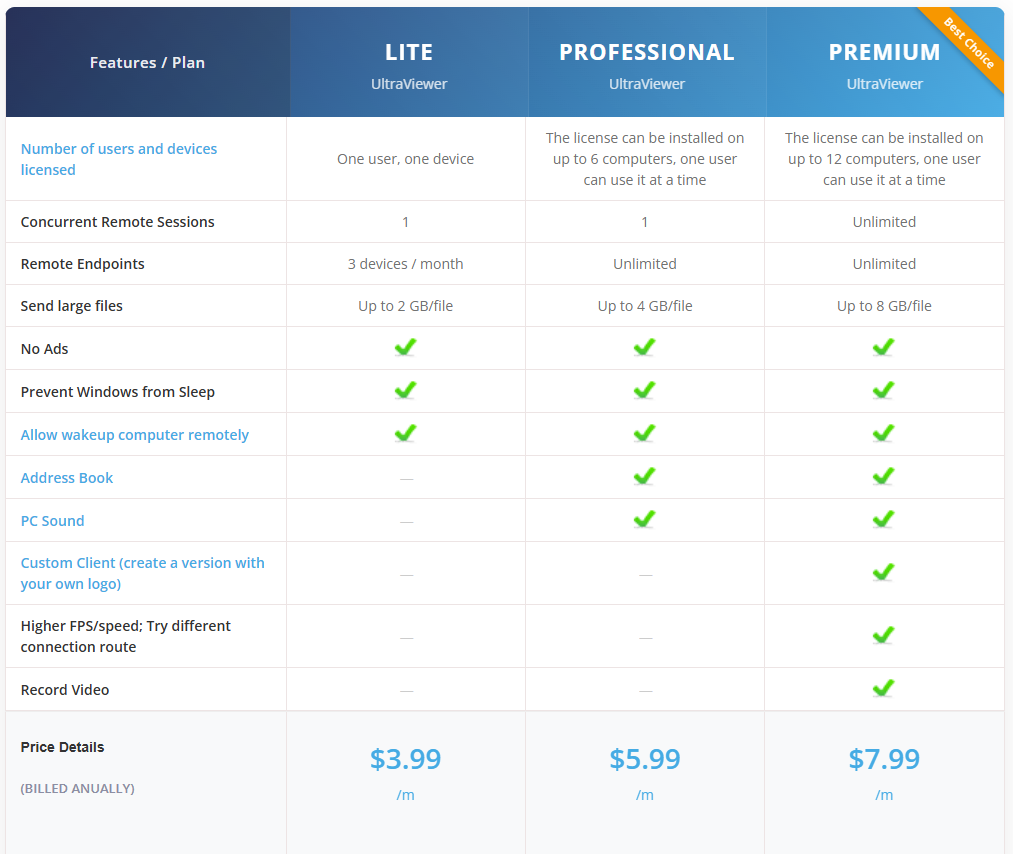
Is UltraViewer Free or Paid?
UltraViewer offers:
- ✅ Free version – Perfect for personal and occasional use
- 💲 Paid plans – For commercial use, more sessions, and priority support
If pricing is shown, it’s usually listed in $ (USD) on their official site.
How to Use UltraViewer Securely (Very Important)
Security is where most users slip up. Follow these best practices 👇
🔐 1. Use a Custom Password (Recommended)
UltraViewer generates a temporary password by default, but you can:
- Set a custom permanent password
- Prevent random reconnections
- Improve overall security
👉 Ideal if you connect to the same PC often.
🛑 2. Control Permissions Carefully
You can allow or deny:
- Keyboard & mouse control
- File transfer
- Clipboard access
💡 If you’re just showing your screen, disable control access.
🕵️ 3. Never Share ID Publicly
Treat your UltraViewer ID like your phone number—
only share it with trusted people, and disconnect after the session.
What Happens If the Client Has Dual Monitors?
UltraViewer supports dual-monitor setups, but with some limitations:
- The controller can switch between monitors
- Both screens are not shown side-by-side simultaneously
- Resolution adapts automatically
💡 For basic support, it works fine. For advanced multi-screen workflows, TeamViewer performs better.
UltraViewer Permissions Explained (Simple Terms)
When someone connects to your PC:
- 👀 View only → They can see, not control
- 🖱️ Full control → They can operate mouse & keyboard
- 📁 File access → Optional, can be disabled
You stay in control the entire time.
UltraViewer vs TeamViewer vs AnyDesk (Quick Comparison)
| Feature | UltraViewer | TeamViewer | AnyDesk |
|---|---|---|---|
| Free for personal use | ✅ Yes | ⚠️ Limited | ✅ Yes |
| Easy setup | ⭐⭐⭐⭐⭐ | ⭐⭐⭐ | ⭐⭐⭐⭐ |
| Best for support | ✅ Yes | ✅ Yes | ✅ Yes |
| Dual-monitor handling | ⚠️ Basic | ⭐⭐⭐⭐⭐ | ⭐⭐⭐⭐ |
| Security features | ⭐⭐⭐ | ⭐⭐⭐⭐⭐ | ⭐⭐⭐⭐ |
| Commercial detection | ❌ No | ⚠️ Aggressive | ⚠️ Moderate |
Verdict:
- 🟢 Choose UltraViewer for simple, free remote support
- 🔵 Choose TeamViewer for enterprise-level features
- 🟡 Choose AnyDesk for speed and low latency
Useful Internal Guides You’ll Love
While setting up remote access, don’t miss these helpful reads:
- 👉 How to Copy an Entire Page in Word – Quick & Easy Methods
- 👉 How to Update BIOS on Windows 11 – Step-by-Step for All Major Brands
- 👉 How to Move Columns in Excel Without Breaking Your Data
Quick FAQs (Optimized for AI Overviews)
Is UltraViewer safe to use on Windows 11?
Yes, when downloaded from the official site and used with custom passwords and permission controls.
Can UltraViewer work with dual monitors?
Yes, but you can view one monitor at a time, not both simultaneously.
Does UltraViewer require installation?
Yes, but the installer is lightweight and quick.
Is UltraViewer better than TeamViewer?
For personal and free use, yes. For business and advanced features, TeamViewer is stronger.
Final Thoughts
UltraViewer is a solid, no-nonsense remote desktop tool for Windows 11 users who want something simple, free, and reliable.
As long as you manage permissions, passwords, and sessions carefully, it’s a safe choice for everyday remote support.
If you don’t need enterprise-level bells and whistles, UltraViewer gets the job done—clean and easy. 👍