
Want your favorite app to open automatically every time you turn on your PC? Whether it’s Zoom, Spotify, WhatsApp, or your work software — Windows 11 makes it easy to control which apps start automatically.
In this guide, you’ll learn:
- How to automatically open apps on startup Windows 11
- How to add an app to run on startup Windows 11
- How to manage programs on startup Windows 11
- Important safety tips before enabling startup apps
Let’s get started.
🚀 Method 1: Add an App to Startup Using Settings (Easiest Way)
This is the quickest method if the app supports startup control.
Steps:
- Click Start
- Go to Settings
- Click Apps
- Select Startup
- Turn ON the toggle next to the app you want
That’s it. The next time you restart your PC, the app will open automatically.
This method works best if you’re wondering how to make an app start on startup Windows 11 without using advanced tools.
💻 Method 2: Use Task Manager to Manage Startup Apps
If you want more control over performance, use Task Manager.
Steps:
- Press Ctrl + Shift + Esc
- Click the Startup tab
- Right-click the app
- Select Enable
This method is perfect if you’re searching for how to manage programs on startup Windows 11 efficiently.
You’ll also see a “Startup impact” column — this tells you how much the app slows down boot time.
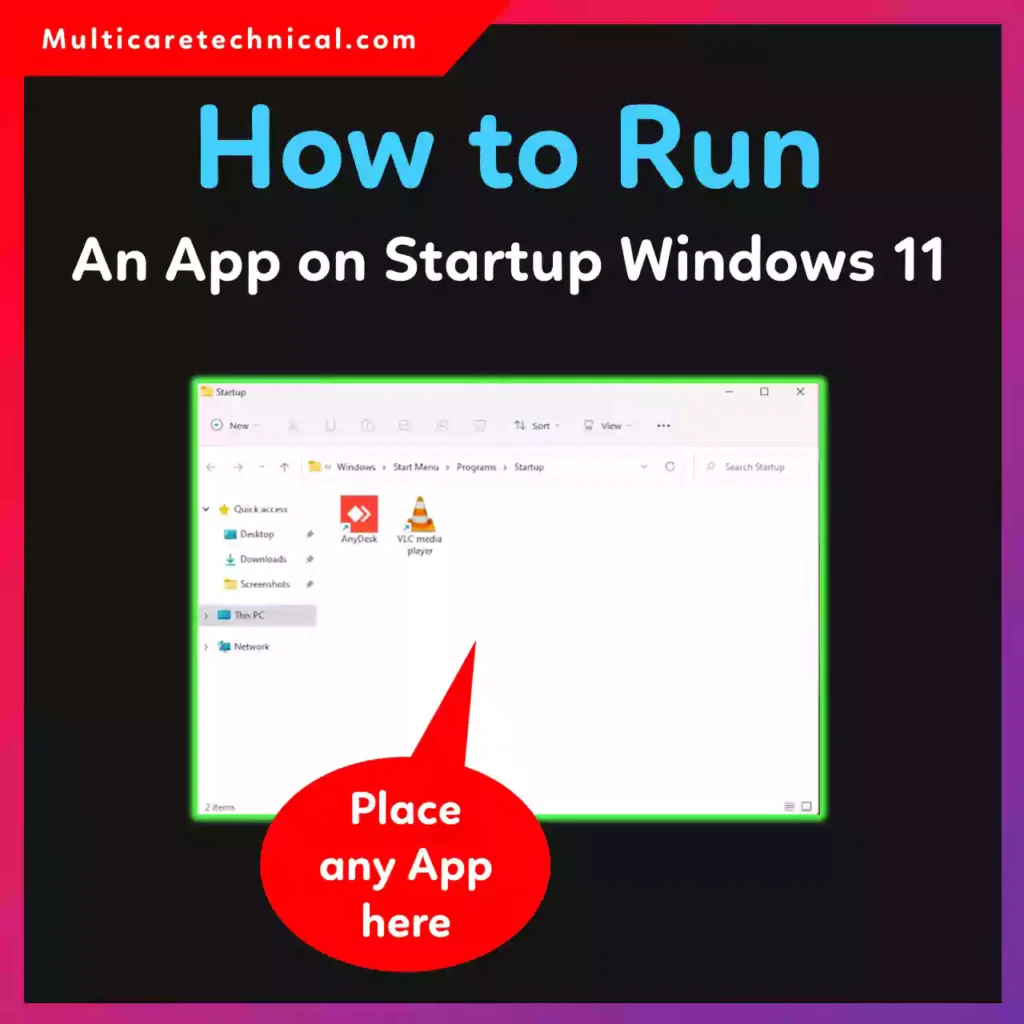
📂 Method 3: Add Any App to Startup Folder (Advanced Method)
If an app doesn’t appear in Settings or Task Manager, you can manually add it.
Steps:
- Press Windows + R
- Type:
shell:startup - Press Enter
- Copy the app shortcut into this folder
Now you’ve learned how to add an app to run on startup Windows 11, even if it’s not listed.
This is the best solution for users asking how to open programs on startup Windows 11 that don’t show in settings.
⚠️ Important Caution Before Adding Startup Apps
Before enabling too many startup apps, keep these things in mind:
- Too many startup apps = slower boot time
- High-impact apps can increase RAM usage
- Battery drains faster on laptops
- Some apps may auto-update in the background
Only enable essential apps like:
- Antivirus software
- Cloud backup apps
- Work communication tools
Avoid enabling heavy apps like video editors or games.
If you’re optimizing your system, you might also want to check:
- How to change app permissions on Android:
https://multicaretechnical.com/how-to-change-app-permissions-on-android-step-by-step-guide-2026 - How to change WiFi channel to boost speed:
https://multicaretechnical.com/how-to-change-wifi-channel-boost-speed-reduce-interference-in-2026 - How to change Apple ID password securely:
https://multicaretechnical.com/how-to-change-apple-id-password-iphone-ipad-mac-more-2026-guide
🔥 How to Automatically Launch Apps at Startup (Best Practices)
If you’re serious about productivity, follow this rule:
👉 Keep startup apps under 5
👉 Disable high-impact apps
👉 Review startup apps once a month
This ensures fast boot time and smooth performance.
🎯 Quick Answer (Featured Snippet Optimized)
To run an app on startup in Windows 11:
- Open Settings > Apps > Startup
- Turn ON the app you want
OR - Open Task Manager
- Go to Startup
- Enable the app
You can also use shell:startup and add the app shortcut manually.
❓ Frequently Asked Questions
1. How do I make an app launch on startup Windows 11?
Go to Settings > Apps > Startup and toggle it ON. If the app isn’t listed, add its shortcut to the Startup folder using shell:startup.
2. Why is my app not opening on startup?
Possible reasons:
- App doesn’t support startup
- It’s disabled in Task Manager
- Startup folder shortcut is missing
3. How do I disable apps from startup?
Open Task Manager → Startup tab → Right-click the app → Click Disable.
4. Does enabling startup apps slow down Windows 11?
Yes, especially high-impact apps. Limit startup apps to improve performance.
🏁 Final Thoughts
Now you know exactly how to run an app on startup Windows 11 using three different methods.
Whether you’re trying to:
- Automatically open apps on startup Windows 11
- Manage programs on startup Windows 11
- Add an app to run on startup Windows 11
You have complete control.
Keep your startup list clean, optimized, and performance-friendly for the best Windows 11 experience.