
Want to add emojis on your Chromebook but can’t find the emoji button? Don’t worry — whether you’re typing in Google Docs, Gmail, Instagram, or chatting with friends, Chromebook has a built-in emoji picker that works instantly.
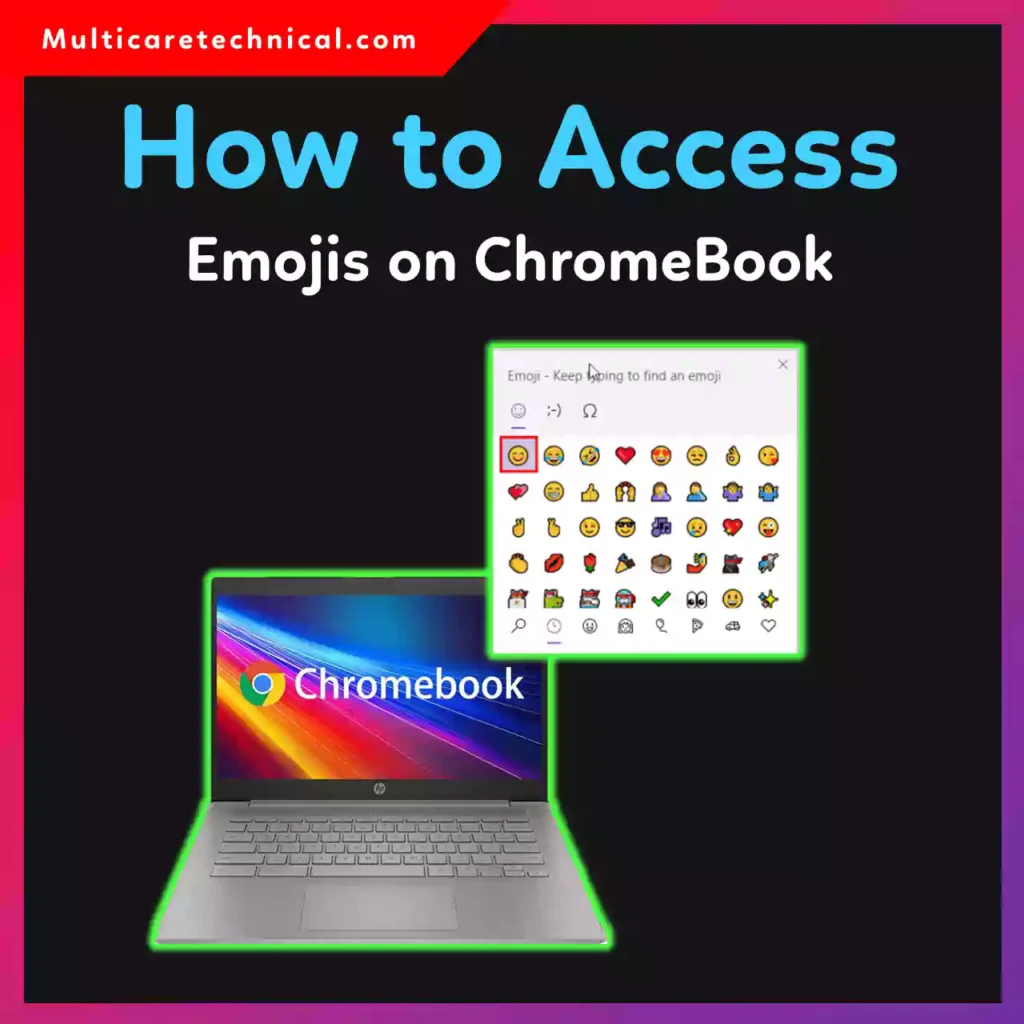
In this step-by-step guide, you’ll learn:
- ✅ How to use emojis on Chromebook with keyboard shortcut
- ✅ How to use emojis on Chromebook without touchscreen
- ✅ How to get emojis on Chromebook Google Docs
- ✅ Bonus tips for faster typing
Let’s jump right in.
🚀 Quick Answer (Featured Snippet Optimized)
To access emojis on a Chromebook:
- Place your cursor in any text field
- Press Search (🔍) + Shift + Space
OR
Right-click in the text field and select Emoji
The emoji picker will appear instantly.
💻 Method 1: How to Use Emojis on Chromebook With Keyboard Shortcut
This is the fastest way.
Steps:
- Click inside any text box (Google Docs, Gmail, browser, etc.)
- Press Search (Launcher key) + Shift + Space
- The emoji panel will pop up
- Click the emoji you want
That’s it.
This method is perfect if you’re searching for how to use emojis on Chromebook with keyboard shortcut because it works everywhere on ChromeOS.
🖱️ Method 2: How to Use Emojis on Chromebook Without Touchscreen
No touchscreen? No problem.
Here’s what to do:
- Right-click inside a typing area
- Select Emoji from the menu
- Choose your emoji
You can also use the keyboard shortcut mentioned above.
This is the easiest solution for users wondering how to use emojis on Chromebook without touchscreen.
📄 How to Get Emojis on Chromebook Google Docs
Typing a school assignment or office document?
Here’s how to get emojis on Chromebook Google Docs:
Option 1 (Fastest Way):
Press Search + Shift + Space
Option 2:
- Click Insert
- Select Emoji
- Choose your emoji
Now your documents look more expressive and fun.
🔥 Pro Tips for Faster Emoji Access
- Recently used emojis appear at the top
- Use the search bar inside the emoji panel
- Try typing keywords like “smile,” “fire,” or “heart”
- Enable on-screen keyboard (for tablet mode users)
⚠️ Important Notes & Caution
- Some older Chromebook models may require ChromeOS updates
- Emojis may appear differently on Windows, Android, or iPhone devices
- Avoid excessive emoji use in professional emails
If you’re optimizing your device performance, check these helpful guides:
- How to run an app on startup Windows 11:
https://multicaretechnical.com/how-to-run-an-app-on-startup-windows-11-step-by-step-guide-for-2026 - How to change app permissions on Android:
https://multicaretechnical.com/how-to-change-app-permissions-on-android-step-by-step-guide-2026 - How to change WiFi channel for better speed:
https://multicaretechnical.com/how-to-change-wifi-channel-boost-speed-reduce-interference-in-2026
🎯 Why Emojis Might Not Be Working
If the emoji shortcut isn’t opening:
- Restart your Chromebook
- Update ChromeOS
- Check keyboard settings
- Try right-click method
📌 Best Use Cases for Chromebook Emojis
- Google Docs assignments
- Gmail messages
- Social media posts
- YouTube comments
- Chat apps
Emojis make communication clearer and more expressive — just use them wisely.
❓ FAQ (Optimized for AI Overviews & Rich Snippets)
1. What is the shortcut to open emojis on Chromebook?
Press Search (Launcher) + Shift + Space to open the emoji picker instantly.
2. How do I use emojis on Chromebook without touchscreen?
Right-click inside a text field and select Emoji, or use the keyboard shortcut.
3. How do I get emojis on Chromebook Google Docs?
Press Search + Shift + Space, or go to Insert > Emoji inside Google Docs.
4. Why are emojis not showing on my Chromebook?
Your ChromeOS might need updating, or you may need to restart the device.
🏁 Final Thoughts
Now you know exactly how to access emojis on Chromebook in multiple ways.
Whether you’re:
- Using emojis with a keyboard shortcut
- Using emojis without touchscreen
- Adding emojis in Google Docs
It takes just seconds.
Try it right now — press Search + Shift + Space and start expressing yourself 😊