
Are your apps accessing your camera, microphone, or location without you realizing it? 😳 Learning how to change app permissions on Android is one of the easiest ways to protect your privacy and boost your phone’s security.
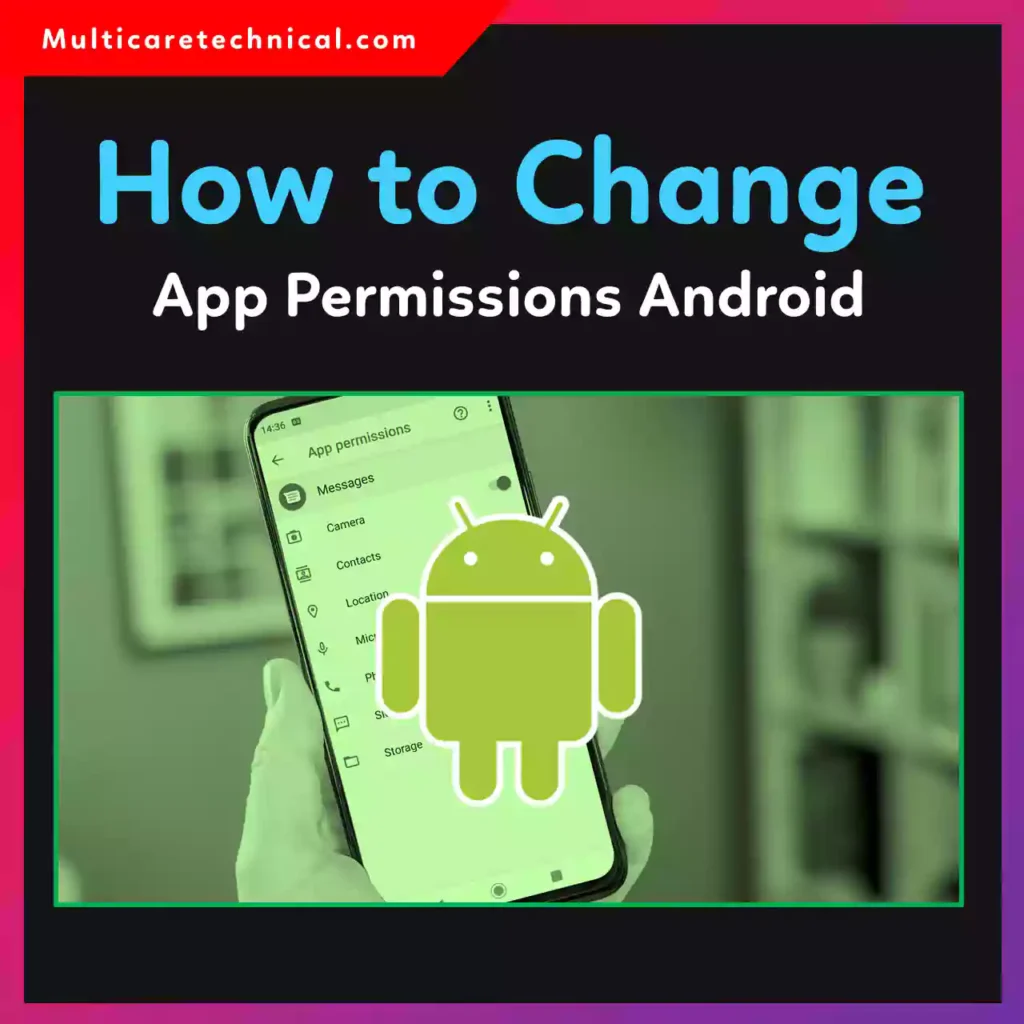
In this updated 2026 guide, you’ll learn how to allow, deny, or completely disable app permissions on Android — plus how to fix common permission errors.
✅ Quick Answer (Featured Snippet Optimized)
To change app permissions on Android:
- Open Settings
- Tap Apps
- Select the app
- Tap Permissions
- Choose Allow, Don’t Allow, or Ask Every Time
You can also manage permissions by category (Camera, Location, Microphone, etc.) inside Privacy settings.
What Are App Permissions?
App permissions control what an app can access on your phone — like:
- 📍 Location
- 🎤 Microphone
- 📷 Camera
- 📂 Storage
- 👥 Contacts
Android lets you fully control these settings from your device’s system menu.
How to Change App Permissions on Android
These steps work on most Android phones including Samsung, OnePlus, Pixel, Xiaomi, and more.
Method 1: Change Permissions from App Settings
- Open Settings
- Tap Apps
- Select the app you want to manage
- Tap Permissions
- Choose:
- Allow
- Don’t allow
- Allow only while using the app
- Ask every time (if available)
That’s it — changes apply instantly.
Method 2: Manage Permissions by Category
If you want more control:
- Open Settings
- Tap Privacy
- Select Permission Manager
- Choose a permission (Camera, Location, etc.)
- See which apps have access
- Enable or disable access
This is useful if you want to review how to disable app permissions on Android in bulk.
How to Disable App Permissions on Android
If you want to fully block access:
- Go to Settings → Apps
- Select the app
- Tap Permissions
- Turn off all allowed permissions
⚠ Be careful: Some apps may stop working properly if critical permissions are disabled.
How to Fix “Can’t Change App Permissions Android”
If you see an error or the permission option is grayed out:
Fix 1: Update Android
Go to:
Settings → Software Update
Fix 2: Restart Your Phone
Sometimes it’s a temporary glitch.
Fix 3: Check Device Admin Apps
Some apps with admin rights can’t have permissions changed.
Go to:
Settings → Security → Device Admin Apps
Disable admin access first.
Fix 4: Safe Mode Test
Boot your phone in Safe Mode to check for conflicts.
If you’re facing account-related setting issues, you may also find this helpful:
👉 https://multicaretechnical.com/how-to-change-email-on-instagram-step-by-step-guide-for-2026
Important Caution Before Changing Permissions
⚠ Always remember:
- Don’t disable system app permissions unless necessary
- Avoid giving microphone or camera access to unknown apps
- Review permissions monthly
- Only download apps from trusted sources
Changing permissions is completely free ($0). No paid feature required.
Android vs iPhone Permission Management
Many users also ask about how to manage app permissions on iPhone.
On Android, permissions are managed inside:
Settings → Apps → Permissions
On iOS, permissions are controlled via:
Settings → Privacy & Security → Select Permission Type
Both systems offer strong privacy controls, but Android provides more category-based management options.
Related Helpful Guides
- Change email on Instagram:
https://multicaretechnical.com/how-to-change-email-on-instagram-step-by-step-guide-for-2026 - Change cursor in Windows 11:
https://multicaretechnical.com/how-to-change-cursor-on-windows-11-step-by-step-2026-guide - Change margins in Google Docs:
https://multicaretechnical.com/how-to-change-margins-in-google-docs-2026-step-by-step-guide
FAQs (Short Snippets for AI Overviews)
How do I disable app permissions on Android?
Go to Settings → Apps → Select app → Permissions → Turn off access.
Why can’t I change app permissions on Android?
It may be due to device admin access, system restrictions, or outdated software.
Does disabling permissions delete app data?
No, it only blocks access. Your app data remains safe.
Is changing app permissions free?
Yes, it’s completely free and built into Android.
How to manage app permissions on iPhone?
Go to Settings → Privacy & Security → Select permission category and adjust access.
Conclusion
Now you know exactly how to change app permissions on Android, how to disable app permissions, and how to fix permission issues. Taking a few minutes to review your app permissions can significantly improve your privacy and device security.
Stay in control of what your apps can access — not the other way around.