
Want a bigger pointer? A colorful one? Or maybe you’re looking for how to change cursor on Windows 11 custom style packs? You’re in the right place.
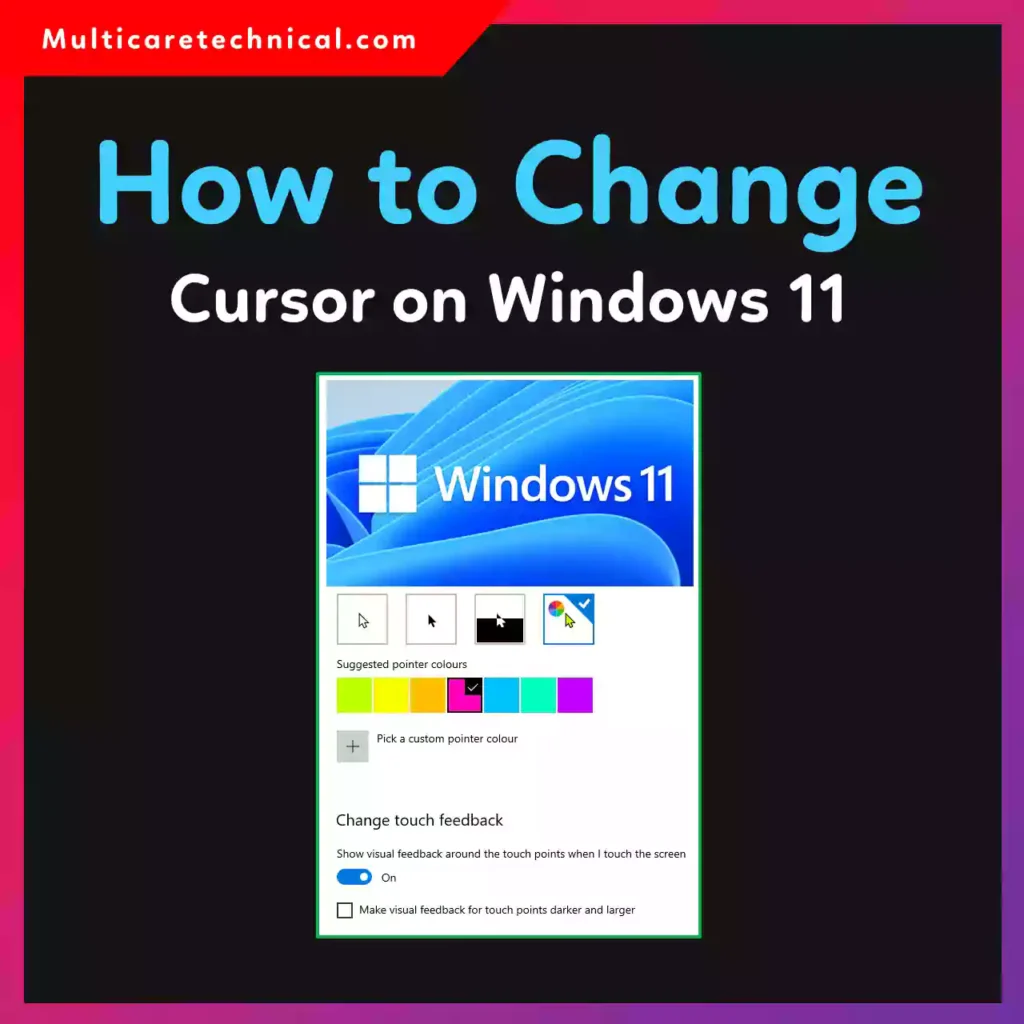
In this complete guide, I’ll show you how to change mouse pointer on Windows 11, how to install custom cursor themes, and what to avoid to keep your PC safe.
⚡ Quick Answer (Featured Snippet Style)
To change cursor on Windows 11:
- Press Windows + I to open Settings
- Go to Accessibility → Mouse pointer and touch
- Choose a new style, size, or color
- For advanced options, go to Bluetooth & devices → Mouse → Additional mouse settings
- Open the Pointers tab to select or install a custom scheme
That’s it!
Why Change Your Cursor?
Changing your cursor can:
- Improve visibility
- Reduce eye strain
- Match your gaming setup
- Add personality to your desktop
- Improve accessibility
The feature is built directly into Windows 11 — no extra software required.
Method 1: How to Change Mouse Pointer on Windows 11 (Basic Way)
This is the easiest way.
Step-by-Step:
- Click Start
- Open Settings
- Select Accessibility
- Click Mouse pointer and touch
- Choose:
- White
- Black
- Inverted
- Custom color
- Adjust the Size slider
Changes apply instantly.
Method 2: How to Change Cursor on Windows 11 Custom (Advanced Method)
If you want animated or themed cursors:
Step 1: Open Advanced Mouse Settings
- Go to Settings
- Click Bluetooth & devices
- Select Mouse
- Click Additional mouse settings
- Go to the Pointers tab
Step 2: Choose a Cursor Scheme
You’ll see built-in options like:
- Windows Default
- Windows Black
- Windows Inverted
Click Apply to confirm.
🖱 How to Install Custom Cursor Packs
If you’re searching for how to change cursor on Windows 11 custom themes, follow this:
- Download a cursor pack (.cur or .ani files)
- Extract files
- Go to Pointers tab
- Click Browse
- Select the downloaded cursor file
- Click Save As to create a new scheme
- Click Apply
Some premium cursor packs cost around $2–$10 depending on the designer.
🎨 How to Change Cursor Color in Windows 11
- Go to Accessibility
- Click Mouse pointer and touch
- Select Custom
- Pick any color you like
Great for high-contrast setups or streamers.
⚠ Important Cautions
Before installing custom cursors:
- ❌ Avoid random websites (risk of malware)
- ❌ Don’t download .exe files claiming to auto-install cursors
- ❌ Always scan downloads with antivirus
- ❌ Don’t disable Windows security features
Stick to trusted sources only.
Also remember:
Changing cursor does NOT improve system performance — it’s purely visual.
💻 How to Reset Cursor to Default
If something looks wrong:
- Go to Pointers tab
- Select Windows Default (system scheme)
- Click Apply
Done.
🔧 Bonus Tip: Large Cursor for Better Visibility
For seniors or accessibility needs:
- Increase pointer size to 5–10
- Use inverted color for contrast
- Turn on Text cursor indicator in Accessibility
This improves navigation dramatically.
🔗 Related Helpful Guides
If you’re customizing your PC or apps, check these:
- Reset your social feed:
👉 https://multicaretechnical.com/how-to-reset-instagram-feed-2026-guide - Fix app issues:
👉 https://multicaretechnical.com/how-to-reset-youtube-app-android-iphone-smart-tv-roku-more - Remove unwanted PC software:
👉 https://multicaretechnical.com/how-to-uninstall-meta-horizon-link-on-pc-step-by-step-guide-for-2026
Frequently Asked Questions (AI Overview Optimized)
Q1: How to change mouse pointer on Windows 11?
Go to Settings → Accessibility → Mouse pointer and touch → Choose a new style and size.
Q2: How to change cursor on Windows 11 custom theme?
Open Additional mouse settings → Pointers tab → Browse → Select custom .cur file → Apply.
Q3: Is changing cursor safe?
Yes, if you use built-in Windows settings or trusted cursor packs.
Q4: Why can’t I change my cursor?
You may need administrator access or your organization may restrict changes.
Q5: Does changing cursor affect performance?
No, it only changes visual appearance.
🏁 Final Thoughts
Learning how to change cursor on Windows 11 is quick, easy, and completely customizable. Whether you want better visibility, a stylish look, or a custom animated theme, Windows 11 gives you full control.
Just remember:
Stick to safe downloads, avoid suspicious installer files, and always keep your system secure.
Now go personalize your PC! 🚀