
Changing your Instagram email is quick — but doing it the wrong way can lock you out of your account. Whether you’re updating a business contact or switching to a new personal email, this guide shows you exactly how to change email on Instagram safely on iPhone, Android, and computer.
If you recently updated your profile details, you may also want to check our guide on resetting your Instagram feed:
👉 https://multicaretechnical.com/how-to-reset-instagram-feed-2026-guide
✅ Quick Answer (Featured Snippet Optimized)
To change email on Instagram:
- Open Instagram
- Go to Profile
- Tap Edit Profile
- Select Personal Information Settings
- Tap Email Address
- Enter new email
- Confirm via verification link sent to your inbox
You must verify the new email to complete the change.
How to Change Email on Instagram on iPhone
The steps are the same for iPhone and Android.
- Open the Instagram app
- Tap your profile icon (bottom right)
- Tap Edit Profile
- Tap Personal Information Settings
- Select Email Address
- Enter your new email
- Tap Next
- Verify the email from your inbox
📌 After verification, your email will be updated instantly.
How to Change Email on Instagram Business Account
If you’re wondering how to change email on Instagram business account, follow these steps:
- Go to Profile
- Tap Edit Profile
- Under Public Business Information, update your contact email
- Also check Personal Information Settings to change login email
⚠ Important: Business contact email and login email can be different. Make sure you update the correct one.
How to Change Email on Instagram on Computer
If you’re using desktop:
- Go to Instagram.com
- Log in to your account
- Click Profile Picture (top right)
- Click Settings
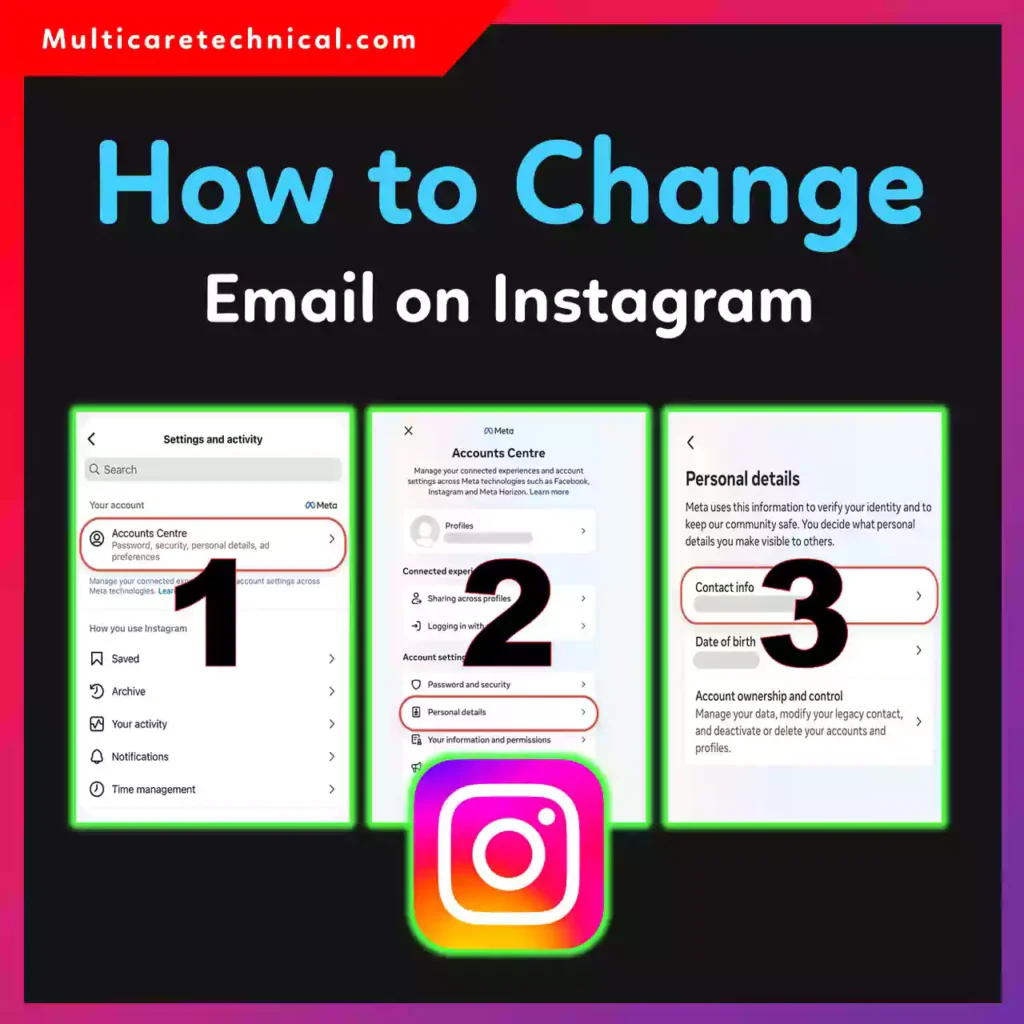
- Select Accounts Center
- Click Personal Details → Contact Info
- Add new email and verify
This is the correct method for how to change email on Instagram on computer.
How to Change Email on Instagram Without Old Email
Many users ask: how to change email on Instagram without old email?
If you are logged in:
- You can change email normally.
- You don’t need access to the old email unless Instagram asks for verification.
If you’re NOT logged in:
- Tap Forgot Password
- Use your phone number or username to recover access.
⚠ If you cannot access both email and phone number, you’ll need to go through Instagram identity verification.
How to Change Email on Instagram Without Password
If you’re logged in, you can update your email from settings.
If you forgot your password:
- Tap Forgot Password
- Reset using phone number or linked Facebook account
- Create new password
- Then change email from settings
You cannot directly change email without verifying account access.
Important Caution Before Changing Email
⚠ Always remember:
- Use an email you control permanently
- Verify the new email immediately
- Never share verification codes
- Avoid using temporary or fake emails
- If account is business-related, update recovery details too
Changing your email does not cost anything — it’s completely free ($0).
Common Problems & Fixes
| Problem | Solution |
|---|---|
| Not receiving verification email | Check spam folder |
| Email already in use | Use a different email |
| Cannot edit email | Update Instagram app |
| Account locked | Reset password first |
If you’re updating other settings, check these helpful guides:
- How to change cursor in Windows 11:
https://multicaretechnical.com/how-to-change-cursor-on-windows-11-step-by-step-2026-guide - How to change margins in Google Docs:
https://multicaretechnical.com/how-to-change-margins-in-google-docs-2026-step-by-step-guide
FAQs (Short Snippets for AI Overviews)
Can I change my Instagram email anytime?
Yes, you can change it anytime from profile settings.
Does Instagram notify my followers if I change email?
No, followers are not notified.
How long does it take to update email?
It updates immediately after verification.
Can I use the same email for two Instagram accounts?
No, one email can only be linked to one account at a time.
Is it free to change Instagram email?
Yes, it is completely free.
Conclusion
Now you know exactly how to change email on Instagram — whether you’re using iPhone, Android, computer, or managing a business account. Just remember to verify your new email immediately to avoid login issues.
Keeping your email updated protects your account and ensures you never lose access.