
Took a screenshot on your Mac… but now you can’t find it? You’re not alone. Whether you’re using a MacBook Air, MacBook Pro, or iMac, Apple saves screenshots automatically — but not everyone knows where to look.
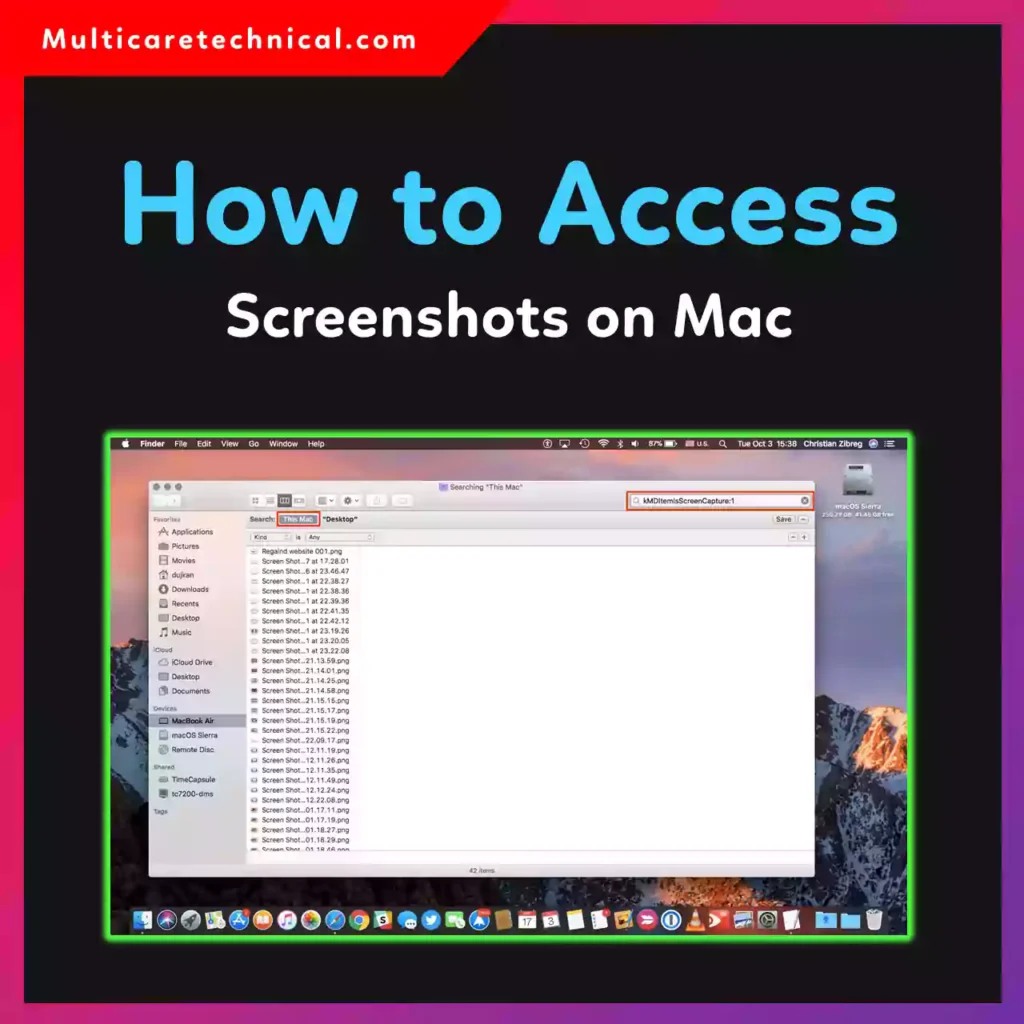
In this complete step-by-step guide, you’ll learn:
- How to access screenshots on MacBook
- How to access screenshots on MacBook Air
- How to access screenshots on MacBook Pro
- How to find screenshots on Mac
- How to view screenshots on Mac
Let’s make it simple.
📍 Quick Answer (Featured Snippet Style)
How to access screenshots on Mac?
By default, screenshots are saved to the Desktop. Look for files named “Screenshot [date] at [time].png.” You can also open Finder → Desktop to view them.
🖥️ Method 1: Check the Desktop (Default Location)
On most Macs, screenshots automatically save to your Desktop.
Steps:
- Minimize all windows.
- Look at your Desktop.
- Find files starting with “Screenshot”.
- Double-click to open.
This works on:
- MacBook Air
- MacBook Pro
- iMac
If you’re wondering how to access screenshots on MacBook, this is usually the answer.
📂 Method 2: Use Finder to Find Screenshots on Mac
If your Desktop is cluttered or screenshots aren’t there:
Steps:
- Open Finder
- Click Desktop in the sidebar
- Use the search bar (top-right)
- Type:
Screenshot
This method helps if you’re searching for:
- how to find screenshots on mac
- how to find screenshots on macbook
- how to find screenshots on macbook air
- how to find screenshots on macbook pro
🔎 Method 3: Use Spotlight Search
Spotlight is the fastest way to locate files.
Steps:
- Press Command (⌘) + Space
- Type “Screenshot”
- Click the file from results
This is perfect if you want to know:
- how to view screenshots on mac
- how to view screenshots on macbook
⚙️ Method 4: Check If Screenshot Location Was Changed
Sometimes users change the default save location.
To check:
- Press Command (⌘) + Shift + 5
- Click Options
- Look under Save To
You might see:
- Desktop
- Documents
- Clipboard
- Other Location
If it’s set to Documents or another folder, check there.
🖼️ How to Open and Edit Screenshots on Mac
Once found:
- Double-click to open in Preview
- Right-click → Open With → Preview
- Click the thumbnail (bottom-right corner right after taking screenshot) to edit instantly
Mac screenshots usually save as PNG files.
💡 Pro Tips
- Screenshots are automatically named with date and time.
- Use Command + Shift + 4 to capture selected area.
- Use Command + Shift + 3 for full screen.
- Drag the thumbnail before it disappears to save somewhere specific.
⚠️ Common Reasons You Can’t Find Screenshots
- Save location changed
- Screenshot copied to Clipboard only
- Desktop hidden
- File accidentally deleted
If deleted, check the Trash folder.
🔗 Related Helpful Guides
You may also like:
- How to access hidden apps on iPhone:
https://multicaretechnical.com/how-to-access-hidden-apps-on-iphone-11-to-16-complete-2026-guide - How to access emojis on Chromebook 😊:
https://multicaretechnical.com/how-to-access-emojis-on-chromebook-%f0%9f%98%8a-quick-easy-2026-guide - Boost WiFi speed by changing channel:
https://multicaretechnical.com/how-to-change-wifi-channel-boost-speed-reduce-interference-in-2026
❓ FAQ (Optimized for AI Overviews)
1. Where do screenshots go on Mac?
By default, screenshots save to the Desktop.
2. How to access screenshots on MacBook Air?
Open Finder → Desktop or search “Screenshot” using Spotlight.
3. How to access screenshots on MacBook Pro?
Check the Desktop first. If not there, press Command + Shift + 5 and check Save location.
4. Why can’t I find my screenshots on Mac?
The save location may have been changed or the screenshot was copied to Clipboard.
5. How to view screenshots on Mac?
Double-click the file on Desktop or open it in Preview.
🏁 Conclusion
Now you know exactly how to access screenshots on Mac — whether you’re using a MacBook Air, MacBook Pro, or iMac.
In most cases, they’re right there on your Desktop. If not, Finder and Spotlight will help you locate them in seconds.
No stress. No confusion. Just quick access.