
Ever hidden an app on your iPhone and later couldn’t find it? Don’t worry — it happens all the time. Whether you’re using iPhone 11, 12, 13, 14, 15, or 16, Apple makes it easy to hide apps… but not always obvious how to access them again.
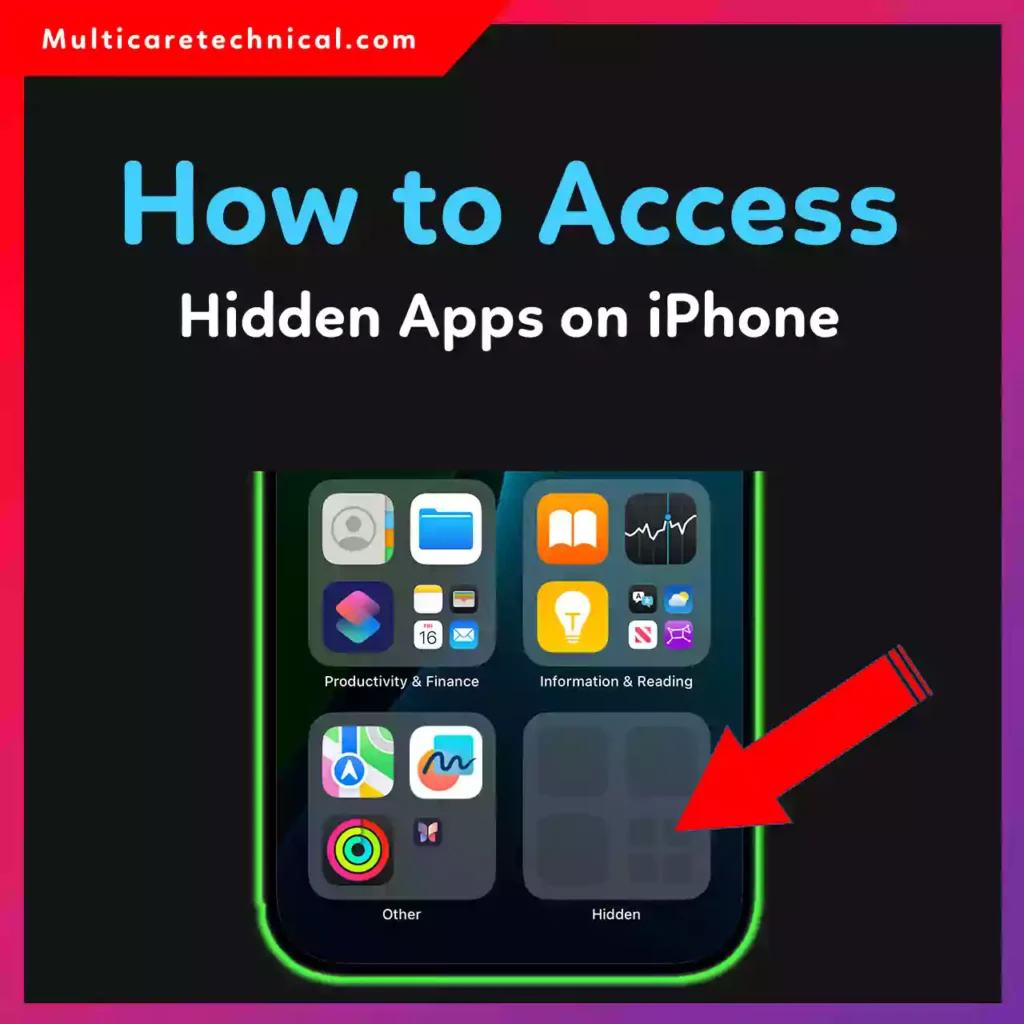
In this step-by-step guide, you’ll learn:
- How to access hidden apps on iPhone without deleting it
- How to access hidden apps on iPhone without Face ID
- How to find apps hidden from Home Screen
- How to unhide purchased or restricted apps
Let’s jump right in.
🔎 Method 1: Access Hidden Apps Using Spotlight Search (Fastest Way)
If you hid an app from the Home Screen but didn’t delete it:
- Swipe down on the Home Screen.
- Type the app name in the search bar.
- Tap the app when it appears.
✅ This works on all models from iPhone 11 through iPhone 16.
If the app shows up in search, it’s still installed — just hidden from your Home Screen.
📁 Method 2: Check the App Library (iOS 14 and Later)
Apple introduced the App Library starting with iPhone 11 running iOS 14+.
Here’s how:
- Swipe left past all Home Screens.
- Open App Library.
- Use the search bar at the top.
- Tap the app to open it.
To move it back:
- Press and hold the app.
- Tap Add to Home Screen.
👉 This method answers:
how to access hidden apps on iPhone without deleting it — because the app is still installed.
🔐 Method 3: How to Access Hidden Apps on iPhone Without Face ID
If you locked or hid apps using Screen Time restrictions:
- Go to Settings
- Tap Screen Time
- Tap Content & Privacy Restrictions
- Select Allowed Apps
- Enable the app again
If Face ID is disabled or not working:
- Enter your Screen Time passcode instead
- If you forgot it, you’ll need Apple ID verification
This solves:
how to access hidden apps on iPhone without Face ID
☁️ Method 4: Reinstall Hidden Purchased Apps (Without Paying Again)
If you “removed” the app but didn’t permanently delete the purchase:
- Open the App Store
- Tap your profile icon
- Tap Purchased
- Search for the app
- Tap the download icon
Most apps are free, but paid apps won’t charge you again if you use the same Apple ID.
👁️ How to Unhide Hidden App Purchases
Sometimes apps are hidden from purchase history:
- Open App Store
- Tap profile
- Tap your name
- Select Hidden Purchases
- Unhide the app
📱 Works on All These Models
- iPhone 11
- iPhone 12
- iPhone 13
- iPhone 14
- iPhone 15
- iPhone 16
⚠️ Important Caution
- If an app doesn’t appear in Search or App Library, it may be deleted.
- If restricted under Screen Time, you must use the correct passcode.
- Don’t reset your iPhone unless absolutely necessary.
- Avoid third-party “app unlocker” tools — they’re unsafe.
💡 Pro Tip
If you often hide apps, create a separate Home Screen page and move private apps there instead of fully hiding them.
🔗 Helpful Guides You May Like
If you enjoy learning smart tech tips, check out:
- How to run apps automatically in Windows:
https://multicaretechnical.com/how-to-run-an-app-on-startup-windows-11-step-by-step-guide-for-2026 - Chromebook emoji shortcuts guide:
https://multicaretechnical.com/how-to-access-emojis-on-chromebook-%f0%9f%98%8a-quick-easy-2026-guide - Boost your WiFi speed by changing channels:
https://multicaretechnical.com/how-to-change-wifi-channel-boost-speed-reduce-interference-in-2026
📌 Quick Featured Snippet Answer
How do I access hidden apps on iPhone?
Swipe down and search the app using Spotlight. You can also check App Library or re-enable apps in Screen Time settings.
❓ FAQ (Short Answers for AI Overviews)
1. How to access hidden apps on iPhone without Face ID?
Go to Settings → Screen Time → Enter passcode → Enable the app again.
2. How to access hidden apps on iPhone without deleting it?
Use Spotlight Search or open the App Library.
3. Where do hidden apps go on iPhone?
They remain in the App Library unless deleted.
4. Can I recover a hidden app?
Yes. Search for it or reinstall from Purchased apps.
🏁 Conclusion
Finding hidden apps on iPhone 11 to 16 is easier than you think. Whether you used Screen Time, removed it from the Home Screen, or hid purchases, your apps are usually still there.
Just use Spotlight, App Library, or Screen Time settings — and you’re good to go.