
Introduction
BitLocker is one of the most effective security features included with Windows 11. It protects your data by encrypting your drive and preventing unauthorized access. However, many users become frustrated when BitLocker repeatedly asks for the recovery key every time the computer starts.
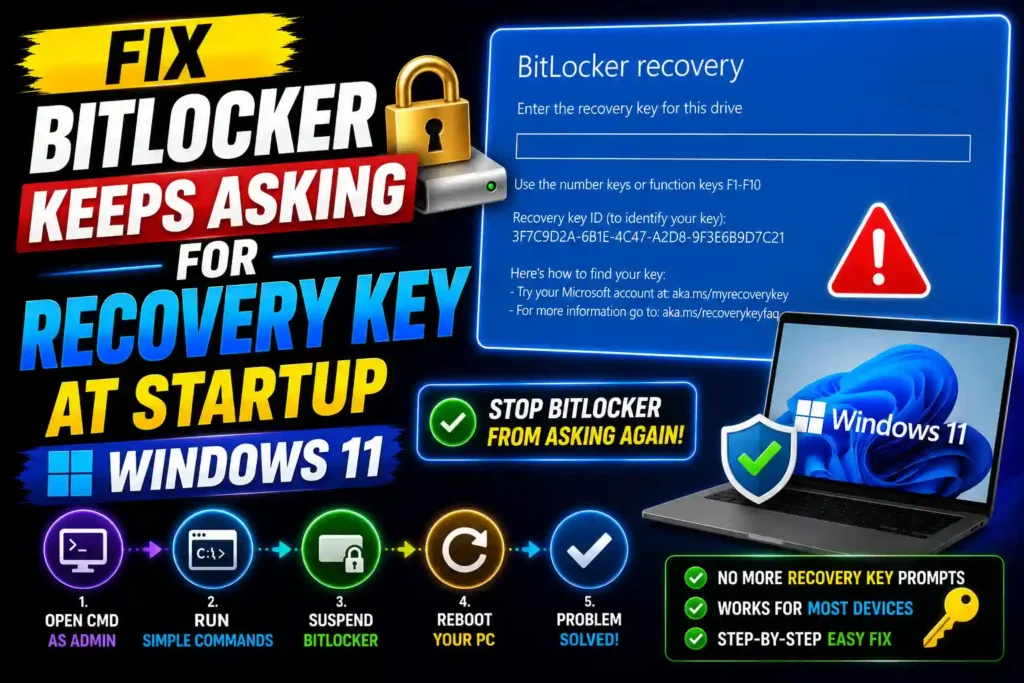
This issue can appear suddenly after a BIOS update, hardware change, Windows update, TPM modification, or even without an obvious reason. Instead of booting directly into Windows, the system displays a BitLocker recovery screen and requests a 48-digit recovery key.
If your Windows 11 PC keeps asking for the BitLocker recovery key at startup, don’t panic. In most cases, the problem can be resolved by correcting TPM settings, updating firmware, suspending and re-enabling BitLocker, or fixing boot-related issues.
This guide explains why the problem occurs and provides step-by-step solutions that work for both home users and IT professionals.
Quick Answer (Featured Snippet)
If BitLocker keeps asking for a recovery key at every startup in Windows 11, the most common causes are TPM changes, BIOS/UEFI updates, Secure Boot modifications, hardware upgrades, or corrupted boot settings.
To fix the issue:
- Enter the recovery key and sign in.
- Suspend BitLocker protection.
- Restart the PC.
- Resume BitLocker protection.
- Check TPM status and Secure Boot settings.
- Update BIOS and Windows.
- Clear and reinitialize TPM if necessary.
In most cases, suspending and re-enabling BitLocker resolves the recurring recovery key prompt.
Table of Contents
- What Causes BitLocker Recovery Key Prompts?
- How BitLocker and TPM Work Together
- Fix BitLocker Asking for Recovery Key at Startup
- Common Errors and Solutions
- Best Practices to Prevent Future Issues
- Frequently Asked Questions
- Conclusion
What Causes BitLocker Recovery Key Prompts?
BitLocker uses the Trusted Platform Module (TPM) to verify that the system has not been altered.
When Windows detects unexpected changes, BitLocker enters recovery mode as a security precaution.
Common triggers include:
- BIOS or UEFI firmware updates
- TPM firmware updates
- Secure Boot configuration changes
- Motherboard replacement
- CPU upgrades
- Hard drive changes
- Windows boot file corruption
- TPM reset or disablement
- Unexpected system crashes
- Dual-boot configuration changes
Even a minor firmware adjustment can cause BitLocker to believe the device may have been tampered with.
How BitLocker and TPM Work Together
The TPM chip stores cryptographic information used by BitLocker.
During startup:
- TPM verifies system integrity.
- Secure Boot checks trusted components.
- BitLocker validates encryption data.
- Windows loads normally.
If any verification fails, BitLocker requests the recovery key before allowing access.
This behavior is intentional and designed to protect sensitive information.
Step-by-Step Guide: Fix BitLocker Keeps Asking for Recovery Key at Startup
Method 1: Suspend and Resume BitLocker
This is the easiest and most effective fix.
Step 1
Sign in using your BitLocker recovery key.
Step 2
Open Command Prompt as Administrator.
Step 3
Run:
manage-bde -protectors -disable C:Step 4
Restart the computer.
Step 5
After Windows loads, open Command Prompt again and run:
manage-bde -protectors -enable C:Step 6
Restart once more and check if the issue is resolved.
Method 2: Check TPM Status
A TPM issue is one of the most common reasons for recurring recovery prompts.
Step 1
Press:
Windows + RStep 2
Type:
tpm.mscStep 3
Press Enter.
Step 4
Verify that TPM shows:
The TPM is ready for useIf TPM reports errors, continue to Method 3.
Method 3: Clear and Reinitialize TPM
Only perform this method if you have your BitLocker recovery key.
Step 1
Back up important data.
Step 2
Open:
Windows SecurityStep 3
Navigate to:
Device SecurityStep 4
Select:
Security Processor DetailsStep 5
Click:
Security Processor TroubleshootingStep 6
Choose:
Clear TPMStep 7
Restart the computer.
Windows will automatically rebuild TPM information.
Method 4: Verify Secure Boot Settings
BitLocker may trigger recovery mode when Secure Boot settings change.
Step 1
Restart into BIOS/UEFI.
Step 2
Locate:
Secure BootStep 3
Confirm it matches the original configuration.
Step 4
Save settings and restart.
If Secure Boot was disabled accidentally, re-enabling it often fixes recurring BitLocker prompts.
Method 5: Update BIOS and Firmware
Outdated firmware can create communication issues between TPM and BitLocker.
Steps
- Visit your computer manufacturer’s website.
- Download the latest BIOS update.
- Install according to vendor instructions.
- Restart the system.
Before performing a BIOS update, suspend BitLocker protection to avoid additional recovery requests.
Method 6: Check for Windows Updates
Microsoft regularly releases fixes related to BitLocker, TPM, and Secure Boot.
Steps
- Open Settings.
- Select Windows Update.
- Click Check for Updates.
- Install all available updates.
- Restart the PC.
Method 7: Recreate BitLocker Protectors
Corrupted protectors may repeatedly trigger recovery mode.
Open an elevated Command Prompt:
manage-bde -protectors -delete C: -type TPMThen add a new protector:
manage-bde -protectors -add C: -TPMRestart the system.
Method 8: Turn BitLocker Off and Re-enable It
If none of the previous methods work, recreate the encryption configuration.
Step 1
Open:
Control Panel > BitLocker Drive EncryptionStep 2
Select:
Turn Off BitLockerStep 3
Wait for decryption to complete.
Step 4
Enable BitLocker again.
Step 5
Save the new recovery key.
Common Errors and Fixes
Error: Recovery Key Appears After Every Restart
Fix
Suspend BitLocker and then re-enable it.
Error: TPM Not Found
Fix
Enable TPM in BIOS/UEFI settings.
Error: Recovery Key After BIOS Update
Fix
Suspend BitLocker before future BIOS updates.
Error: BitLocker Recovery Loop
Fix
Check Secure Boot settings and recreate TPM protectors.
Error: Windows Won’t Boot After Recovery Key Entry
Fix
Run Startup Repair from Windows Recovery Environment.
Best Practices and Pro Tips
Save Recovery Keys in Multiple Locations
Store recovery keys in:
- Microsoft Account
- USB drive
- Printed copy
- Enterprise key management systems
Suspend BitLocker Before Hardware Changes
Always suspend protection before:
- BIOS updates
- Firmware upgrades
- TPM updates
- Motherboard changes
Keep Windows Updated
Regular updates improve BitLocker stability and security.
Verify TPM Health Periodically
Check TPM status using:
tpm.mscCreate System Backups
Backups help recover systems quickly if encryption-related issues occur.
For broader Windows planning and deployment guidance, you may also find these resources useful:
- https://multicaretechnical.com/how-much-space-does-windows-11-take-complete-guide-2025
- https://multicaretechnical.com/how-long-does-it-take-to-install-windows-11-complete-installation-time-guide
- https://multicaretechnical.com/how-to-install-wsus-server-on-windows-server-2019-step-by-step-guide
These guides cover storage planning, installation timelines, and enterprise update management.
Frequently Asked Questions
1. Why does BitLocker keep asking for the recovery key every startup?
Usually because Windows detects a change in TPM, BIOS, Secure Boot, firmware, or hardware configuration and enters recovery mode for security purposes.
2. Can I stop BitLocker from asking for the recovery key?
Yes. Suspending and then resuming BitLocker protection often resolves recurring prompts.
3. Is it safe to clear TPM?
Yes, but only if you have your BitLocker recovery key and important data is backed up.
4. Will disabling BitLocker remove my files?
No. Turning off BitLocker decrypts the drive but does not delete files.
5. Where can I find my BitLocker recovery key?
You can usually find it in your Microsoft account, Azure AD, Active Directory, printed records, or the location where it was saved during BitLocker setup.
Conclusion
BitLocker repeatedly asking for a recovery key at startup in Windows 11 is usually caused by TPM changes, firmware updates, Secure Boot modifications, or corrupted security settings. While the recovery screen can be alarming, it is actually a security feature designed to protect your encrypted data.
In most cases, the issue can be fixed by suspending and re-enabling BitLocker, checking TPM health, verifying Secure Boot settings, and installing the latest Windows and BIOS updates. For persistent cases, recreating BitLocker protectors or re-enabling BitLocker entirely can restore normal operation.
By following the troubleshooting steps and best practices in this guide, you can prevent future recovery prompts and maintain a secure, reliable Windows 11 environment.