
Introduction
Getting a new phone is exciting, but one of the first concerns many users have is moving their contacts safely. Whether you’re upgrading to the latest smartphone, switching from Android to iPhone, or replacing a damaged device, losing important contacts is something nobody wants.
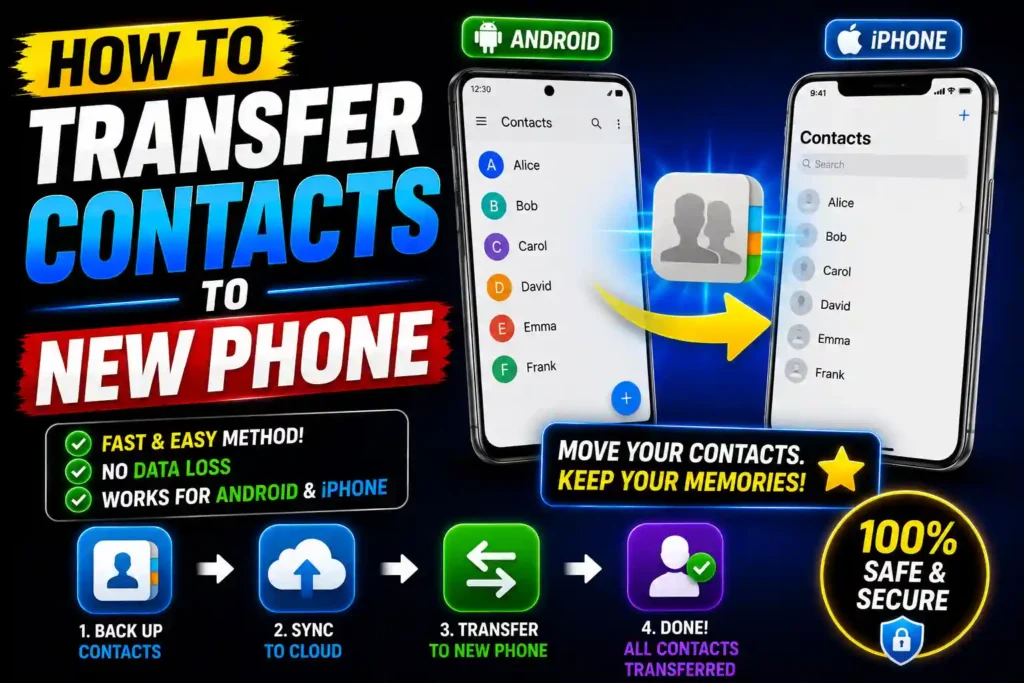
Fortunately, modern smartphones make contact transfers much easier than they were years ago. Most contacts can be moved automatically through cloud services such as Google Contacts and iCloud. There are also alternative methods using SIM cards, Bluetooth, backup files, and manufacturer migration tools.
This guide explains multiple ways to transfer contacts to a new phone, helping both everyday users and IT professionals complete the process quickly and securely.
Quick Answer
The easiest way to transfer contacts to a new phone is to sync them with a Google Account (Android) or iCloud account (iPhone).
Android
- Open Settings.
- Sign in to your Google Account.
- Enable Contacts Sync.
- Sign in to the same Google Account on the new phone.
- Contacts automatically appear.
iPhone
- Enable iCloud Contacts on the old iPhone.
- Sign in with the same Apple ID on the new iPhone.
- Turn on Contacts synchronization.
- Contacts automatically download.
This method is fast, secure, and works for most users.
Table of Contents
- Why Contact Transfers Matter
- Before You Start
- Transfer Contacts Using Google Account
- Transfer Contacts Using iCloud
- Transfer Contacts from Android to Android
- Transfer Contacts from iPhone to iPhone
- Transfer Contacts from Android to iPhone
- Transfer Contacts from iPhone to Android
- Transfer Contacts Using SIM Card
- Transfer Contacts Using VCF Files
- Common Errors and Fixes
- Best Practices and Pro Tips
- FAQs
- Conclusion
Why Contact Transfers Matter
Your contacts often contain years of personal and professional information.
A proper transfer ensures:
- Family contacts remain available
- Business contacts are preserved
- Emergency numbers stay accessible
- Messaging apps continue working correctly
- Important customer information is not lost
Modern cloud synchronization significantly reduces the risk of losing contact information.
Before You Start
Before transferring contacts:
Verify Internet Access
Most transfer methods require Wi-Fi or mobile data.
Back Up Your Contacts
Create a backup before making any changes.
Update Both Phones
Installing the latest updates helps prevent migration issues.
Charge Both Devices
Keep both phones charged above 50% during the transfer process.
How to Transfer Contacts Using a Google Account
This is the preferred method for Android users.
On the Old Android Phone
Step 1
Open:
SettingsStep 2
Tap:
Accountsor
GoogleStep 3
Select your Google account.
Step 4
Enable:
Contacts SyncStep 5
Wait for synchronization to finish.
On the New Android Phone
Step 1
Sign in using the same Google account.
Step 2
Open:
Settings > AccountsStep 3
Enable synchronization.
Step 4
Allow a few minutes for contacts to download.
All synced contacts should appear automatically.
How to Transfer Contacts Using iCloud
This is the easiest solution for iPhone users.
On the Old iPhone
Step 1
Open:
SettingsStep 2
Tap your Apple ID.
Step 3
Select:
iCloudStep 4
Enable:
ContactsStep 5
Wait for synchronization.
On the New iPhone
Step 1
Sign in using the same Apple ID.
Step 2
Enable iCloud Contacts.
Step 3
Wait for contacts to sync.
Your contact list should appear automatically.
How to Transfer Contacts from Android to Android
Most Android manufacturers provide migration tools.
Popular options include:
- Samsung Smart Switch
- Google Setup Wizard
- Motorola Migrate
- OnePlus Clone Phone
General Process
- Turn on the new phone.
- Choose Copy Apps & Data.
- Connect both devices.
- Select Contacts.
- Complete the transfer.
This method often transfers messages, photos, and apps as well.
How to Transfer Contacts from iPhone to iPhone
Apple’s Quick Start feature simplifies migration.
Steps
- Place both iPhones close together.
- Turn on Bluetooth.
- Follow Quick Start prompts.
- Sign in with your Apple ID.
- Transfer data directly.
Contacts are included automatically.
How to Transfer Contacts from Android to iPhone
Apple provides a free tool called Move to iOS.
Steps
- Install Move to iOS on Android.
- Begin iPhone setup.
- Select Move Data from Android.
- Enter the verification code.
- Choose Contacts.
- Complete the transfer.
This method is officially supported by Apple.
How to Transfer Contacts from iPhone to Android
Method 1: Google Contacts
- Install Google Drive on iPhone.
- Sign in to Google.
- Back up Contacts.
- Sign in to the same Google account on Android.
Method 2: Export Contacts
- Visit iCloud.com.
- Export contacts as VCF.
- Import them into Google Contacts.
- Sync with Android.
How to Transfer Contacts Using a SIM Card
This method works on many phones but has limitations.
On the Old Phone
- Open Contacts.
- Select Export to SIM.
On the New Phone
- Insert the SIM card.
- Open Contacts.
- Select Import from SIM.
Limitation
SIM cards may not store:
- Email addresses
- Photos
- Multiple phone numbers
- Contact notes
Cloud synchronization is generally better.
How to Transfer Contacts Using a VCF File
VCF files are useful for manual backups.
Export Contacts
- Open Contacts.
- Select Export.
- Save as VCF.
Transfer File
Use:
- USB cable
- Cloud storage
Import Contacts
- Open Contacts.
- Select Import.
- Choose the VCF file.
The contacts will be added automatically.
Common Errors and Fixes
Contacts Not Appearing on New Phone
Fix
Verify account synchronization is enabled.
Duplicate Contacts
Fix
Use Google Contacts Merge & Fix feature or your phone’s duplicate cleanup option.
Missing Contact Names
Fix
Re-sync the account and update the Contacts app.
SIM Contacts Not Importing
Fix
Ensure the SIM card is properly inserted and supported.
iCloud Contacts Not Syncing
Fix
Sign out of iCloud and sign back in, then enable Contacts synchronization again.
Best Practices / Pro Tips
Use Cloud Sync Instead of SIM Cards
Cloud services provide more reliable and complete backups.
Keep Multiple Backups
Store contact backups in:
- Google Contacts
- iCloud
- VCF files
Verify Contacts Before Resetting Old Phone
Always check that all contacts appear on the new device.
Regularly Update Your Contact List
Remove duplicate or outdated entries periodically.
Enable Automatic Sync
Automatic synchronization ensures future contacts remain protected.
For users managing multiple devices and systems, these guides may also be helpful:
- https://multicaretechnical.com/how-much-space-does-windows-11-take-complete-guide-2025
- https://multicaretechnical.com/fix-bitlocker-keeps-asking-for-recovery-key-at-startup-in-windows-11-complete-guide
- https://multicaretechnical.com/how-to-install-wsus-server-on-windows-server-2019-step-by-step-guide
These resources cover Windows storage planning, security troubleshooting, and enterprise update management.
Frequently Asked Questions
1. What is the easiest way to transfer contacts to a new phone?
Using Google Contacts or iCloud synchronization is the easiest and most reliable method.
2. Can I transfer contacts without a SIM card?
Yes. Cloud synchronization, Bluetooth, VCF files, and transfer apps can move contacts without a SIM card.
3. Will my contacts transfer automatically?
If contacts are synced to Google or iCloud and you sign in with the same account, they typically transfer automatically.
4. How do I transfer contacts from Android to iPhone?
Use Apple’s Move to iOS app during the iPhone setup process.
5. Can I transfer contacts if my old phone is broken?
If contacts were synced to Google or iCloud before the device failed, they can usually be restored on the new phone.
Conclusion
Transferring contacts to a new phone is easier than ever thanks to cloud services, built-in migration tools, and backup options. Whether you’re moving between Android devices, upgrading to a new iPhone, or switching platforms entirely, methods like Google Contacts and iCloud provide the fastest and most reliable results.
Before wiping or trading in your old device, verify that every contact has successfully transferred to the new phone. Maintaining regular backups and enabling automatic synchronization will help ensure your important personal and professional contacts remain protected for years to come.