
Windows 10 and Windows 11 have been compared for years, but the reliability question has become more complicated in 2026.
Windows 10 developed a reputation for being familiar, stable, and relatively predictable on older hardware. Windows 11 introduced a newer interface, stricter hardware requirements, updated security features, and a different update and driver environment.
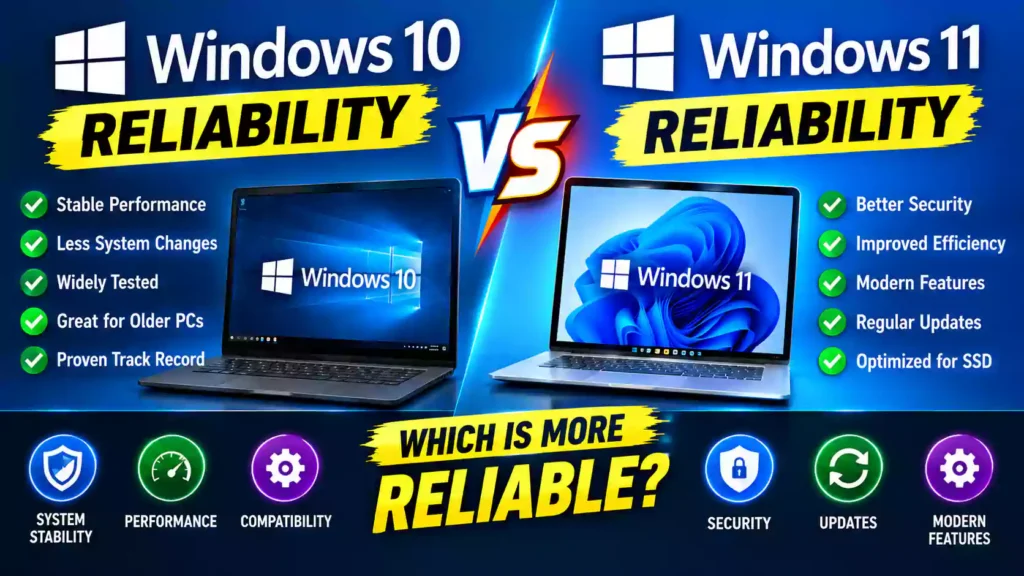
But reliability is not simply about which Windows version crashes less often.
For a home user, reliability might mean that the computer starts every morning, applications open normally, Wi-Fi remains connected, and Windows updates do not cause unexpected problems. For an IT professional, reliability can also mean driver compatibility, application compatibility, update management, security support, hardware lifecycle, recovery options, and predictable maintenance.
There is also an important difference in 2026: Windows 10 reached its standard end of support on October 14, 2025. Microsoft no longer provides normal feature and security updates for Windows 10. Eligible consumer devices can enroll in Extended Security Updates (ESU) as a temporary measure, while supported Windows 11 versions continue receiving updates.
So, when comparing Windows 10 vs Windows 11 reliability today, you need to consider both technical stability and long-term supportability.
Quick Answer: Is Windows 10 or Windows 11 More Reliable?
Both Windows 10 and Windows 11 can provide a stable computing experience when installed on compatible, properly maintained hardware.
However, reliability in 2026 should be evaluated beyond historical stability.
Windows 10 may still feel familiar and predictable on older computers, especially systems that have been running the same hardware and software configuration for years. However, standard Windows 10 support ended on October 14, 2025. Microsoft says Windows 10 PCs continue to function, but normal security, quality, and feature updates are no longer provided.
Windows 11 requires newer hardware, including TPM 2.0 and Secure Boot-capable UEFI firmware. Its supported hardware and driver requirements are designed around newer systems.
Therefore, the reliability of a Windows PC in 2026 depends on hardware compatibility, drivers, applications, updates, configuration, and ongoing support—not simply whether it runs Windows 10 or Windows 11.
Windows 10 vs Windows 11 Reliability at a Glance
| Reliability Factor | Windows 10 | Windows 11 |
|---|---|---|
| Familiarity | Very high for existing users | Requires adjustment for some users |
| Standard support in 2026 | Ended October 14, 2025 | Supported versions available |
| Security updates | Requires ESU after end of support | Supported versions receive updates |
| Older hardware | Often compatible | Stricter requirements |
| TPM 2.0 requirement | No Windows 11-style requirement | Required |
| Secure Boot | Not required in the same way | Supported hardware configuration requires it |
| Driver environment | Mature on older hardware | Optimized around newer hardware |
| Application compatibility | Broad compatibility | Broad compatibility, but some legacy software may require testing |
| Long-term platform support | Limited without ESU | Current supported platform |
| Best use case | Existing legacy systems during transition | New and supported PCs |
What Does “Reliability” Actually Mean?
Before comparing the two operating systems, it helps to define reliability.
A reliable operating system should be able to perform everyday tasks consistently without unexpected failures.
For example:
- The PC boots normally.
- Windows does not repeatedly crash.
- Drivers work correctly.
- Applications launch consistently.
- Files remain accessible.
- Network connections remain stable.
- Updates install successfully.
- Security protections remain current.
- Hardware continues working as expected.
- Problems can be diagnosed and repaired.
For businesses, reliability includes additional considerations.
An IT administrator may care about:
- Group Policy behavior
- Active Directory compatibility
- Microsoft Entra integration
- Endpoint management
- Windows Update management
- Driver deployment
- Application compatibility
- BitLocker
- Security policies
- Remote administration
- Hardware lifecycle
- Recovery procedures
This is why one person’s experience with Windows 10 or Windows 11 may be completely different from another person’s experience.
1. Windows 10 Reliability
Windows 10 has been available since 2015 and has gone through many years of updates, driver changes, application testing, and troubleshooting.
That long history is one reason many users consider Windows 10 predictable.
A computer that has been running Windows 10 successfully for years may have a mature combination of:
- Hardware drivers
- Applications
- Peripherals
- Printer software
- VPN clients
- Security tools
- Business applications
- Custom configurations
For organizations with specialized legacy software, this can be important.
However, there is a major reliability consideration in 2026.
Windows 10 Has Reached End of Support
Microsoft ended standard Windows 10 support on October 14, 2025. The final general Windows 10 version, 22H2, is no longer receiving normal updates.
This does not mean that Windows 10 computers suddenly stop working.
An existing Windows 10 PC can continue to boot and run applications.
The issue is ongoing maintenance.
Without the appropriate ESU coverage, the operating system no longer receives normal security and reliability fixes.
That changes how Windows 10 should be evaluated in 2026.
Windows 10 ESU
Microsoft provides Extended Security Updates for eligible Windows 10 devices as a temporary transition option.
For eligible consumer devices, Microsoft says ESU can provide critical and important security updates through October 12, 2027. ESU does not provide new features or general technical support.
This makes ESU useful for users who need additional time to move to Windows 11, but it should not be confused with normal Windows 10 support.
2. Windows 11 Reliability
Windows 11 was designed around newer hardware and security technologies.
Microsoft’s current Windows 11 requirements include:
- A compatible 64-bit processor
- At least 4 GB RAM
- At least 64 GB storage
- UEFI firmware
- Secure Boot capability
- TPM 2.0
- DirectX 12-compatible graphics with a WDDM 2.0 driver
These requirements can affect reliability in an important way.
A Windows 11 computer that meets the supported hardware requirements starts from a different hardware baseline than an older Windows 10 machine.
Newer Hardware Can Improve the Overall Experience
Windows 11 is commonly installed on newer PCs with:
- Modern CPUs
- NVMe SSDs
- TPM 2.0
- UEFI firmware
- Modern graphics drivers
- Newer Wi-Fi adapters
- Modern motherboard firmware
That does not automatically mean every Windows 11 installation will be more stable.
However, hardware age is an important factor.
A five-year-old computer with aging hardware may experience problems that have nothing to do with the operating system itself.
For example:
- Failing SSD
- Weak power supply
- Overheating CPU
- Damaged RAM
- Old BIOS
- Faulty Wi-Fi adapter
- Unsupported printer driver
Changing Windows versions cannot fix defective hardware.
3. Windows Update and Reliability
Windows updates are an important part of operating-system reliability.
Updates can:
- Fix security vulnerabilities
- Correct bugs
- Improve compatibility
- Update drivers
- Address performance problems
- Introduce new features
But updates can also occasionally introduce compatibility problems.
Microsoft maintains a Windows release-health system that tracks known issues and their status, including reported, investigating, confirmed, mitigated, and resolved states.
This is particularly useful for IT professionals.
Instead of assuming that every Windows update is either completely safe or completely problematic, administrators can review documented release-health information and test updates in their own environments.
4. Driver Compatibility
Drivers are one of the most common reasons a Windows PC can behave differently after an upgrade.
Important drivers include:
- Graphics
- Chipset
- Network
- Audio
- Storage
- Bluetooth
- Printer
- Touchpad
- Webcam
Windows 10 has a long history of driver support, particularly for older hardware.
Windows 11 has stricter hardware and driver expectations.
Microsoft’s Windows 11 compatibility documentation notes that newer Windows 11 devices use modern drivers designed around Microsoft’s Windows Hardware Compatibility Program and modern driver models.
Why This Matters
Suppose you have an older business PC with a specialized scanner.
Windows 10 may have a mature driver that has been used for years.
After moving to Windows 11, the manufacturer may provide:
- A new driver
- A different driver package
- A Windows 11-compatible application
- No new driver at all
This is why organizations should test specialized hardware before upgrading large numbers of computers.
5. Application Compatibility
Application compatibility is another major reliability factor.
Most mainstream applications support current Windows versions, but organizations sometimes depend on older software.
Examples include:
- Accounting applications
- Medical software
- Industrial applications
- POS systems
- Custom databases
- Legacy Java applications
- Older VPN clients
- Specialized printing software
A Windows 11 upgrade should therefore be tested before deployment in environments containing critical applications.
How IT Professionals Can Test Compatibility
Before upgrading a production computer:
- Create an inventory of applications.
- Identify business-critical software.
- Check vendor compatibility information.
- Test the applications on Windows 11.
- Test printers and scanners.
- Test VPN connections.
- Test mapped drives.
- Test authentication.
- Test backup and recovery.
- Document any problems.
This approach is much more reliable than upgrading every PC immediately.
6. Security and Reliability Are Connected
Security and reliability are often discussed separately, but they are closely related.
An operating system that no longer receives normal security updates can become increasingly difficult to maintain securely.
Microsoft states that after Windows 10 reached end of support, standard security updates and technical support were no longer provided.
That matters because security vulnerabilities can eventually affect system reliability.
For example, malware can cause:
- Slow performance
- Browser problems
- Unexpected pop-ups
- File corruption
- Unauthorized software installation
- Network problems
- Account compromise
- System instability
Antivirus software remains useful, but it cannot replace operating-system security updates.
Therefore, long-term reliability includes maintaining a supported operating system.
7. Hardware Age Can Matter More Than the Windows Version
One of the biggest mistakes when comparing Windows 10 and Windows 11 is assuming that the operating system is the only variable.
Consider these two computers.
Computer A
- Windows 10
- 8 GB RAM
- Old mechanical hard drive
- Aging CPU
- Older BIOS
- Five-year-old drivers
Computer B
- Windows 11
- 16 GB RAM
- NVMe SSD
- Modern CPU
- UEFI
- TPM 2.0
- Current drivers
Even though Computer A may feel familiar and stable, Computer B may provide a more responsive and maintainable environment.
This is not proof that Windows 11 itself is inherently more reliable in every situation.
It demonstrates why hardware, drivers, software, and maintenance must be considered together.
8. Reliability for Older PCs
Windows 10 may still be installed on millions of older computers.
If a machine does not meet Windows 11’s hardware requirements, users may be tempted to bypass those requirements.
This should be approached carefully.
Microsoft’s supported Windows 11 requirements include TPM 2.0, Secure Boot-capable UEFI firmware, compatible processors, and other requirements.
An unsupported Windows 11 installation can create additional uncertainty around:
- Updates
- Drivers
- Hardware compatibility
- Troubleshooting
- Future support
For a production business computer, maintaining a supported configuration is generally easier to manage than relying on an unsupported installation.
9. Reliability for Business and IT Environments
For businesses, reliability is about more than whether Windows crashes.
IT teams need predictable administration.
Important considerations include:
Centralized Management
Organizations may use:
- Group Policy
- Microsoft Intune
- Microsoft Configuration Manager
- Microsoft Entra
- Windows Autopilot
- Endpoint security tools
Update Management
Administrators need to know:
- Which updates are installed
- Which devices need updates
- Whether an update causes problems
- How to roll back or mitigate issues
- Which devices are still running unsupported software
Hardware Lifecycle
Organizations should also track:
- PC age
- CPU generation
- TPM availability
- Storage health
- Warranty status
- Driver availability
- Windows support status
A PC that is technically working may still be approaching the end of its practical support lifecycle.
10. Windows 10 vs Windows 11 Performance and Reliability
Performance and reliability are related, but they are not identical.
A faster computer is not automatically more reliable.
However, inadequate hardware can contribute to poor user experience.
For example, a system with:
- 4 GB RAM
- A slow hard drive
- An older CPU
- Limited storage
may feel slow regardless of whether it runs Windows 10 or Windows 11.
On modern hardware, Windows 11 can take advantage of newer platform capabilities and current drivers.
For a new PC purchase in 2026, Windows 11 is the current supported Windows client platform rather than Windows 10. Microsoft lists current Windows 11 servicing versions, including 26H1, 25H2, and 24H2, with different support end dates depending on edition and servicing channel.
11. Common Reliability Problems on Both Windows Versions
Neither operating system is immune to problems.
Common Windows problems include:
Blue Screen Errors
Possible causes include:
- Faulty drivers
- RAM problems
- Storage problems
- Hardware failures
- System file corruption
Slow Startup
Possible causes include:
- Too many startup programs
- Slow storage
- Insufficient RAM
- Driver problems
- Windows updates
- Background applications
Wi-Fi Disconnects
Possible causes include:
- Network driver problems
- Router issues
- Power-management settings
- Interference
- Hardware problems
Application Crashes
Possible causes include:
- Outdated applications
- Damaged application files
- Missing dependencies
- Driver conflicts
- Compatibility problems
These issues can occur on both Windows 10 and Windows 11.
12. How to Make Windows 11 More Reliable
If you are running Windows 11, these practices can help maintain a stable system.
Keep Windows Updated
Install supported Windows updates regularly.
Keep Drivers Current
Prioritize drivers from your PC or component manufacturer when appropriate.
Maintain Free Storage
Avoid filling the system drive completely.
Check SSD Health
Use the manufacturer’s diagnostic tools or Windows-compatible storage health utilities.
Create Backups
Maintain backups of important files before major system changes.
Avoid Unnecessary System Tweaks
Registry modifications and unofficial system modifications can create problems that are difficult to troubleshoot later.
Use Reliable Security Software
Keep Microsoft Defender or your organization’s approved security solution active and updated.
13. How to Make Windows 10 More Reliable in 2026
If you still need to operate Windows 10, maintenance becomes particularly important.
First, determine whether the PC is eligible for Windows 10 ESU.
Microsoft’s current consumer ESU program is intended to provide critical and important security updates to eligible Windows 10 22H2 devices during the transition to Windows 11. Microsoft says the program continues through October 12, 2027.
You should also:
- Keep applications updated.
- Maintain reliable backups.
- Keep antivirus protection active.
- Replace failing hardware.
- Monitor browser support.
- Test business applications.
- Plan a Windows 11 migration.
- Document legacy dependencies.
Windows 10 can continue functioning after end of support, but continuing to operate it indefinitely without a transition plan creates increasing support and security challenges.
14. Should You Upgrade an Existing Windows 10 PC?
The answer depends on the computer.
First check whether the PC officially supports Windows 11.
You can check:
Settings → Update & Security → Windows Update
Microsoft also provides PC compatibility tools for determining whether a device can upgrade.
If the computer meets Windows 11 requirements and your applications and hardware are compatible, an upgrade can be considered.
If the PC is old and does not meet the requirements, purchasing a newer supported computer may be more practical than trying to force an unsupported Windows 11 installation.
15. How to Prepare Before Upgrading
Before moving from Windows 10 to Windows 11, create a backup.
Backup Important Files
Back up:
- Documents
- Desktop files
- Pictures
- Videos
- Downloads
- Browser data
- Business files
- Application data
Check Applications
Make sure important applications support Windows 11.
Check Hardware
Verify:
- TPM 2.0
- Secure Boot
- Compatible CPU
- RAM
- Storage
- Graphics
- Network adapter
Update Firmware
If recommended by the PC manufacturer, update BIOS/UEFI and important device firmware before upgrading.
Create a Recovery Plan
Know how to restore your data or return to a previous system state if something goes wrong.
Windows 10 vs Windows 11 Reliability: Key Differences
The most important difference in 2026 is not simply how stable each operating system feels.
It is their support status.
Windows 10 has reached the end of standard support. Windows 11 remains the current supported Windows client platform, with supported releases receiving ongoing updates according to Microsoft’s servicing schedule.
For an older computer that has specialized software, Windows 10 may remain part of a necessary transition strategy.
For a new PC, Windows 11 provides the current supported Windows platform.
For IT departments, the correct approach is usually to evaluate each device based on:
- Hardware compatibility
- Application compatibility
- Security requirements
- Support lifecycle
- Driver availability
- Business requirements
- Backup and recovery capabilities
Common Windows Reliability Mistakes
Mistake 1: Blaming Windows for Every Problem
A failing SSD, bad RAM, overheating CPU, or faulty driver can look like an operating-system problem.
Mistake 2: Ignoring Updates
Updates are an important part of maintaining security and reliability.
Mistake 3: Running Unsupported Configurations
Unsupported hardware or modified Windows installations can make troubleshooting more complicated.
Mistake 4: No Backup
A stable PC can still lose data because of hardware failure, accidental deletion, malware, or user error.
Mistake 5: Upgrading Without Testing
Businesses should test critical applications and hardware before deploying a Windows upgrade across many machines.
Best Practices for Long-Term Windows Reliability
Follow these practices whether you use Windows 10 temporarily or Windows 11 as your primary operating system:
Keep a Backup
Use the 3-2-1 backup strategy for important data.
Monitor Hardware
Check storage health, temperatures, RAM, and other hardware indicators.
Keep Drivers Controlled
Avoid installing random driver packages from unknown websites.
Maintain Enough Free Storage
A nearly full system drive can contribute to maintenance and update problems.
Remove Unnecessary Software
Too many startup applications and background utilities can make troubleshooting harder.
Document Business PCs
IT departments should maintain an inventory of hardware, applications, drivers, and Windows versions.
Plan for End of Support
Don’t wait until a platform becomes unsupported before starting a migration plan.
Final Thoughts
The Windows 10 vs Windows 11 reliability debate is more complicated than simply asking which operating system crashes less.
Windows 10 has a long history and may remain familiar and practical on certain legacy systems. However, its standard support ended on October 14, 2025. Microsoft provides ESU as a temporary security bridge for eligible devices, but ESU does not restore normal Windows 10 feature development or general support.
Windows 11 has stricter hardware requirements, but it is the current Windows client platform with supported releases continuing to receive updates.
For users and IT professionals, the most useful way to evaluate reliability is to consider the complete environment:
Operating system + hardware + drivers + applications + updates + security + backups.
A well-maintained, properly supported Windows 11 computer can provide a dependable long-term platform. At the same time, a carefully maintained Windows 10 system may still be useful during a controlled transition, particularly when legacy applications or hardware require additional time.
The key is not to judge reliability based on operating-system version alone. Evaluate the hardware, software, support lifecycle, and actual requirements of the computer.
Frequently Asked Questions
1. Is Windows 11 more reliable than Windows 10?
Reliability depends on the hardware, drivers, applications, configuration, and maintenance of the computer. Windows 10 has a long history of compatibility, but standard support ended in October 2025. Windows 11 is the current supported Windows client platform.
2. Is Windows 10 still reliable in 2026?
A Windows 10 computer can continue to function in 2026, but standard support has ended. Eligible Windows 10 22H2 devices can use Microsoft’s ESU program for additional security updates during the transition to Windows 11.
3. Should I upgrade from Windows 10 to Windows 11?
Check hardware compatibility, application compatibility, drivers, and backup requirements before upgrading. Windows 11 requires supported hardware such as TPM 2.0 and Secure Boot-capable UEFI firmware.
4. Can Windows 10 still receive security updates?
Normal Windows 10 support ended on October 14, 2025. Eligible devices enrolled in Microsoft’s Extended Security Updates program can receive critical and important security updates through October 12, 2027.
5. Is Windows 11 reliable for business computers?
Windows 11 can be used in business environments, but reliability depends on application compatibility, hardware support, drivers, update management, security policies, and the organization’s testing and deployment process.
Suggested Internal Links
For related Windows 11 troubleshooting and tutorials, you can naturally link to these existing Multicare Technical articles:
- How to Rotate Screen in Windows 11 – Complete Guide
- How to Add a Total Row in Excel – Easy Guide
- How to Uninstall Microsoft Edge on Windows 11