
Introduction
Transparency is one of Photoshop’s most useful features. Whether you’re removing a background, creating a logo, designing web graphics, or exporting PNG images, transparency helps produce clean and professional-looking designs.
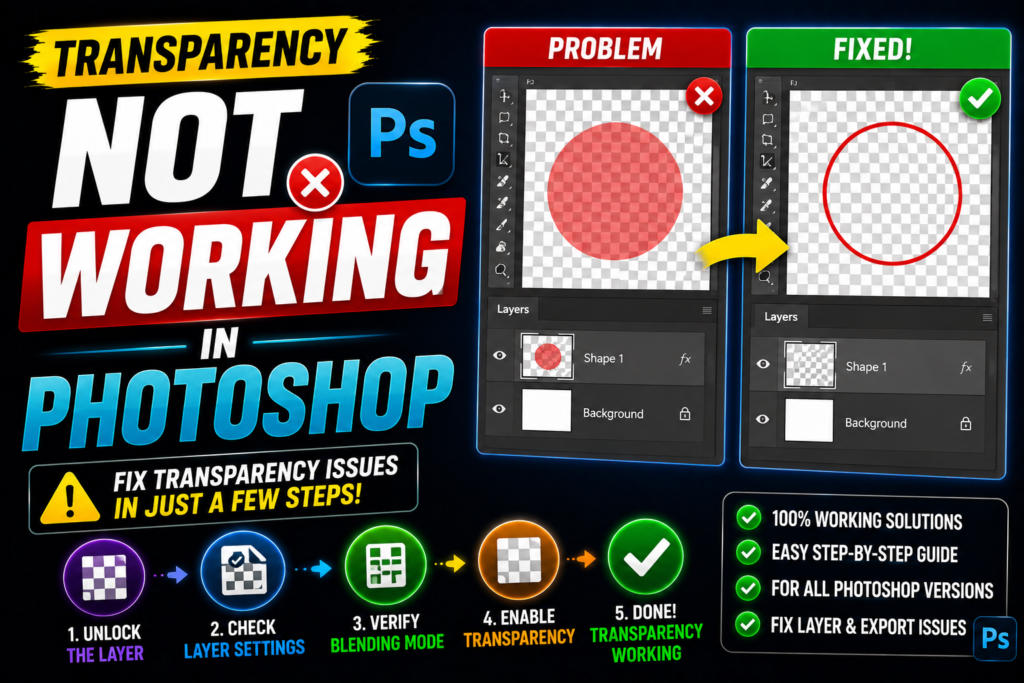
However, many users suddenly discover that transparency isn’t working as expected. Instead of seeing a transparent background, they see a white background. Sometimes the checkerboard pattern disappears, PNG files lose transparency, or the Eraser tool paints white instead of making pixels transparent.
The good news is that these problems are usually caused by simple settings rather than software bugs. In this guide, you’ll learn why transparency stops working in Photoshop and exactly how to fix each issue.
Whether you’re a beginner or an experienced designer, these troubleshooting steps will help you restore transparency quickly.
Quick Answer
If transparency is not working in Photoshop, try these fixes:
- Unlock the background layer.
- Verify that the document supports transparency.
- Enable the Transparency Grid.
- Delete pixels instead of painting with white.
- Export as PNG instead of JPEG.
- Remove layer masks that hide transparency.
- Reset Photoshop preferences if settings become corrupted.
Most transparency issues can be solved in just a few minutes.
Table of Contents
- Why Transparency Stops Working
- How Photoshop Handles Transparency
- Step-by-Step Fixes
- Common Transparency Problems
- PNG Export Issues
- Best Practices
- Frequently Asked Questions
- Conclusion
Why Transparency Is Not Working in Photoshop
Photoshop supports transparency, but several settings can prevent it from appearing correctly.
The most common causes include:
- Background layer is locked
- Transparency Grid is disabled
- Wrong file format
- White layer covering transparent pixels
- Incorrect export settings
- Layer masks hiding transparency
- Indexed Color mode
- Corrupted Photoshop preferences
Fortunately, each of these problems has a straightforward solution.
How Photoshop Handles Transparency
Photoshop represents transparent pixels using a gray-and-white checkerboard pattern.
Keep in mind:
- The checkerboard is only a visual indicator.
- It is not part of the image.
- When exported correctly as PNG, transparent areas remain transparent.
- JPEG files do not support transparency.
Understanding this difference helps avoid confusion when exporting images.
Step-by-Step Guide to Fix Transparency Not Working in Photoshop
Fix 1: Unlock the Background Layer
If your image opens as a locked Background layer:
- Open the Layers panel.
- Double-click Background.
- Click OK.
- The layer becomes editable and supports transparency.
Now you can erase pixels or remove the background.
Fix 2: Enable the Transparency Grid
Sometimes transparency works perfectly—you just can’t see it.
To enable the checkerboard:
- Go to Edit → Preferences → Transparency & Gamut (Windows).
- On Mac, open Photoshop → Preferences → Transparency & Gamut.
- Choose a checkerboard size.
- Click OK.
If transparency exists, you’ll now see the familiar checkerboard.
Fix 3: Make Sure You’re Using the Eraser Correctly
If erasing creates white pixels instead of transparency:
- Verify the layer isn’t locked.
- Ensure you’re working on a normal raster layer.
- Check that you’re not painting with a white brush.
For cleaner results, many professionals prefer using Layer Masks instead of permanently erasing pixels.
Fix 4: Hide or Remove White Background Layers
Sometimes transparency appears missing because another white layer sits underneath.
Open the Layers panel and:
- Hide the white layer.
- Delete unnecessary background layers.
- Move transparent layers above other objects.
Often the transparency is already there—it is simply covered.
Fix 5: Check Layer Masks
Layer masks can hide transparent areas.
To inspect them:
- Select the layer.
- Click the Layer Mask thumbnail.
- Disable the mask temporarily.
- If transparency returns, edit or delete the mask.
Fix 6: Verify Image Mode
Some Photoshop color modes don’t fully support transparency.
Go to:
Image → Mode
Use:
- RGB Color
- 8 Bits/Channel
Avoid:
- Indexed Color (unless specifically required)
Changing the mode often restores proper transparency support.
Fix 7: Export Using PNG
One of the biggest mistakes is exporting as JPEG.
Remember:
| File Format | Supports Transparency |
|---|---|
| PNG | Yes |
| PSD | Yes |
| TIFF | Yes |
| GIF | Limited |
| JPEG | No |
If transparency matters, export as PNG.
Steps:
- File → Export
- Export As
- Choose PNG
- Enable Transparency
- Export
Fix 8: Remove White Matte
Some export settings add a white matte behind transparent pixels.
During export:
- Choose PNG.
- Disable Matte if available.
- Keep Transparency enabled.
Fix 9: Reset Photoshop Preferences
If nothing works:
- Close Photoshop.
- Hold:
- Ctrl + Alt + Shift (Windows)
- Command + Option + Shift (Mac)
- Launch Photoshop.
- Confirm preference reset.
This restores default settings and often fixes unusual transparency issues.
Fix 10: Check Blend Modes
Certain blend modes make transparency appear incorrect.
Select the layer.
Change Blend Mode to:
Normal
If transparency returns, another blend mode was causing the issue.
Fix 11: Verify Opacity and Fill
Open the Layers panel.
Ensure:
- Opacity = 100%
- Fill = 100%
Very low opacity can make layers appear transparent even when they’re not.
Fix 12: Update Photoshop
Older versions occasionally contain bugs affecting export and transparency.
Updating Photoshop ensures:
- Better PNG support
- Improved export options
- Fewer graphical bugs
- Better compatibility with modern operating systems
Common Transparency Problems and Their Fixes
Problem: White Background After Export
Cause:
Saved as JPEG.
Solution:
Export as PNG.
Problem: Checkerboard Isn’t Visible
Cause:
Transparency Grid disabled.
Solution:
Enable the Transparency Grid in Preferences.
Problem: Eraser Paints White
Cause:
Locked background layer.
Solution:
Unlock the layer before erasing.
Problem: PNG Shows White Background Online
Cause:
Incorrect export settings.
Solution:
Use Export As → PNG with Transparency enabled.
Problem: Magic Wand Doesn’t Remove Background Completely
Cause:
Low tolerance or anti-alias settings.
Solution:
Increase tolerance and refine the selection before deleting the background.
Best Practices for Working With Transparency
Follow these recommendations for smoother editing:
- Always keep the original PSD file.
- Export PNG for logos and graphics.
- Use Layer Masks instead of deleting pixels.
- Name your layers clearly.
- Avoid flattening images until editing is complete.
- Work in RGB mode for web graphics.
- Save project backups regularly.
- Keep Photoshop updated.
These habits reduce editing mistakes and preserve transparency throughout your workflow.
Related Tutorials
If you’re interested in improving your computer skills, you may also find these guides helpful:
- How to add a total row in Excel: https://multicaretechnical.com/how-to-add-a-total-row-in-excel-easy-guide-for-beginners-professionals
- How to use Chromebook Recovery Utility: https://multicaretechnical.com/how-to-use-chromebook-recovery-utility-complete-guide-2026
- How to uninstall Microsoft Edge on Windows 11: https://multicaretechnical.com/how-to-uninstall-microsoft-edge-on-windows-11-step-by-step-guide
These tutorials provide additional troubleshooting and productivity tips for everyday computer users.
Frequently Asked Questions (FAQs)
1. Why is my Photoshop transparency showing white?
Usually because you’re exporting as JPEG, using a locked background layer, or another white layer is covering the transparent area.
2. Why doesn’t JPEG support transparency?
JPEG was designed for photographs and does not store transparent pixels. Use PNG when transparency is required.
3. Why can’t I erase to transparency?
The layer may be locked, or you’re editing the Background layer. Unlock it first.
4. Why is my PNG not transparent after export?
Check that you selected PNG format and enabled the Transparency option during export.
5. How do I know if my image is transparent?
If the checkerboard pattern appears behind empty areas, the image contains transparency.
Conclusion
Transparency issues in Photoshop can be frustrating, but they’re rarely difficult to fix. Most problems come down to layer settings, export format, document mode, or hidden preferences.
By unlocking the background layer, enabling the Transparency Grid, using PNG exports, checking layer masks, and verifying your document settings, you can solve nearly every transparency problem without reinstalling Photoshop.
Following the best practices in this guide will also help prevent transparency issues in future projects, allowing you to create clean graphics, logos, website assets, and professional designs with confidence.