
Introduction
Most Mac users restart their computers through the Apple menu, but there are situations where using the mouse or trackpad isn’t possible. For example, your Mac may freeze, your cursor may stop responding, or a connected external device may interfere with normal operation.
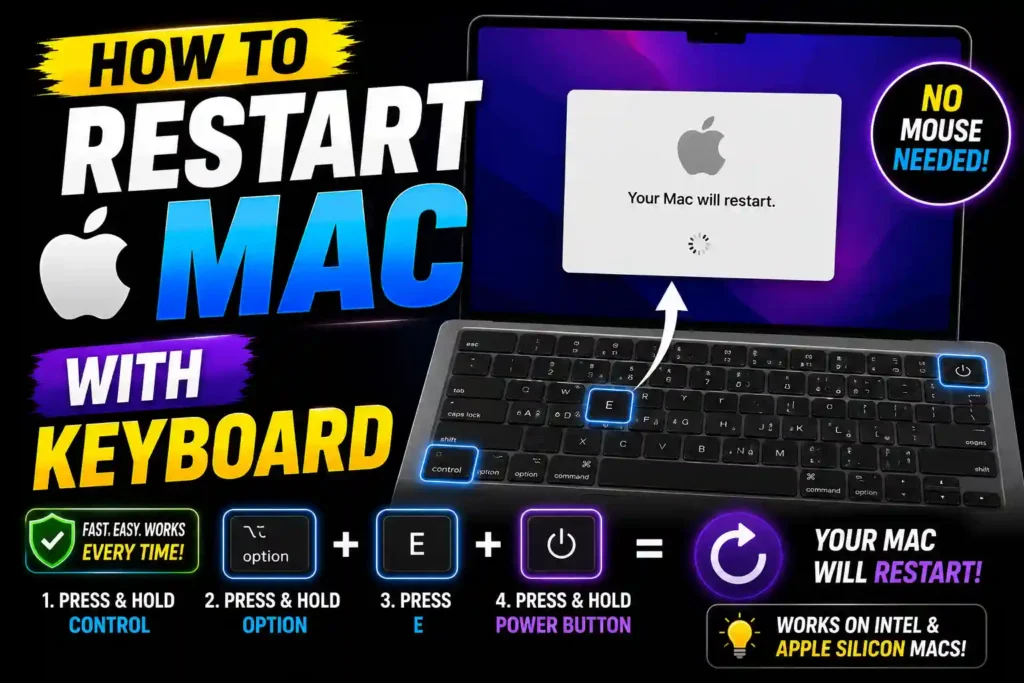
In these cases, knowing how to restart a Mac with the keyboard can save time and help you recover quickly without forcing a complete shutdown. Apple includes several keyboard shortcuts that allow users to restart, shut down, or access recovery options directly from the keyboard.
Whether you’re using a MacBook Air, MacBook Pro, iMac, Mac Studio, or Mac mini, this guide explains the safest and most effective ways to restart your Mac using keyboard commands.
Quick Answer
To restart a Mac using only the keyboard, press:
Control + Command + Power Buttonor on newer MacBooks:
Control + Command + Touch IDThis immediately restarts the Mac without requiring the Apple menu.
If the Mac is frozen, you can use:
Control + Command + Power Button (hold briefly)to force a restart.
Table of Contents
- Why Restart a Mac with the Keyboard?
- Common Mac Restart Keyboard Shortcuts
- How to Restart Mac with Keyboard
- Force Restart a Frozen Mac
- Restart from the Login Screen
- Restart Using Terminal
- Common Errors and Fixes
- Best Practices and Pro Tips
- FAQ
- Conclusion
Why Restart a Mac with the Keyboard?
Keyboard restart shortcuts are useful when:
- The mouse stops responding
- The trackpad freezes
- macOS becomes unresponsive
- Remote keyboard management is required
- Accessibility needs make keyboard navigation easier
- Applications stop responding
For IT professionals and power users, keyboard shortcuts can significantly speed up troubleshooting and system administration.
Common Mac Restart Keyboard Shortcuts
Here are the most important restart-related shortcuts.
| Action | Keyboard Shortcut |
|---|---|
| Restart Mac | Control + Command + Power |
| Restart Mac with Touch ID | Control + Command + Touch ID |
| Force Restart | Control + Command + Power |
| Shut Down Mac | Control + Option + Command + Power |
| Sleep Mac | Option + Command + Power |
| Force Quit Applications | Option + Command + Esc |
Learning these shortcuts can help resolve many macOS issues quickly.
How to Restart Mac with Keyboard
Method 1: Standard Keyboard Restart
This is the safest method when macOS is functioning normally.
Steps
- Save any open work.
- Press:
Control + Command + Power Button- Release all keys.
- The Mac will restart automatically.
On Macs equipped with Touch ID:
Control + Command + Touch IDworks the same way.
Method 2: Restart Using Keyboard Navigation
If your mouse is not working but macOS remains responsive, use keyboard navigation.
Steps
- Press:
Control + F2- Use the arrow keys to select the Apple menu.
- Press Enter.
- Navigate to Restart.
- Press Enter again.
This method works well when the pointer device fails but the operating system remains stable.
Method 3: Restart from the Login Screen
If you’re at the login window:
Steps
- Press the Tab key until the Restart option is highlighted.
- Press Enter.
The Mac will reboot without requiring a mouse.
Method 4: Restart Through Terminal
Advanced users and IT professionals often use Terminal commands.
Steps
- Open Terminal.
- Enter:
sudo shutdown -r now- Press Enter.
- Provide your administrator password.
The Mac will restart immediately.
Scheduled Restart
To schedule a restart:
sudo shutdown -r +10This command restarts the Mac after 10 minutes.
How to Force Restart a Frozen Mac
Sometimes macOS becomes completely unresponsive.
If standard restart methods do not work:
Intel Macs
Press:
Control + Command + Power Buttonfor a forced restart.
Apple Silicon Macs
- Press and hold the Power button.
- Wait until the screen turns black.
- Release the button.
- Press the Power button again.
Important Warning
Force restarting may result in unsaved data loss. Use it only when normal restart methods fail.
Restart Mac Using Accessibility Keyboard Controls
macOS includes accessibility features that allow complete keyboard navigation.
Enable Keyboard Navigation
- Open System Settings.
- Select Accessibility.
- Choose Keyboard.
- Enable Full Keyboard Access.
Once enabled, nearly every system function can be controlled without a mouse.
When Should You Restart a Mac?
A restart can help resolve:
- Slow performance
- Frozen applications
- Bluetooth issues
- Wi-Fi connectivity problems
- Software update installation problems
- Memory-related slowdowns
- External device recognition issues
Many common macOS problems disappear after a proper restart.
Common Errors and Fixes
Keyboard Shortcut Doesn’t Work
Fix
Ensure you’re pressing all keys simultaneously.
Some external keyboards may map function keys differently.
Mac Restarts Immediately Without Saving
Fix
The shortcut:
Control + Command + Powerperforms an immediate restart.
Save your work before using it whenever possible.
Touch ID Shortcut Not Responding
Fix
Confirm your Mac supports Touch ID restart commands.
Some older macOS versions may behave differently.
Mac Frozen After Restart
Fix
Boot into Safe Mode and remove recently installed software or drivers.
External Keyboard Not Working
Fix
Disconnect and reconnect the keyboard.
Try a different USB port or Bluetooth pairing.
Best Practices and Pro Tips
Save Work Before Restarting
Keyboard restart shortcuts may not always display a confirmation dialog.
Always save documents first.
Update macOS Regularly
Many restart-related bugs are fixed through software updates.
Avoid Frequent Forced Restarts
Repeated forced shutdowns can damage files and increase the risk of corruption.
Use Keyboard Shortcuts Carefully
Learn the difference between:
- Restart
- Shutdown
- Sleep
- Force Quit
Using the wrong shortcut may interrupt important tasks.
Keep a Backup
Use Time Machine or another backup solution to protect critical files.
Additional Technology Guides
If you’re troubleshooting other devices or operating systems, these guides may also be useful:
- How to Disable Bing Windows 11 Search: https://multicaretechnical.com/how-to-disable-bing-windows-11-search-2026-guide-remove-web-results
- How to Fix KMODE Exception Not Handled Windows 11: https://multicaretechnical.com/how-to-fix-kmode-exception-not-handled-windows-11-2026-complete-guide
- How to Fix Microsoft Windows Recycle Bin Bug: https://multicaretechnical.com/how-to-fix-microsoft-windows-recycle-bin-bug-2026-complete-guide
These tutorials cover additional troubleshooting and system maintenance topics.
Frequently Asked Questions
1. What is the keyboard shortcut to restart a Mac?
The most common shortcut is:
Control + Command + Power Buttonor:
Control + Command + Touch IDon newer MacBooks.
2. Can I restart my Mac without using the mouse?
Yes. macOS supports several keyboard-only restart methods, including dedicated shortcuts and keyboard navigation.
3. How do I force restart a frozen Mac?
Press:
Control + Command + Power Buttonor hold the Power button until the Mac turns off, then start it again.
4. Is force restarting bad for a Mac?
Occasional force restarts are generally safe, but frequent forced shutdowns may cause data loss or file corruption.
5. Does the restart shortcut work on all Macs?
Most modern Macs support restart shortcuts, though exact behavior may vary between Intel-based Macs and Apple Silicon models.
Conclusion
Knowing how to restart a Mac with the keyboard is a valuable skill for both everyday users and IT professionals. Whether your mouse stops working, the trackpad freezes, or macOS becomes unresponsive, keyboard shortcuts provide a fast and reliable way to restart the system.
For normal situations, use Control + Command + Power Button or Control + Command + Touch ID. When dealing with a frozen Mac, a force restart may be necessary, but it should be used only as a last resort. By understanding these shortcuts and following the best practices in this guide, you can troubleshoot macOS issues more efficiently and keep your Mac running smoothly.