
Introduction
The Recycle Bin is one of the most important components of Microsoft Windows. It acts as a safety net by temporarily storing deleted files so they can be restored if needed. However, many Windows users occasionally encounter Recycle Bin bugs that prevent it from functioning correctly.
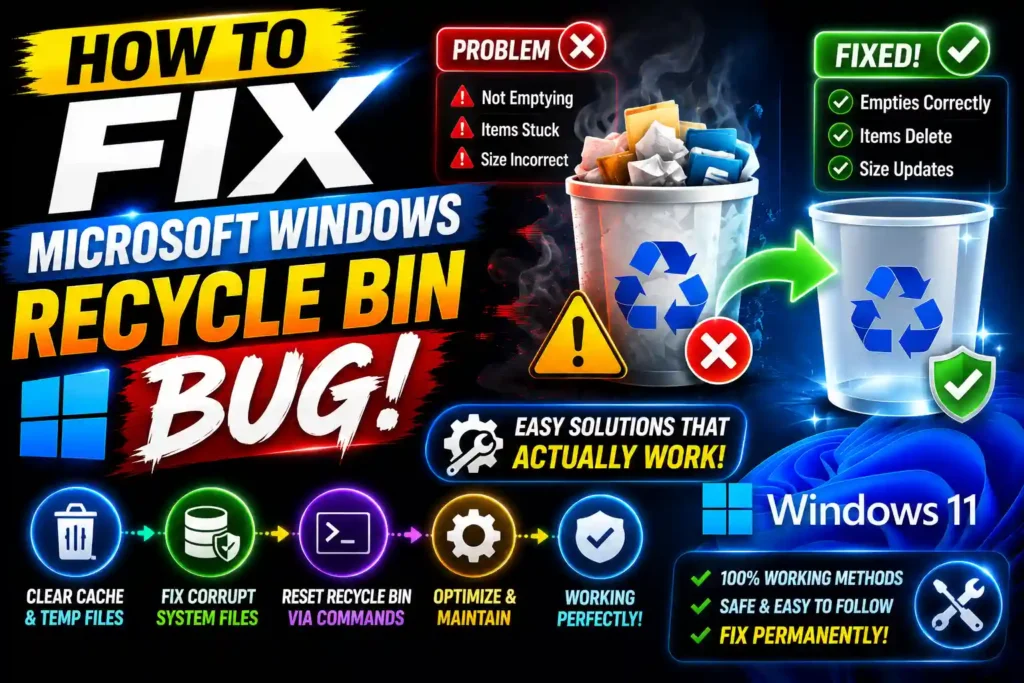
Common problems include error messages such as “The Recycle Bin on C:\ is corrupted,” deleted files not appearing in the Recycle Bin, an inaccessible Recycle Bin, missing Recycle Bin icons, or Recycle Bin folders that refuse to empty.
Fortunately, most Recycle Bin issues can be resolved without reinstalling Windows. Whether you are using Windows 10 or Windows 11, this guide explains the causes of Recycle Bin problems and provides proven solutions to restore normal functionality.
Quick Answer
If you encounter a Microsoft Windows Recycle Bin bug, the fastest solution is to rebuild the Recycle Bin using Command Prompt:
rd /s /q C:\$Recycle.binAfter running the command as Administrator, restart your computer. Windows automatically recreates a fresh Recycle Bin, fixing most corruption-related issues.
Table of Contents
- What Causes Recycle Bin Bugs?
- Common Recycle Bin Problems
- How to Fix Microsoft Windows Recycle Bin Bug
- Rebuild the Recycle Bin
- Run System File Checker
- Use DISM Repair Tools
- Restore Missing Recycle Bin Icon
- Fix Recycle Bin Access Errors
- Common Errors and Solutions
- Best Practices
- FAQ
- Conclusion
What Causes Recycle Bin Bugs?
Several factors can cause Recycle Bin problems in Windows:
- Corrupted system files
- Sudden power failures
- Disk errors and bad sectors
- Malware infections
- Incorrect Windows updates
- Third-party cleanup utilities
- Damaged user profiles
- Storage drive corruption
Understanding the root cause helps you choose the most effective fix.
Common Recycle Bin Problems
Before applying fixes, identify the exact issue.
The Recycle Bin on C:\ is Corrupted
Windows displays a message indicating that the Recycle Bin is damaged and asks whether you want to empty it.
Deleted Files Bypass the Recycle Bin
Files are permanently deleted instead of being moved to the Recycle Bin.
Recycle Bin Won’t Empty
The Recycle Bin contains files that cannot be removed.
Recycle Bin Icon Missing
The desktop Recycle Bin icon disappears unexpectedly.
Access Denied Errors
Users receive permission-related messages when attempting to open or empty the Recycle Bin.
Recycle Bin Opens Slowly
Large numbers of deleted files or file system issues can cause performance problems.
How to Fix Microsoft Windows Recycle Bin Bug
Follow these solutions in order. Start with the simplest methods before moving to advanced repairs.
Method 1: Restart Windows Explorer
Temporary glitches can affect the Recycle Bin.
Steps
- Press Ctrl + Shift + Esc.
- Open Task Manager.
- Locate Windows Explorer.
- Right-click it.
- Select Restart.
Check whether the Recycle Bin works normally afterward.
Method 2: Rebuild the Recycle Bin
A corrupted Recycle Bin is one of the most common causes of errors.
Steps
- Open Command Prompt as Administrator.
- Enter:
rd /s /q C:\$Recycle.bin- Press Enter.
- Restart the computer.
Windows automatically creates a new Recycle Bin during startup.
Multiple Drive Systems
If you have multiple drives, run:
rd /s /q D:\$Recycle.bin
rd /s /q E:\$Recycle.bin
rd /s /q F:\$Recycle.bin
Replace drive letters as needed.
Method 3: Run System File Checker (SFC)
Corrupted Windows system files often affect core components such as the Recycle Bin.
Steps
- Open Command Prompt as Administrator.
- Run:
sfc /scannow- Wait for the scan to complete.
- Restart your computer.
SFC automatically repairs damaged Windows files.
Method 4: Use DISM Repair Commands
If SFC cannot fix the issue, use Deployment Image Servicing and Management (DISM).
Commands
DISM /Online /Cleanup-Image /CheckHealthDISM /Online /Cleanup-Image /ScanHealthDISM /Online /Cleanup-Image /RestoreHealthAfter completion, run:
sfc /scannowagain.
Method 5: Check the Hard Drive for Errors
Disk corruption can directly affect the Recycle Bin.
Steps
- Open Command Prompt as Administrator.
- Run:
chkdsk C: /f /r- Press Y if prompted.
- Restart your PC.
Windows will scan and repair disk-related issues.
Method 6: Restore a Missing Recycle Bin Icon
If the Recycle Bin icon disappears:
Windows 11
- Open Settings.
- Select Personalization.
- Click Themes.
- Choose Desktop icon settings.
- Check Recycle Bin.
- Click Apply.
Windows 10
- Open Settings.
- Select Personalization.
- Click Themes.
- Open Desktop Icon Settings.
- Enable Recycle Bin.
The icon should immediately return to the desktop.
Method 7: Disable Storage Sense Temporarily
Storage Sense can automatically delete Recycle Bin contents.
Steps
- Open Settings.
- Select System.
- Click Storage.
- Open Storage Sense.
- Turn it off temporarily.
Check whether files remain in the Recycle Bin as expected.
Method 8: Create a New User Profile
Sometimes profile corruption causes Recycle Bin issues.
Steps
- Open Settings.
- Go to Accounts.
- Select Family & Other Users.
- Create a new local user.
- Sign in with the new account.
If the Recycle Bin works correctly, the original profile may be damaged.
Common Errors and Fixes
| Error Message | Solution |
|---|---|
| Recycle Bin is corrupted | Rebuild the Recycle Bin |
| Access denied | Run as Administrator |
| Cannot empty Recycle Bin | Restart Explorer and rebuild |
| Missing icon | Restore desktop icons |
| Files skip Recycle Bin | Check Recycle Bin settings |
| Recycle Bin opens slowly | Empty contents and run CHKDSK |
| Recycle Bin folder damaged | Run SFC and DISM |
Best Practices and Pro Tips
Keep Windows Updated
Install Windows updates regularly to receive bug fixes and stability improvements.
Avoid Force Shutdowns
Unexpected shutdowns can corrupt system files and the Recycle Bin structure.
Use Trusted Cleanup Software
Some aggressive cleaning tools accidentally damage Recycle Bin settings.
Run Disk Checks Periodically
Use CHKDSK every few months on heavily used drives.
Enable File Backups
The Recycle Bin is not a backup solution. Maintain regular backups using File History or cloud storage.
Scan for Malware
Malicious software can interfere with file management and deletion processes.
Additional Windows Tips
If you are troubleshooting other Windows-related issues, you may also find these guides useful:
- How to Disable Bing Windows 11 Search: https://multicaretechnical.com/how-to-disable-bing-windows-11-search-2026-guide-remove-web-results
- How to Add Printer to Mac: https://multicaretechnical.com/how-to-add-printer-to-mac-2026-guide-easy-setup-for-all-macos-versions
- How to Disable 5G on iPhone: https://multicaretechnical.com/how-to-disable-5g-on-iphone-2026-guide-save-battery-and-use-lte
These tutorials cover additional system optimization and troubleshooting techniques.
Frequently Asked Questions
1. Why does Windows say the Recycle Bin is corrupted?
This usually occurs when the hidden $Recycle.Bin folder becomes damaged due to file system errors, power outages, or improper shutdowns.
2. Is it safe to rebuild the Recycle Bin?
Yes. Windows automatically recreates the Recycle Bin folder after it is deleted, making this a safe troubleshooting method.
3. Why are deleted files not going to the Recycle Bin?
The file may be too large, deleted using Shift + Delete, or the Recycle Bin may be configured to bypass deleted files.
4. Can malware cause Recycle Bin problems?
Yes. Malware can corrupt system files and interfere with file deletion processes.
5. How do I restore a missing Recycle Bin icon?
Open Desktop Icon Settings through Personalization settings and enable the Recycle Bin checkbox.