
Introduction
Windows 11 integrates Microsoft Bing directly into the Start menu and Windows Search experience. While this feature can be helpful for some users, many prefer a cleaner search interface that displays only local files, applications, settings, and documents.
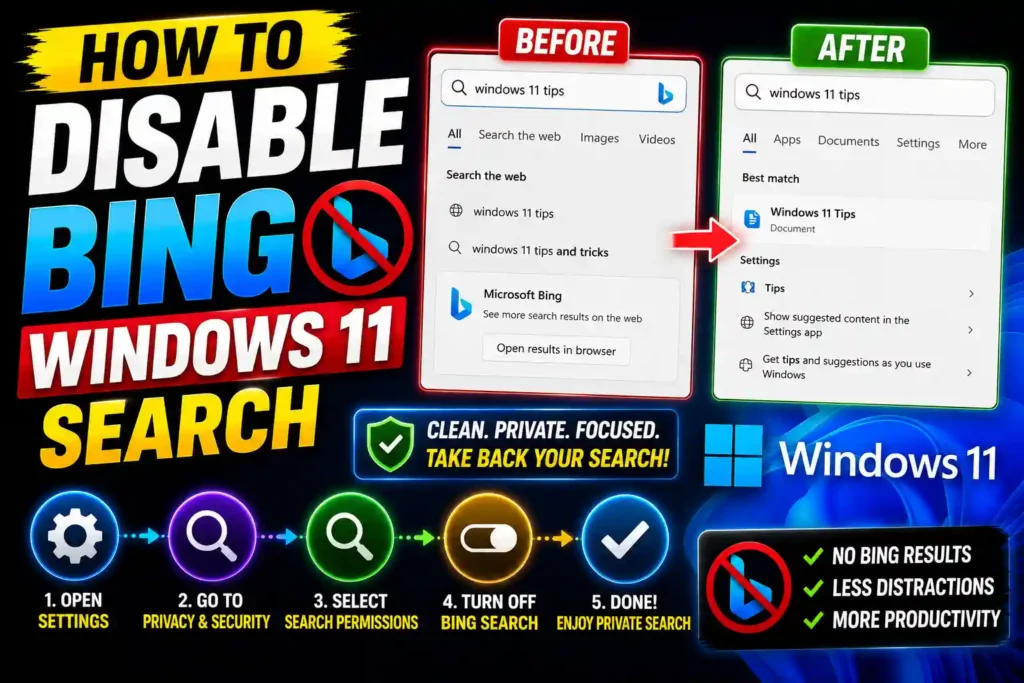
For IT professionals, power users, and privacy-conscious individuals, disabling Bing search results can improve search speed, reduce distractions, and prevent web-based suggestions from appearing when searching locally.
The good news is that Windows 11 allows you to disable Bing-powered web search results through several methods, including Registry Editor, Group Policy, and Windows settings. This guide walks you through each approach step-by-step.
Quick Answer
To disable Bing search in Windows 11:
- Press Windows + R.
- Type regedit and press Enter.
- Navigate to:
HKEY_CURRENT_USER\Software\Policies\Microsoft\Windows\Explorer- Create a new DWORD (32-bit) Value named:
DisableSearchBoxSuggestions- Set its value to:
1- Restart Windows Explorer or reboot your PC.
Windows Search will now prioritize local results without showing Bing web results.
Table of Contents
- What Is Bing Search Integration in Windows 11?
- Why Disable Bing Search?
- Before You Make Changes
- Method 1: Disable Bing Search Using Registry Editor
- Method 2: Disable Bing Search Using Group Policy
- Method 3: Disable Search Highlights
- How to Re-Enable Bing Search
- Common Errors and Fixes
- Best Practices and Pro Tips
- Frequently Asked Questions
- Conclusion
What Is Bing Search Integration in Windows 11?
Microsoft combines local Windows Search with Bing-powered web search results.
When you type something into:
- Start Menu Search
- Windows Search Bar
- Search Panel
Windows may display:
- Websites
- Online suggestions
- Bing search results
- Microsoft account recommendations
- Search highlights
For example, searching “printer” might display both local settings and online Bing results.
Many users prefer disabling this behavior to keep search focused on their PC.
Why Disable Bing Search?
There are several reasons users choose to disable Bing integration.
Faster Search Experience
Local searches typically return results quicker when web queries are removed.
Improved Privacy
Windows sends search terms to Microsoft services when Bing integration is active.
Reduced Clutter
Local files and applications become easier to locate.
Better Performance
Less online communication can improve responsiveness on slower systems.
Enterprise Compliance
Many organizations disable web search through Group Policy for security and consistency.
Before You Make Changes
Before modifying Windows settings:
- Create a restore point.
- Back up important Registry entries.
- Ensure you have administrator privileges.
- Close unnecessary applications.
These precautions help prevent configuration issues.
Method 1: Disable Bing Search Using Registry Editor
This is the most effective method for Windows 11 Home users.
Step 1: Open Registry Editor
Press:
Windows + RType:
regeditClick OK.
Step 2: Navigate to Explorer Policies
Go to:
HKEY_CURRENT_USER\Software\Policies\Microsoft\Windows\ExplorerIf the Explorer key does not exist:
- Right-click Windows
- Select New → Key
- Name it Explorer
Step 3: Create a New DWORD
Right-click inside the right pane.
Select:
New → DWORD (32-bit) ValueName it:
DisableSearchBoxSuggestionsStep 4: Modify the Value
Double-click the new entry.
Set:
Value Data = 1Click OK.
Step 5: Restart Windows Explorer
Open Task Manager.
Find:
Windows ExplorerClick:
RestartYou can also reboot the computer.
Bing search results should now disappear.
Method 2: Disable Bing Search Using Group Policy
This method is recommended for IT administrators and Windows Pro users.
Step 1: Open Local Group Policy Editor
Press:
Windows + RType:
gpedit.mscPress Enter.
Step 2: Navigate to Search Policies
Open:
Computer Configuration
→ Administrative Templates
→ Windows Components
→ Search
Step 3: Configure Search Policies
Enable the following settings if available:
- Do not allow web search
- Don’t search the web or display web results in Search
- Disable Search Highlights
Step 4: Apply Changes
Run Command Prompt as Administrator.
Execute:
gpupdate /forceRestart your PC.
Method 3: Disable Search Highlights
Even if Bing results are disabled, Search Highlights may still appear.
Step 1: Open Settings
Navigate to:
Settings → Privacy & Security → Search PermissionsStep 2: Locate Search Highlights
Find:
Show Search HighlightsTurn the feature off.
This removes trending searches, Microsoft recommendations, and promotional content.
How to Re-Enable Bing Search
If you later decide to restore Bing integration:
Registry Method
Return to:
DisableSearchBoxSuggestionsChange:
1 → 0or delete the value entirely.
Group Policy Method
Set the configured policies back to:
Not ConfiguredRestart Windows.
Common Errors and Fixes
Bing Results Still Appear
Solution
- Restart Windows Explorer.
- Reboot the computer.
- Verify Registry path is correct.
Registry Value Not Working
Solution
Ensure the value name is exactly:
DisableSearchBoxSuggestionsSpelling mistakes prevent the setting from applying.
Group Policy Changes Not Applying
Solution
Run:
gpupdate /forceRestart the system afterward.
Search Menu Not Updating
Solution
Clear Windows Search cache and restart Search services.
Search Becomes Slow
Solution
Rebuild the search index:
- Open Control Panel.
- Select Indexing Options.
- Click Advanced.
- Choose Rebuild.
Best Practices / Pro Tips
Create a Restore Point First
Always create a restore point before making Registry changes.
Use Group Policy in Enterprise Environments
Group Policy provides centralized management across multiple devices.
Disable Search Highlights
This creates a cleaner search interface.
Keep Windows Updated
Future Windows updates may modify search behavior.
Document Registry Changes
IT professionals should maintain records of custom system modifications.
Related Technology Guides
If you’re troubleshooting Windows and Apple devices, you may also find these guides useful:
Windows Boot Configuration Guide
iPhone Network Optimization
Mac Printer Setup Tutorial
These resources provide additional troubleshooting and configuration tips for common technology issues.
Frequently Asked Questions
1. Does disabling Bing search improve Windows 11 performance?
In many cases, yes. Local searches can feel faster because Windows no longer retrieves online search results.
2. Is it safe to edit the Windows Registry?
Yes, if done carefully. Always back up the Registry or create a restore point before making changes.
3. Can Windows updates re-enable Bing search?
Sometimes major feature updates may modify search settings, so it’s worth checking after updates.
4. Does disabling Bing affect Microsoft Edge?
No. This change only affects Windows Search. Microsoft Edge continues to function normally.
5. Can I disable Bing search on Windows 11 Home Edition?
Yes. The Registry Editor method works on Windows 11 Home and does not require Group Policy Editor.
Conclusion
Bing integration in Windows 11 Search can be useful, but many users prefer a cleaner search experience focused entirely on local content. By disabling Bing search results, you can reduce distractions, improve privacy, and make Windows Search more efficient.
Whether you’re a home user looking for faster local searches or an IT professional managing enterprise devices, the Registry Editor and Group Policy methods provide reliable ways to remove Bing web results. Combined with disabling Search Highlights, these changes create a streamlined Windows 11 search experience that prioritizes the files, settings, and applications stored on your computer.