
Introduction
When your Windows 11 PC stops responding, crashes repeatedly, or won’t boot at all, performing a factory reset from boot can be a lifesaver. This method allows you to restore your system even when you can’t access the desktop or settings.
Whether you’re an IT professional troubleshooting a broken system or a regular user trying to fix startup issues, learning how to reset Windows 11 from boot ensures you always have a recovery option.
In this guide, you’ll learn how to factory reset Windows 11 from boot, step-by-step, along with expert tips, common issues, and best practices.
Quick Answer
To factory reset Windows 11 from boot:
- Turn on your PC and interrupt boot 3 times to enter recovery mode.
- Select Troubleshoot → Reset this PC.
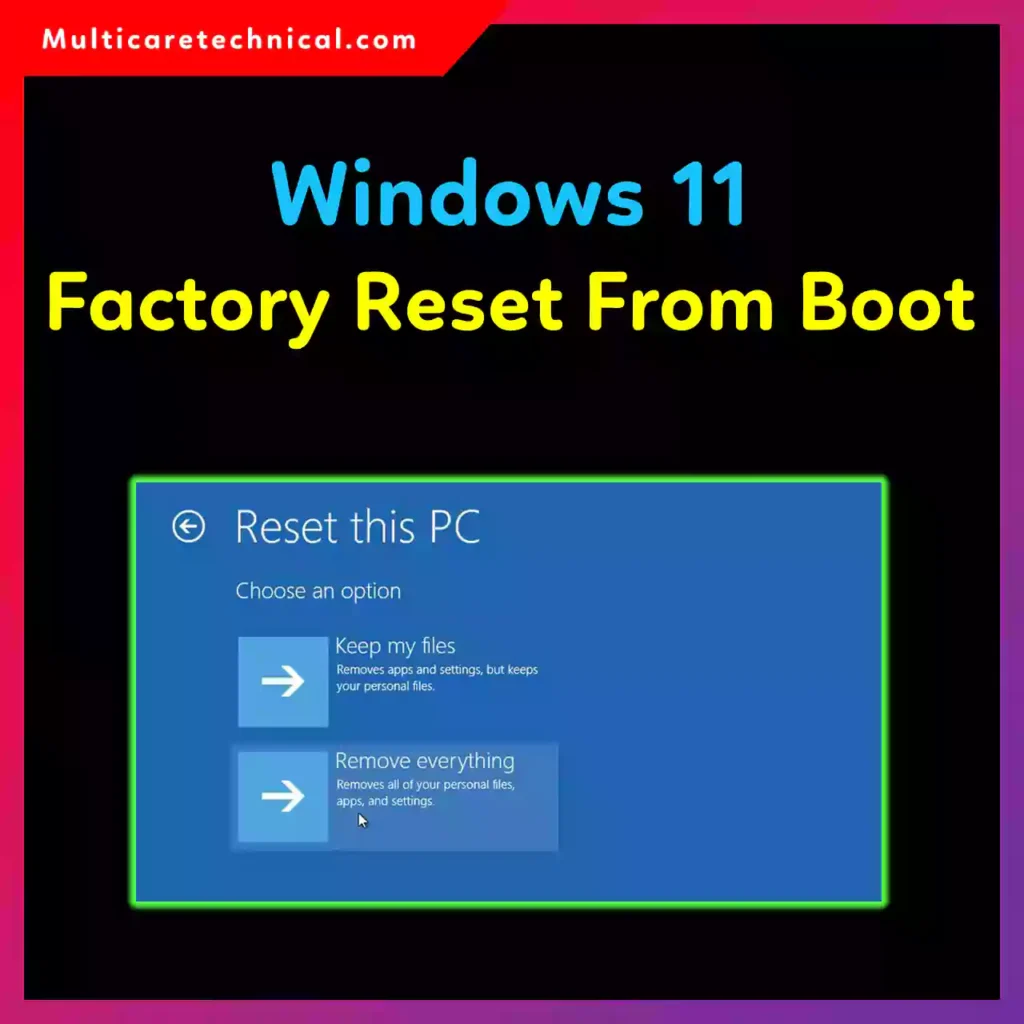
- Choose Keep my files or Remove everything.
- Select Cloud download or Local reinstall.
- Follow on-screen instructions to complete the reset.
Table of Contents
- What is Factory Reset in Windows 11?
- When Should You Reset from Boot?
- How to Access Windows Recovery Environment (WinRE)
- Step-by-Step Guide to Factory Reset
- Common Errors and Fixes
- Best Practices / Pro Tips
- Conclusion
- FAQs
What is Factory Reset in Windows 11?
A factory reset reinstalls Windows 11 to its original state. It removes system errors, corrupted files, malware, and misconfigured settings.
You get two options:
- Keep My Files – Removes apps and settings but keeps personal files
- Remove Everything – Deletes all data and resets completely
This is especially useful when:
- Windows won’t boot
- System is infected with malware
- Performance is extremely slow
- You’re preparing the PC for resale
When Should You Reset from Boot?
Resetting from boot (WinRE) is required when:
- You cannot log into Windows
- The system is stuck in a boot loop
- Blue Screen of Death (BSOD) errors occur
- Startup repair fails
For IT admins, this method is critical in enterprise environments where system recovery must happen quickly.
How to Access Windows Recovery Environment (WinRE)
If your system doesn’t load normally, you need to enter Windows Recovery Environment (WinRE).
Method 1: Force Restart (Most Common)
- Turn on your PC
- When Windows starts loading, hold the power button to shut down
- Repeat this process 3 times
- On the 4th boot, WinRE will appear automatically
Method 2: Bootable USB Drive
If WinRE doesn’t load:
- Insert a Windows 11 bootable USB
- Restart your PC
- Boot from USB
- Click Repair your computer
Step-by-Step Guide: Windows 11 Factory Reset from Boot
Follow these steps carefully:
Step 1: Enter WinRE
- Use forced restart or USB method
- Wait for Choose an option screen
Step 2: Select Troubleshoot
- Click Troubleshoot
Step 3: Choose Reset This PC
- Click Reset this PC
Step 4: Select Reset Option
You will see:
- Keep my files
- Remove everything
Choose based on your need.
Step 5: Choose Reinstallation Method
- Cloud Download – Downloads fresh Windows from Microsoft
- Local Reinstall – Uses existing system files
Step 6: Confirm Reset
- Review settings
- Click Reset
Step 7: Wait for Completion
- Your PC will restart multiple times
- The process may take 20–90 minutes
Common Errors and Fixes
1. “Reset This PC Not Working”
Fix:
- Use bootable USB
- Run Startup Repair before reset
2. Stuck at Reset Screen
Fix:
- Force restart
- Try again with Cloud Download
3. “There Was a Problem Resetting Your PC”
Fix:
- Use Command Prompt in WinRE:
systemreset -factoryreset
4. Missing Recovery Environment
Fix:
- Create bootable media using Windows Media Creation Tool
5. Data Loss Concerns
Fix:
- Always backup data using external drive before reset
Best Practices / Pro Tips
✔ Backup Your Data First
Even if you choose “Keep my files,” always create a backup.
✔ Use Cloud Download for Clean Install
It ensures a fresh, error-free installation.
✔ Keep Drivers Ready
After reset, install essential drivers like network and chipset.
✔ Update Windows Immediately
Run Windows Update after reset to fix vulnerabilities.
✔ Check System Health Post Reset
Run:
sfc /scannow
Internal Resources (Helpful Guides)
To improve your Windows troubleshooting skills, check out these guides:
- Fix policy issues:
https://multicaretechnical.com/how-to-fix-group-policy-not-updating-in-windows-server - Resolve TLS errors:
https://multicaretechnical.com/how-to-fix-tls-handshake-error-in-windows-server - Enable TLS 1.2 securely:
https://multicaretechnical.com/how-to-enable-tls-1-2-in-windows-server-using-registry
Conclusion
Performing a Windows 11 factory reset from boot is one of the most effective ways to recover a broken system. Whether your PC is stuck, infected, or crashing, this method ensures you regain control without needing access to the desktop.
By following the steps in this guide, you can safely reset your system, fix critical errors, and restore performance.
For IT professionals, mastering this process is essential for fast recovery and system maintenance.
FAQs
1. Can I reset Windows 11 without logging in?
Yes, you can use WinRE to reset your PC without logging in.
2. Will factory reset remove viruses?
Yes, especially if you choose “Remove everything.”
3. How long does a factory reset take?
Typically 20 to 90 minutes, depending on system speed.
4. Is Cloud Download better than Local Reinstall?
Yes, it provides a cleaner and more reliable installation.
5. Can I cancel a reset once it starts?
No, interrupting may corrupt your system further.