
Introduction
Remote Desktop Protocol (RDP) is one of the most essential tools for IT professionals managing Windows Server environments. Whether you’re accessing servers remotely, performing maintenance, or troubleshooting issues, RDP keeps your workflow efficient.
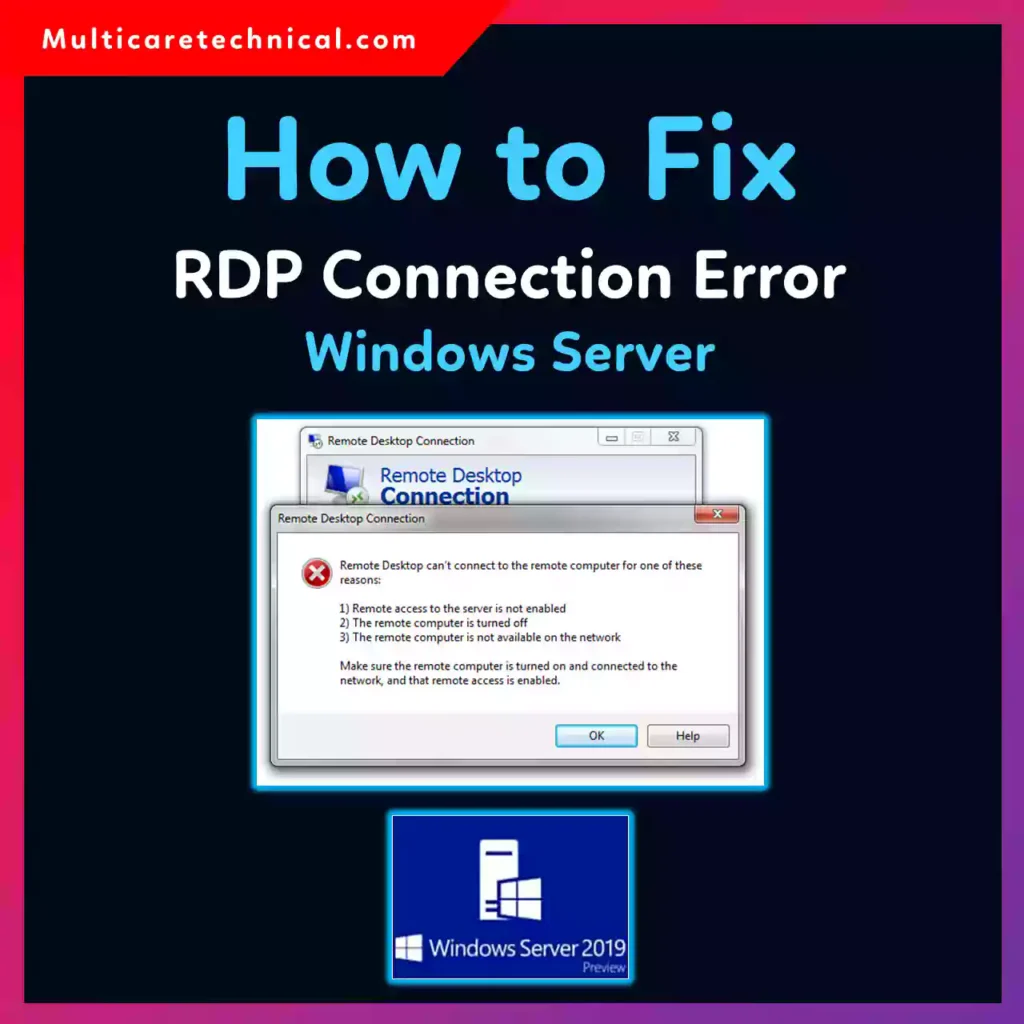
But when an RDP connection error appears—especially during critical tasks—it can quickly disrupt operations. Errors like “Remote Desktop can’t connect to the remote computer” or “An internal error has occurred” are frustrating and sometimes complex to resolve.
This guide will walk you through how to fix Windows Server RDP connection errors step-by-step, covering the most common causes, proven fixes, and expert-level tips to keep your remote connections stable and secure.
Quick Answer
To fix Windows Server RDP connection errors:
- Ensure Remote Desktop is enabled on the server
- Check network connectivity and firewall settings
- Verify RDP port (default 3389) is open
- Restart Remote Desktop Services
- Update Group Policy and security settings
- Use correct credentials and permissions
- Check TLS/SSL configuration
Table of Contents
- What is an RDP Connection Error?
- Common Causes of RDP Errors
- Step-by-Step Fixes
- Advanced Troubleshooting
- Common Errors and Solutions
- Best Practices / Pro Tips
- Conclusion
- FAQs
What is an RDP Connection Error?
An RDP connection error occurs when a client system fails to establish a remote session with a Windows Server. These errors can be caused by network issues, incorrect configurations, firewall restrictions, or service failures.
Typical error messages include:
- Remote Desktop can’t connect to the remote computer
- An internal error has occurred
- The remote computer requires Network Level Authentication (NLA)
Common Causes of RDP Errors
Understanding the root cause helps fix the issue faster:
- Remote Desktop disabled on server
- Firewall blocking port 3389
- Incorrect DNS or IP configuration
- Expired or misconfigured SSL/TLS settings
- User not added to Remote Desktop Users group
- Network connectivity issues
- Corrupted Group Policy settings
Step-by-Step Guide to Fix Windows Server RDP Connection Error
Step 1: Enable Remote Desktop
- Open Server Manager
- Click Local Server
- Find Remote Desktop
- Set it to Enabled
Step 2: Check Network Connectivity
Run the following command:
ping <server-ip>
If there’s no response:
- Check network cables
- Verify IP configuration
- Ensure the server is online
Step 3: Verify Firewall Settings
Allow RDP through Windows Firewall:
- Open Windows Defender Firewall
- Click Allow an app or feature
- Ensure Remote Desktop is checked
Or use PowerShell:
Enable-NetFirewallRule -DisplayGroup "Remote Desktop"
Step 4: Check RDP Port (3389)
Run:
netstat -an | find "3389"
If port is not listening:
- Restart RDP service
- Check registry settings
Step 5: Restart Remote Desktop Services
- Press Win + R → services.msc
- Restart:
- Remote Desktop Services
- Remote Desktop Configuration
Step 6: Verify User Permissions
Ensure the user is allowed:
- Open System Properties
- Go to Remote tab
- Click Select Users
- Add required users
Step 7: Check Group Policy Settings
Misconfigured policies can block RDP.
Run:
gpupdate /force
For deeper fixes, check this guide:
https://multicaretechnical.com/windows-11-factory-reset-from-boot-complete-guide
Step 8: Fix TLS / Security Issues
RDP relies on secure connections. Misconfigured TLS can block access.
Use these guides:
- https://multicaretechnical.com/how-to-fix-tls-handshake-error-in-windows-server
- https://multicaretechnical.com/how-to-enable-tls-1-2-in-windows-server-using-registry
Advanced Troubleshooting
Check Event Viewer
- Open Event Viewer
- Navigate to:
Windows Logs → System - Look for RDP-related errors
Disable Network Level Authentication (Temporary)
If NLA causes issues:
- Go to System Properties
- Uncheck Allow connections only from computers running NLA
⚠️ Re-enable after testing for security reasons.
Use Remote Desktop via IP Instead of Hostname
Sometimes DNS causes problems. Use:
mstsc /v:<IP-address>
Common Errors and Fixes
1. “Remote Desktop Can’t Connect”
Fix:
- Enable RDP
- Open firewall
- Check IP address
2. “An Internal Error Has Occurred”
Fix:
- Restart RDP service
- Update TLS settings
3. “CredSSP Encryption Oracle Remediation”
Fix:
- Update Windows
- Modify Group Policy
4. “Network Level Authentication Error”
Fix:
- Disable NLA temporarily
- Update credentials
5. “Access Denied”
Fix:
- Add user to Remote Desktop Users group
- Check permissions
Best Practices / Pro Tips
✔ Use Static IP for Servers
Avoid connection issues caused by changing IP addresses.
✔ Enable Network Monitoring
Track downtime and connectivity issues in real-time.
✔ Keep Windows Updated
Security patches fix RDP vulnerabilities.
✔ Use VPN for Remote Access
Adds an extra security layer.
✔ Regularly Check Logs
Helps detect issues before they escalate.
Internal Resources (Helpful Guides)
For deeper troubleshooting and system fixes, explore:
- Windows reset guide:
https://multicaretechnical.com/windows-11-factory-reset-from-boot-complete-guide - TLS error fix:
https://multicaretechnical.com/how-to-fix-tls-handshake-error-in-windows-server - Enable TLS 1.2:
https://multicaretechnical.com/how-to-enable-tls-1-2-in-windows-server-using-registry
Conclusion
RDP connection errors in Windows Server can stem from multiple causes, including network issues, firewall settings, permissions, and security configurations. The key to fixing these errors is a systematic approach—starting from basic connectivity checks to advanced troubleshooting.
By following this guide, IT professionals can quickly diagnose and resolve RDP issues, ensuring seamless remote access and improved server management.
FAQs
1. Why is my RDP connection not working?
It could be due to disabled Remote Desktop, firewall restrictions, or network issues.
2. What port does RDP use?
RDP uses port 3389 by default.
3. How do I restart RDP services?
Use services.msc and restart Remote Desktop Services.
4. Can firewall block RDP?
Yes, if port 3389 is not allowed.
5. How do I fix TLS errors in RDP?
Update TLS settings and enable TLS 1.2 using registry fixes.