
Introduction
Group Policy is one of the most powerful tools in Windows Server environments. It allows administrators to enforce security settings, deploy software, and maintain consistency across systems. But what happens when Group Policy stops updating?
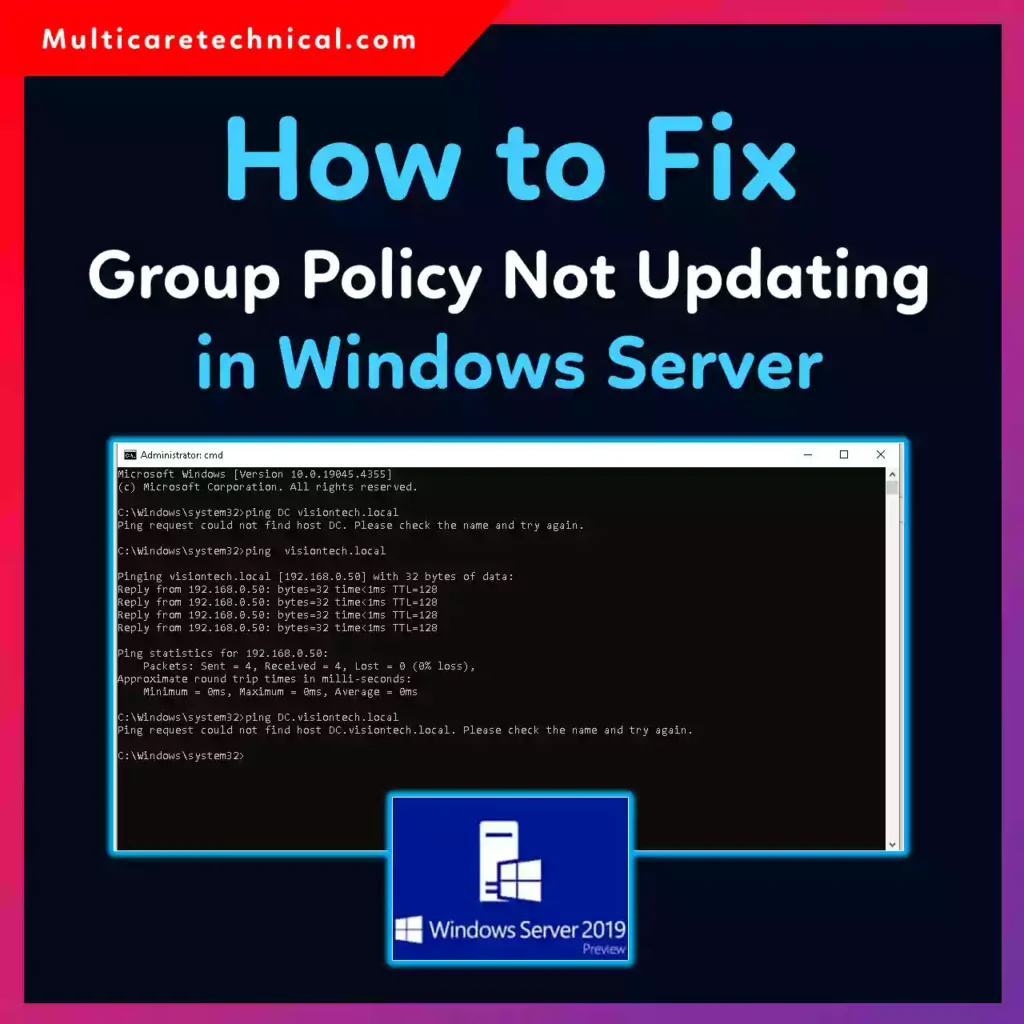
This issue can cause serious problems—security settings may not apply, login scripts may fail, and system configurations can become inconsistent. Whether you’re managing a small network or a large enterprise domain, a broken Group Policy update can disrupt operations quickly.
The good news is that most Group Policy update issues are fixable with the right troubleshooting approach. In this guide, you’ll learn how to diagnose and fix Group Policy not updating in Windows Server step by step.
Quick Answer (Featured Snippet)
To fix Group Policy not updating in Windows Server:
- Run
gpupdate /forcein Command Prompt - Check network connectivity to the domain controller
- Verify DNS settings are correct
- Restart Group Policy services
- Check Event Viewer for errors
- Ensure SYSVOL and NETLOGON shares are accessible
- Fix replication issues (if using multiple domain controllers)
Table of Contents
- What is Group Policy and How It Works
- Why Group Policy Fails to Update
- Step-by-Step Guide to Fix Group Policy Issues
- Advanced Troubleshooting Methods
- Common Errors and Fixes
- Best Practices / Pro Tips
- Conclusion
- FAQs
What is Group Policy and How It Works
Group Policy is a feature in Windows Server that allows centralized management of user and computer settings within an Active Directory environment.
Key Components:
- Group Policy Objects (GPOs) – Collections of settings
- Domain Controller (DC) – Stores and distributes policies
- Client Systems – Apply policies during login/startup
Policies are updated:
- Automatically every 90–120 minutes
- During system startup or user login
- Manually using commands like
gpupdate
Why Group Policy Fails to Update
There are several reasons why Group Policy may not update properly:
🔴 Common Causes:
- DNS misconfiguration
- Network connectivity issues
- Corrupted Group Policy cache
- SYSVOL replication problems
- Disabled services
- Permission issues
- Firewall blocking communication
Sometimes, related system issues like TLS misconfiguration can also impact connectivity. Learn more here:
👉 https://multicaretechnical.com/how-to-fix-tls-handshake-error-in-windows-server
Step-by-Step Guide to Fix Group Policy Issues
Follow these steps in order to resolve the issue.
Step 1: Force Group Policy Update
Open Command Prompt as Administrator and run:
gpupdate /force
This forces the system to reapply all policies.
Step 2: Check Network Connectivity
Ensure the client machine can reach the domain controller.
ping yourdomain.com
If ping fails, troubleshoot network issues first.
Step 3: Verify DNS Configuration
DNS is critical for Active Directory.
✔ Ensure client points to the correct DNS server
✔ Avoid using public DNS (like Google DNS)
If DNS is misconfigured, Group Policy will fail.
Step 4: Restart Group Policy Services
Restart essential services:
- Group Policy Client
- DNS Client
- Netlogon
Use:
services.msc
Step 5: Check SYSVOL and NETLOGON Access
Run:
\\yourdomain.com\SYSVOL
If inaccessible, policies cannot be applied.
Step 6: Clear Group Policy Cache
Corrupted cache can block updates.
rd /s /q %windir%\System32\GroupPolicy
gpupdate /force
Step 7: Check Event Viewer Logs
Go to:
Event Viewer → Applications and Services Logs → Microsoft → Windows → GroupPolicy
Look for errors and warnings.
Step 8: Fix Domain Controller Replication
If you have multiple DCs:
repadmin /replsummary
Fix any replication errors.
Advanced Troubleshooting Methods
✔ Use GPResult Tool
gpresult /r
Shows applied and denied policies.
✔ Use RSOP (Resultant Set of Policy)
Run:
rsop.msc
Provides a graphical view of applied policies.
✔ Check Firewall Settings
Ensure required ports are open:
- TCP/UDP 389 (LDAP)
- TCP 445 (SMB)
- TCP/UDP 53 (DNS)
✔ Verify Time Synchronization
Kerberos authentication fails if system time is incorrect.
Common Errors and Fixes
1. “The Processing of Group Policy Failed”
Cause: DNS or connectivity issue
Fix: Verify DNS settings and network access
2. “Access Denied” Error
Cause: Permission issue
Fix: Check security filtering in GPO
3. SYSVOL Not Accessible
Cause: Replication failure
Fix: Restart DFS Replication service
4. Slow or Delayed Policy Updates
Cause: Network latency or large GPOs
Fix: Optimize GPO structure
5. TLS or Secure Channel Issues
Sometimes secure communication errors can affect policy updates.
Learn how to fix TLS issues:
👉 https://multicaretechnical.com/how-to-enable-tls-1-2-in-windows-server-using-registry
Best Practices / Pro Tips
✔ Keep DNS Properly Configured
Always use internal DNS servers for domain clients.
✔ Regularly Monitor Event Logs
Early detection prevents major issues.
✔ Use Clean GPO Structure
Avoid unnecessary or duplicate policies.
✔ Backup Group Policies
Use GPMC to back up important GPOs.
✔ Manage Environment Variables Carefully
Some scripts depend on environment settings.
Learn more here:
👉 https://multicaretechnical.com/how-to-set-environment-variables-in-windows-and-mac-computer
Conclusion
Group Policy not updating in Windows Server can be frustrating, but it’s usually caused by a handful of common issues like DNS misconfiguration, network problems, or replication failures.
By following a structured troubleshooting approach—starting with basic checks and moving to advanced diagnostics—you can quickly identify and fix the problem.
Maintaining a healthy Active Directory environment, keeping systems updated, and monitoring logs regularly will help prevent these issues in the future.
FAQs
1. Why is Group Policy not updating on my server?
It’s usually due to DNS issues, network problems, or corrupted Group Policy cache.
2. How do I force Group Policy to update?
Use the command:
gpupdate /force
3. How often does Group Policy update automatically?
Every 90–120 minutes by default.
4. Can firewall settings block Group Policy?
Yes, blocked ports can prevent communication with the domain controller.
5. What tool helps diagnose Group Policy issues?
You can use gpresult, rsop.msc, and Event Viewer.