
Trying to connect a 32-bit computer to a 64-bit printer — or the other way around — can feel confusing. Drivers don’t match, errors pop up, and suddenly nothing prints.
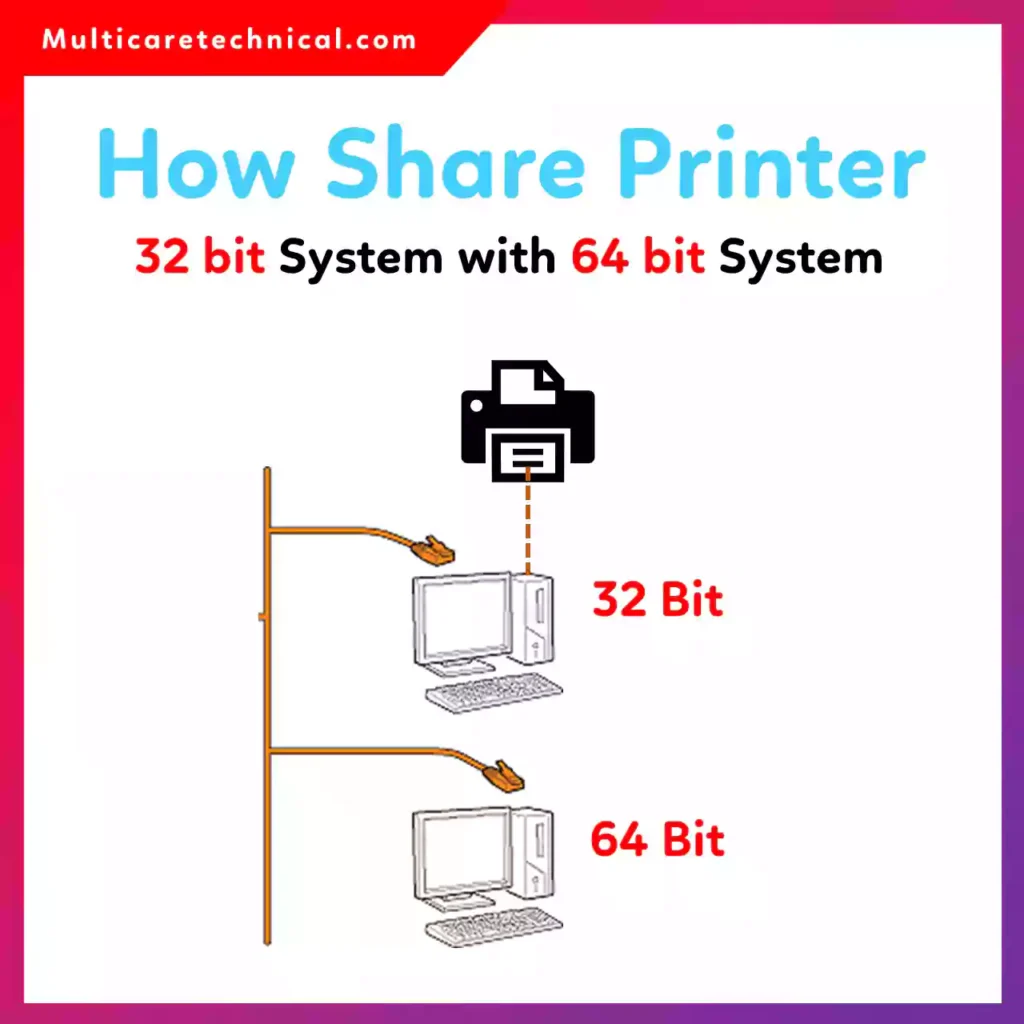
Don’t worry. In this guide, you’ll learn exactly how to share printer 32 bit system with 64 bit system, including Windows 7 and Windows 10 combinations.
✅ Quick Answer (Featured Snippet Ready)
To share a printer between 32-bit and 64-bit systems:
- Install the printer on the host computer.
- Enable Printer Sharing.
- Download and install the correct architecture drivers (32-bit or 64-bit) on the client PC.
- Connect using the network path:
\\ComputerName\PrinterName
👉 The issue is not mainly an OS problem.
It’s usually a driver architecture compatibility issue related to printer hardware and firmware support.
Why 32-Bit and 64-Bit Printer Sharing Fails
The main reason printing fails between 32-bit and 64-bit systems is:
- Driver mismatch
- Missing architecture support
- Outdated printer firmware
The operating system (Windows 7, Windows 10, etc.) is rarely the real problem.
Most issues are caused by printer driver architecture and firmware compatibility.
If you’re troubleshooting Windows features, check:
👉 https://multicaretechnical.com/where-is-the-recycle-bin-in-windows-11-exact-location-file-path-guide
If you’re configuring network settings, understanding router basics also helps:
👉 https://multicaretechnical.com/what-is-the-wps-button-on-my-router-simple-guide-how-to-use-it
Method 1: How to Share Printer 32 Bit System with 64 Bit System
Step 1: Install Printer on 32-Bit PC (Host)
- Connect printer
- Install official 32-bit driver
- Test print
Step 2: Enable Printer Sharing
- Go to Control Panel → Devices and Printers
- Right-click printer → Printer Properties
- Open Sharing tab
- Check Share this printer
- Click Apply
Step 3: Install 64-Bit Driver on Client PC
On the 64-bit computer:
- Go to Devices and Printers
- Click Add Printer
- Select “The printer that I want isn’t listed”
- Choose “Select a shared printer by name”
- Enter:
\\HostComputerName\PrinterName
If prompted, install the 64-bit driver manually.
How to Share Printer 64 Bit to 32 Bit
The process is the same but reversed:
- Install printer on 64-bit system.
- Enable sharing.
- On 32-bit PC:
- Add network printer.
- Install 32-bit driver manually if Windows cannot auto-install.
💡 Always download drivers directly from the manufacturer website.
How to Share Printer Windows 7 64 Bit to 32 Bit
Windows 7 requires:
- Enable Network Discovery.
- Turn on File and Printer Sharing.
- Disable password-protected sharing (if needed).
- Add shared printer using network path.
- Install proper 32-bit driver.
Sometimes you must enable:
- SMB 1.0 support (for older systems)
How to Share Printer in Windows 10 64 Bit to Windows 7 32 Bit
This is a very common setup in small offices.
Steps:
- On Windows 10:
- Enable Network Discovery.
- Enable File and Printer Sharing.
- Share printer.
- On Windows 7:
- Open Run → type:
\\Windows10ComputerName - Double-click shared printer.
- Open Run → type:
- Install 32-bit driver if prompted.
If Windows blocks connection:
- Enable SMB 1.0
- Check firewall settings
- Ensure both PCs are on same network
Quick Comparison Table
| Host System | Client System | Required Driver |
|---|---|---|
| 32-bit | 64-bit | 64-bit driver |
| 64-bit | 32-bit | 32-bit driver |
| Windows 10 64-bit | Windows 7 32-bit | 32-bit compatible driver |
Common Printer Sharing Errors
- “Driver unavailable”
- “Access denied”
- “Windows cannot connect to printer”
- Error 0x0000011b
Most of these are:
✔ Driver architecture mismatch
✔ Firmware outdated
✔ Network permission issue
Not a core OS defect.
Pro Tip for Office Setup
If you’re managing Excel sheets while setting up shared printers, you may also find this helpful:
👉 https://multicaretechnical.com/how-to-move-columns-in-excel-without-breaking-your-data
FAQ (Optimized for AI Overviews)
How to share printer 32 bit system with 64 bit system?
Install the printer on the host PC, enable sharing, then install the correct 64-bit driver on the client PC.
How to share printer 64 bit to 32 bit?
Enable sharing on the 64-bit PC and manually install the 32-bit driver on the client system.
How to share printer Windows 7 64 bit to 32 bit?
Turn on network discovery, share the printer, and install compatible 32-bit drivers on the client PC.
How to share printer in Windows 10 64 bit to Windows 7 32 bit?
Share the printer on Windows 10, connect using network path from Windows 7, and install correct 32-bit drivers.
Is printer sharing problem an OS issue?
Usually not. It is mainly a driver architecture and printer firmware compatibility issue.
Final Thoughts
Sharing a printer between 32-bit and 64-bit systems isn’t complicated — but driver compatibility is critical.
Remember:
✔ Install the correct architecture driver
✔ Enable network discovery
✔ Keep firmware updated
✔ Ensure both PCs are on same network
Once drivers match, printing works smoothly — regardless of Windows version.