
The Nintendo Wii Remote remains one of the most unique gaming controllers ever created. Even years after the Wii console’s popularity peaked, many gamers still use Wii Remotes with their PCs for emulation, retro gaming, and rhythm games like Clone Hero.
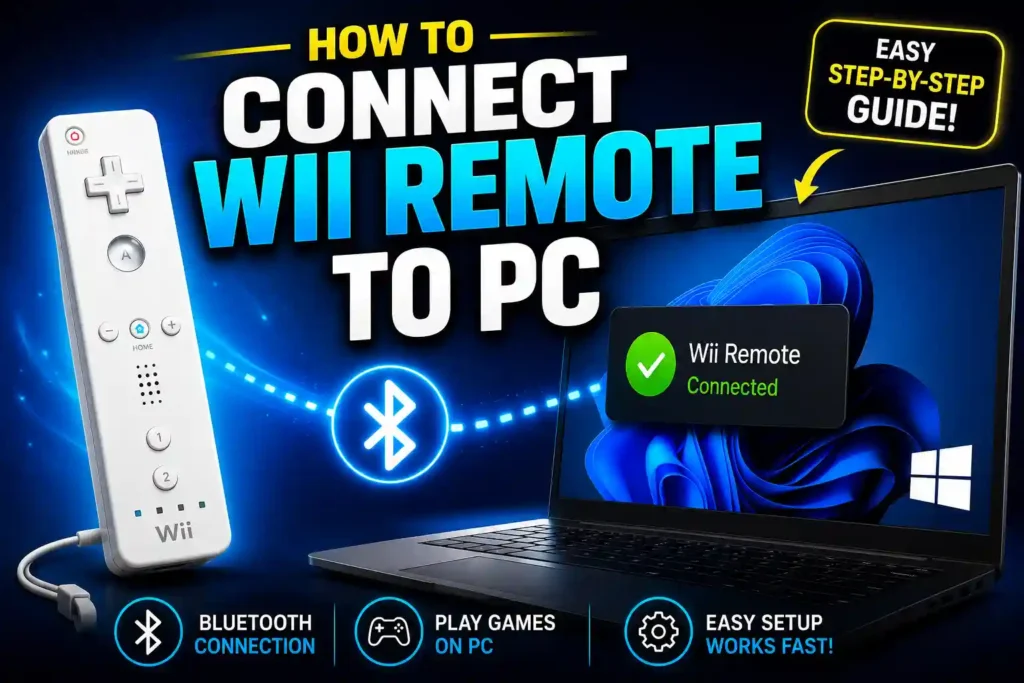
Fortunately, connecting a Wii Remote to a PC is easier than many people think. Whether you’re using Windows 10, Windows 11, Dolphin Emulator, or Clone Hero, a Wii Remote can be paired through Bluetooth and configured for gameplay within minutes.
This guide explains every major connection method, common troubleshooting steps, and best practices to ensure a smooth gaming experience.
Quick Answer
To connect a Wii Remote to a PC:
- Enable Bluetooth on your PC.
- Press and hold the 1 + 2 buttons on the Wii Remote.
- Open Bluetooth & Devices settings in Windows.
- Click Add Device.
- Select the Wii Remote from the available devices list.
- If prompted for a PIN, choose Pair Without Using a Code or leave the PIN blank.
- Configure the controller in Dolphin Emulator or your preferred game.
Once paired, the Wii Remote can be used for compatible games and emulators.
Table of Contents
- Understanding Wii Remote PC Compatibility
- Requirements Before You Start
- How to Connect Wii Remote to PC with Bluetooth
- How to Connect Wii Remote to PC Windows 11
- How to Connect Wii Remote to PC Windows 10
- How to Connect Wii Remote to PC Without PIN
- How to Connect Wii Remote to PC PIN Issues
- How to Connect Wii Remote to PC Dolphin
- How to Connect Wii Remote to PC Dolphin Emulator
- How to Connect Wii Remote to PC for Clone Hero
- How to Connect Wii Remote to PC Without Bluetooth
- Common Errors and Fixes
- Best Practices and Pro Tips
- FAQs
- Conclusion
Understanding Wii Remote PC Compatibility
The Wii Remote uses Bluetooth technology to communicate with the Wii console. Since most modern PCs also include Bluetooth support, they can connect directly to a Wii Remote.
Popular uses include:
- Playing Wii games through Dolphin Emulator
- Using motion controls on PC
- Playing Clone Hero
- Retro gaming
- Homebrew applications
- Educational and development projects
Most original Nintendo Wii Remotes work better than some third-party models.
Requirements Before You Start
Before pairing your Wii Remote, make sure you have:
- A Nintendo Wii Remote
- A Windows 10 or Windows 11 PC
- Bluetooth support (built-in or USB adapter)
- Fresh batteries in the Wii Remote
- Dolphin Emulator (optional)
- Clone Hero (optional)
Updated Bluetooth drivers can help avoid connection problems.
How to Connect Wii Remote to PC With Bluetooth
Bluetooth is the easiest and most reliable connection method.
Step 1: Turn On Bluetooth
Open:
Settings > Bluetooth & Devices
Enable Bluetooth if it is currently disabled.
Step 2: Put the Wii Remote Into Pairing Mode
Press and hold:
1 + 2 buttons simultaneously
The LED lights should begin flashing.
Step 3: Add the Device
- Click Add Device
- Select Bluetooth
- Wait for the Wii Remote to appear
It may show up as:
- Nintendo RVL-CNT-01
- Nintendo RVL-CNT-01-TR
- Nintendo Wii Remote
Step 4: Complete Pairing
Choose:
Pair Without Using a Code
or leave the PIN field blank.
After pairing, the LED lights should stop flashing.
How to Connect Wii Remote to PC Windows 11
Windows 11 includes a modern Bluetooth management interface.
Steps for Windows 11
- Press Windows + I
- Open Bluetooth & Devices
- Enable Bluetooth
- Press 1 + 2 on the Wii Remote
- Click Add Device
- Select the Wii Remote
- Pair without entering a PIN
After pairing, Windows 11 should recognize the controller automatically.
For additional Windows 11 customization tips, see:
How to Connect Wii Remote to PC Windows 10
The process on Windows 10 is very similar.
Steps
- Open Settings
- Navigate to Devices
- Select Bluetooth & Other Devices
- Turn Bluetooth ON
- Press 1 + 2 on the Wii Remote
- Click Add Bluetooth Device
- Select the Wii Remote
- Pair successfully
Most users can complete setup in under five minutes.
How to Connect Wii Remote to PC Without PIN
Many users get confused when Windows requests a pairing code.
The original Wii Remote typically does not require a PIN.
What to Do
Choose:
- Pair Without Code
- Skip PIN
- Continue Without Authentication
Depending on the Windows version, the exact wording may vary.
How to Connect Wii Remote to PC PIN Issues
Some Bluetooth adapters still request a PIN.
Try These Options
- Leave the field blank
- Enter 0000
- Enter 1234
If none work:
- Remove the device.
- Restart Bluetooth.
- Reconnect the Wii Remote.
Updating Bluetooth drivers can often resolve PIN-related problems.
How to Connect Wii Remote to PC Dolphin
Dolphin Emulator provides native support for Wii Remotes.
Configure Dolphin
- Launch Dolphin Emulator.
- Click Controllers.
- Under Wii Remotes:
- Select Real Wii Remote.
- Click Refresh.
- Press 1 + 2 on the Wii Remote.
Dolphin should detect the controller automatically.
This provides the most authentic Wii gaming experience.
How to Connect Wii Remote to PC Dolphin Emulator
Many users specifically install Dolphin Emulator to play Wii games.
Best Setup Method
- Pair the Wii Remote through Windows.
- Open Dolphin Emulator.
- Navigate to Controller Settings.
- Select Real Wii Remote.
- Enable Continuous Scanning if necessary.
Once configured, motion controls and button inputs should work correctly.
How to Connect Wii Remote to PC for Clone Hero
Clone Hero players often use Wii guitars and Wii Remotes.
Setup Process
- Pair the Wii controller with Windows.
- Install any required adapter software.
- Launch Clone Hero.
- Open Controls.
- Map controller buttons.
- Test functionality.
Many players prefer official Wii guitars because of their responsiveness and low latency.
How to Connect Wii Remote to PC Without Bluetooth
Some older PCs lack Bluetooth hardware.
Fortunately, there are alternatives.
Option 1: USB Bluetooth Adapter
A low-cost USB Bluetooth adapter is the easiest solution.
Most adapters work immediately after installation.
Option 2: Specialized Wii Adapters
Some third-party adapters are designed specifically for Wii controllers.
Option 3: Dolphin Bar
The DolphinBar is a popular accessory that combines:
- Bluetooth support
- Sensor bar functionality
- Simplified Wii Remote pairing
It is one of the most reliable solutions for Dolphin users.
Common Errors and Fixes
Wii Remote Not Appearing
Fix
- Replace batteries.
- Move closer to the PC.
- Restart Bluetooth.
Bluetooth Pairing Fails
Fix
- Remove previous pairings.
- Restart Windows.
- Update Bluetooth drivers.
Controller Disconnects Frequently
Fix
- Use fresh batteries.
- Avoid Bluetooth interference.
- Keep the controller within range.
Dolphin Does Not Detect the Wii Remote
Fix
- Enable Real Wii Remote.
- Click Refresh.
- Enable Continuous Scanning.
Motion Controls Not Working
Fix
Verify that your game supports motion controls and that Dolphin is configured correctly.
Best Practices and Pro Tips
Use Original Nintendo Wii Remotes
Official controllers generally provide better compatibility than third-party alternatives.
Keep Bluetooth Drivers Updated
Updated drivers reduce pairing and connectivity issues.
Use a Dedicated Bluetooth Adapter
A dedicated adapter often provides better signal strength than built-in laptop Bluetooth.
Use DolphinBar for Emulation
Frequent Dolphin users often find DolphinBar to be the most reliable option.
Optimize Your PC for Gaming
A properly configured display setup can improve your gaming experience. You may find this guide useful:
If you’re using browser-based gaming tools or emulation resources, enabling WebGL can help:
Frequently Asked Questions
1. Can a Wii Remote connect to a PC?
Yes. Most Wii Remotes can connect to a PC using Bluetooth.
2. Does a Wii Remote require a PIN?
Usually no. Most Windows systems allow pairing without entering a code.
3. Can I use a Wii Remote with Dolphin Emulator?
Yes. Dolphin Emulator includes built-in support for real Wii Remotes.
4. Why won’t my Wii Remote stay connected?
Common causes include weak batteries, outdated Bluetooth drivers, or Bluetooth interference.
5. Can I connect a Wii Remote without Bluetooth?
Yes. You can use a USB Bluetooth adapter, DolphinBar, or other compatible hardware solutions.
Conclusion
Connecting a Wii Remote to a PC is a simple process that opens the door to Wii emulation, Clone Hero, retro gaming, and other fun applications. In most cases, all you need is a Bluetooth-enabled PC, fresh batteries, and a few minutes to pair the controller.
Whether you’re running Windows 10, Windows 11, Dolphin Emulator, or Clone Hero, following the steps in this guide will help you get connected quickly. If you encounter pairing problems, updating drivers, replacing batteries, and using a dedicated Bluetooth adapter can usually resolve the issue.
With the right setup, your Wii Remote can continue providing a great gaming experience long after the original Wii console has been retired.