
Introduction
Windows 11 introduced one of the biggest visual redesigns Microsoft has made in years. One of the most noticeable changes was the centered taskbar layout. While many users enjoy the modern appearance, others prefer the classic left-aligned taskbar style used in earlier versions of Windows.
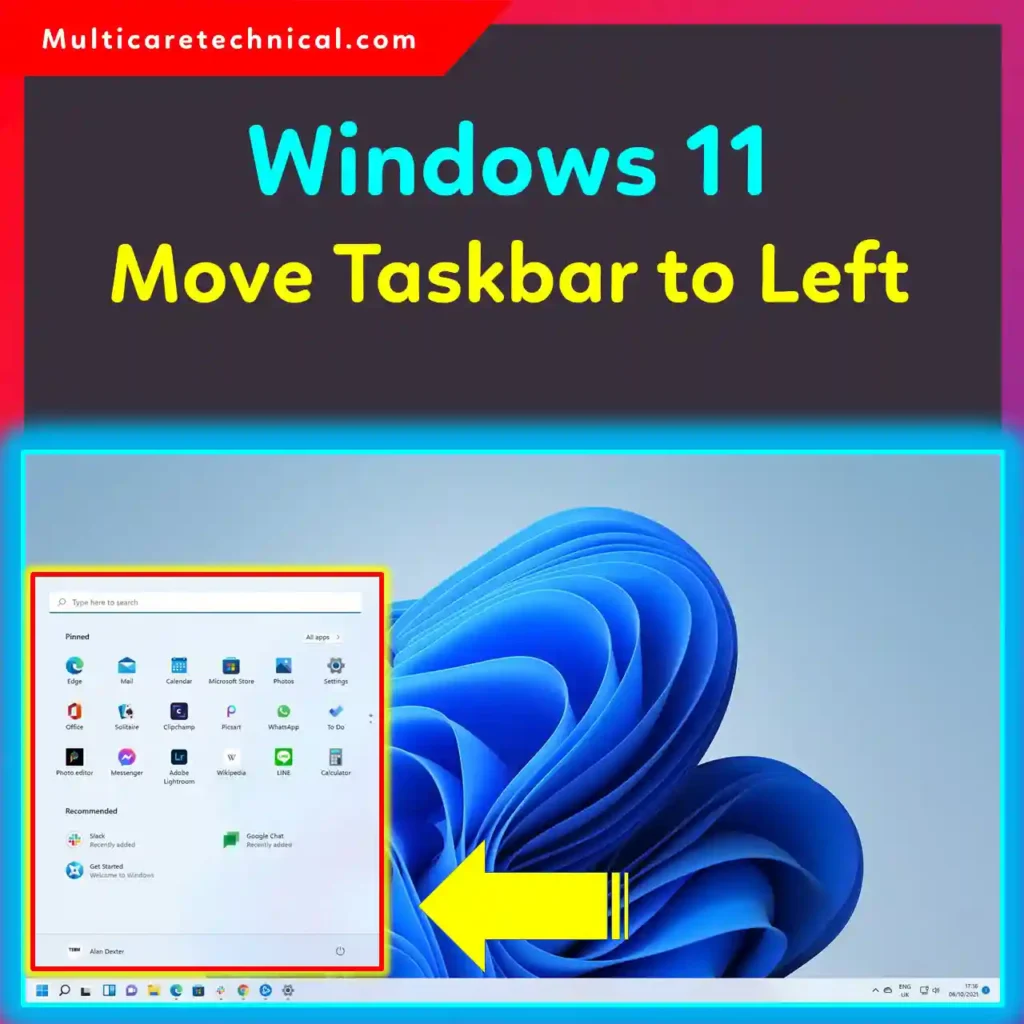
Fortunately, Microsoft still allows users to move the taskbar icons to the left side of the taskbar through built-in settings. However, some advanced customizations — such as moving the entire taskbar vertically to the left edge of the screen — require registry modifications or third-party tools.
This guide explains everything you need to know about the Windows 11 move taskbar to left process, including step-by-step instructions, registry methods, multi-monitor setups, troubleshooting tips, and best practices for IT professionals.
Quick Answer
To move the taskbar to the left in Windows 11:
- Right-click the taskbar
- Open Taskbar Settings
- Expand Taskbar Behaviors
- Find Taskbar Alignment
- Select Left
This changes the taskbar icons from centered to the traditional left-side alignment used in earlier Windows versions.
Table of Contents
- Why Users Want the Taskbar on the Left
- Windows 11 Move Taskbar to Left Side of Screen
- Windows 11 Move Taskbar to Left of Screen Using Settings
- Windows 11 Move Taskbar to Left Vertical
- Windows 11 Move Taskbar to Left Registry
- Windows 11 Move Taskbar to Left Registry for All Users
- Windows 11 Move Taskbar to Left Monitor
- Windows 11 Move Taskbar to Left 2026 Changes
- Move Taskbar From Side to Bottom Windows 10
- Common Errors and Fixes
- Best Practices and Pro Tips
- Conclusion
- FAQs
Why Users Want the Taskbar on the Left
Many Windows users have spent years using the classic left-aligned Start menu and taskbar icons.
Common reasons users move the taskbar left include:
- Familiar Windows 10-style layout
- Faster muscle memory navigation
- Better productivity
- Easier access on ultrawide monitors
- Consistency across enterprise environments
IT departments often standardize taskbar layouts to reduce user confusion during migrations to Windows 11.
Windows 11 Move Taskbar to Left Side of Screen
The easiest method is using Windows Settings.
This changes the taskbar icon alignment from center to left while keeping the taskbar at the bottom of the screen.
Step-by-Step Instructions
Step 1: Open Settings
Press:
Windows + IStep 2: Go to Personalization
Click:
Personalization > TaskbarStep 3: Expand Taskbar Behaviors
Scroll down and click:
Taskbar behaviorsStep 4: Change Alignment
Find:
Taskbar alignmentSelect:
LeftThe Start button and icons instantly move to the left side.
Windows 11 Move Taskbar to Left of Screen Using Settings
Microsoft designed Windows 11 to keep the taskbar fixed at the bottom by default. Unlike Windows 10, native support for moving the taskbar to the top or sides has been limited.
However, left alignment still works perfectly through standard settings.
Benefits of Left Alignment
- More traditional Windows experience
- Faster navigation for longtime users
- Improved workflow consistency
- Better for enterprise deployments
This is the safest and most stable method because it uses official Microsoft settings.
Windows 11 Move Taskbar to Left Vertical
Some users want a fully vertical taskbar positioned on the left edge of the display.
Unfortunately, Windows 11 does not officially support vertical taskbars like older Windows versions did.
Can You Create a Vertical Left Taskbar?
Not natively.
Microsoft removed much of the advanced taskbar positioning flexibility in Windows 11.
However, advanced users sometimes use:
- Registry modifications
- Explorer patches
- Third-party customization tools
Important Warning
Using unsupported modifications can:
- Cause UI glitches
- Break after Windows updates
- Reduce system stability
- Create compatibility issues
IT professionals managing enterprise devices should avoid unsupported taskbar hacks.
Windows 11 Move Taskbar to Left Registry
Advanced users may try registry tweaks for additional taskbar customization.
Warning Before Editing the Registry
Always back up the registry before making changes.
Incorrect edits may cause:
- Boot problems
- UI instability
- Explorer crashes
Basic Registry Method
Step 1: Open Registry Editor
Press:
Windows + RType:
regeditStep 2: Navigate to
HKEY_CURRENT_USER\Software\Microsoft\Windows\CurrentVersion\Explorer\StuckRects3Step 3: Edit Settings
Modify the binary values carefully based on taskbar placement requirements.
Step 4: Restart Explorer
Open Task Manager and restart Windows Explorer.
Important Note
Many older registry tricks no longer fully work in modern Windows 11 builds because Microsoft changed the taskbar architecture.
Windows 11 Move Taskbar to Left Registry for All Users
Enterprise administrators sometimes want taskbar settings applied to all users.
This usually requires:
- Group Policy
- Registry deployment scripts
- PowerShell automation
- Default profile customization
Common Enterprise Deployment Methods
Using Group Policy Preferences
Administrators can push registry changes through:
User Configuration > Preferences > Windows Settings > RegistryUsing PowerShell
IT teams can automate alignment changes across multiple devices.
SCCM or Intune Deployment
Modern organizations often use:
- Microsoft Intune
- SCCM
- Endpoint Manager
to deploy standardized Windows 11 configurations.
For update management strategies, you can also read:
Windows 11 Move Taskbar to Left Monitor
Multi-monitor users often want better taskbar placement control.
How Windows 11 Handles Multiple Monitors
Windows 11 supports:
- Main taskbar on primary monitor
- Taskbars on all displays
- Independent icon visibility
Configure Multi-Monitor Taskbars
Step 1: Open Settings
Go to:
Settings > Personalization > TaskbarStep 2: Expand Taskbar Behaviors
Enable:
Show my taskbar on all displaysStep 3: Choose Primary Display
Go to:
Settings > System > DisplaySelect the preferred monitor and enable:
Make this my main displayThe left-aligned taskbar will appear on the chosen primary monitor.
Windows 11 Move Taskbar to Left 2026 Changes
Microsoft continues refining the Windows 11 interface in 2026.
Recent updates have improved:
- Taskbar responsiveness
- Multi-monitor behavior
- Accessibility features
- Search performance
However, Microsoft still limits full taskbar repositioning.
Many users continue requesting:
- Vertical taskbars
- Top taskbar support
- Advanced resizing
- Greater customization
Microsoft may expand these options in future feature updates.
Move Taskbar From Side to Bottom Windows 10
Some users upgrading from Windows 10 accidentally move the taskbar to the side and want to restore it.
Windows 10 Fix
Method 1: Drag the Taskbar
- Unlock the taskbar
- Click and drag it to the bottom
- Release the mouse
Method 2: Use Taskbar Settings
- Right-click the taskbar
- Open Taskbar Settings
- Select Bottom under taskbar location
Windows 11 simplified taskbar controls and removed several older positioning options.
Step-by-Step Guide for IT Professionals
Standardize Left Alignment Across Devices
Option 1: Intune Policy
Use configuration profiles to apply user personalization settings.
Option 2: PowerShell Script
Deploy scripts during login or enrollment.
Option 3: SCCM Baseline
Create compliance baselines to enforce consistent settings.
Recommended Enterprise Workflow
- Test on pilot devices
- Validate UI compatibility
- Train users
- Deploy organization-wide
Common Errors and Fixes
Taskbar Alignment Option Missing
Fix:
- Install latest Windows updates
- Restart Explorer
- Check activation status
Registry Changes Not Working
Fix:
- Restart the PC
- Reapply changes
- Verify Windows build compatibility
Taskbar Glitches After Updates
Fix:
- Remove unsupported modifications
- Run System File Checker:
sfc /scannowMulti-Monitor Taskbar Problems
Fix:
- Reconfigure display settings
- Disconnect and reconnect monitors
- Update GPU drivers
Best Practices / Pro Tips
Use Official Settings When Possible
Built-in settings are safer and more stable than unsupported registry hacks.
Avoid Outdated YouTube Registry Tweaks
Many older tutorials no longer work properly in modern Windows 11 versions.
Keep Windows Updated
New cumulative updates may improve taskbar stability and customization.
Document Enterprise Configurations
IT departments should maintain documentation for standard desktop layouts.
Backup Before Registry Editing
Always create restore points before making advanced changes.
Related Helpful Guides
Here are additional useful tutorials:
Conclusion
The Windows 11 move taskbar to left process is simple for most users who only want classic left-aligned icons. Microsoft still supports this option directly through Settings.
However, advanced customizations such as vertical taskbars or side positioning remain limited in Windows 11 compared to Windows 10.
For IT professionals, using supported methods through Group Policy, Intune, or SCCM is the safest approach. Avoid unsupported registry modifications unless absolutely necessary.
As Microsoft continues updating Windows 11 in 2026, additional taskbar customization options may eventually return.
FAQs
1. How do I move the taskbar to the left in Windows 11?
Go to Settings > Personalization > Taskbar > Taskbar Behaviors and change Taskbar Alignment to Left.
2. Can I move the Windows 11 taskbar vertically to the left side?
Windows 11 does not officially support vertical taskbars. Some unsupported registry hacks or third-party tools may partially work.
3. Does moving the taskbar left improve performance?
No. It only changes the visual layout and user experience.
4. Can IT admins deploy left taskbar alignment for all users?
Yes. Administrators can use Group Policy, Intune, PowerShell, or SCCM for deployment.
5. Why did Microsoft remove vertical taskbars in Windows 11?
Microsoft redesigned the taskbar architecture in Windows 11, removing several legacy customization features.