
Want the Windows 11 Start menu like Windows 10? You’re not alone. Many users prefer the classic layout with live tiles, a full app list, and a familiar design.
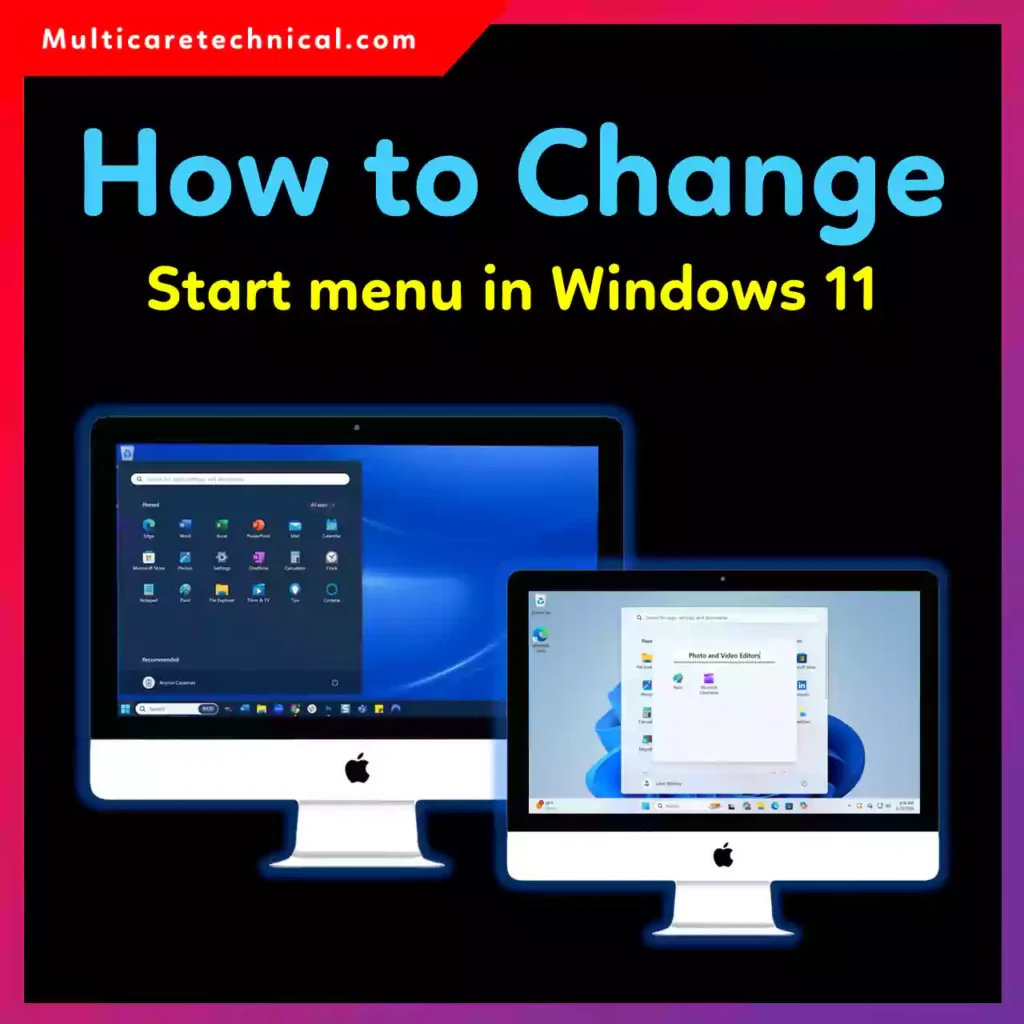
In this step-by-step guide, I’ll show you how to revert Windows 11 Start menu, resize it, remove categories, and even make it show all apps by default — just like the good old days.
Let’s get started.
Why People Want the Classic Start Menu Back
When Windows 11 launched, Microsoft introduced a centered Start menu with pinned apps and recommendations. While it looks modern, many users miss the traditional layout from Windows 10.
Common reasons include:
- Easier navigation
- Faster access to all apps
- Larger, resizable menu
- No “Recommended” section
- Familiar workflow
If that sounds like you, keep reading.
Method 1: Change Built-in Settings (Free & Safe)
Before downloading anything, try these built-in tweaks.
1️⃣ Move Start Menu to the Left
- Right-click Taskbar
- Click Taskbar settings
- Open Taskbar behaviors
- Change Taskbar alignment to Left
This won’t fully restore the classic look, but it feels closer to Windows 10.
2️⃣ Remove Recommended Section (Windows 11 Start Menu Remove Categories)
- Go to Settings
- Click Personalization > Start
- Turn off:
- Show recently added apps
- Show recently opened items
This helps clean up the layout.
3️⃣ Make Windows 11 Start Menu Show All Apps by Default
By default, Windows 11 opens to pinned apps. To prioritize all apps:
- Open Start
- Click All apps
- Use it regularly — Windows adapts over time
⚠️ Note: There is no official toggle yet to permanently set “All apps” as default.
Method 2: Use Third-Party Tool (Best Classic Experience)
If you truly want the Windows 11 Start menu like Windows 10, you’ll need a customization tool.
Option 1: StartAllBack ($4.99 one-time)
One of the most popular solutions.
✔ Fully restores Windows 10-style Start menu
✔ Resize Start menu Windows 11
✔ Customize layout
✔ Remove categories completely
Steps:
- Download from official website
- Install and restart PC
- Choose Windows 10 style menu
Done!
Option 2: Open-Shell (Free)
Open-Shell is a free alternative.
✔ Lightweight
✔ Custom themes
✔ Classic menu styles
✔ Works on Windows 11
You can even download themes to match the exact Windows 11 Start menu download experience you’re looking for.
How to Resize Start Menu Windows 11
Using StartAllBack:
- Right-click Start
- Open properties
- Adjust width & height sliders
With Open-Shell:
- Open settings
- Go to Menu Style
- Adjust menu size
Now you can enjoy a proper Windows 11 Start menu layout like before.
How to Revert Windows 11 Start Menu Back to Default
Changed your mind?
Simply:
- Uninstall StartAllBack or Open-Shell
- Restart PC
Windows will automatically restore its default Start menu.
Quick Comparison
| Feature | Default Windows 11 | Classic Style |
|---|---|---|
| Centered Start | Yes | Optional |
| Live Tiles | No | Yes (via tools) |
| Resize Option | Limited | Full |
| Remove Categories | Partial | Full |
| Show All Apps Default | No | Yes (via tools) |
Pro Tips for Better Performance
While customizing Windows, you may also want to fix other issues:
- Fix printer error:
https://multicaretechnical.com/how-to-fix-cannot-connect-to-the-printer-operation-failed-with-error-0x00011b - Manage Google accounts safely:
https://multicaretechnical.com/how-to-delete-gmail-account-step-by-step-guide-for-phone-desktop - Adjust document formatting easily:
https://multicaretechnical.com/how-to-change-margins-in-google-docs-2026-step-by-step-guide
Frequently Asked Questions (Short Snippets for AI Overviews)
Can I get Windows 11 Start menu like Windows 10 without software?
No. You can adjust alignment and remove recommendations, but full classic view requires third-party software.
How do I resize Start menu Windows 11?
Windows 11 does not allow full resizing natively. You need tools like StartAllBack or Open-Shell.
Is Windows 11 Start menu download safe?
Only download customization tools from official websites. Avoid cracked or modified versions.
Can I revert Windows 11 Start menu?
Yes. Uninstall the customization tool and restart your computer.
Can I remove categories from Windows 11 Start menu?
You can disable recommendations in Settings, but full removal requires third-party apps.
Final Verdict
If you want a fully functional Windows 11 Start menu like Windows 10, third-party tools are the best solution. Built-in settings help slightly, but they don’t offer full classic functionality.
For power users, StartAllBack is worth the small $4.99 investment. For free users, Open-Shell works great.
Either way, you can easily revert Windows 11 Start menu anytime.