
Deleting your Gmail account isn’t just about removing emails — it can affect access to YouTube, Google Drive, Google Photos, and other Google services.
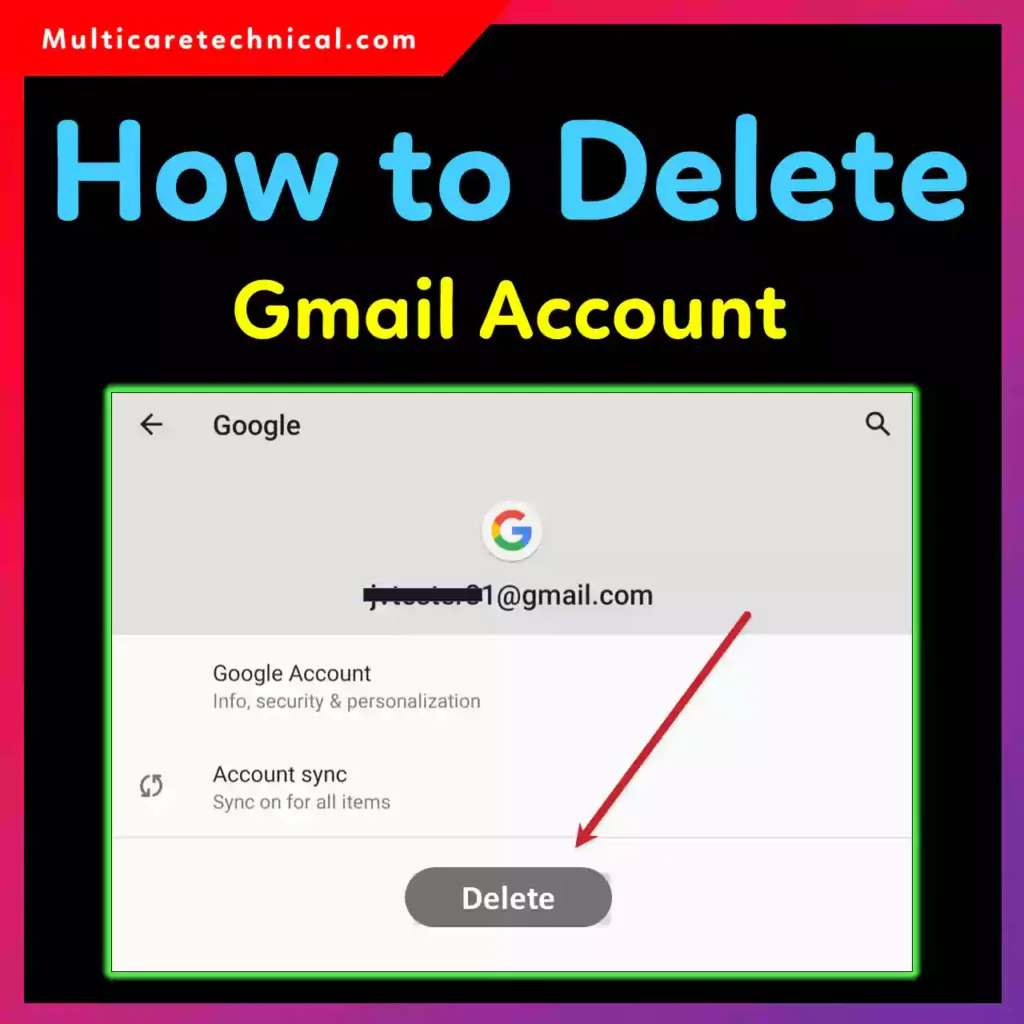
In this guide, I’ll show you:
- How to delete Gmail account from phone permanently
- How to delete Gmail account in Android phone
- How to delete Gmail account from iPhone
- How to delete Gmail account from another phone
Let’s break it down in the simplest way possible.
⚠️ Before You Delete Your Gmail Account
When you delete Gmail:
- You lose access to emails permanently
- You can’t send or receive messages
- Your Gmail address may not be available again
- Other Google services may be affected
💡 Smart Move: Download your data before deleting.
Go to:
Google Account → Data & Privacy → Download your data
✅ Quick Answer
To delete a Gmail account, go to your Google Account settings → Data & Privacy → Delete a Google service → Select Gmail → Confirm deletion with an alternate email address.
How to Delete Gmail Account from Phone Permanently
This method works for Android and iPhone.
Step 1:
Open Google Account settings
Visit: myaccount.google.com
Step 2:
Tap Data & Privacy
Step 3:
Scroll down to Delete a Google service
Step 4:
Sign in again for verification
Step 5:
Select Gmail
Step 6:
Enter an alternate email address (required)
Step 7:
Confirm deletion via verification email
✔ Done. Your Gmail account will be permanently deleted.
📱 How to Delete Gmail Account in Android Phone
If you just want to remove the Gmail account from your device (not delete permanently):
- Open Settings
- Tap Accounts
- Select Google
- Choose your Gmail account
- Tap Remove Account
⚠️ This removes Gmail from your Android device only.
It does NOT permanently delete it.
If you’re troubleshooting Android issues, check:
👉 https://multicaretechnical.com/how-to-fix-cannot-connect-to-the-printer-operation-failed-with-error-0x00011b
🍎 How to Delete Gmail Account from iPhone
To remove Gmail from iPhone:
- Open Settings
- Tap Mail
- Tap Accounts
- Select Gmail
- Tap Delete Account
Again — this removes it from iPhone only.
If you use Google Docs often, you might like:
👉 https://multicaretechnical.com/how-to-change-margins-in-google-docs-2026-step-by-step-guide
🔄 How to Delete Gmail Account from Another Phone
If your Gmail is signed in on someone else’s phone:
Method 1: Remote Sign-Out
- Go to Google Account
- Tap Security
- Find Your Devices
- Select unknown device
- Click Sign Out
Method 2: Change Password
Changing your password automatically signs you out of other devices.
💻 How to Delete Gmail Account on Computer
- Visit Google Account
- Click Data & Privacy
- Select Delete a Google Service
- Choose Gmail
- Confirm alternate email
- Verify deletion
💰 Does It Cost Money?
Deleting a Gmail account is completely free.
There are no $ charges involved.
🧠 Common Mistakes to Avoid
- ❌ Confusing “Remove Account” with “Delete Account”
- ❌ Not backing up important emails
- ❌ Forgetting linked accounts (banking, social media, etc.)
- ❌ Not adding alternate recovery email
If you’re customizing Windows before switching accounts, you may also read:
👉 https://multicaretechnical.com/how-to-change-cursor-on-windows-11-step-by-step-2026-guide
📌 Short FAQ (Optimized for AI Overviews)
How to delete Gmail account from phone permanently?
Go to Google Account → Data & Privacy → Delete a Google Service → Select Gmail → Confirm with alternate email.
How to delete Gmail account in Android phone?
Go to Settings → Accounts → Google → Select account → Remove Account (device only).
How to delete Gmail account from another phone?
Use Google Account → Security → Manage Devices → Sign Out, or change your password.
Can I recover deleted Gmail account?
Yes, but only within a short recovery window. After permanent deletion, recovery may not be possible.
🏁 Final Thoughts
Deleting your Gmail account is a serious decision. Whether you’re switching to a new email or protecting privacy, make sure you:
- Back up important data
- Update linked services
- Confirm alternate email
Follow the steps carefully and you’ll avoid losing important information.
If this guide helped, save it for future reference — account management mistakes can be hard to reverse.