
Introduction
Android gives users more flexibility than most mobile operating systems, especially when it comes to choosing which apps handle specific tasks. Whether you prefer a different web browser, messaging app, PDF reader, or media player, Android allows you to customize your experience by changing default applications.
Many users accidentally select the wrong app as the default and later struggle to change it. Others install better alternatives and want those apps to open automatically when clicking links, viewing PDFs, or sending text messages.
Fortunately, changing default apps is simple once you know where the settings are located.
This guide explains everything you need to know about managing default apps on Android devices, including Samsung Galaxy phones, Android TV devices, Android Auto, browsers, messaging apps, PDFs, and file associations.
Quick Answer
To change default apps on Android:
- Open Settings.
- Tap Apps or Applications.
- Select Default Apps.
- Choose the category you want to modify (Browser, SMS, Phone, PDF Viewer, etc.).
- Select your preferred app.
- Exit Settings.
Your chosen application will now open automatically for supported actions.
Table of Contents
- Understanding Default Apps on Android
- Why Change Default Applications?
- Setting Default Apps on Android
- Changing the Default Browser
- Switching SMS Applications
- Managing PDF File Associations
- Choosing Apps for Opening Files
- Samsung Galaxy Instructions
- Android TV Configuration
- Android Auto Settings
- Common Problems and Fixes
- Best Practices
- FAQs
- Conclusion
Understanding Default Apps on Android
A default app is the application Android automatically uses when performing a specific action.
Examples include:
- Opening web links
- Viewing PDF documents
- Sending text messages
- Making phone calls
- Playing videos
- Opening email links
Without a default app, Android may ask which application you want to use every time an action occurs.
Setting defaults creates a smoother and faster user experience.
Why Change Default Applications?
There are many reasons users change default apps.
Common examples include:
- Using Google Chrome instead of another browser
- Switching to a different SMS application
- Selecting a better PDF reader
- Choosing a preferred media player
- Improving productivity workflows
- Enhancing security and privacy
IT professionals often modify default applications when configuring company devices or testing software compatibility.
How to Setting Default Apps in Android
Most Android devices follow a similar process.
Step 1: Open Settings
Locate and open the Settings app.
Step 2: Access Apps
Tap:
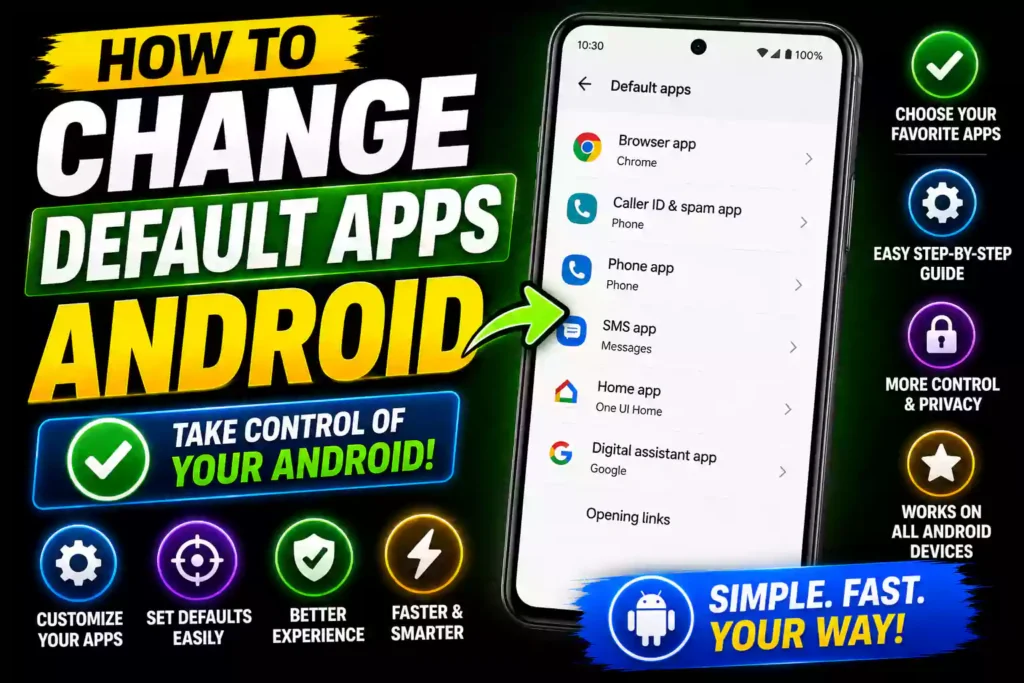
Apps → Default Apps
Depending on the manufacturer, the wording may vary slightly.
Step 3: Select an App Category
Available categories often include:
- Browser App
- Phone App
- SMS App
- Caller ID
- Digital Assistant
- Home App
Step 4: Choose Your Preferred Application
Tap the category and select the app you want Android to use by default.
The changes take effect immediately.
How to Change Default Browser for Android
Many users prefer a browser other than the one pre-installed on their device.
To change your default browser:
- Open Settings.
- Tap Apps.
- Select Default Apps.
- Tap Browser App.
- Choose your preferred browser.
Popular browser choices include:
- Google Chrome
- Mozilla Firefox
- Microsoft Edge
- Brave Browser
- Opera
After selecting a new browser, all web links will automatically open in that application.
How to Change Default SMS for Android
Android allows users to choose any compatible messaging application.
To switch your SMS app:
- Open Settings.
- Tap Apps.
- Select Default Apps.
- Tap SMS App.
- Choose your preferred messaging app.
Common options include:
- Google Messages
- Samsung Messages
- Textra
- Pulse SMS
Once selected, incoming and outgoing text messages will use the chosen app.
How to Change Default Apps for PDF in Android
PDF files often open with the first reader app installed on the device.
To assign a new PDF application:
Method 1: Clear Existing Defaults
- Open Settings.
- Tap Apps.
- Locate the current PDF reader.
- Select Open by Default.
- Clear defaults.
Method 2: Open a PDF
- Open any PDF file.
- Android displays compatible apps.
- Select the preferred reader.
- Choose Always.
Future PDF files will automatically open in the selected application.
How to Change Default Apps to Open Files Android
Different file types can be associated with different apps.
Examples include:
- DOCX files
- XLSX spreadsheets
- ZIP archives
- MP4 videos
- JPG images
To change file associations:
- Open Settings.
- Tap Apps.
- Find the currently assigned app.
- Open Default Settings.
- Clear existing defaults.
The next time you open the file type, Android will ask which application should handle it.
Choose your preferred app and select Always.
How to Change Default Opening Apps on Android
Sometimes Android continues opening files with an unwanted application.
The quickest fix is clearing the default association.
Steps
- Open Settings.
- Go to Apps.
- Select the unwanted default app.
- Tap Open by Default.
- Select Clear Defaults.
The next time you open related content, Android will let you choose a different application.
How to Change Default Apps in Android Samsung
Samsung Galaxy devices include One UI, which slightly changes menu layouts.
Samsung Method
- Open Settings.
- Tap Apps.
- Select Choose Default Apps.
- Choose a category:
- Browser
- Phone
- SMS
- Digital Assistant
- Select the preferred application.
Samsung devices also support app links, allowing users to control which applications open specific website URLs.
This provides additional flexibility compared to stock Android.
How to Change Default Apps in Android TV
Android TV devices allow users to customize applications for streaming and media playback.
Common default app categories include:
- Video playback
- Music playback
- Web browsing
- File management
Steps
- Open Android TV Settings.
- Navigate to Apps.
- Select Default Apps.
- Choose the desired category.
- Select your preferred application.
Not all Android TV versions offer extensive default app controls, so options may vary depending on the manufacturer.
How to Change Default Apps Android Auto
Android Auto lets drivers choose preferred navigation, communication, and media applications.
To Customize Android Auto Defaults
- Open Android Auto Settings.
- Select Customize Launcher.
- Choose preferred apps.
- Adjust navigation and media preferences.
Examples include:
- Google Maps
- Waze
- Spotify
- YouTube Music
- Audible
Customizing Android Auto helps create a more efficient and distraction-free driving experience.
Common Errors and Fixes
Default App Keeps Reverting
Fix:
Update Android and all installed applications.
App Not Appearing as an Option
Fix:
Ensure the application supports the file type or function.
Browser Links Open Incorrectly
Fix:
Clear app defaults and choose the browser again.
PDF Files Open with Wrong App
Fix:
Clear existing PDF associations and reassign the preferred reader.
Settings Menu Looks Different
Fix:
Android versions and manufacturers use different interfaces. Search “Default Apps” within Settings for the quickest route.
Best Practices and Pro Tips
Install Trusted Applications
Only assign defaults to reputable apps from trusted developers.
Review Permissions
Check app permissions before setting them as defaults.
Keep Apps Updated
Updates often improve compatibility and security.
Organize Work Devices Carefully
IT professionals should standardize default applications across managed devices.
Periodically Audit Defaults
Remove outdated apps that are no longer needed.
Related Troubleshooting Guides
If you manage multiple devices and operating systems, these guides may also be helpful:
How to Fix Windows 11 Black Screen With Cursor
https://multicaretechnical.com/how-to-fix-windows-11-black-screen-with-cursor-complete-2026-guide
How to Reset MacBook to Factory Settings
https://multicaretechnical.com/how-to-reset-macbook-to-factory-settings-complete-guide-for-all-macos-versions
How to Fix Windows Update Error
https://multicaretechnical.com/how-to-fix-windows-update-error-complete-troubleshooting-guide-for-windows-11-windows-10
Frequently Asked Questions
1. How do I change the default browser on Android?
Go to Settings → Apps → Default Apps → Browser App and select your preferred browser.
2. Can I change the default PDF reader on Android?
Yes. Clear the current PDF app defaults and choose a different PDF reader when opening a PDF file.
3. Why can’t I see my preferred app in the default apps list?
The application may not support that function or file type. Ensure the app is updated and properly installed.
4. Can Samsung phones change default apps?
Yes. Samsung Galaxy devices provide a Choose Default Apps section within Settings.
5. Does changing default apps affect my files?
No. It only changes which application opens the files. Your data remains unchanged.
Conclusion
Learning how to change default apps on Android gives you greater control over your device and improves your overall user experience. Whether you want a different browser, SMS app, PDF reader, media player, or file-opening application, Android makes customization relatively simple.
Most changes can be completed in just a few taps through the Default Apps menu. Samsung Galaxy devices, Android TV systems, and Android Auto all provide additional customization options that help users personalize their workflows.
By managing default apps properly, you can boost productivity, streamline daily tasks, and ensure that your favorite applications handle the actions you perform most often.