
Introduction
Apple devices are known for their seamless ecosystem, but many users never take advantage of one of the most powerful built-in productivity tools: the Shortcuts app.
Whether you want to automate daily tasks, launch multiple apps with one tap, control smart home devices, send messages automatically, or create advanced workflows, Apple Shortcuts can save time and reduce repetitive actions.
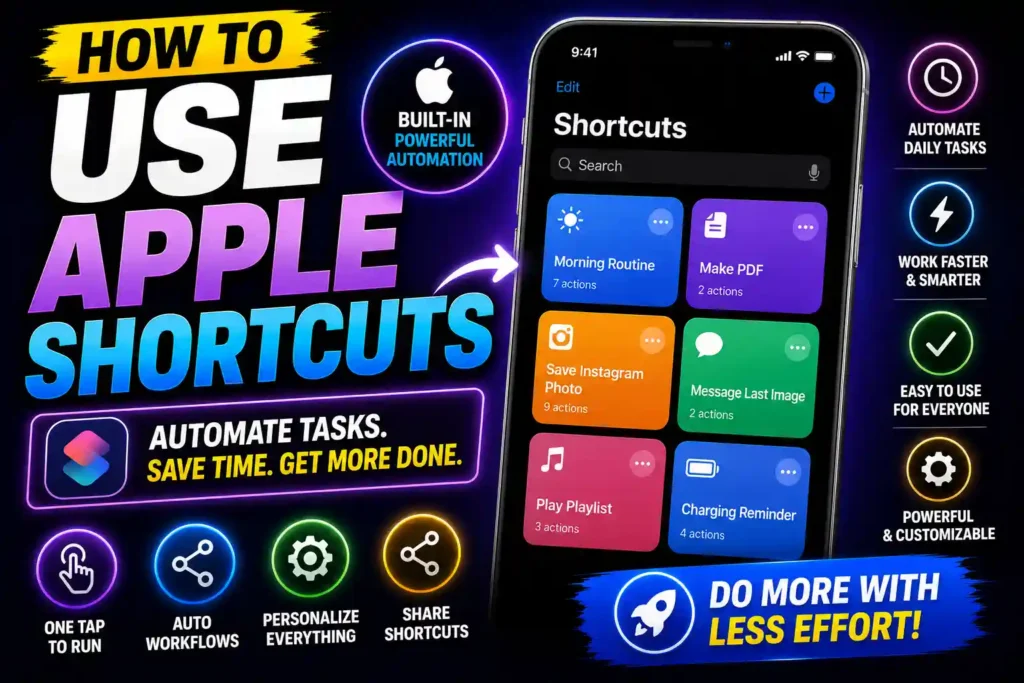
The Shortcuts app is available on iPhone, iPad, Mac, and Apple Watch, making it easier than ever to automate personal and professional workflows. For IT professionals, power users, and everyday Apple customers, learning how to use Apple Shortcuts can significantly improve productivity.
This guide explains everything you need to know, from basic shortcuts to advanced automation and scripting.
Quick Answer
Apple Shortcuts allows users to automate actions across apps and services on iPhone, iPad, Mac, and Apple Watch. Open the Shortcuts app, tap the “+” icon, add actions, customize the workflow, and save it. You can trigger shortcuts manually, with Siri, through automation, or from widgets and Apple Watch.
Table of Contents
- What Is Apple Shortcuts?
- Understanding the Shortcuts App
- Getting Started with Your First Shortcut
- Using Automation Features
- Working with Siri
- Introduction to Scripting
- Productivity Tips and Best Practices
- Using Shortcuts on iPhone
- Using Shortcuts on Apple Watch
- Using Shortcuts on Mac
- Common Errors and Fixes
- Frequently Asked Questions
- Conclusion
What Is Apple Shortcuts?
Apple Shortcuts is a built-in automation platform that helps users perform multiple actions with a single tap, voice command, or automated trigger.
Examples include:
- Sending a predefined text message
- Opening multiple apps simultaneously
- Generating PDFs automatically
- Controlling smart home devices
- Creating custom productivity workflows
- Managing files and folders
The app integrates deeply with iOS, iPadOS, macOS, watchOS, and many third-party applications.
Understanding How to Use Apple Shortcuts App
The Shortcuts app serves as a visual workflow builder.
Each shortcut consists of one or more actions. These actions execute in sequence when the shortcut runs.
Examples of actions include:
- Open App
- Send Message
- Get Current Weather
- Create Note
- Play Music
- Set Focus Mode
- Generate Files
To access the app:
- Open Shortcuts.
- Tap the “+” icon.
- Select Add Action.
- Search for desired actions.
- Arrange actions in order.
- Save and test the shortcut.
The visual interface makes it easy for beginners while still providing powerful functionality for advanced users.
Step-by-Step Guide: Creating Your First Shortcut
Follow these steps to create a simple shortcut.
Step 1: Open Shortcuts
Launch the Shortcuts app on your iPhone, iPad, or Mac.
Step 2: Create a New Shortcut
Tap the “+” button in the upper-right corner.
Step 3: Add an Action
Select Add Action.
Search for:
- Open App
- Send Message
- Play Music
- Open Website
Choose one action.
Step 4: Configure Settings
Customize the selected action.
For example:
- Choose which app opens.
- Select a contact for messaging.
- Specify a website URL.
Step 5: Save the Shortcut
Tap Done.
Your shortcut is now ready to use.
How to Use Apple Shortcuts Automation
Automation is one of the most powerful features available.
Instead of manually launching shortcuts, automations run automatically when specific conditions are met.
Common triggers include:
- Time of day
- Arrival at a location
- Leaving a location
- Connecting to Wi-Fi
- Connecting Bluetooth devices
- Opening an app
- Battery level changes
Creating an Automation
- Open Shortcuts.
- Tap Automation.
- Select Create Personal Automation.
- Choose a trigger.
- Add actions.
- Save the automation.
Example:
When arriving at work:
- Enable Focus Mode
- Open Outlook
- Launch Teams
- Turn Wi-Fi on
This can eliminate repetitive morning setup tasks.
How to Use Apple Shortcuts with Siri
Siri integration allows voice-controlled automation.
After creating a shortcut:
- Open the shortcut.
- Tap Settings.
- Enable Siri access.
- Assign a custom phrase.
Examples:
- “Start my workday”
- “Open productivity apps”
- “Begin meeting mode”
When you speak the phrase, Siri instantly executes the shortcut.
This is especially useful when driving, exercising, or multitasking.
How to Use Apple Shortcuts Scripting
Advanced users can leverage scripting actions to build more intelligent workflows.
Scripting features include:
- If statements
- Repeat loops
- Variables
- Input handling
- Conditional logic
- Date calculations
Example workflow:
- Check current time.
- Determine if it is business hours.
- Send different messages depending on the result.
Scripting turns Apple Shortcuts into a lightweight automation platform capable of handling surprisingly complex tasks.
IT professionals often use scripting actions to automate repetitive administrative workflows and file management tasks.
How to Use Apple Shortcuts Effectively
Creating shortcuts is easy, but creating useful shortcuts requires planning.
Focus on Repetitive Tasks
Identify actions you perform multiple times daily.
Examples:
- Opening work apps
- Creating notes
- Starting navigation
- Logging work hours
Combine Multiple Actions
The best shortcuts save several steps.
Instead of opening three apps manually, create one shortcut that launches all three.
Use Widgets
Add shortcuts to your Home Screen for one-tap access.
Organize Shortcuts
Create folders such as:
- Work
- Personal
- Travel
- Smart Home
This keeps large collections manageable.
Review Existing Gallery Shortcuts
Apple’s Shortcut Gallery contains pre-built workflows that can be customized to fit your needs.
How to Use Shortcuts on Apple iPhone
Many users begin with iPhone shortcuts because of the platform’s deep integration.
Popular iPhone shortcuts include:
- Morning routine automation
- Battery-saving modes
- Quick photo processing
- One-tap navigation
- Social media posting workflows
To add a shortcut to the Home Screen:
- Open Shortcuts.
- Select the shortcut.
- Tap Share.
- Choose Add to Home Screen.
Now the shortcut behaves like a standard app icon.
How to Use Shortcuts on Apple Watch
Apple Watch supports shortcuts for quick access from your wrist.
Examples include:
- Starting workouts
- Logging water intake
- Controlling smart lights
- Sending predefined messages
- Launching focus modes
To make a shortcut available on Apple Watch:
- Open Shortcuts on iPhone.
- Edit the shortcut.
- Enable Show on Apple Watch.
- Sync changes.
The shortcut can then be launched directly from the watch.
How to Use Mac Shortcuts
macOS includes the same automation platform found on iPhone and iPad.
Mac users can automate:
- File management
- Folder organization
- Application launching
- PDF generation
- Screenshot workflows
- Finder operations
Popular examples include:
- Organizing downloads automatically
- Renaming files in batches
- Creating reports
- Launching work environments
If you’re troubleshooting macOS issues before setting up advanced workflows, you may find this guide helpful:
How to Reset MacBook to Factory Settings:
https://multicaretechnical.com/how-to-reset-macbook-to-factory-settings-complete-guide-for-all-macos-versions
Common Errors and Fixes
Shortcut Doesn’t Run
Cause:
Permission issues.
Fix:
Review privacy settings and allow necessary permissions.
Automation Doesn’t Trigger
Cause:
Trigger conditions are incorrect.
Fix:
Verify location, time, Wi-Fi, or Bluetooth settings.
Siri Cannot Find Shortcut
Cause:
Shortcut name conflict.
Fix:
Rename the shortcut with a unique phrase.
Third-Party App Actions Missing
Cause:
The app does not support Shortcuts.
Fix:
Update the app or check developer documentation.
Slow Performance
Cause:
Complex workflows with many actions.
Fix:
Reduce unnecessary steps and optimize logic.
Pro Tips for Power Users
Use Variables
Variables allow dynamic workflows that adapt to user input.
Build Templates
Create reusable shortcut templates for repeated projects.
Combine Focus Modes
Automate work, sleep, and personal routines.
Integrate Smart Home Devices
Control HomeKit-compatible devices automatically.
Sync Across Devices
Use iCloud synchronization to access shortcuts everywhere.
Related Troubleshooting Guides
If you work across Apple and Windows environments, these guides may also help:
How to Fix Windows 11 Black Screen With Cursor
https://multicaretechnical.com/how-to-fix-windows-11-black-screen-with-cursor-complete-2026-guide
How to Fix Windows Update Error
https://multicaretechnical.com/how-to-fix-windows-update-error-complete-troubleshooting-guide-for-windows-11-windows-10
FAQs
1. Is Apple Shortcuts free?
Yes. The Shortcuts app comes pre-installed on most Apple devices and is completely free.
2. Can Apple Shortcuts run automatically?
Yes. Personal automations can trigger shortcuts based on time, location, battery level, Wi-Fi connections, and many other events.
3. Does Apple Shortcuts work on Mac?
Yes. macOS includes the Shortcuts app and supports many of the same automation features found on iPhone and iPad.
4. Can I use Siri to run shortcuts?
Absolutely. Siri can launch shortcuts using custom voice commands.
5. Is Apple Shortcuts useful for IT professionals?
Yes. IT professionals often use Shortcuts to automate file handling, reporting, application launching, and productivity workflows.
Conclusion
Apple Shortcuts is one of the most powerful productivity tools available in the Apple ecosystem. Whether you are using an iPhone, Apple Watch, iPad, or Mac, the platform can automate repetitive tasks, streamline workflows, and improve efficiency.
Beginners can start with simple actions like launching apps or sending messages, while advanced users can create sophisticated workflows using automation triggers, variables, and scripting tools.
By learning how to use Apple Shortcuts effectively, you can save time every day and make your Apple devices work smarter for you.