
Introduction
Resetting a MacBook to factory settings is one of the most effective ways to solve persistent software issues, remove personal data, improve performance, or prepare the device for a new owner.
Whether you’re troubleshooting system problems, upgrading to a new computer, or planning to sell your MacBook, performing a factory reset ensures that all personal information is removed and macOS is restored to a clean state.
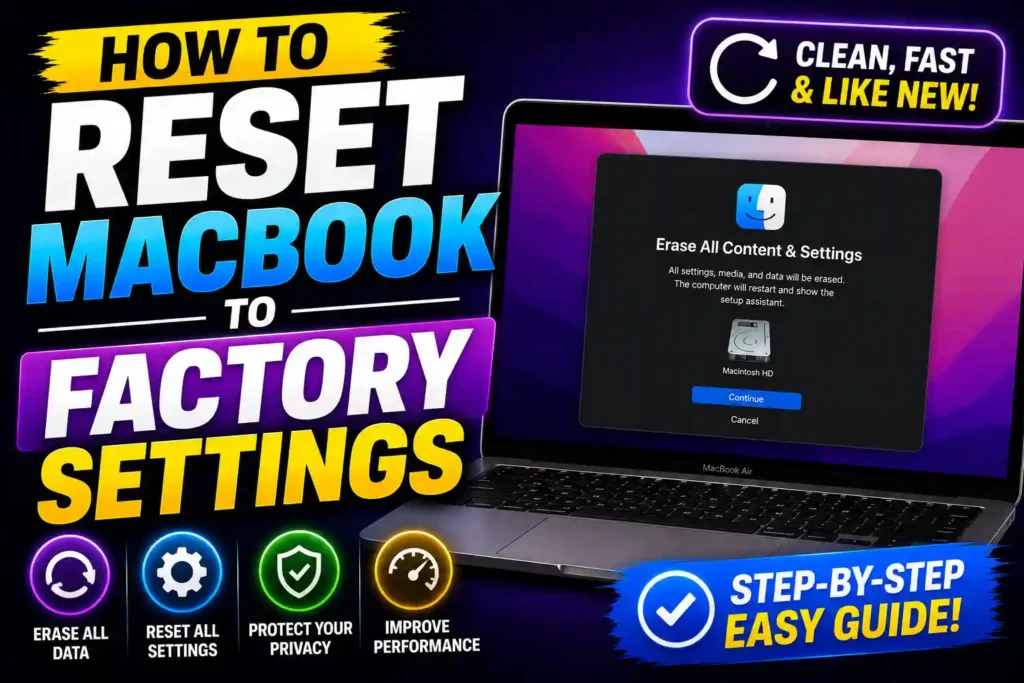
Many users hesitate because they worry about losing important files or getting stuck during the process. Fortunately, Apple provides built-in tools that make resetting a MacBook straightforward when the correct steps are followed.
This guide explains everything you need to know, including preparation steps, data backup recommendations, and instructions for various macOS versions.
Quick Answer
To reset a MacBook to factory settings:
- Back up important files using Time Machine.
- Sign out of Apple ID, iCloud, and Find My Mac.
- Restart the Mac and enter Recovery Mode.
- Open Disk Utility and erase the startup disk.
- Reinstall macOS.
- Complete setup or shut down the Mac if transferring ownership.
This process restores the MacBook to its original factory state.
Table of Contents
- What Does a Factory Reset Do?
- Things to Do Before Resetting
- Step-by-Step Factory Reset Instructions
- Resetting Without a Password
- Reset Methods for Big Sur
- Preparing a MacBook for Sale
- Reset Instructions for Monterey
- Resetting Without Logging In
- Catalina Factory Reset Guide
- What to Do When Locked Out
- Resetting Older 2017 MacBooks
- Completely Deleting All Data
- Common Problems and Fixes
- Best Practices
- FAQ
Understanding What a Factory Reset Does
A factory reset removes:
- User accounts
- Installed applications
- Personal files
- Saved settings
- Cached system data
After the reset, the MacBook returns to a clean installation of macOS, similar to when it was first purchased.
This process does not physically damage the hardware and is often recommended before transferring ownership.
Important Steps Before You Begin
Before erasing your MacBook, complete these preparations.
Back Up Your Data
Use Time Machine or another backup solution to save:
- Documents
- Photos
- Videos
- Application data
- Browser bookmarks
Once the drive is erased, recovery becomes difficult.
Sign Out of Apple Services
Sign out from:
- Apple ID
- iCloud
- iMessage
- FaceTime
This prevents Activation Lock issues later.
Ensure Stable Power
Keep the MacBook connected to power throughout the process to avoid interruptions.
Step-by-Step Guide to Reset a MacBook
The exact process depends on your Mac model and macOS version.
Enter macOS Recovery
Intel-Based MacBooks
- Shut down the Mac.
- Press the power button.
- Immediately hold:
Command (⌘) + R
- Release when the Apple logo appears.
Apple Silicon Macs (M1, M2, M3)
- Shut down the Mac.
- Press and hold the power button.
- Continue holding until Startup Options appear.
- Click Options.
- Select Continue.
You are now in macOS Recovery.
Erase the Startup Disk
- Open Disk Utility.
- Select Macintosh HD.
- Click Erase.
- Choose:
- Format: APFS
- Scheme: GUID Partition Map
- Confirm the erase process.
After completion, close Disk Utility.
Reinstall macOS
- Select Reinstall macOS.
- Click Continue.
- Follow on-screen instructions.
- Wait for installation to complete.
The MacBook will restart several times during installation.
Resetting a MacBook Without a Password
Many users search for how to reset macbook to factory settings without password when they forget their login credentials.
If FileVault is disabled, Recovery Mode may still allow access to Disk Utility and macOS reinstallation.
If Activation Lock is enabled through Apple ID, you’ll need the associated Apple account credentials before completing setup.
For legitimate owners, Apple Account Recovery can help regain access.
Factory Reset Process for Big Sur
Users researching how to reset macbook to factory settings big sur can follow the standard Recovery Mode method.
macOS Big Sur supports:
- APFS disk formatting
- Recovery Mode reinstallation
- Time Machine restoration
Before erasing, sign out of iCloud to avoid activation issues after the reset.
Preparing a MacBook for Sale
If your goal is how to reset macbook to factory settings to sell, additional precautions are important.
Remove Personal Information
Sign out of:
- Apple ID
- Messages
- FaceTime
- Music
Remove Device from Apple Account
Visit Apple’s device management page and remove the MacBook from your account.
Perform Full Disk Erase
Erase the startup disk completely before reinstalling macOS.
Once setup begins after installation, shut down the Mac so the new owner can complete initial setup.
Reset Instructions for Monterey
People searching how to reset macbook to factory settings monterey have an additional option.
macOS Monterey introduced:
Erase All Content and Settings
- Open System Preferences.
- Select System Preferences from the menu bar.
- Click Erase All Content and Settings.
- Follow the prompts.
This method is faster than manually using Recovery Mode and is recommended when available.
Resetting Without Logging In
If you’re looking for how to reset macbook to factory settings without logging in, Recovery Mode is usually the best solution.
Recovery Mode operates independently from the installed operating system.
As long as you can access Recovery Mode, you can:
- Erase disks
- Reinstall macOS
- Restore backups
without signing into the existing user account.
Catalina Factory Reset Guide
For users researching how to reset macbook to factory settings catalina, the procedure remains similar.
Catalina Reset Steps
- Create a backup.
- Sign out of Apple ID.
- Restart into Recovery Mode.
- Erase Macintosh HD.
- Reinstall macOS Catalina.
Catalina systems generally reset smoothly when Recovery Mode is functioning properly.
Resetting macOS Monterey Systems
When searching how to reset macbook to factory settings macos monterey, users can choose between:
Method 1
Erase All Content and Settings
Method 2
Traditional Recovery Mode reset
Both methods remove user data and restore a clean operating environment.
The built-in erase feature is usually faster and simpler.
What to Do When Locked Out of a MacBook
Many users need to know how to reset macbook to factory settings when locked out.
Use Recovery Mode
Recovery Mode allows access without logging into the desktop.
Reset Password First
From Recovery Mode:
- Open Utilities.
- Select Terminal.
- Type:
resetpassword- Follow the password reset wizard.
If necessary, continue with a full factory reset afterward.
Factory Resetting a 2017 MacBook
Users searching how to reset macbook to factory settings 2017 can follow the standard Intel Mac procedure.
Most 2017 models support:
- Command + R Recovery
- Internet Recovery
- APFS formatting
- Full macOS reinstall
Internet Recovery can be used if the recovery partition is unavailable.
Completely Erasing Everything
If your objective is how to reset macbook to factory settings and delete everything, ensure you erase all internal storage volumes.
Recommended Process
- Enter Recovery Mode.
- Open Disk Utility.
- Show All Devices.
- Erase the entire internal drive.
- Reinstall macOS.
This removes:
- Accounts
- Applications
- Documents
- Photos
- Settings
The MacBook becomes essentially brand new from a software perspective.
Common Errors and Fixes
Recovery Mode Not Loading
Try:
- Command + R
- Option + Command + R
- Shift + Option + Command + R
These launch different recovery environments.
Activation Lock Issues
Ensure the MacBook is removed from the associated Apple ID before transferring ownership.
Disk Utility Cannot Erase Drive
Use “Show All Devices” and erase the parent drive rather than individual volumes.
macOS Installation Fails
Check:
- Internet connection
- Available storage
- Apple server status
Network troubleshooting techniques similar to those used in router DNS configuration can sometimes help:
Best Practices and Pro Tips
Always Create a Backup
Never begin a reset without verifying backups.
Keep Recovery Tools Updated
Install major macOS updates before resetting when possible.
Verify Hardware Health
Storage failures can interfere with reinstallation.
Maintain Firmware Updates
System firmware updates improve stability and compatibility.
IT professionals managing mixed environments may also find these resources useful:
Windows update troubleshooting:
Hardware optimization guide:
Frequently Asked Questions
1. Does factory resetting a MacBook delete everything?
Yes. A proper factory reset removes personal files, user accounts, applications, and settings.
2. Can I reset a MacBook without knowing the password?
Yes. Recovery Mode may allow you to erase and reinstall macOS, although Activation Lock may still require Apple ID verification.
3. How long does a MacBook factory reset take?
Most resets take between 30 minutes and 2 hours, depending on internet speed and Mac model.
4. Do I need internet access to reinstall macOS?
In most cases, yes. Internet access is required to download installation files unless you use a bootable installer.
5. Should I reinstall macOS before selling my MacBook?
Yes. Reinstalling macOS ensures the new owner receives a clean system and protects your personal information.
Conclusion
Factory resetting a MacBook is one of the best ways to troubleshoot software issues, prepare a computer for resale, or start fresh with a clean operating system. By backing up important data, signing out of Apple services, erasing the startup disk, and reinstalling macOS, you can safely restore your MacBook to its original state.
Whether you’re using Monterey, Big Sur, Catalina, a 2017 MacBook, or dealing with a locked-out device, the methods covered in this guide provide a reliable path to a successful factory reset.