
A dual-monitor setup can significantly improve productivity, multitasking, and workflow efficiency. Whether you’re an IT professional managing multiple applications, a content creator editing videos, a programmer writing code, or an office worker handling spreadsheets, adding a second monitor can transform your computing experience.
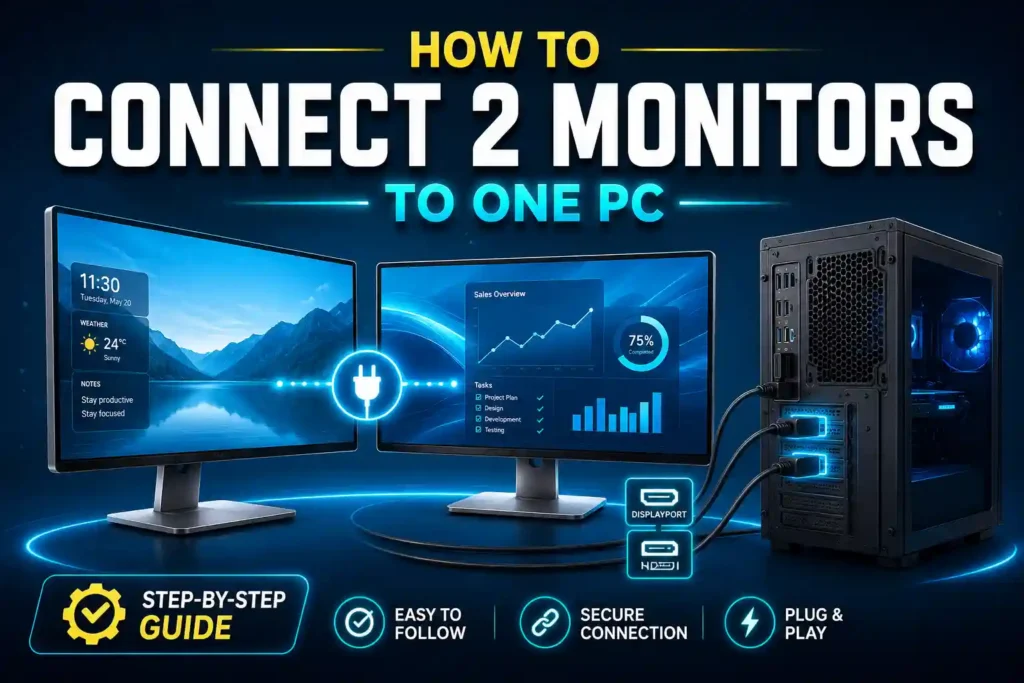
Modern PCs and laptops support multiple displays, but the connection method depends on the available ports and hardware capabilities. Some systems have multiple HDMI or DisplayPort outputs, while others may require adapters, docking stations, or USB graphics solutions.
This guide explains how to connect two monitors to one PC using HDMI, DisplayPort, VGA, and other connection methods on both Windows 10 and Windows 11.
Quick Answer
To connect two monitors to one PC:
- Check your PC’s available video ports.
- Connect each monitor using HDMI, DisplayPort, VGA, USB-C, or other supported outputs.
- Turn on both monitors.
- Open Windows Settings.
- Go to System > Display.
- Click Detect if Windows does not automatically recognize the monitors.
- Choose Extend these displays to use both monitors independently.
Once configured, you can drag windows between screens and improve multitasking.
Table of Contents
- Understanding Dual Monitor Setups
- Requirements Before Connecting Two Monitors
- How to Connect Two Monitors to One PC HDMI
- How to Connect Two Monitors to One PC With One HDMI Port
- How to Connect Two Monitors to One PC Windows 10
- How to Connect Two Monitors to One PC Windows 11
- How to Connect Two Monitors to One PC With VGA
- How to Connect Two Monitors to One PC With HDMI Splitter
- How to Connect Two Monitors to One PC Without HDMI
- How to Connect Two Monitors to One PC Without DisplayPort
- How to Connect Two Monitors to One PC With DisplayPort
- Common Errors and Fixes
- Best Practices and Pro Tips
- FAQs
- Conclusion
Understanding Dual Monitor Setups
A dual-monitor setup allows one computer to display content across two separate screens.
Benefits include:
- Increased productivity
- Better multitasking
- Easier document comparison
- Improved coding workflow
- Enhanced video editing workspace
- Better monitoring of business dashboards
Most modern graphics cards support at least two displays simultaneously.
Requirements Before Connecting Two Monitors
Before starting, verify that your PC supports multiple displays.
Check for:
- Multiple HDMI ports
- DisplayPort outputs
- USB-C video output
- VGA ports
- Dedicated graphics card support
- Updated display drivers
If your computer has only one display output, additional hardware may be required.
How to Connect Two Monitors to One PC HDMI
HDMI is the most common method for connecting monitors.
Using Two HDMI Ports
If your desktop PC has two HDMI outputs:
- Turn off the computer.
- Connect Monitor 1 to HDMI Port 1.
- Connect Monitor 2 to HDMI Port 2.
- Turn on both monitors.
- Start Windows.
- Open Display Settings.
- Select Extend These Displays.
Windows should automatically detect both screens.
How to Connect Two Monitors to One PC With One HDMI Port
Many users have only one HDMI port available.
In this case, you have several options:
Option 1: Use Another Video Port
Check whether your PC includes:
- DisplayPort
- VGA
- DVI
- USB-C
Connect the second monitor using one of these ports.
Option 2: USB to HDMI Adapter
A USB graphics adapter creates an additional display output.
This is commonly used on laptops and compact desktop systems.
Option 3: Docking Station
USB-C and Thunderbolt docking stations can support multiple external displays from a single connection.
This is often the best solution for business users.
How to Connect Two Monitors to One PC Windows 10
Windows 10 makes dual-monitor configuration simple.
Setup Process
- Connect both monitors.
- Right-click the desktop.
- Select Display Settings.
- Scroll to Multiple Displays.
- Choose:
- Extend these displays
- Duplicate these displays
- Show only on Monitor 1
- Show only on Monitor 2
- Click Apply.
Most users prefer Extend these displays.
How to Connect Two Monitors to One PC Windows 11
Windows 11 includes improved display management features.
Steps
- Connect both monitors.
- Open Settings.
- Navigate to System > Display.
- Select both monitors.
- Arrange screen positions by dragging the monitor icons.
- Choose Extend these displays.
- Save changes.
For Windows 11 customization tips, see:
How to Connect Two Monitors to One PC With VGA
Older computers may still use VGA connections.
Setup Steps
- Connect the first monitor using VGA.
- Connect the second monitor through HDMI, DisplayPort, or another VGA output.
- Power on the monitors.
- Configure displays in Windows.
Important Note
VGA only transmits video, not audio, and provides lower image quality than HDMI or DisplayPort.
How to Connect Two Monitors to One PC With HDMI Splitter
Many users believe an HDMI splitter creates a dual-monitor workspace.
Important
A standard HDMI splitter duplicates the same image on both screens.
It does NOT create an extended desktop.
Use an HDMI splitter only if you want identical content displayed on both monitors.
For independent dual-monitor functionality, use:
- Multiple display outputs
- USB display adapters
- Docking stations
- Multi-monitor graphics cards
How to Connect Two Monitors to One PC Without HDMI
If HDMI is unavailable, several alternatives exist.
Alternative Connections
DisplayPort
Provides excellent video quality and supports high refresh rates.
USB-C
Many modern laptops support video output through USB-C.
VGA
Suitable for older displays.
DVI
Common on older desktop computers.
Thunderbolt
Offers powerful multi-monitor support on professional workstations.
How to Connect Two Monitors to One PC Without DisplayPort
Not every computer includes DisplayPort.
Alternative options include:
- HDMI
- USB-C
- VGA
- DVI
- Thunderbolt
- Docking stations
Most home and office users can run dual monitors successfully without DisplayPort.
How to Connect Two Monitors to One PC With DisplayPort
DisplayPort is often the preferred connection for professional setups.
Setup Instructions
- Connect Monitor 1 to DisplayPort Output 1.
- Connect Monitor 2 to DisplayPort Output 2.
- Turn on both monitors.
- Open Windows Display Settings.
- Select Extend Displays.
DisplayPort supports:
- Higher resolutions
- Better refresh rates
- Daisy chaining (on supported hardware)
- Professional workstation environments
Common Errors and Fixes
Second Monitor Not Detected
Fix
- Click Detect in Display Settings.
- Check cable connections.
- Restart the PC.
Black Screen on Second Monitor
Fix
- Verify monitor power.
- Test another cable.
- Update graphics drivers.
Wrong Display Resolution
Fix
Open:
Settings → System → Display → Resolution
Choose the monitor’s recommended resolution.
Duplicate Instead of Extend
Fix
Go to Display Settings and select:
Extend These Displays
instead of Duplicate.
Adapter Not Working
Fix
Install the latest driver for the USB display adapter or docking station.
Best Practices and Pro Tips
Use Matching Monitor Resolutions
Similar resolutions provide a smoother user experience.
Keep Graphics Drivers Updated
Updated drivers improve compatibility and performance.
Position Monitors Ergonomically
Align monitors at eye level to reduce neck strain.
Use DisplayPort When Possible
DisplayPort generally offers more flexibility than HDMI for multi-monitor setups.
Organize Your Workspace
Use Windows Snap Layouts and virtual desktops for maximum productivity.
If web applications appear broken on either display, check whether JavaScript is enabled:
For graphics-intensive websites and web apps, this guide may also help:
Frequently Asked Questions
1. Can one PC run two monitors at the same time?
Yes. Most modern desktops and laptops support at least two displays.
2. Can I connect two monitors using one HDMI port?
Yes, but usually through adapters, docking stations, or additional display outputs. A standard HDMI splitter only duplicates the display.
3. Does Windows 11 support dual monitors?
Yes. Windows 11 includes built-in support for multiple monitors.
4. What is the best connection for dual monitors?
DisplayPort is generally preferred, followed by HDMI.
5. Why is my second monitor not detected?
Common causes include faulty cables, outdated drivers, incorrect display settings, or unsupported hardware.
Conclusion
Connecting two monitors to one PC is one of the easiest ways to increase productivity and improve workflow efficiency. Whether you’re using HDMI, DisplayPort, VGA, USB-C, or a docking station, Windows 10 and Windows 11 provide excellent built-in support for multiple displays.
Before purchasing adapters or splitters, verify your computer’s available video outputs and graphics capabilities. In most cases, configuring a dual-monitor setup only takes a few minutes and delivers immediate benefits for multitasking, content creation, business operations, and IT management.
With the right cables, proper display settings, and updated drivers, you can create a reliable dual-monitor workstation that helps you work faster and more efficiently.