
1. Introduction
Excel is more than just a spreadsheet tool—it’s a powerful data analysis engine used by IT professionals, analysts, and businesses across the United States. One of the most essential skills in Excel is understanding how to compare values using operators like less than (<), greater than (>), and equal to (=).
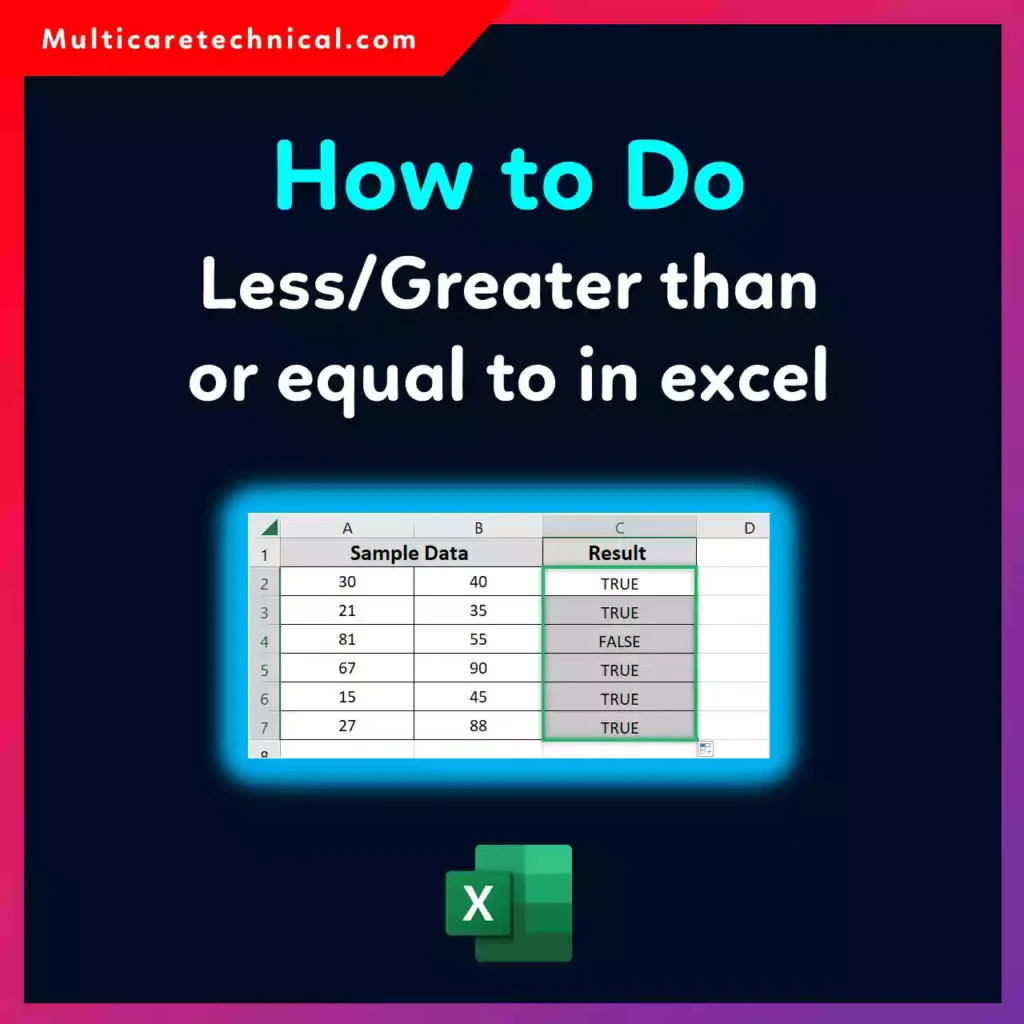
These operators help you filter data, create dynamic formulas, perform logical tests, and automate decision-making processes. Whether you’re evaluating sales performance, validating data, or building dashboards, mastering these comparison operators will significantly boost your efficiency.
In this guide, you’ll learn exactly how to use less than, greater than, and equal to in Excel, with clear examples, step-by-step instructions, and pro tips.
2. Quick Answer (Featured Snippet)
To use less than, greater than, or equal to in Excel:
- Less than:
< - Greater than:
> - Equal to:
= - Less than or equal to:
<= - Greater than or equal to:
>=
Example formula:
=A1>=50
This checks if the value in cell A1 is greater than or equal to 50. It returns TRUE or FALSE.
3. Table of Contents
- What Are Comparison Operators in Excel?
- Why These Operators Matter
- Types of Comparison Operators
- How Excel Evaluates Conditions
- Step-by-Step Guide with Examples
- Using Operators with IF Function
- Using Operators in Conditional Formatting
- Common Errors and Fixes
- Best Practices / Pro Tips
- FAQs
- Conclusion
4. Explanation Section
What Are Comparison Operators?
Comparison operators are symbols used to compare two values. Excel evaluates these comparisons and returns either:
- TRUE (condition met)
- FALSE (condition not met)
Types of Comparison Operators in Excel
| Operator | Meaning |
|---|---|
= | Equal to |
< | Less than |
> | Greater than |
<= | Less than or equal to |
>= | Greater than or equal to |
<> | Not equal to |
Why These Operators Matter
These operators are used in:
- Logical formulas (IF, COUNTIF, SUMIF)
- Data validation rules
- Conditional formatting
- Filtering and sorting
For example, IT professionals often use them to flag errors, validate thresholds, or automate reports.
How Excel Evaluates Conditions
When you write:
=A1<100
Excel checks:
- Is the value in A1 less than 100?
If yes → TRUE
If no → FALSE
5. Step-by-Step Guide
Example 1: Basic Comparison
Step 1: Enter Data
Put a number in cell A1 (e.g., 75)
Step 2: Apply Formula
=A1>50
Step 3: Result
- Returns TRUE if A1 is greater than 50
- Otherwise returns FALSE
Example 2: Using Greater Than or Equal To
=A1>=75
✔ TRUE if A1 is 75 or more
✔ FALSE if less than 75
Example 3: Using Less Than or Equal To
=A1<=100
✔ Checks if value is 100 or below
Example 4: Using IF Function
You can combine operators with the IF function:
=IF(A1>=60,"Pass","Fail")
✔ Returns “Pass” if A1 is 60 or more
✔ Otherwise returns “Fail”
Example 5: Using COUNTIF
=COUNTIF(A1:A10,">=50")
✔ Counts how many values are greater than or equal to 50
Example 6: Conditional Formatting
You can highlight cells based on conditions:
- Select your data
- Go to Home → Conditional Formatting → New Rule
- Choose “Format only cells that contain”
- Set condition (e.g., greater than 100)
- Choose a color
💡 To improve readability, you can also highlight rows:
👉 https://multicaretechnical.com/how-to-highlight-every-other-row-in-excel-complete-guide-for-it-professionals
6. Common Errors and Fixes
❌ Using Quotes Incorrectly
Problem:
=A1=">50"
Fix:
=A1>50
Quotes are only used in functions like COUNTIF.
❌ Text vs Numbers
Problem: Excel treats numbers as text
Fix:
- Convert text to numbers using VALUE()
- Remove extra spaces
❌ Wrong Operator
Problem: Using = instead of >=
Fix:
Double-check operator symbols carefully
❌ Formula Not Updating
Problem: Results don’t change
Fix:
- Check calculation mode (Automatic)
- Press F9 to refresh
❌ Errors After Copying Sheet
If your formulas break after duplication:
👉 Learn how to safely duplicate sheets:
https://multicaretechnical.com/how-to-make-a-copy-of-an-excel-sheet-step-by-step-guide-for-beginners-it-pros
7. Best Practices / Pro Tips
✔ Combine Operators with Functions
Use operators with:
- IF
- SUMIF
- COUNTIF
- AVERAGEIF
✔ Use Named Ranges
Improves readability and reduces errors in large spreadsheets.
✔ Keep Data Clean
Remove unnecessary spaces and ensure consistent formatting.
✔ Use Conditional Formatting for Visualization
Highlight values dynamically based on conditions.
✔ Avoid Hardcoding Values
Instead of:
=A1>50
Use:
=A1>B1
This makes formulas dynamic.
✔ Be Careful with External Data
If you’re using data from external links, ensure security:
👉 https://multicaretechnical.com/how-should-you-approach-a-compressed-url-complete-security-guide
8. FAQs
1. How do I use greater than or equal to in Excel?
Use the >= operator in a formula, such as:
=A1>=50
2. What is the difference between = and == in Excel?
Excel uses only = for equality. It does not use == like programming languages.
3. Can I use these operators in conditional formatting?
Yes, you can apply conditions like greater than or less than in conditional formatting rules.
4. How do I count values greater than a number?
Use:
=COUNTIF(range,">50")
5. Why is my formula returning FALSE?
Possible reasons:
- Incorrect value
- Data type mismatch
- Wrong operator